

RankTera User Guide
Step-by-step help for every feature. Use the arrows, or click the right half of a picture, to move through a lesson.
Create Your Account
Signing up takes a minute and costs nothing. You get a free 14-day plan as soon as you confirm your email address, and no card is asked for.
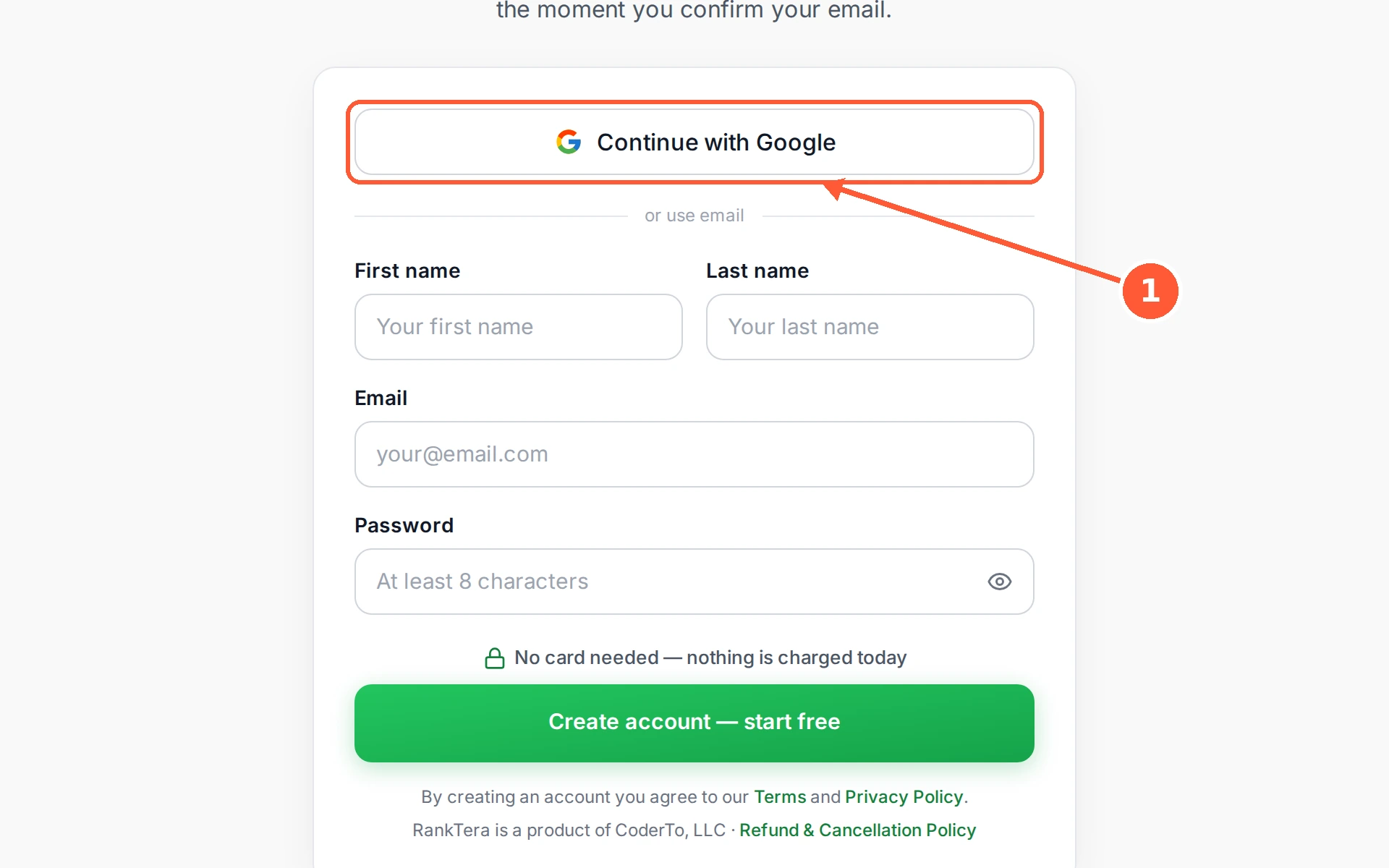
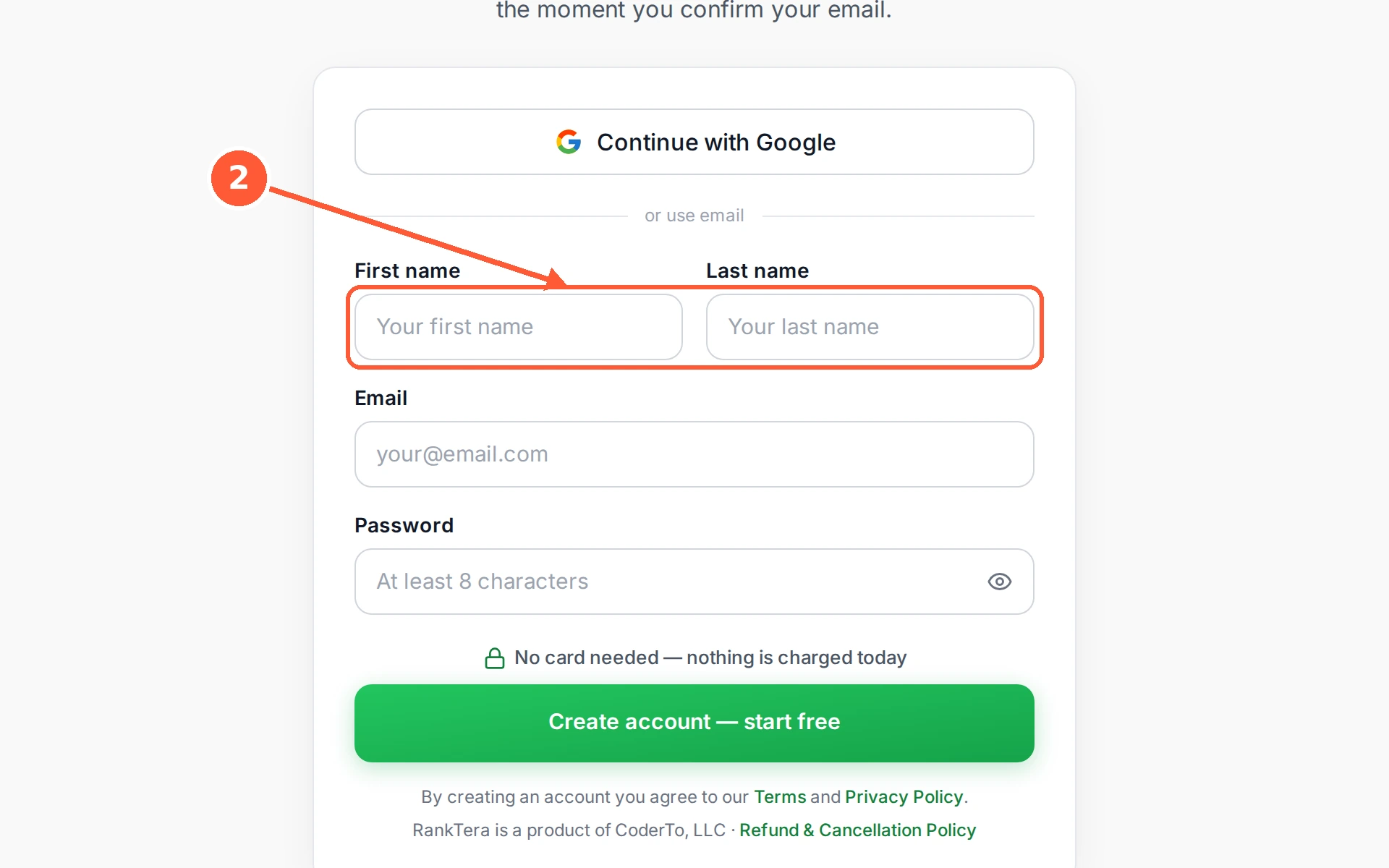
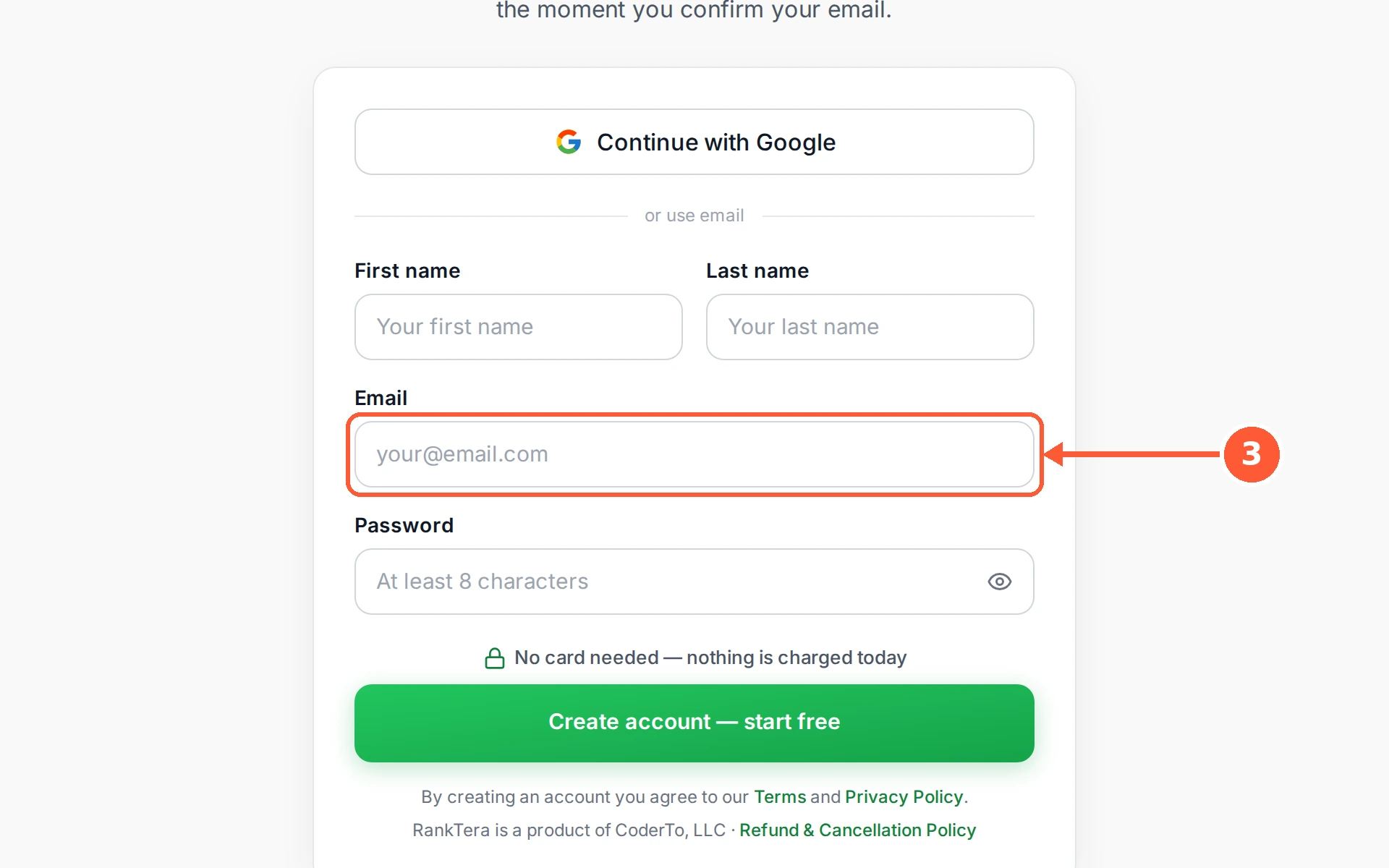
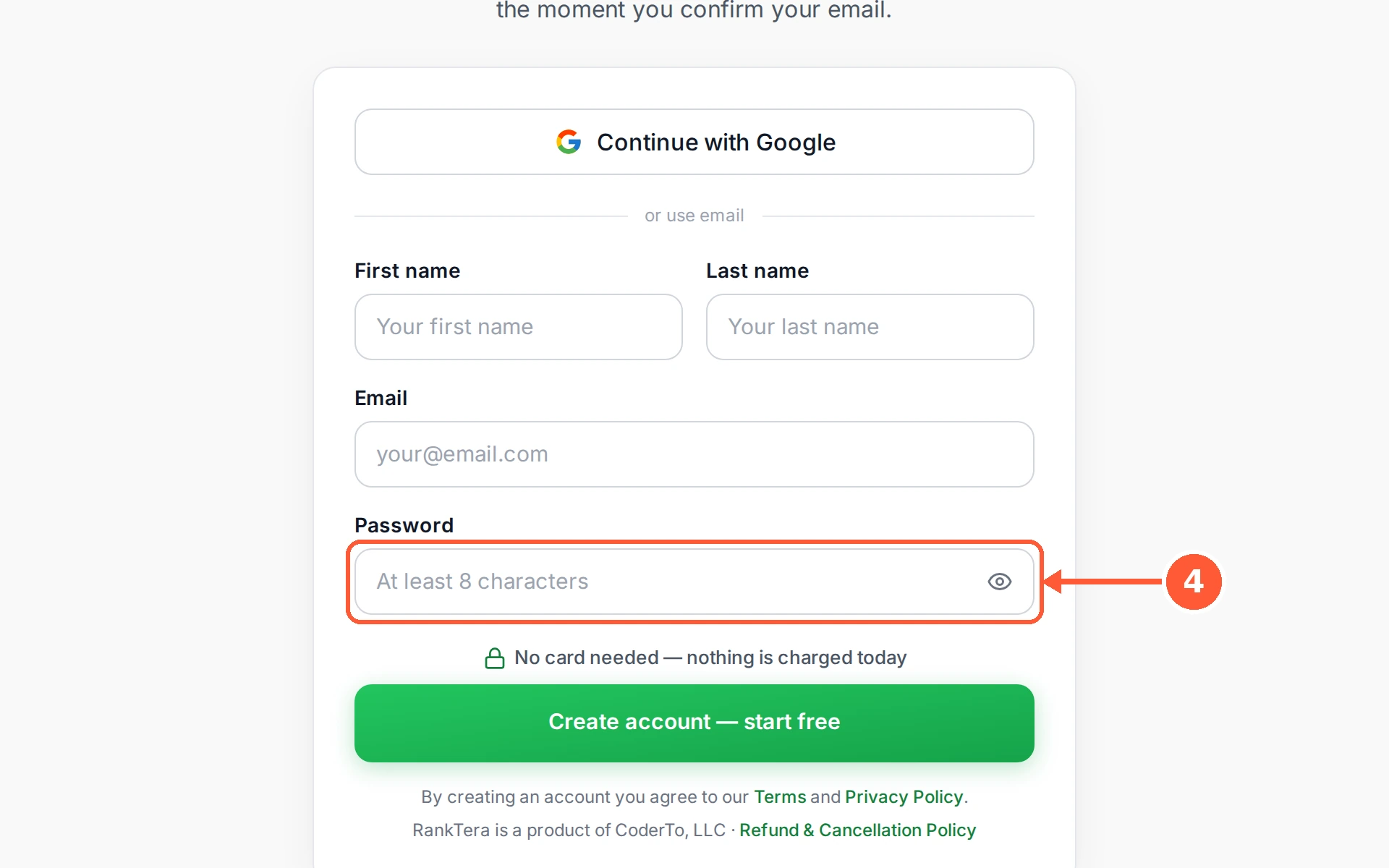
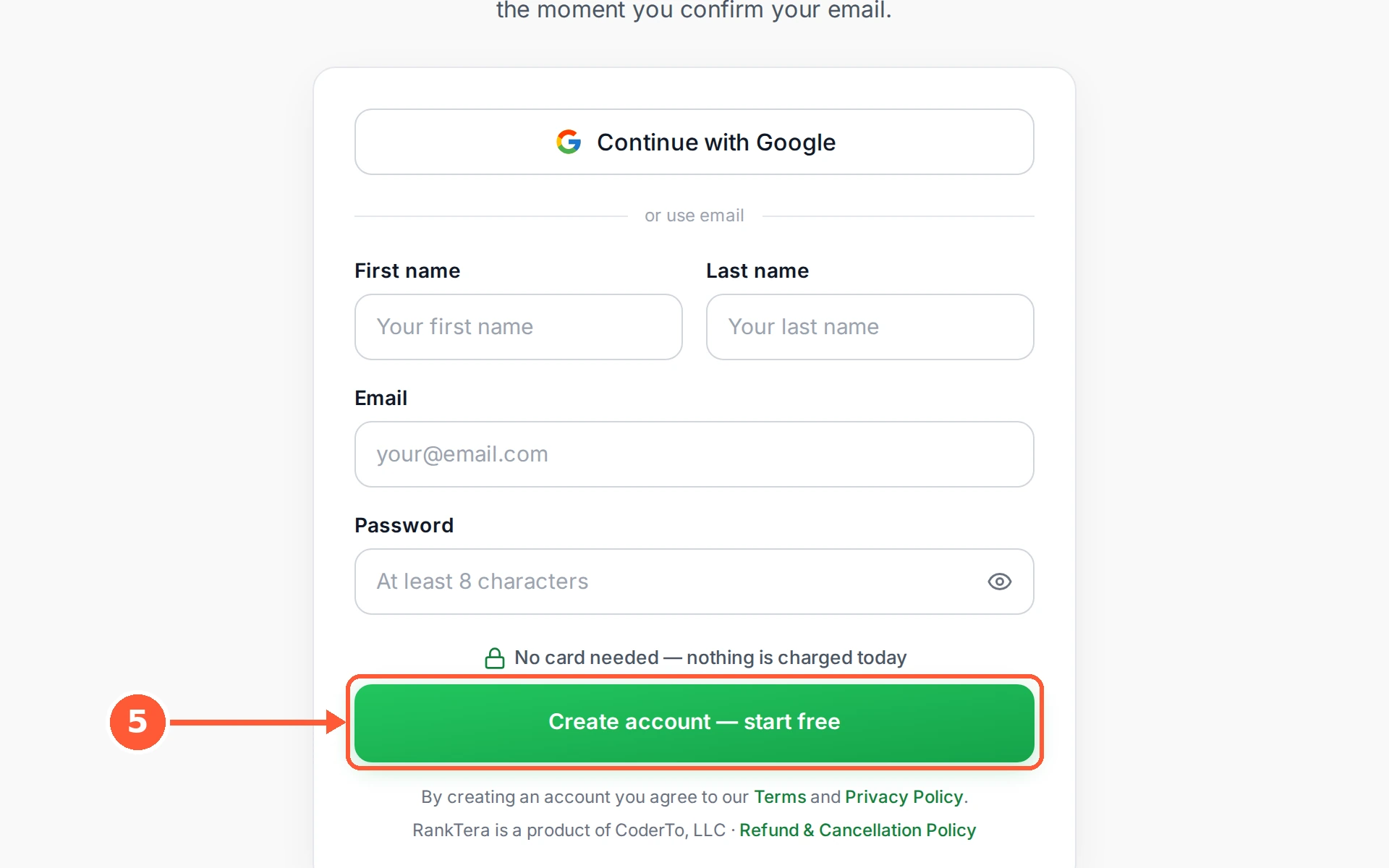
1Open the sign-up page. The quickest way in is Continue with Google, which uses the Google account you are already signed in to and skips the form entirely.1 / 5
💡 Good to Know
- The confirmation email can take a minute to arrive. If it does not, check your spam folder before asking for another one.
- Signing up with Google means there is no password to remember or lose.
- One account can hold several websites, so there is no need to sign up twice for a second site.
Add Your First Website
Everything in RankTera hangs off a website. Add yours once and it becomes the home for your keywords, your competitors and your articles.
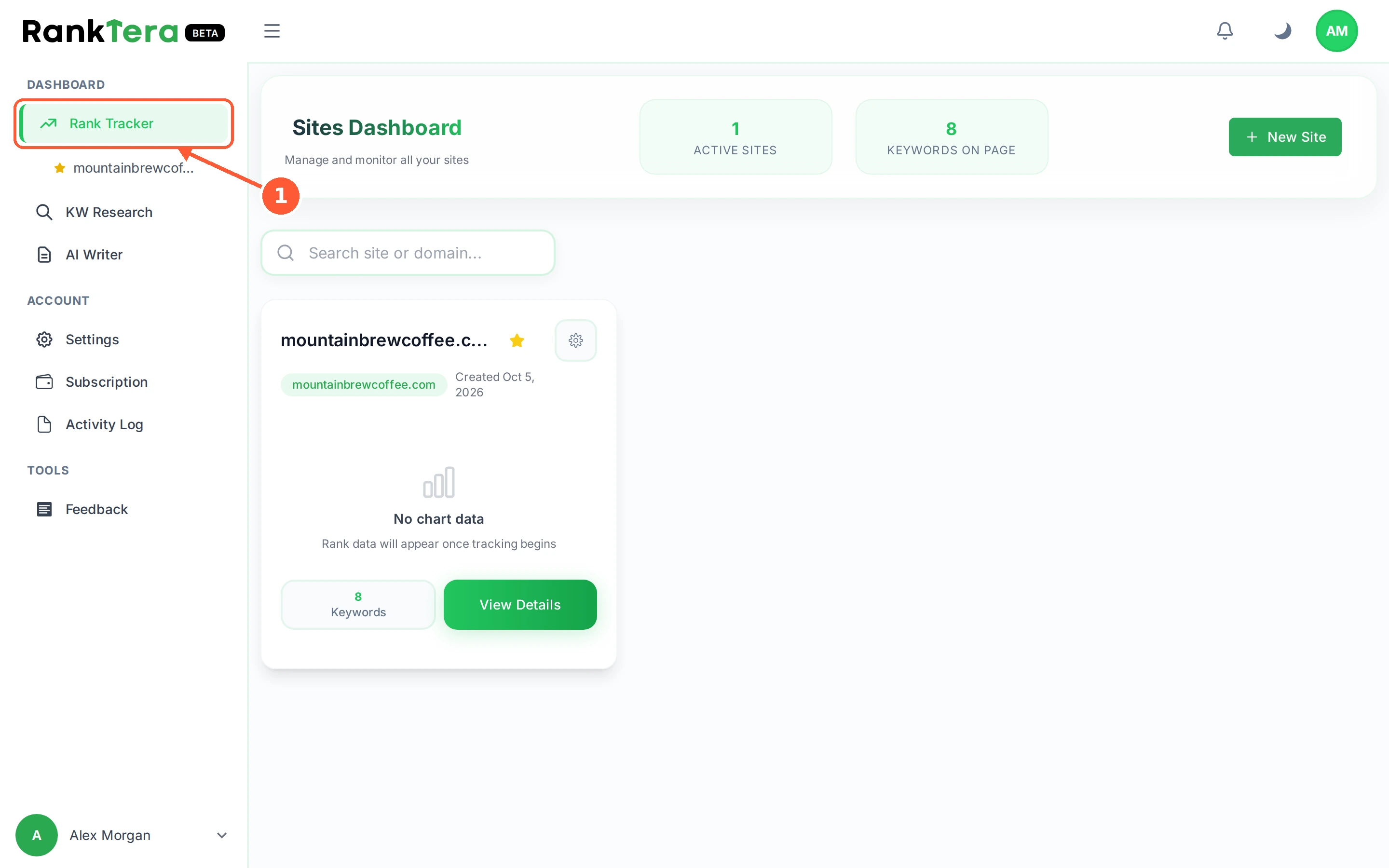
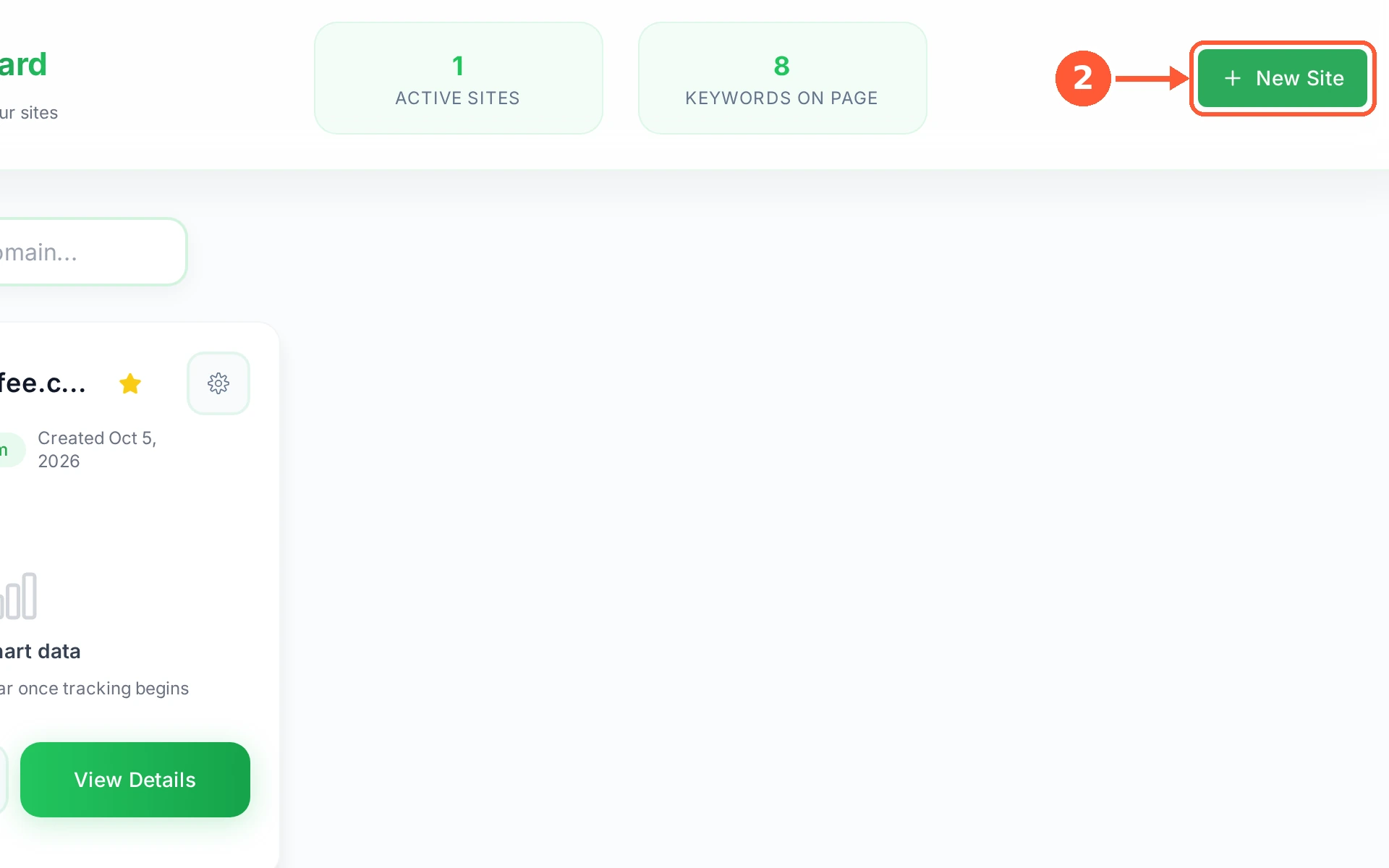
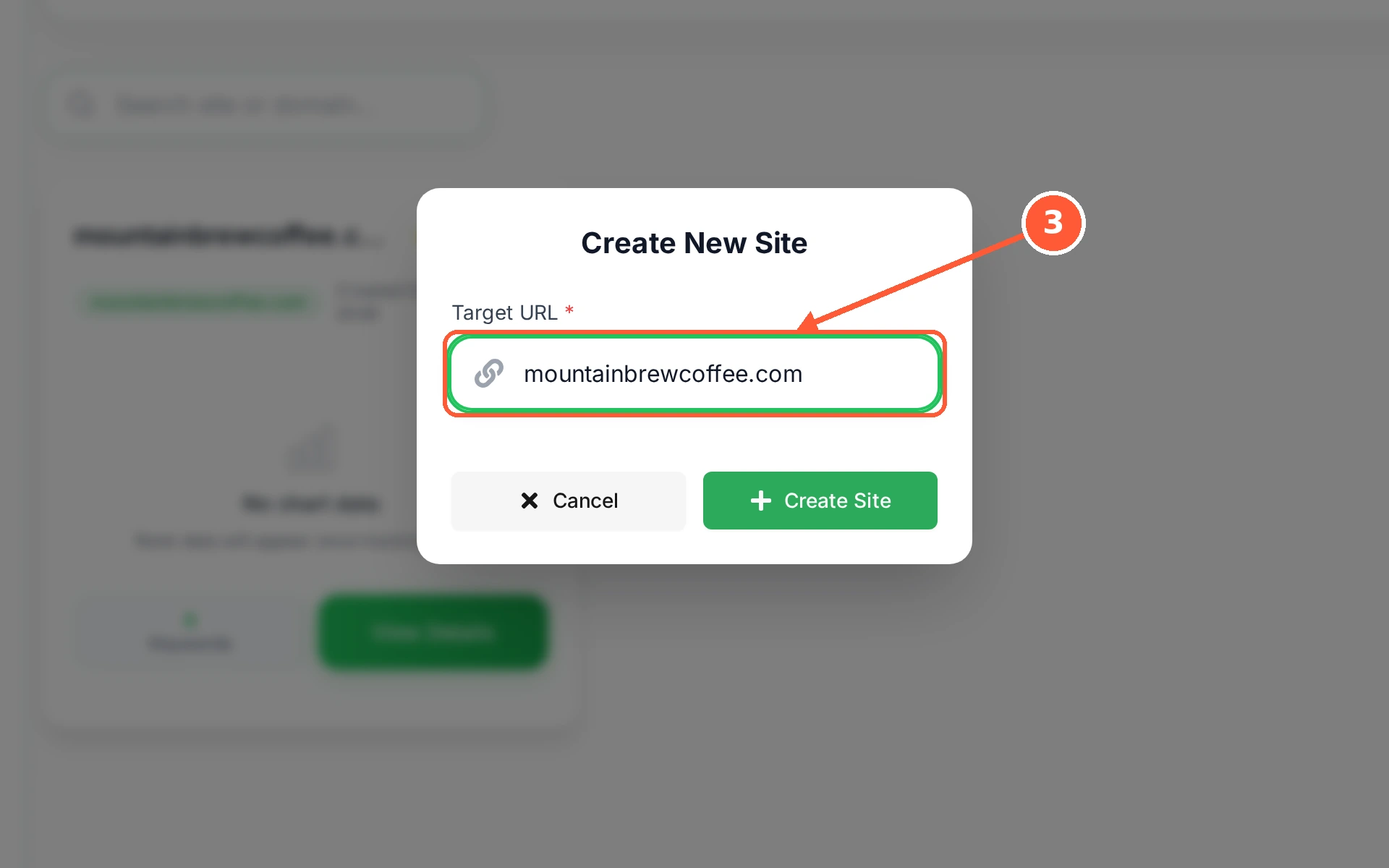
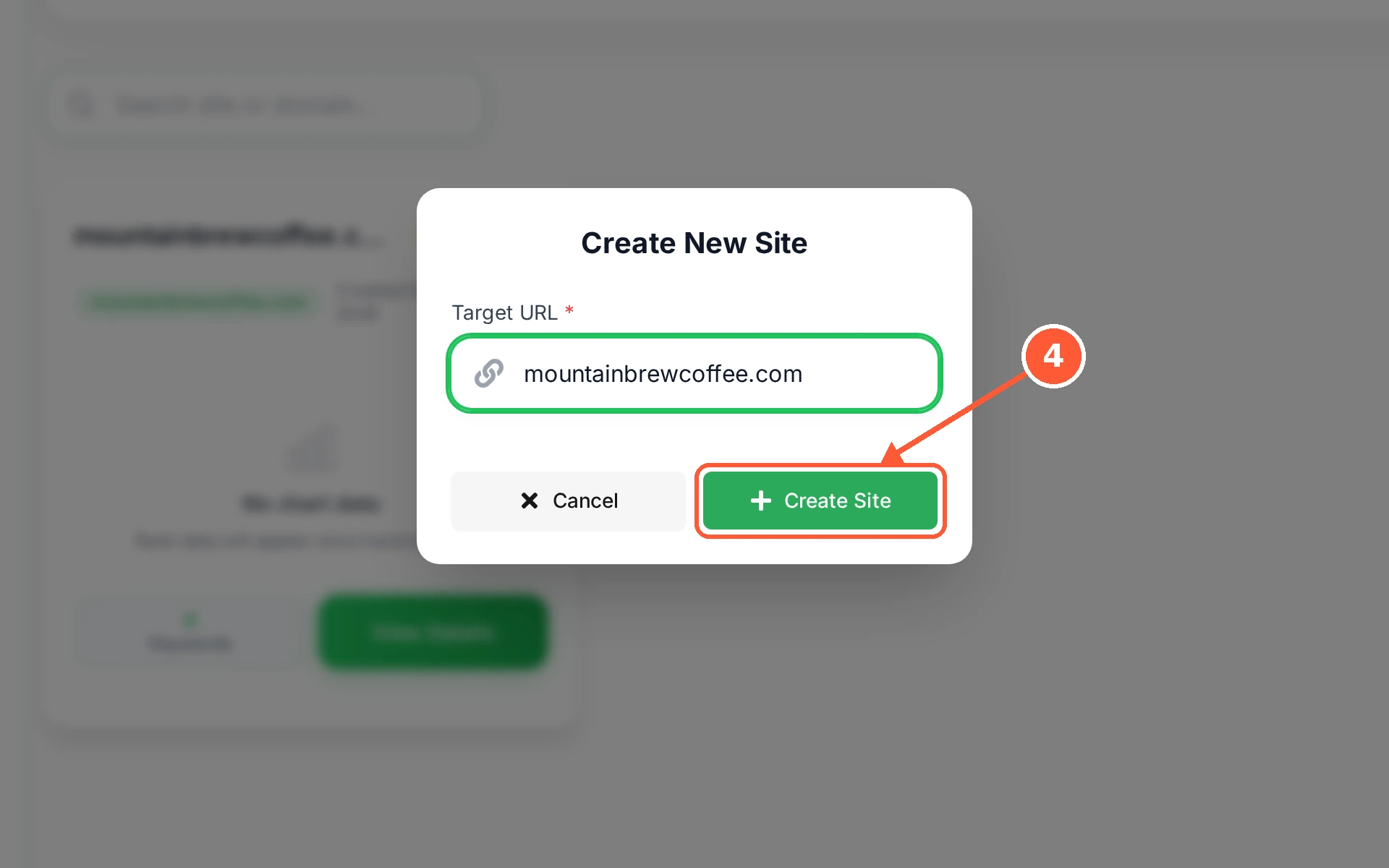
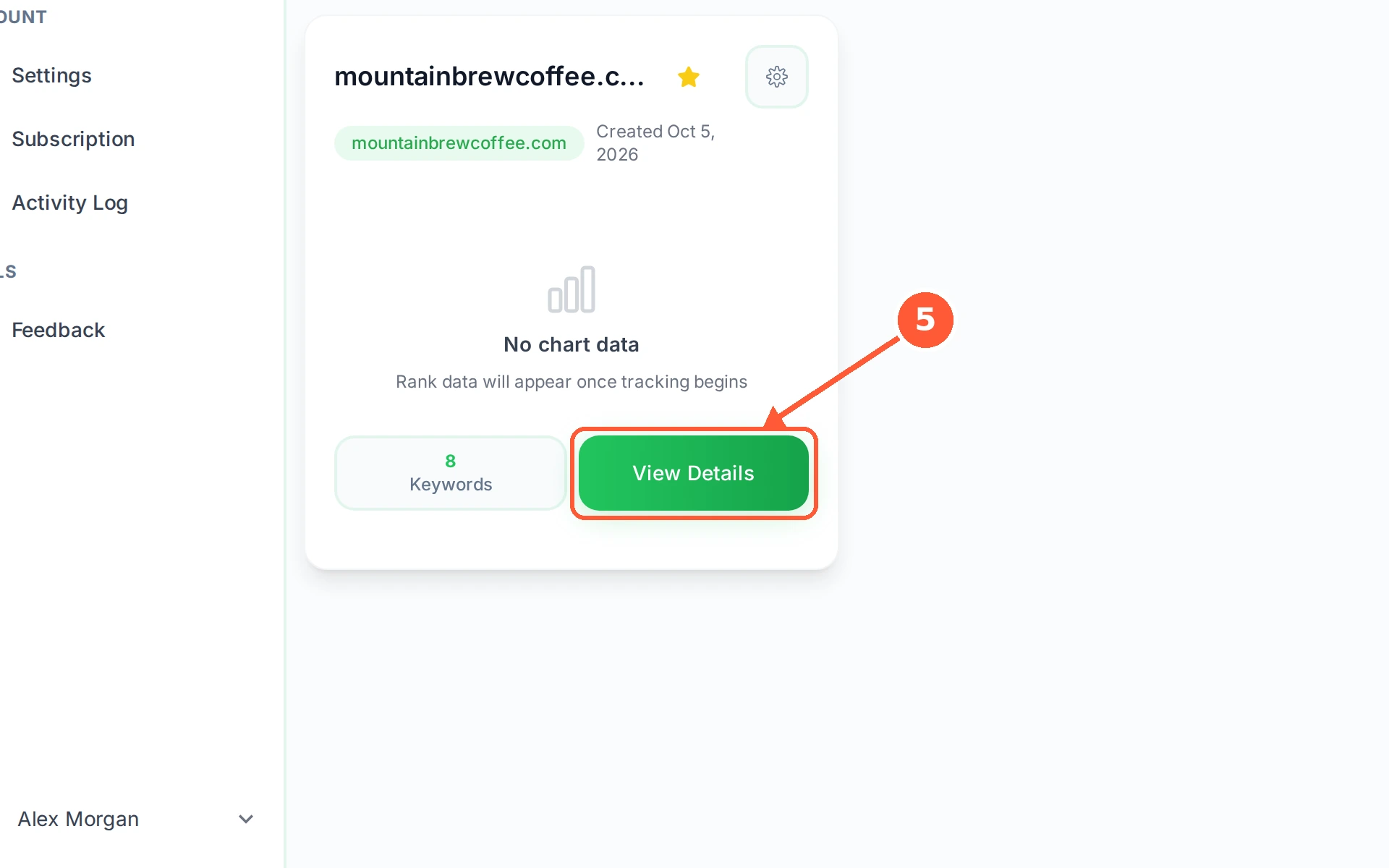
1In the left menu open Rank Tracker. This is the Sites Dashboard, the list of every website on your account.1 / 5
💡 Good to Know
- Add the address people actually visit. If your site answers on www, use the www address.
- The card shows a rank chart once there is more than one day of history, so it stays empty on your first day.
- You can add more sites later from the same New Site button, up to the number your plan allows.
Add Your First Keywords
Tell RankTera which searches to watch. Each keyword you add is checked in Google for the country you pick, and its position is recorded for you.
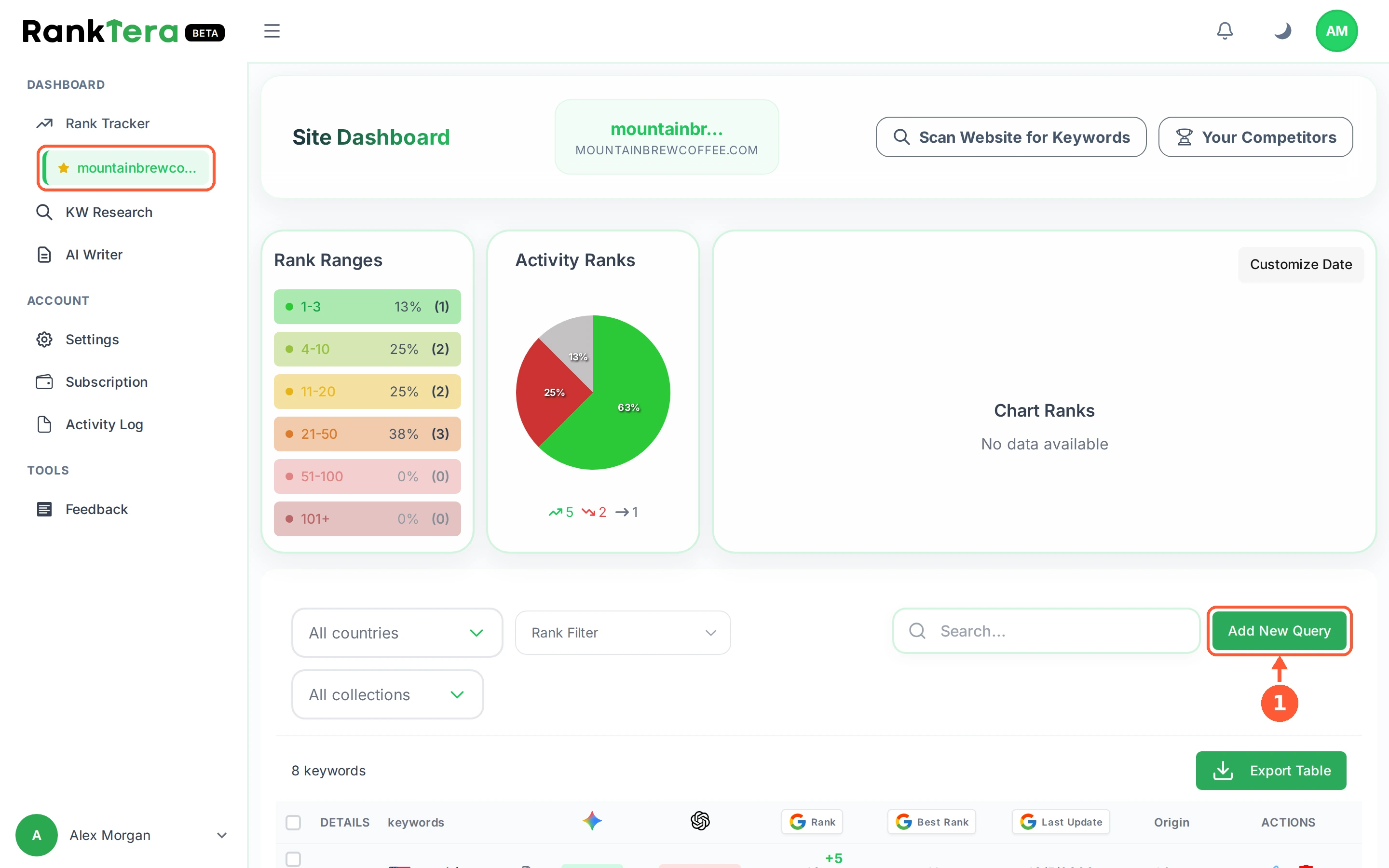
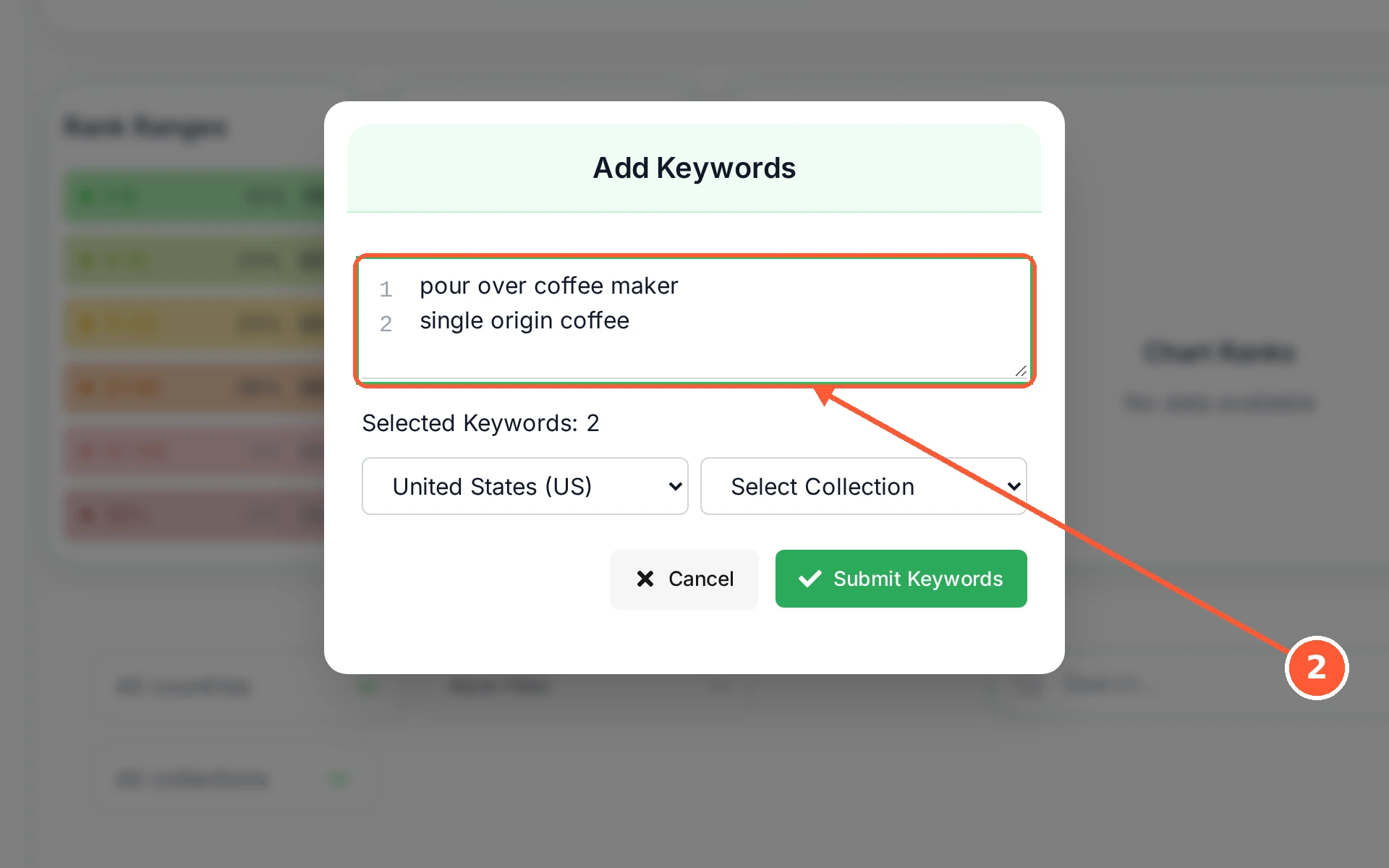
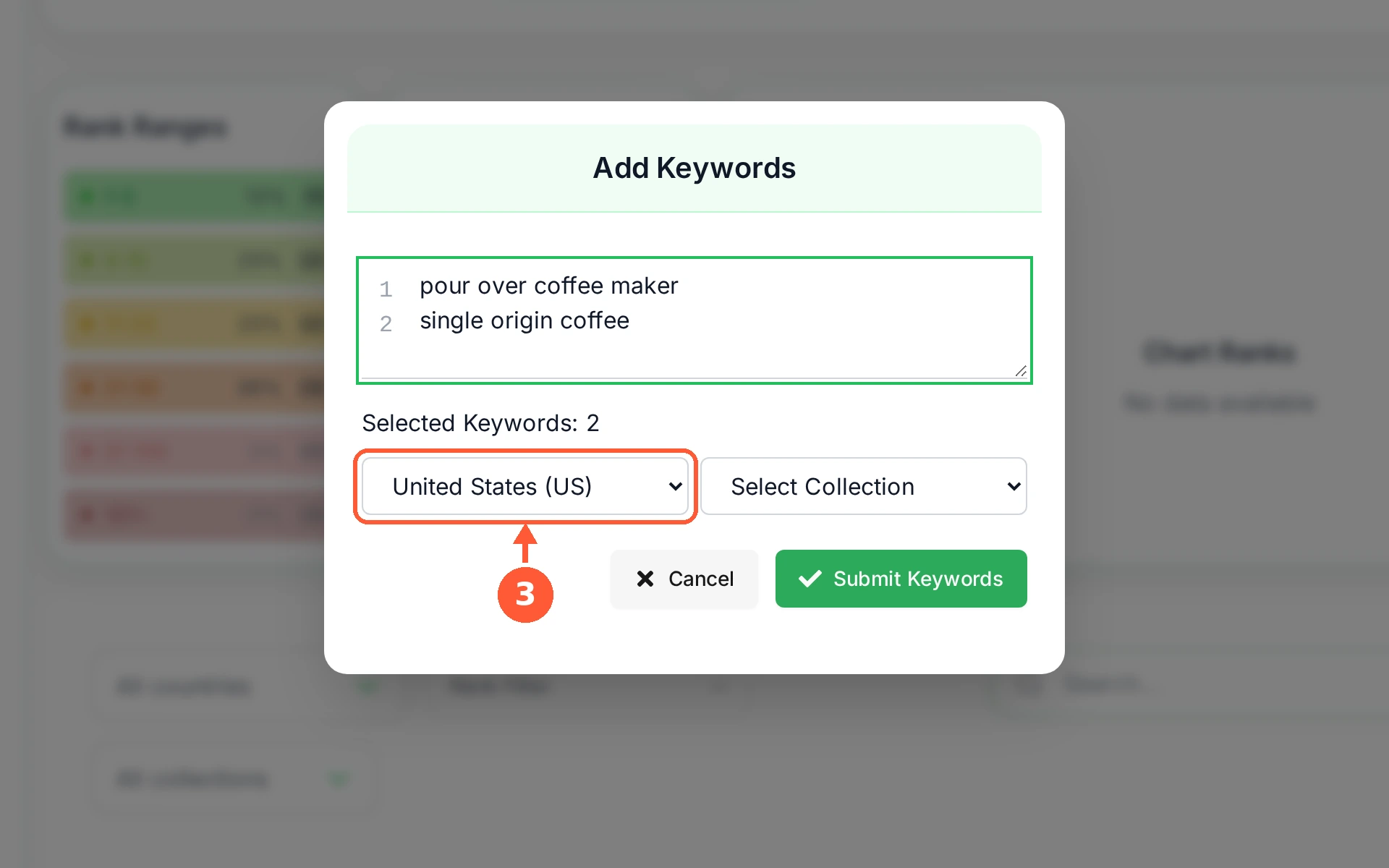
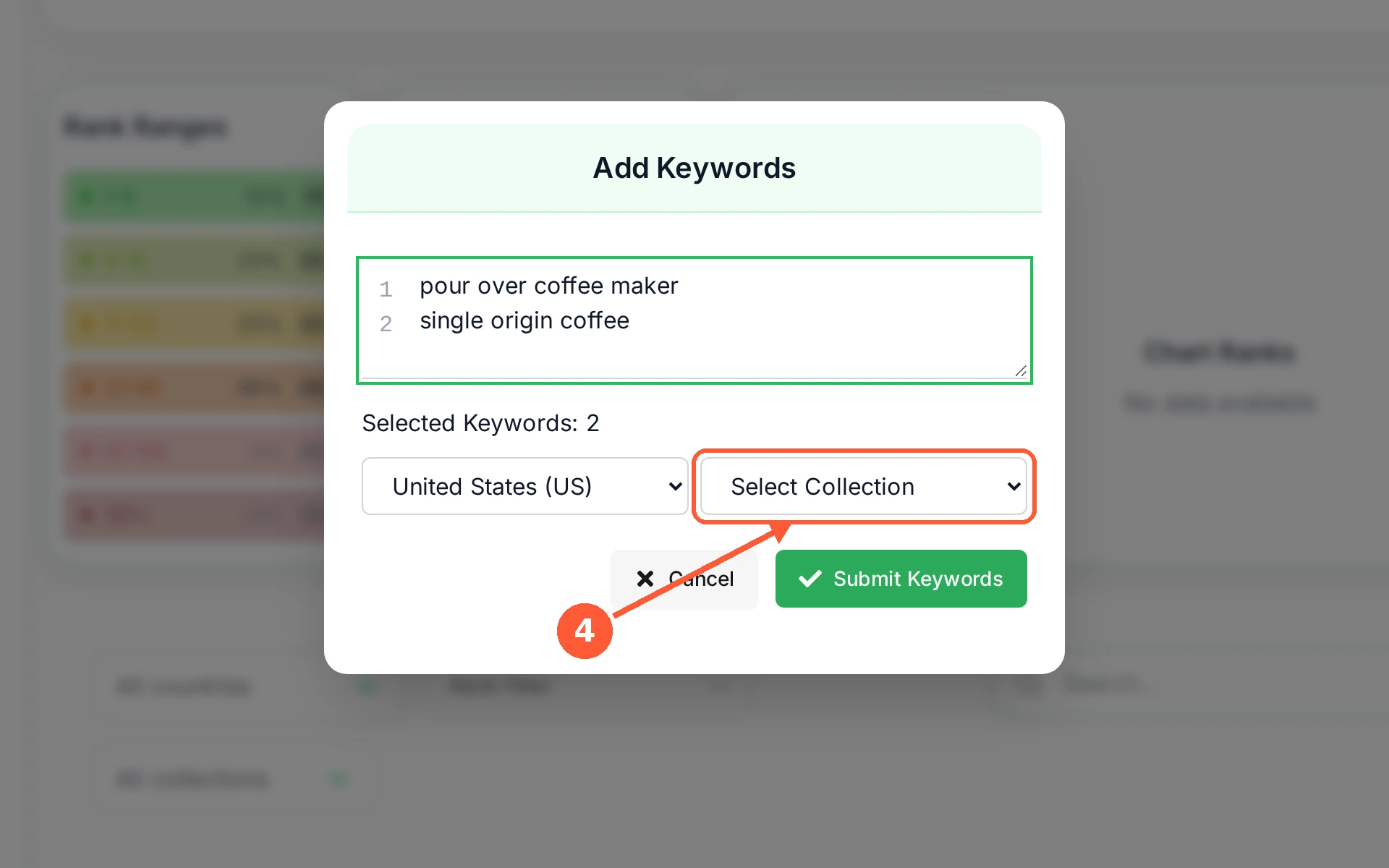
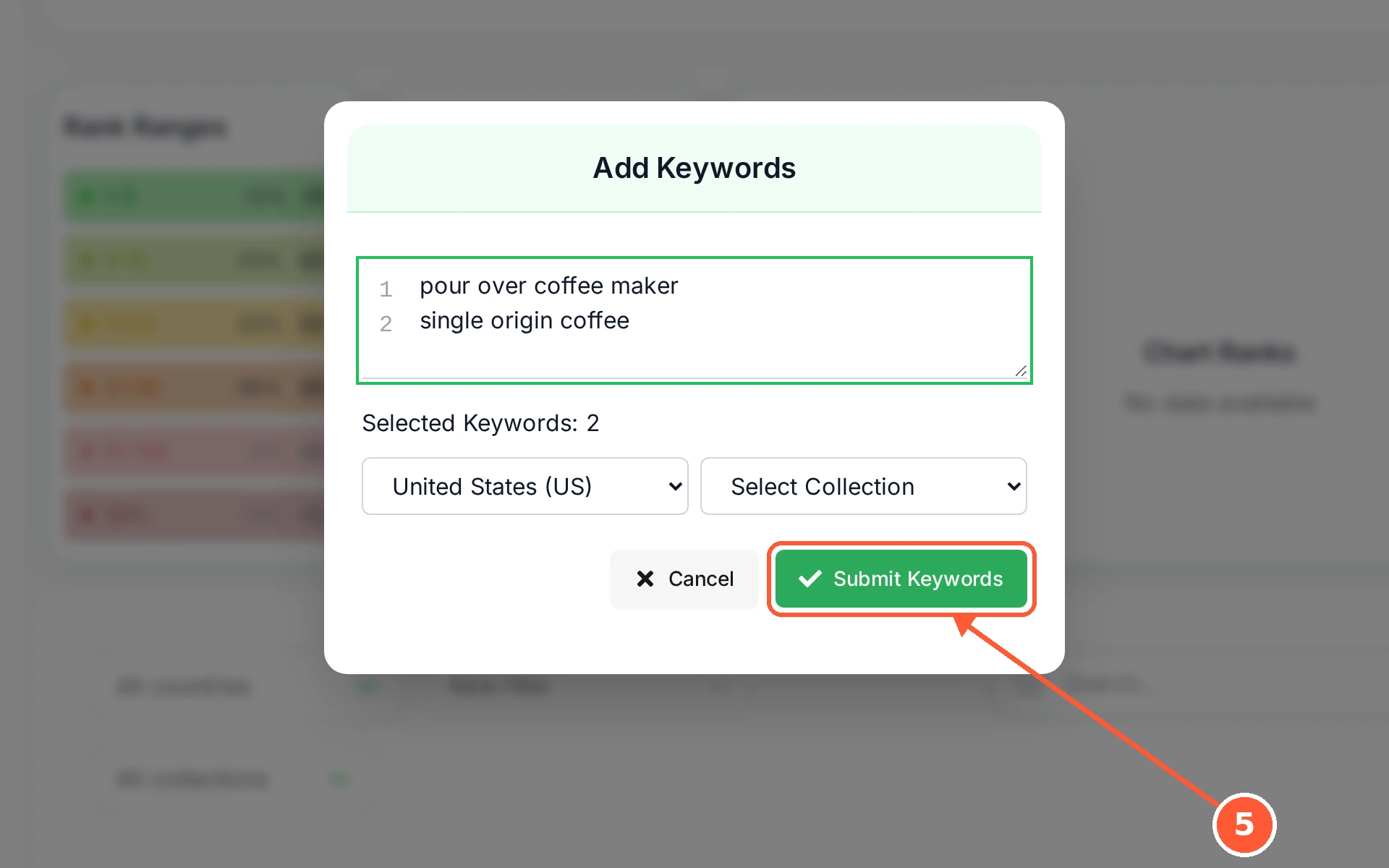
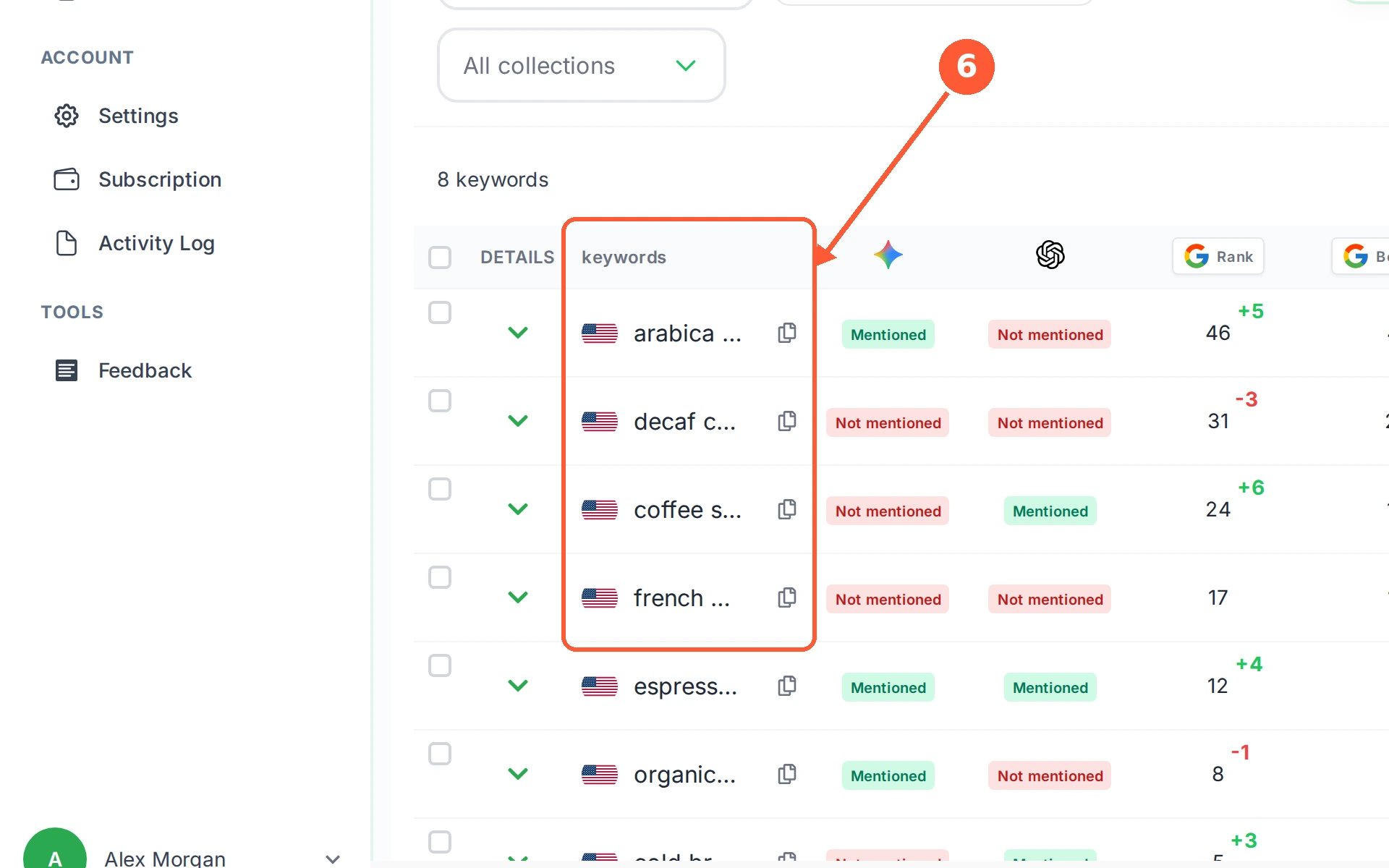
1In the left menu open Rank Tracker and pick your website, then click Add New Query above the keyword table.1 / 6
💡 Good to Know
- Start with the searches you actually want to win, not the ones with your brand name in them: you already rank first for those.
- A keyword is tracked per country. The same words in two countries count as two keywords.
- Not sure what to add? Scan Website for Keywords reads your own pages and suggests keywords for each one.
Find Keywords From Your Own Pages
If you are not sure what to track, let RankTera read your site. It finds your pages, you pick the ones that matter, and it pulls five keywords from each.
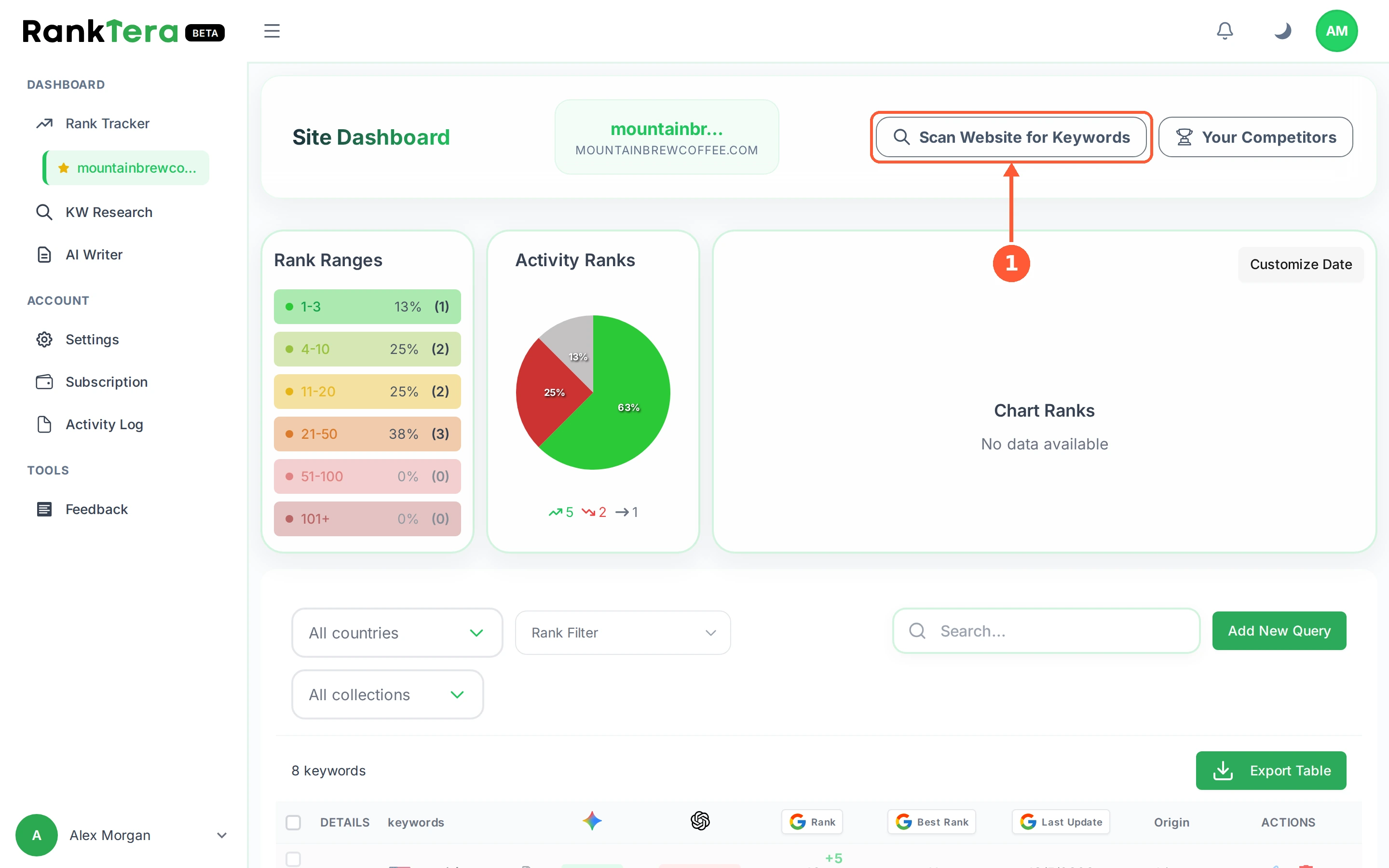
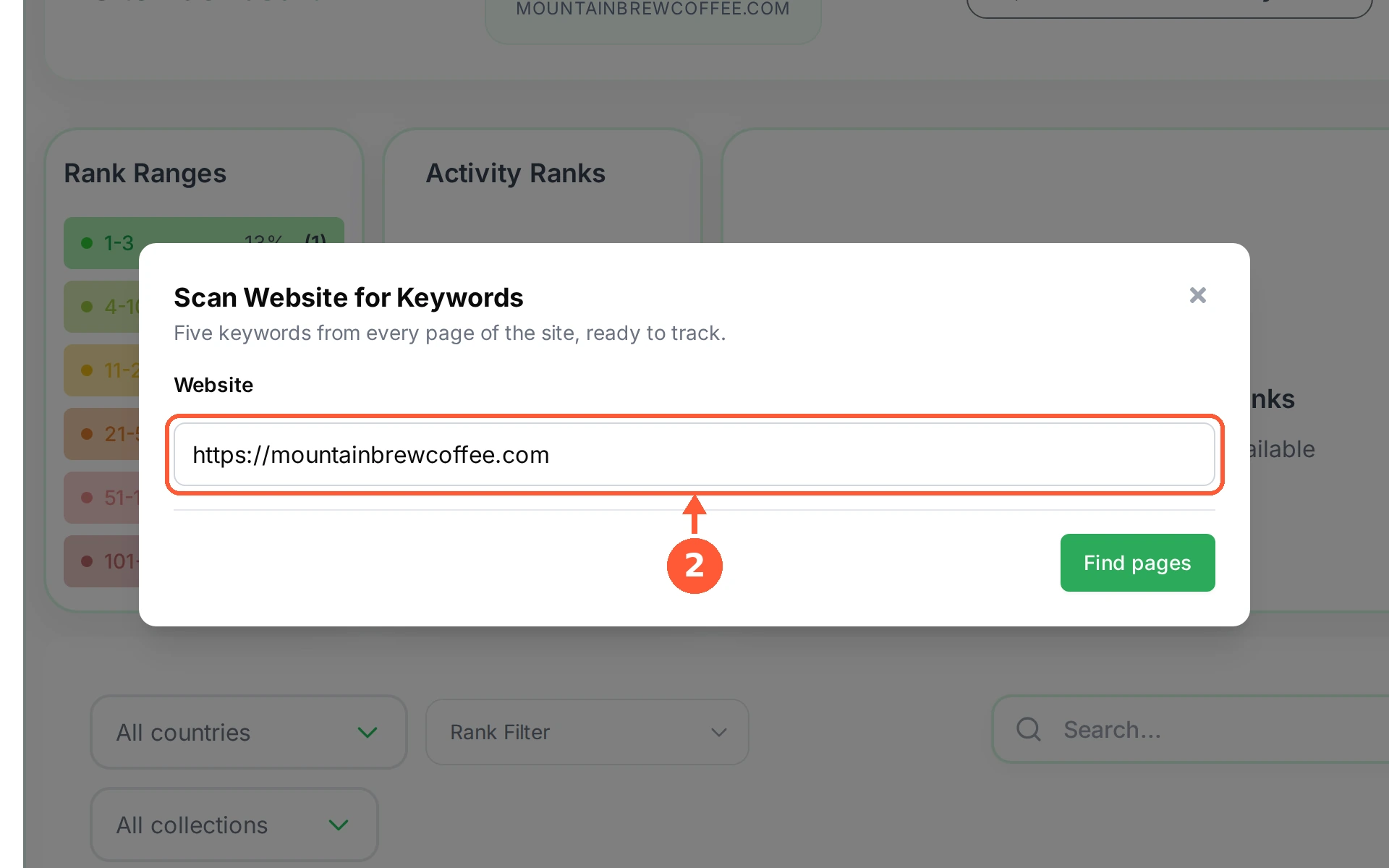
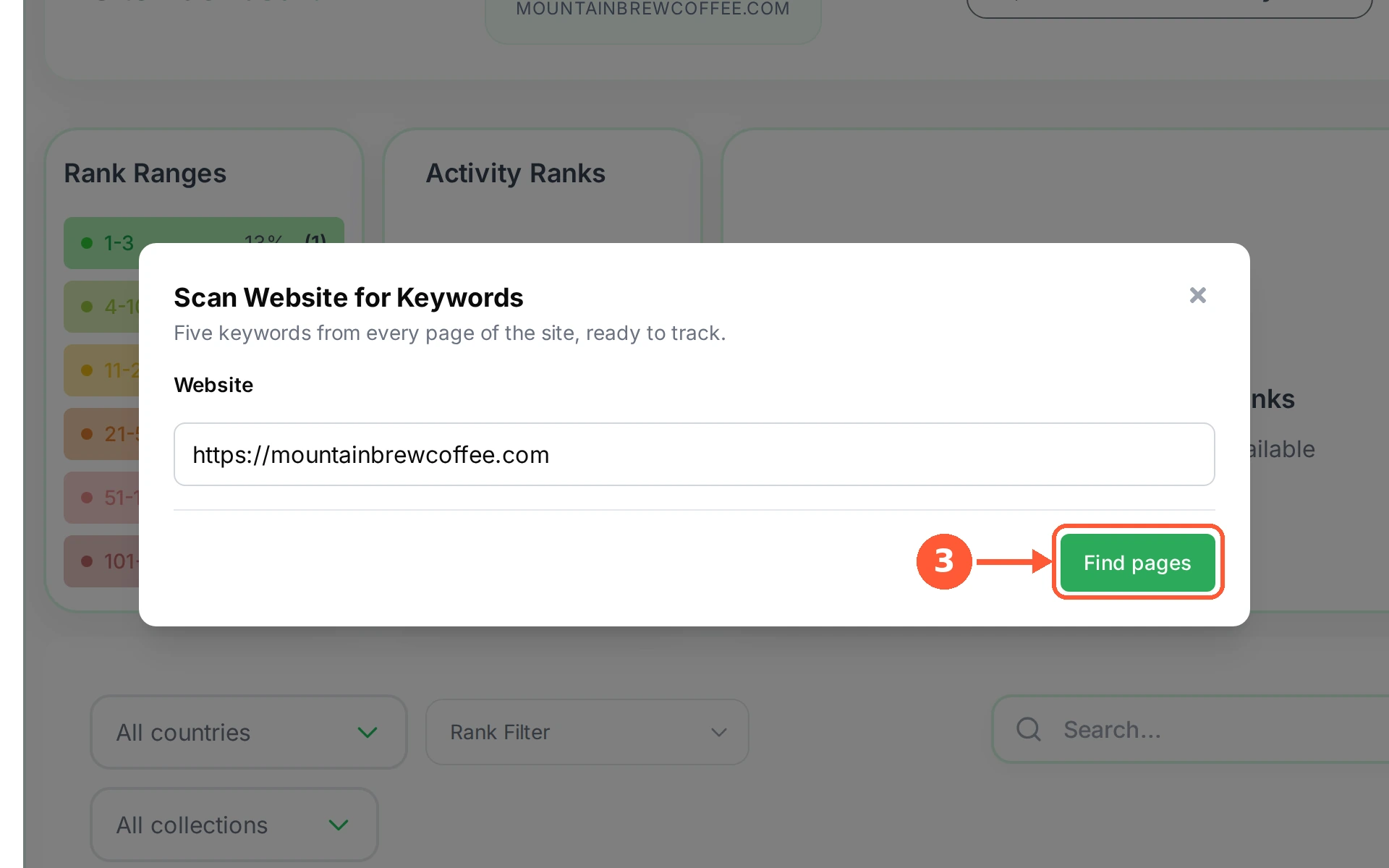
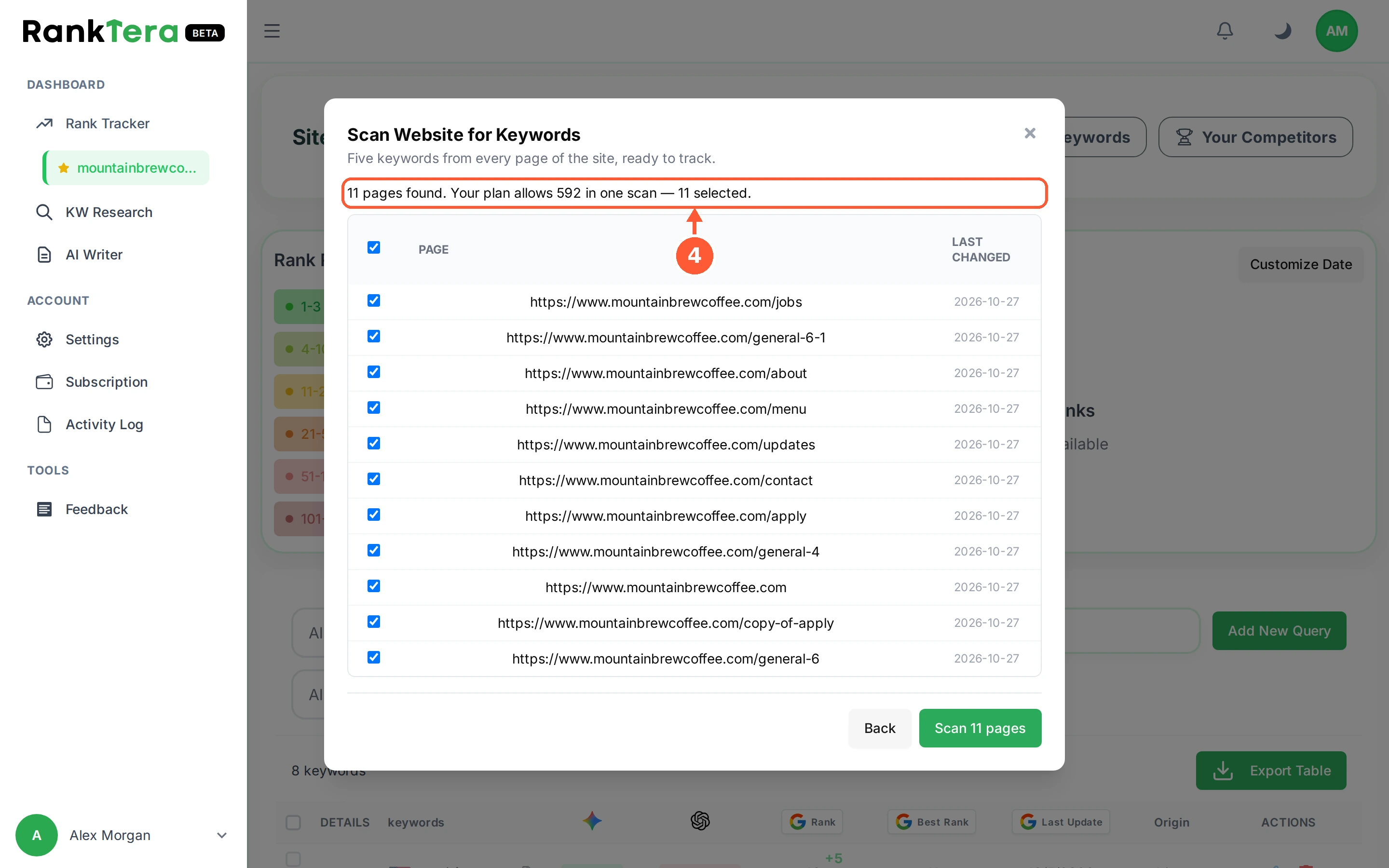
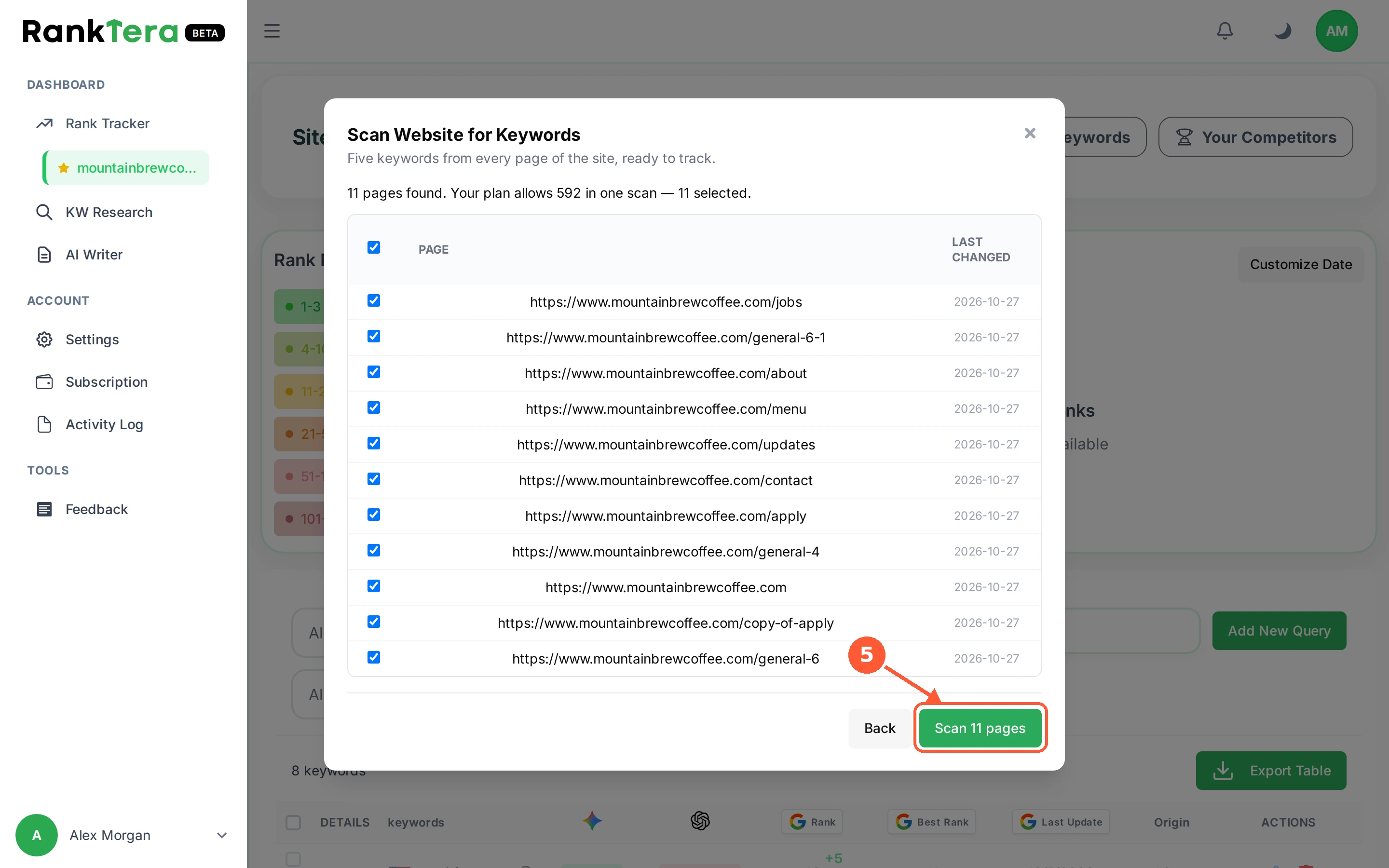
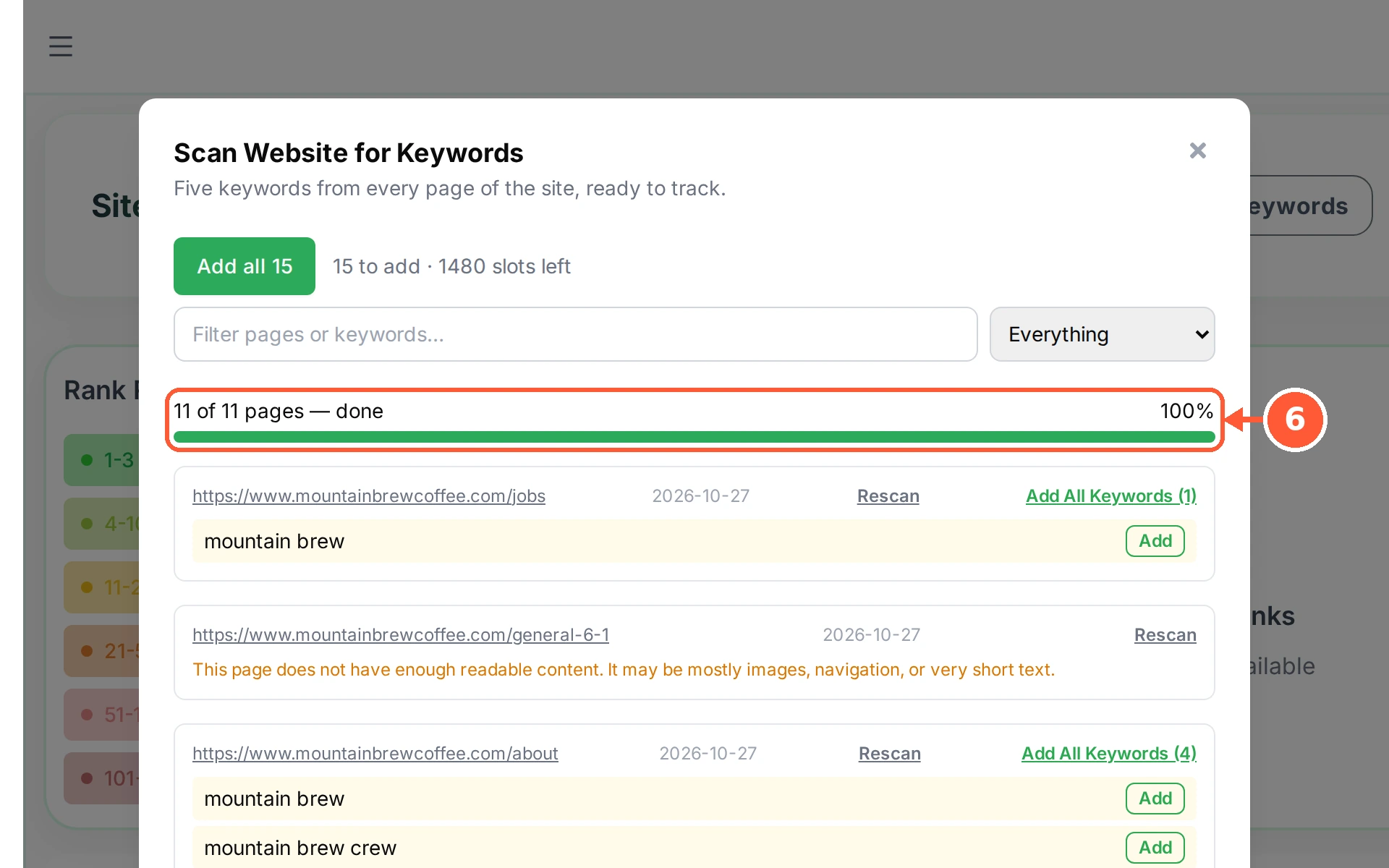
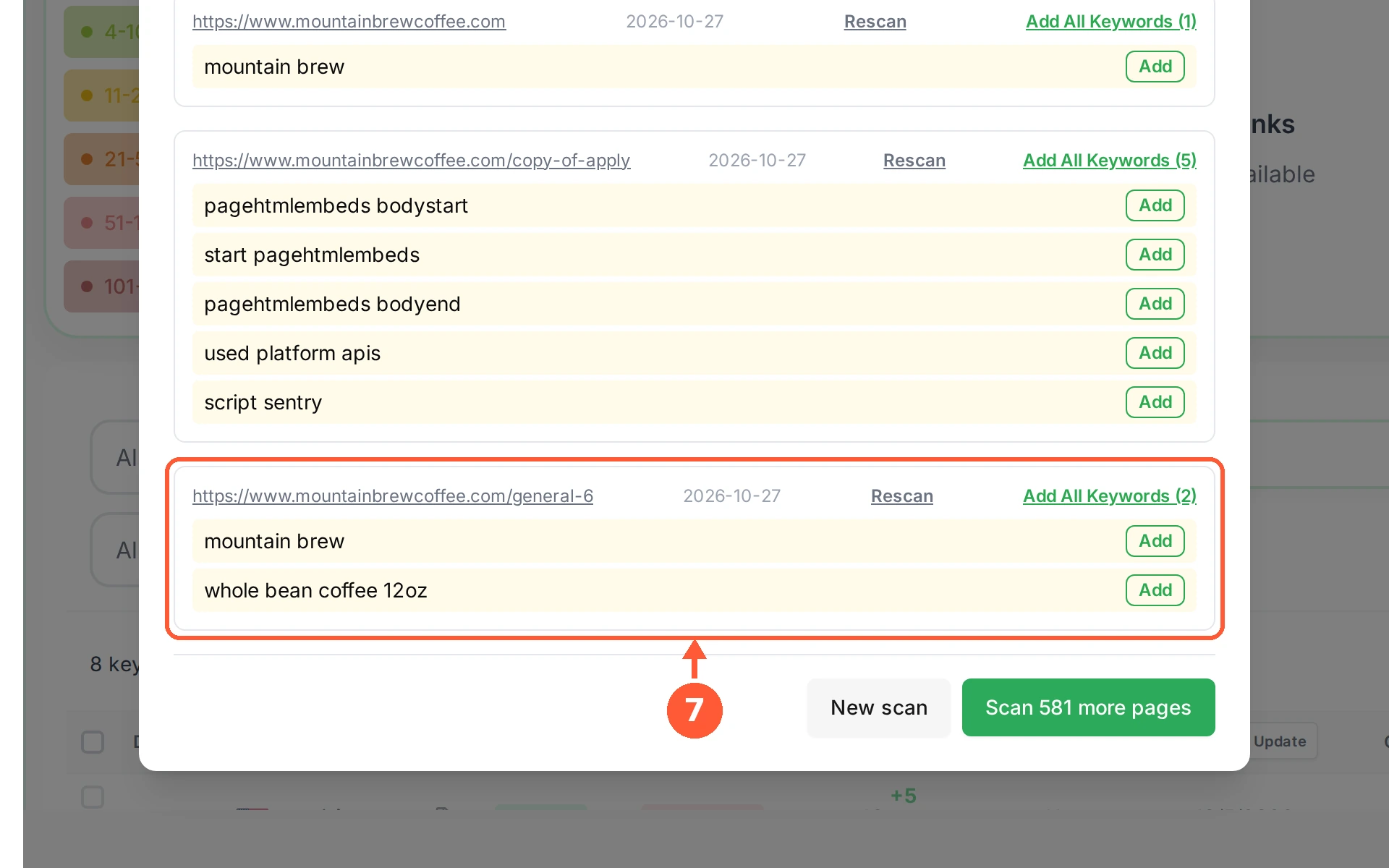
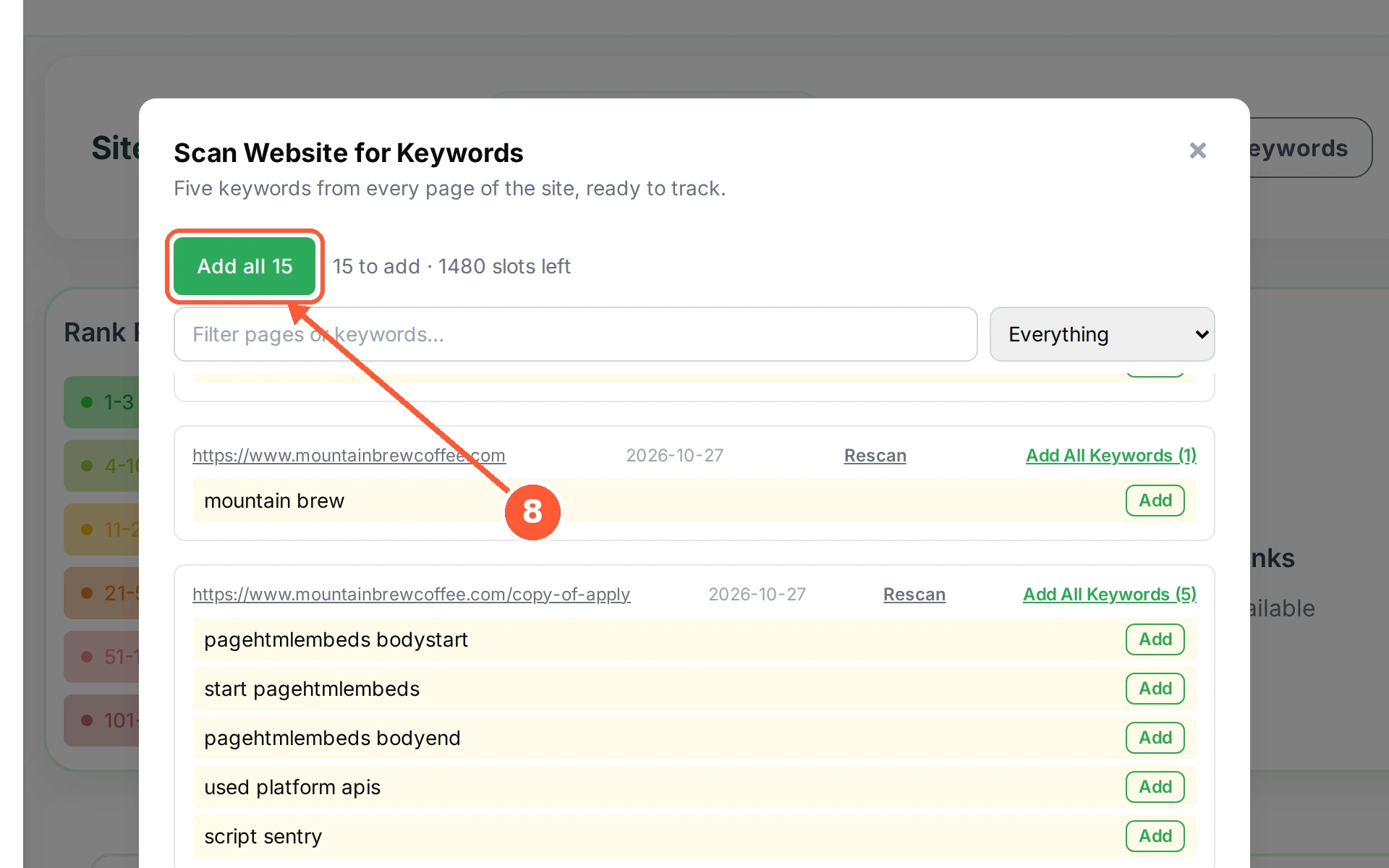
1On your site dashboard, click Scan Website for Keywords.1 / 8
💡 Good to Know
- Nothing is tracked until you press an Add button, so you can read the whole list first.
- Stop scan halts a running scan and keeps whatever it has already found.
- Pages that could not be read are usually mostly images or navigation. Rescan helps only if the page itself has changed, and rescanning one page does not use up a full scan.
Read Your Rank Table
Everything you track for one website sits in a single table: where Google puts you, whether that moved, and whether ChatGPT and Gemini mention you.
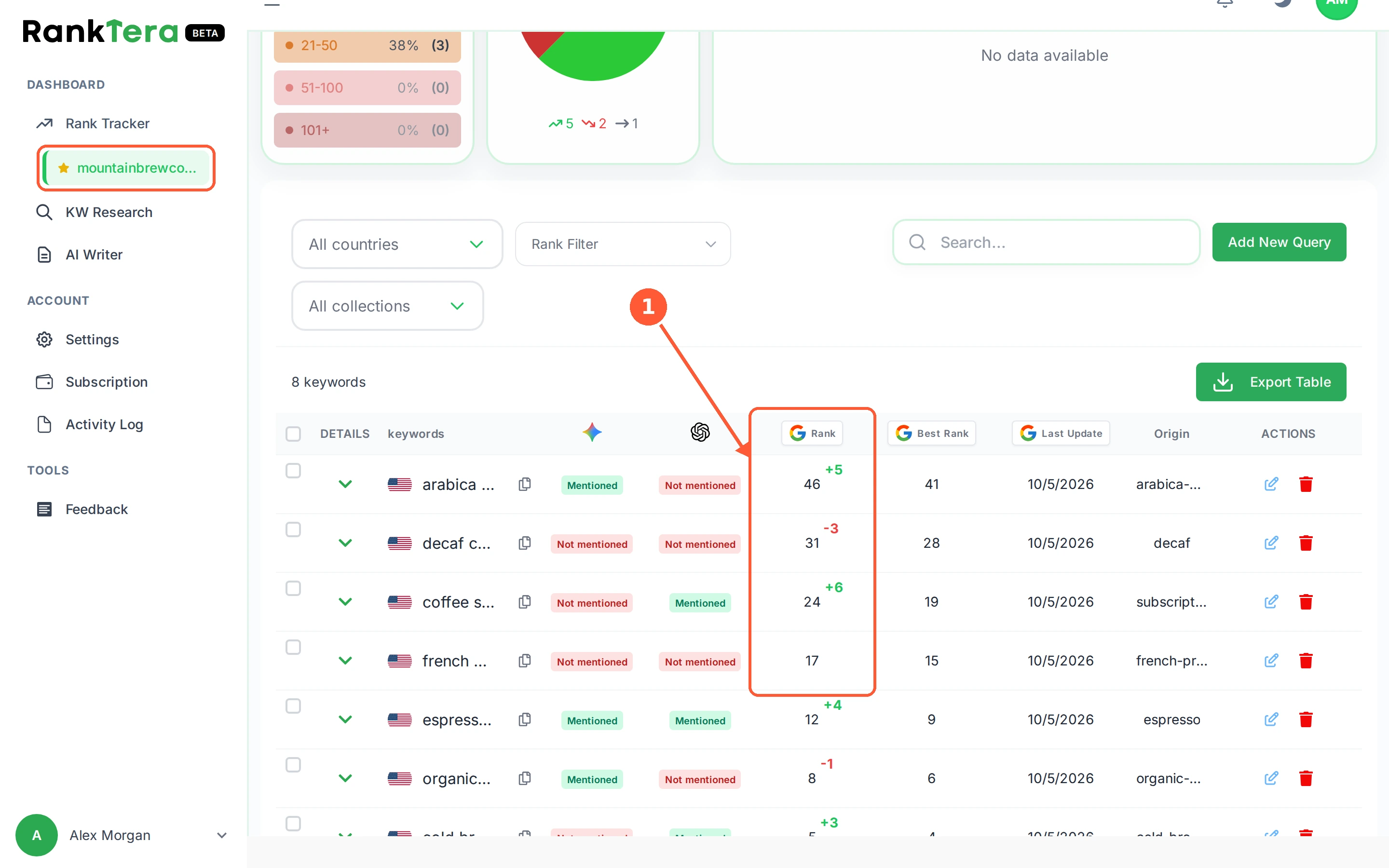
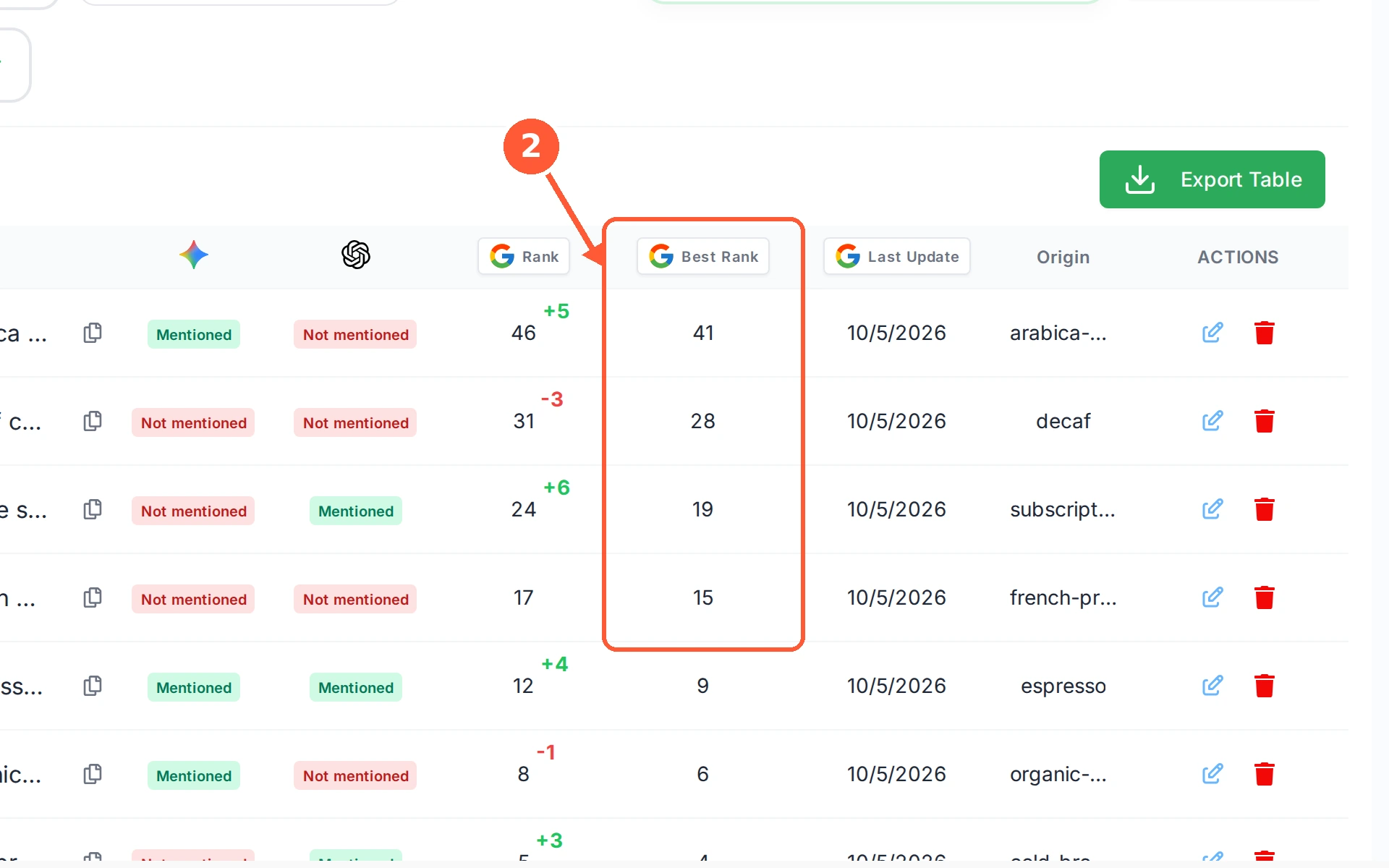
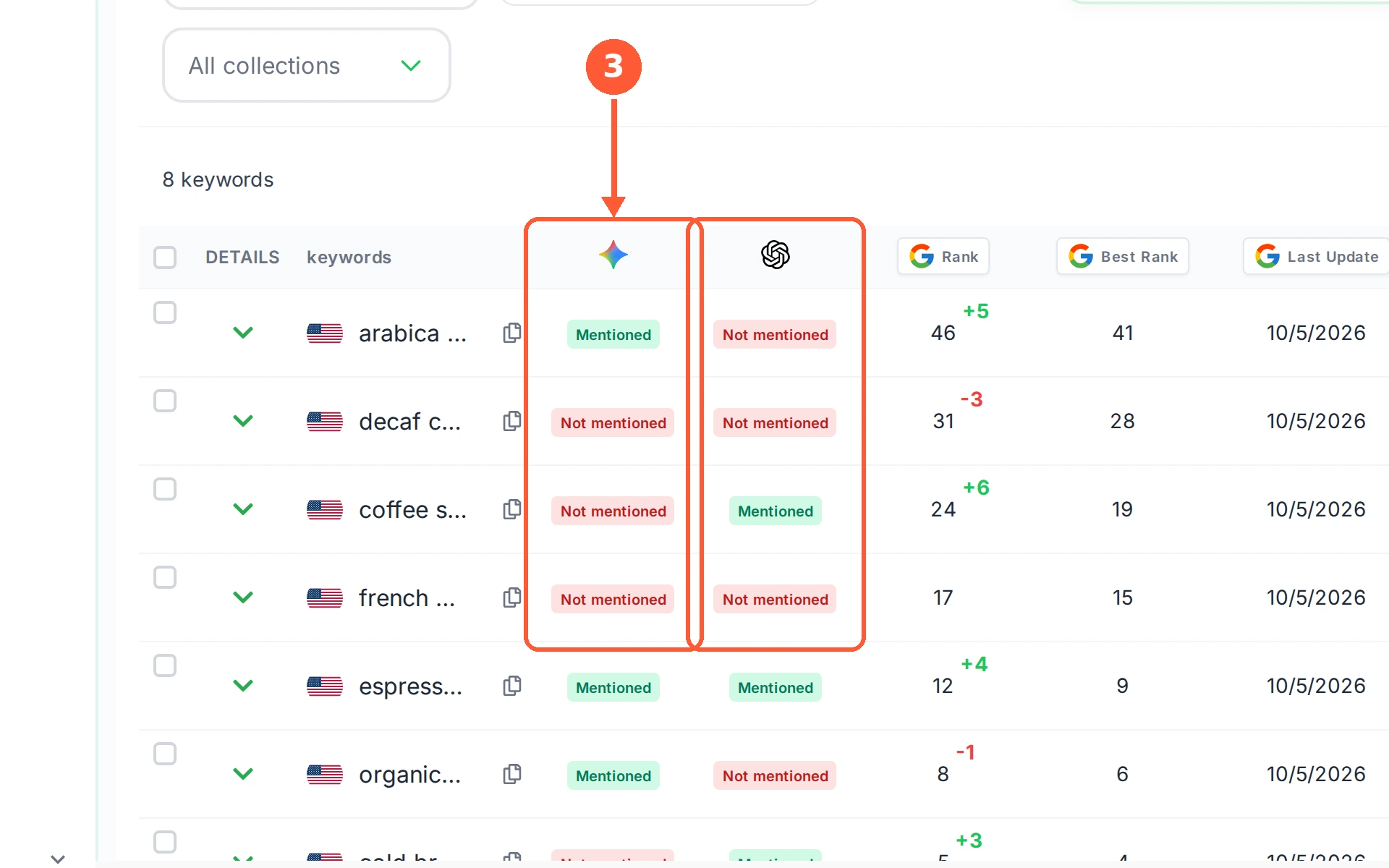
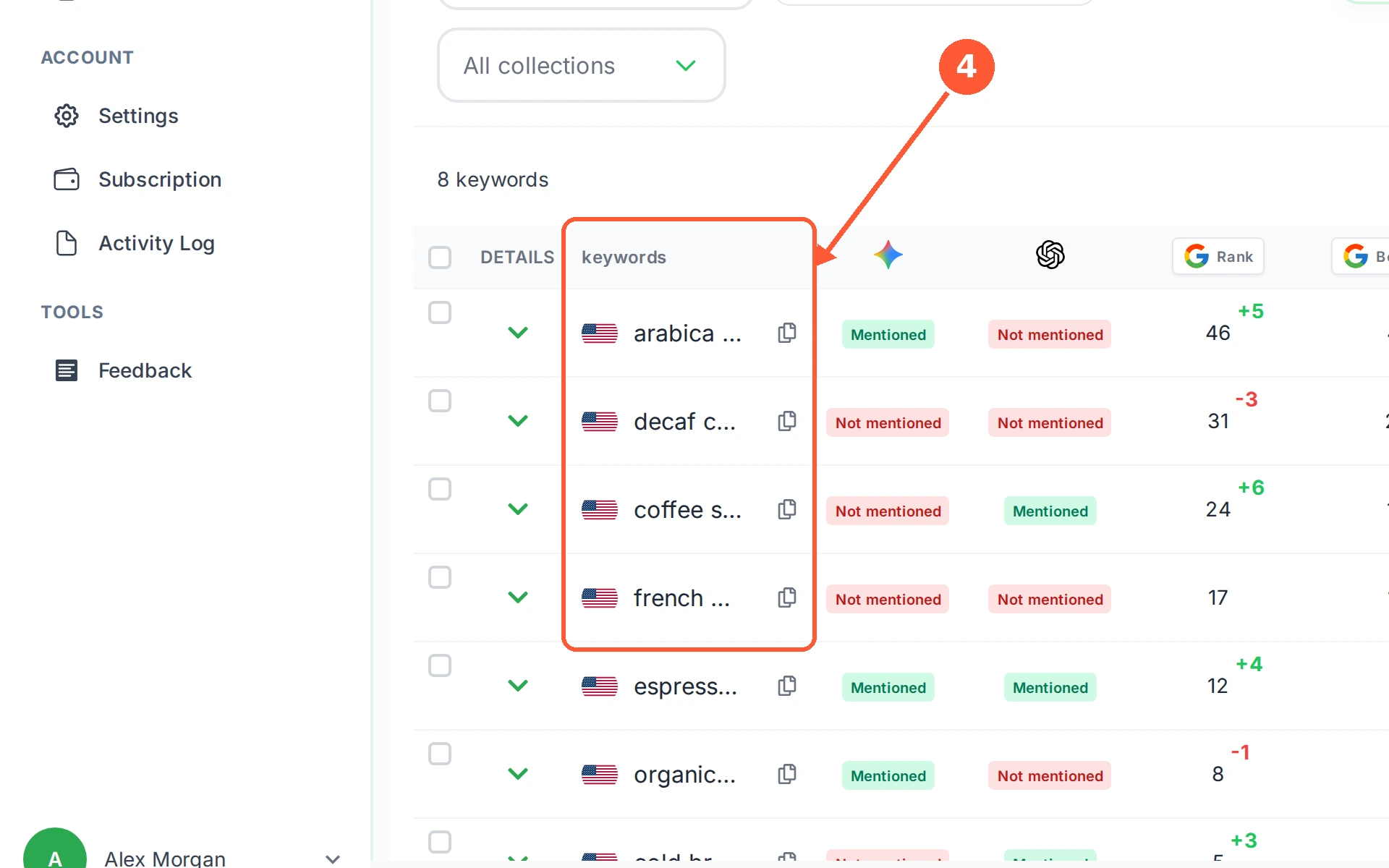
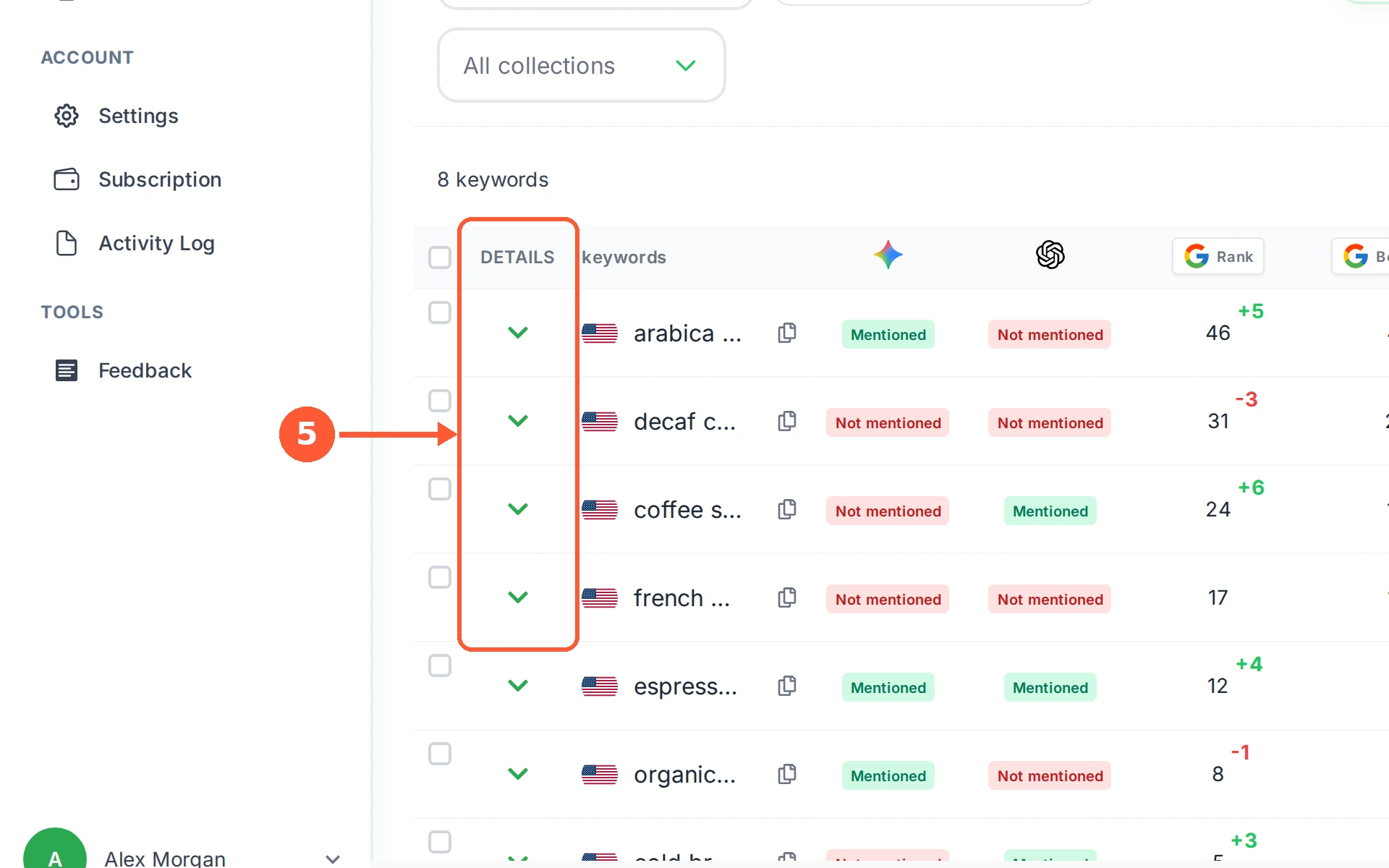
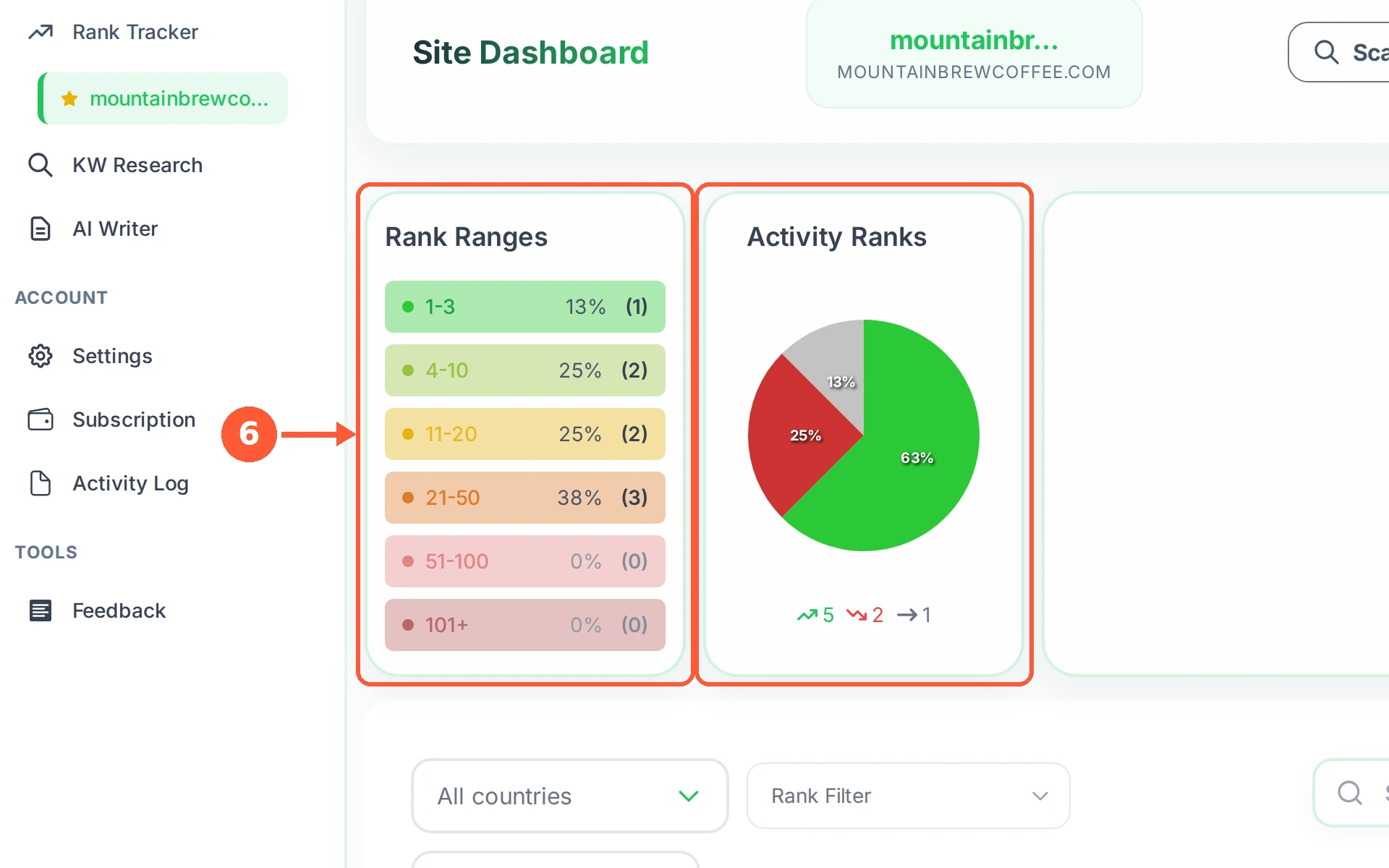
1In the left menu open Rank Tracker and pick your website. Rank is your position in Google right now, and the small green or red number beside it is the change since the last check: green means you moved up, red means you slipped.1 / 6
💡 Good to Know
- Use the filters above the table to narrow it down: by country, by rank range, by collection, or by typing in the search box.
- A keyword with no rank was not found in the results that were checked. It is not an error, it just means you are not placed yet.
- Export Table downloads what you are looking at, filters included, so you can keep a copy or send it on.
Open a Keyword's Full History
One row of the table hides a lot. Open a keyword and three tabs appear: how your position moved, the real search results behind it, and the longer record.
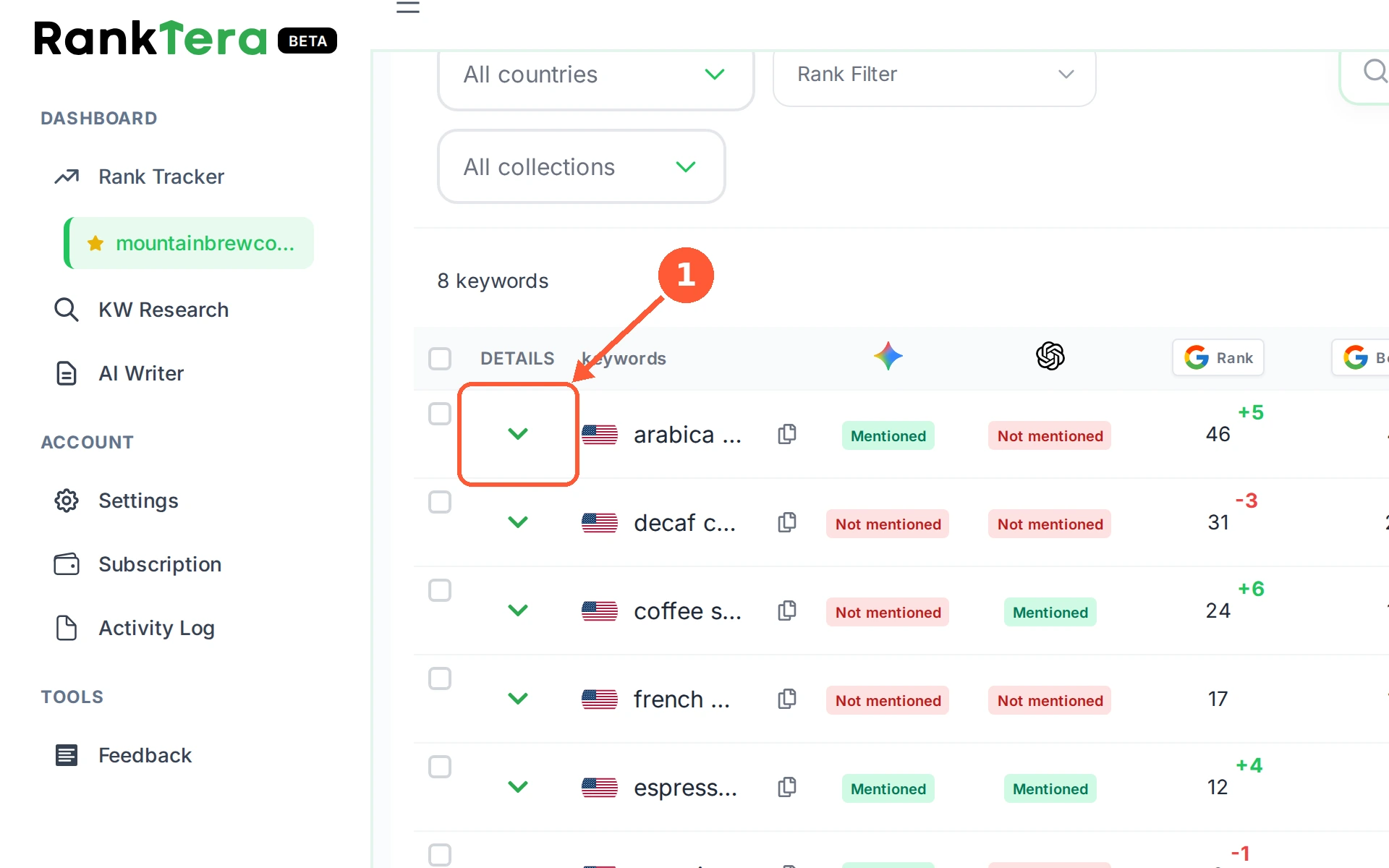
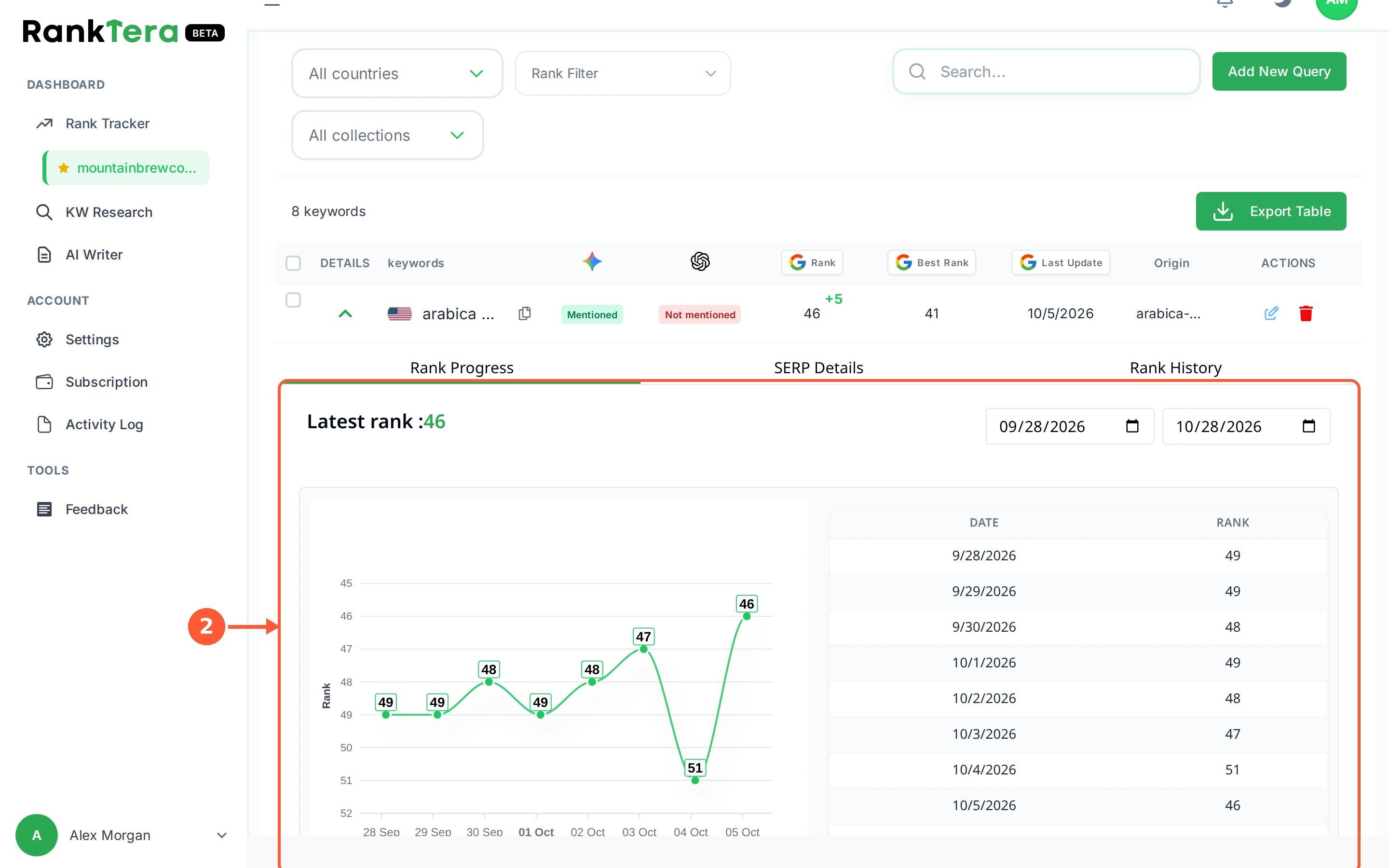
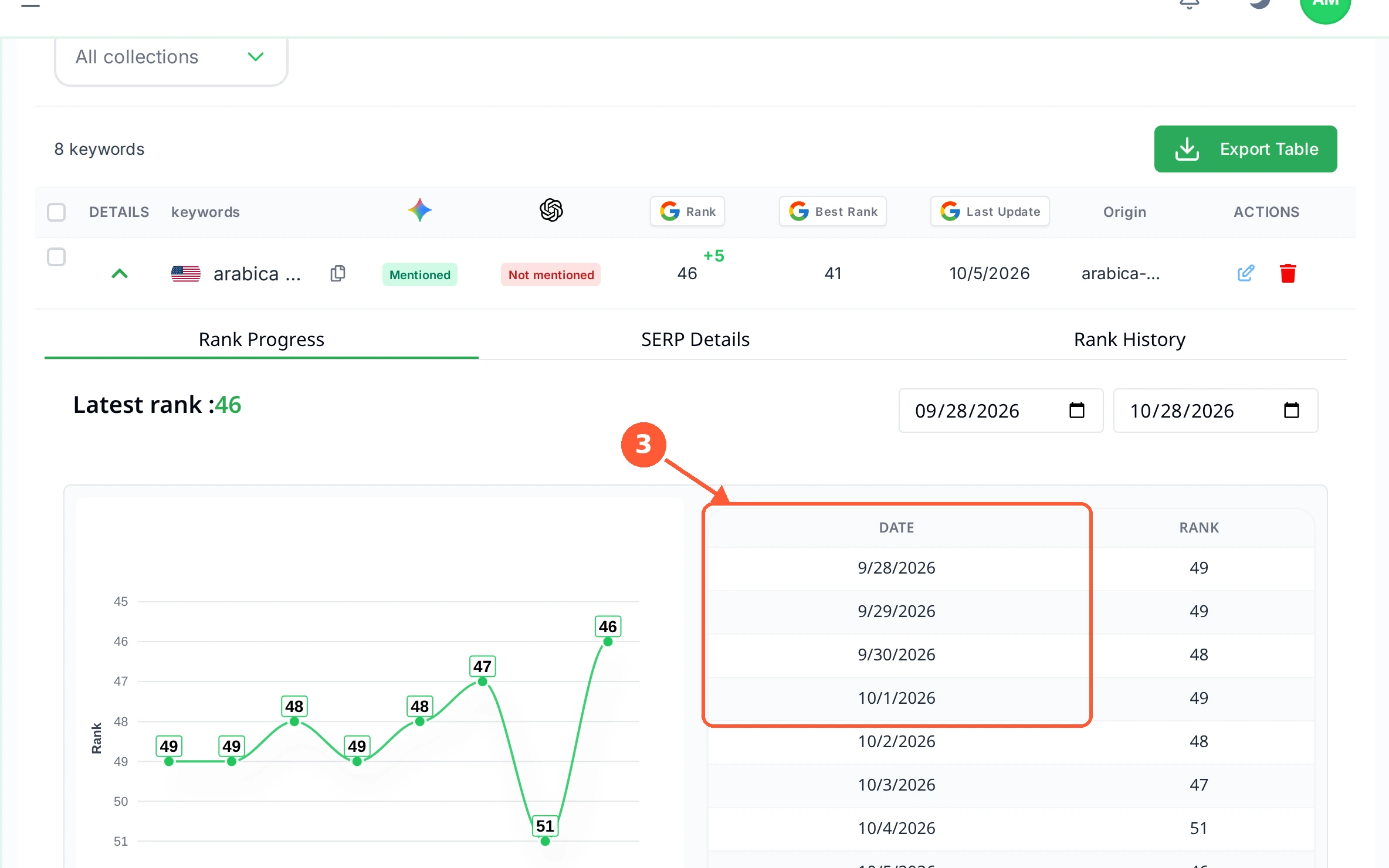
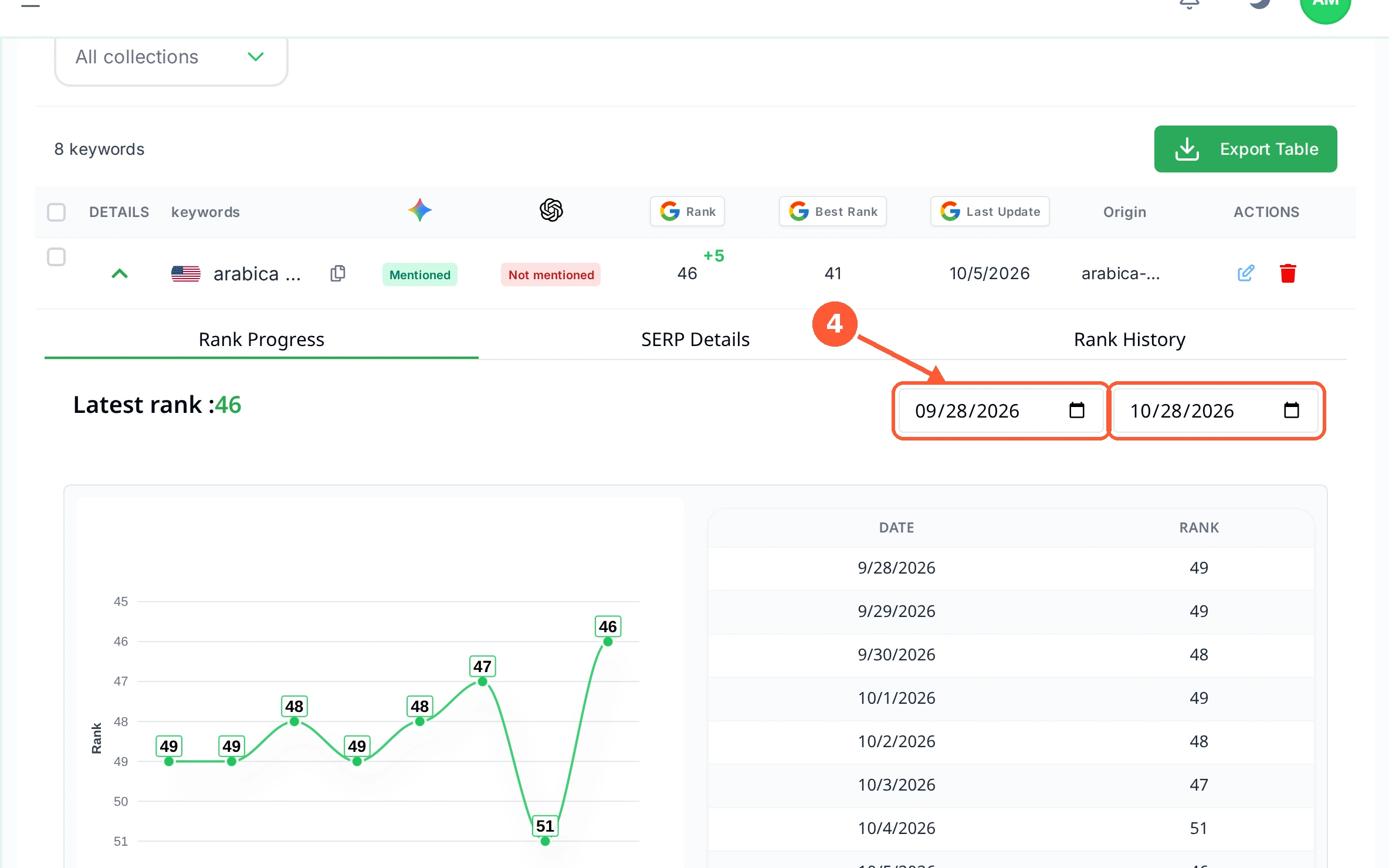
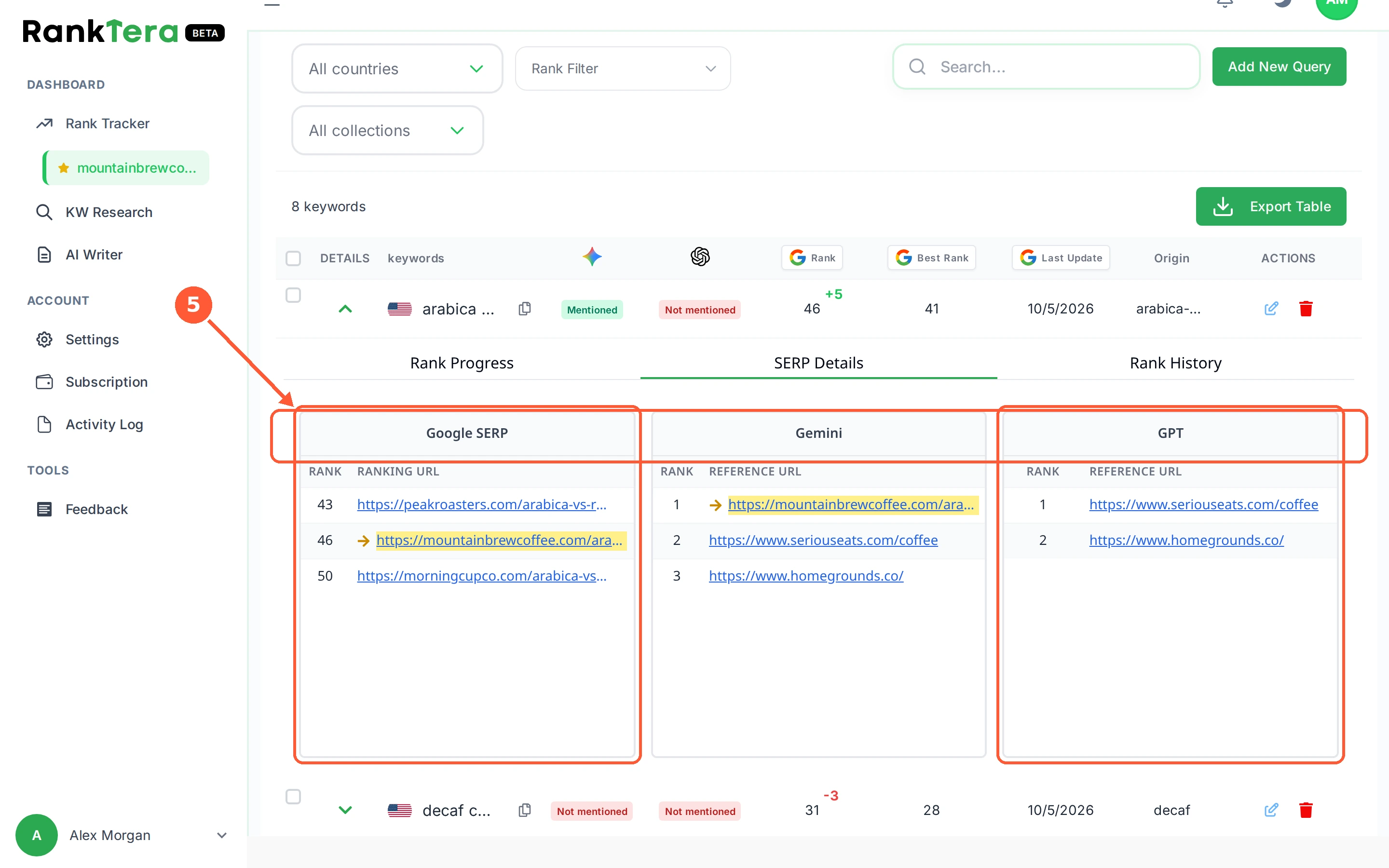
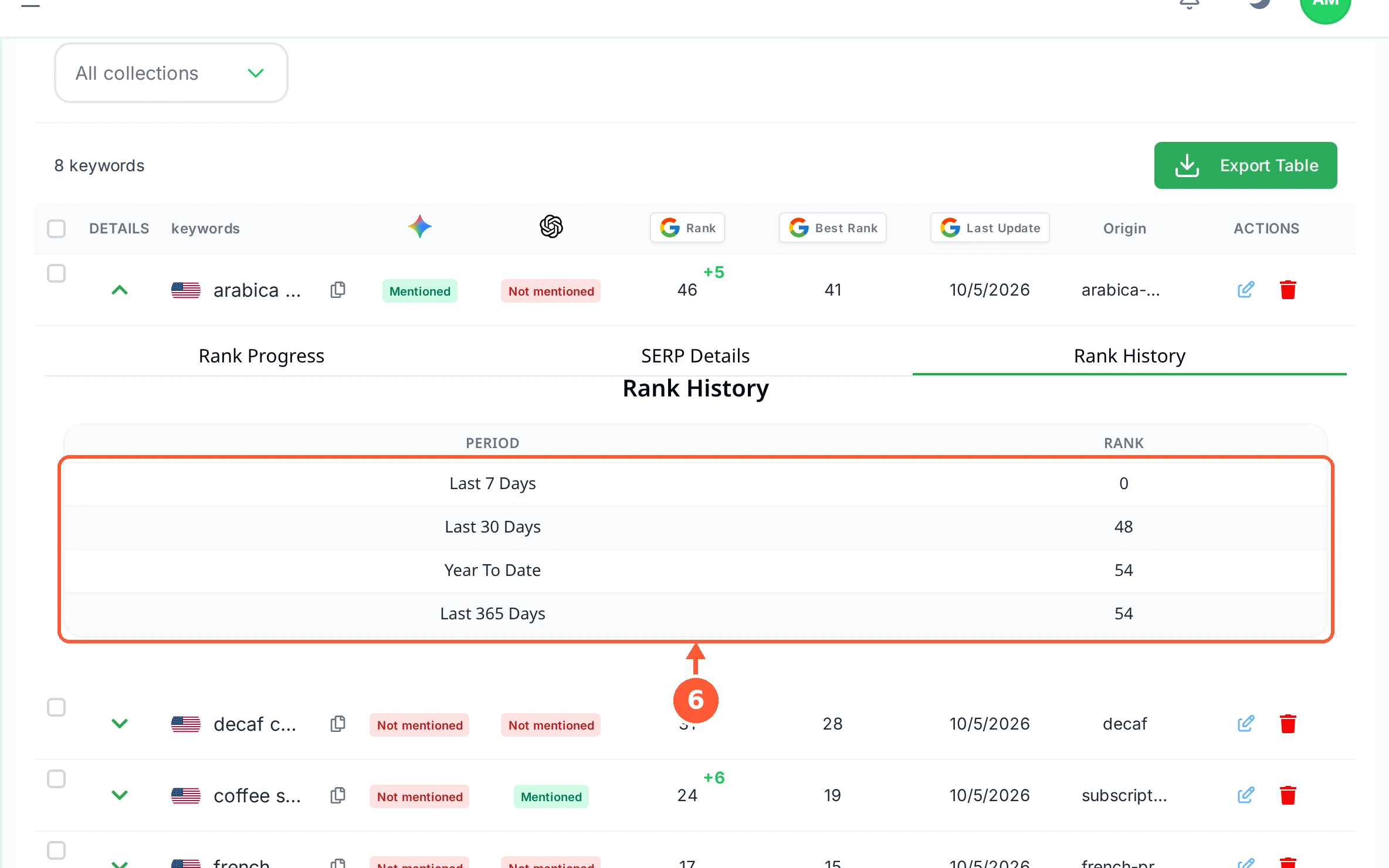
1In the keyword table, click the arrow in the DETAILS column of the row you want to look at.1 / 6
💡 Good to Know
- In SERP Details, a yellow line with an arrow is your page. If there is no yellow line, you were not in the results that were checked.
- Gemini and GPT list the pages each engine leans on for this keyword, which is a good hint at what to write about.
- Click the arrow again to close the panel and keep the table tidy.
Filter and Export Your Table
Once you track more than a handful of keywords, the filters above the table are how you find anything. Whatever you filter down to is also what gets exported.
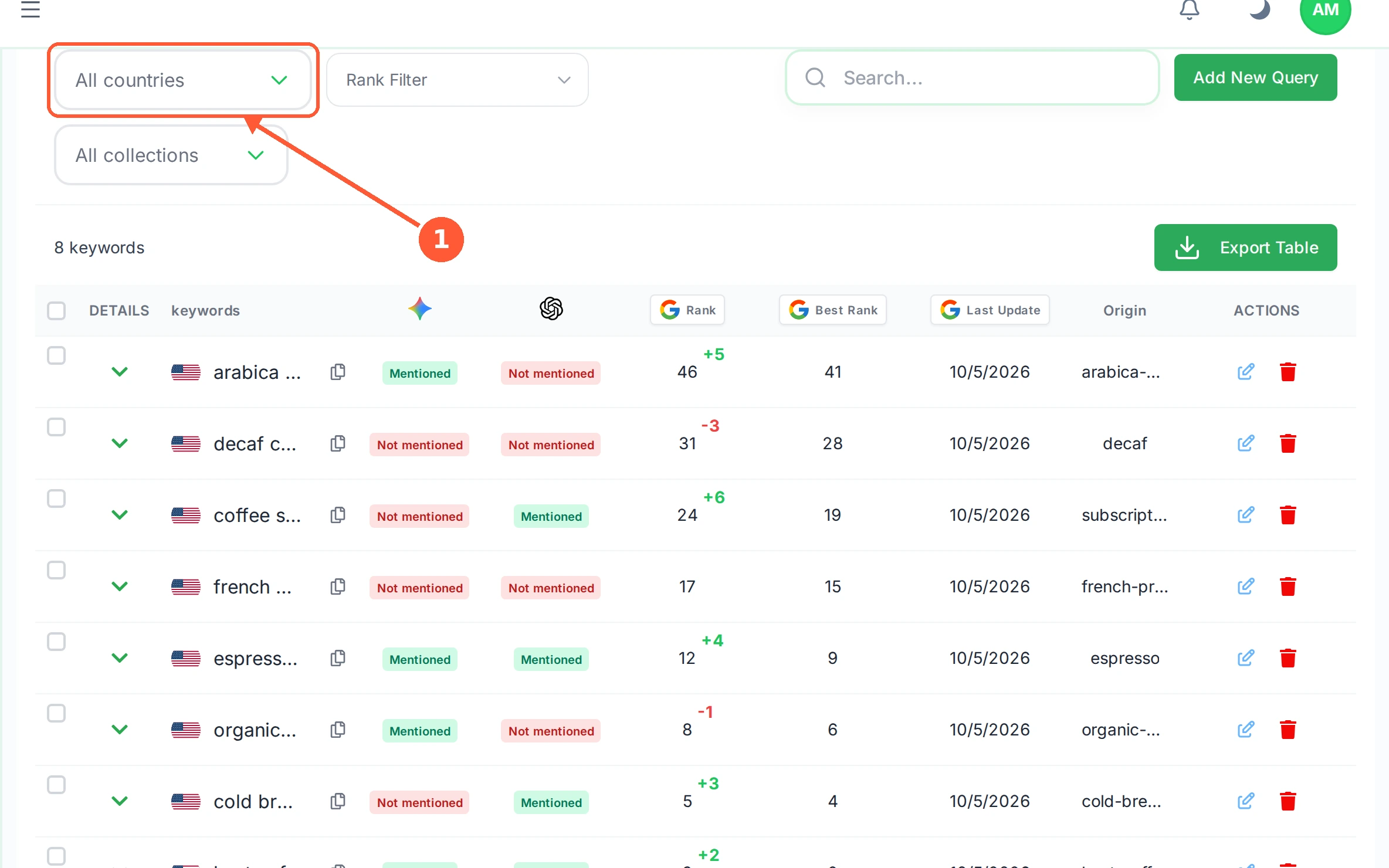
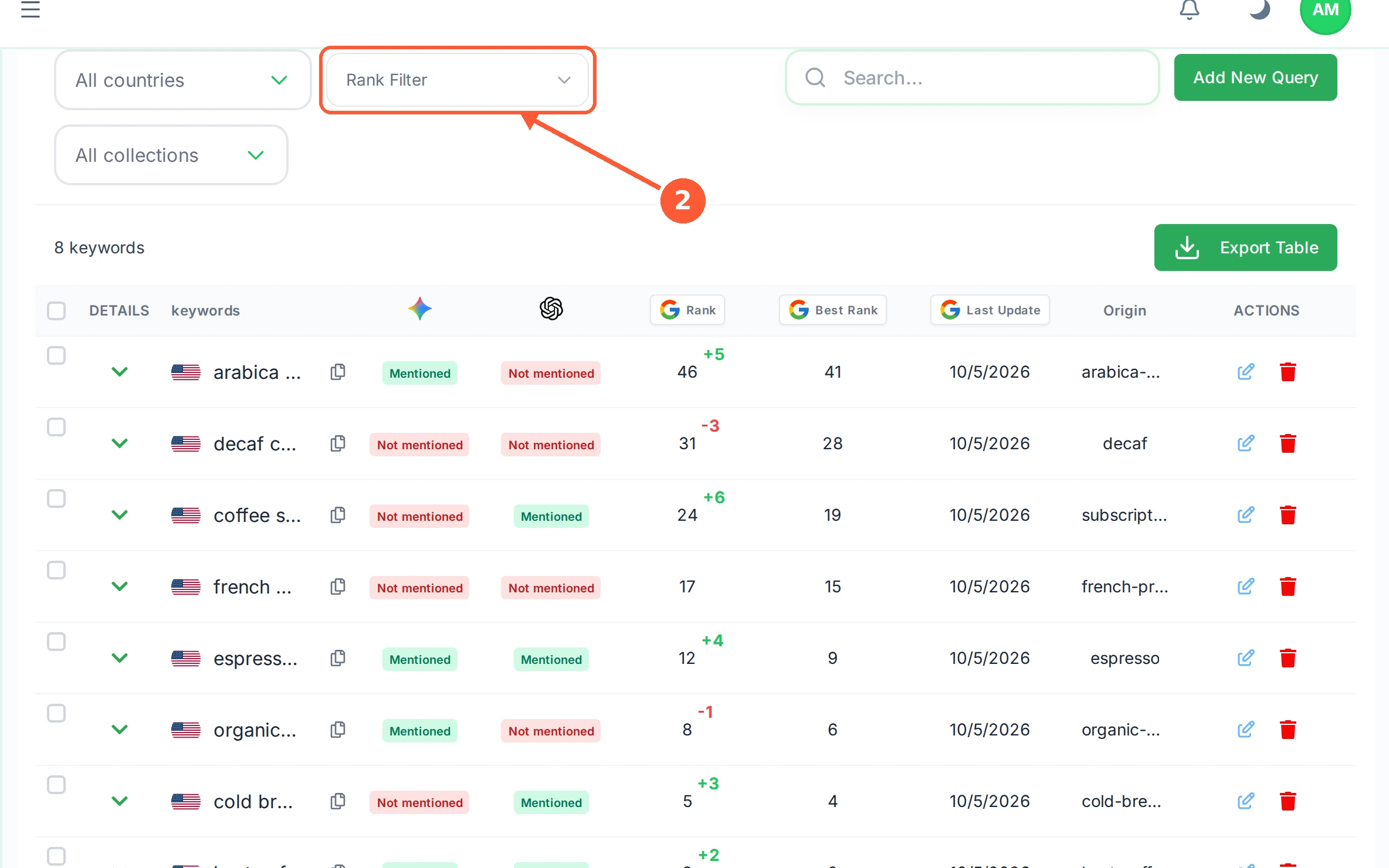
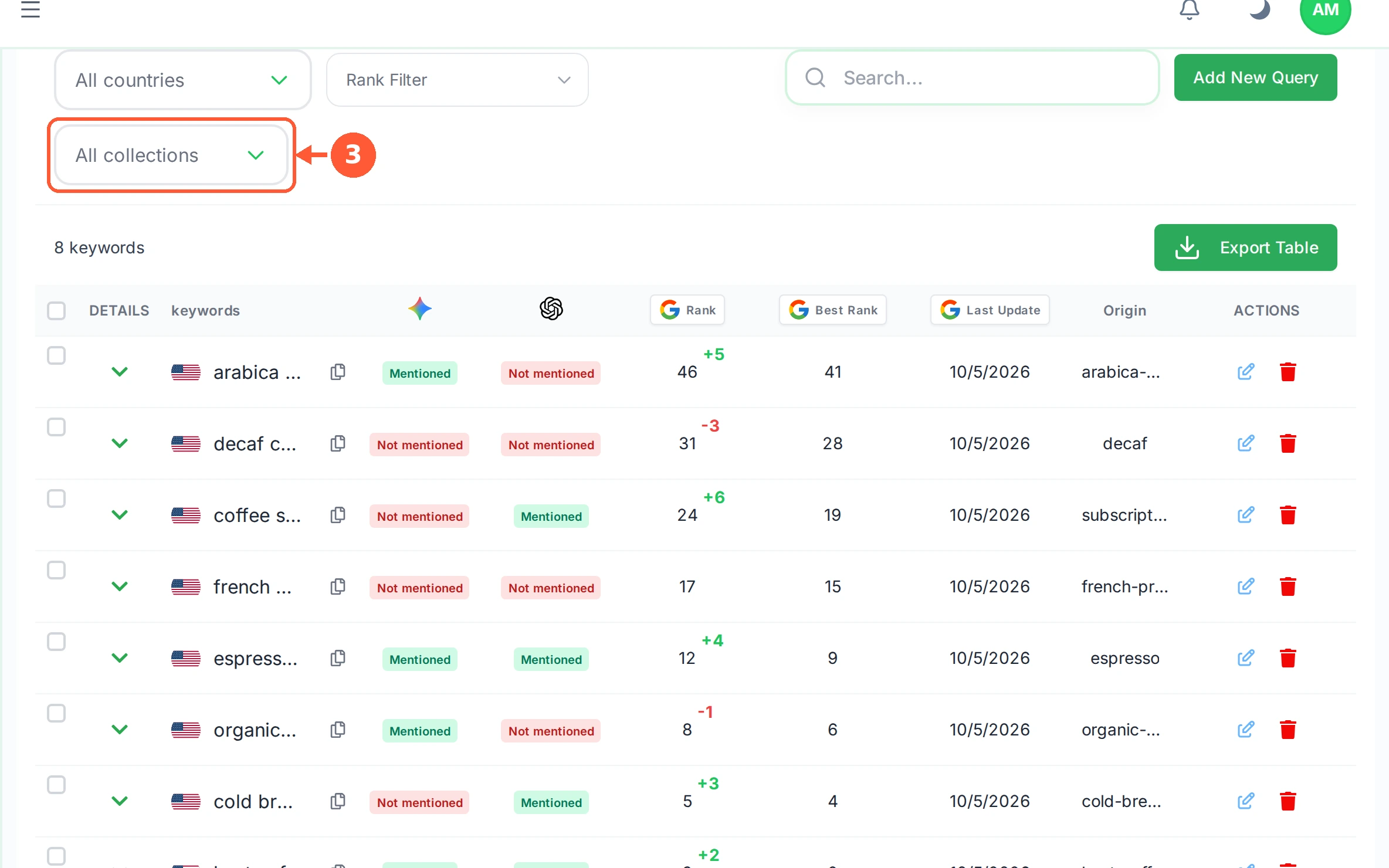
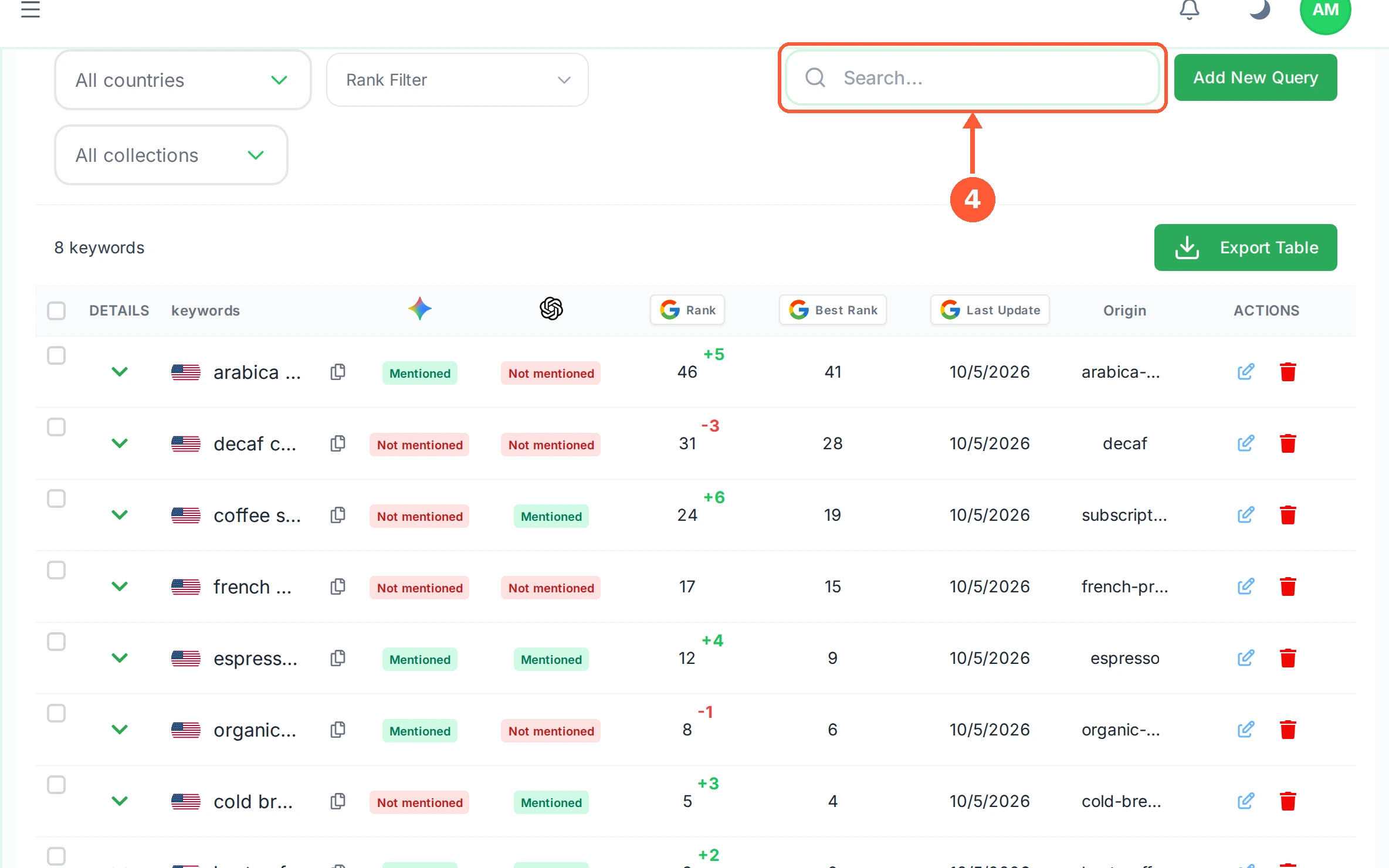
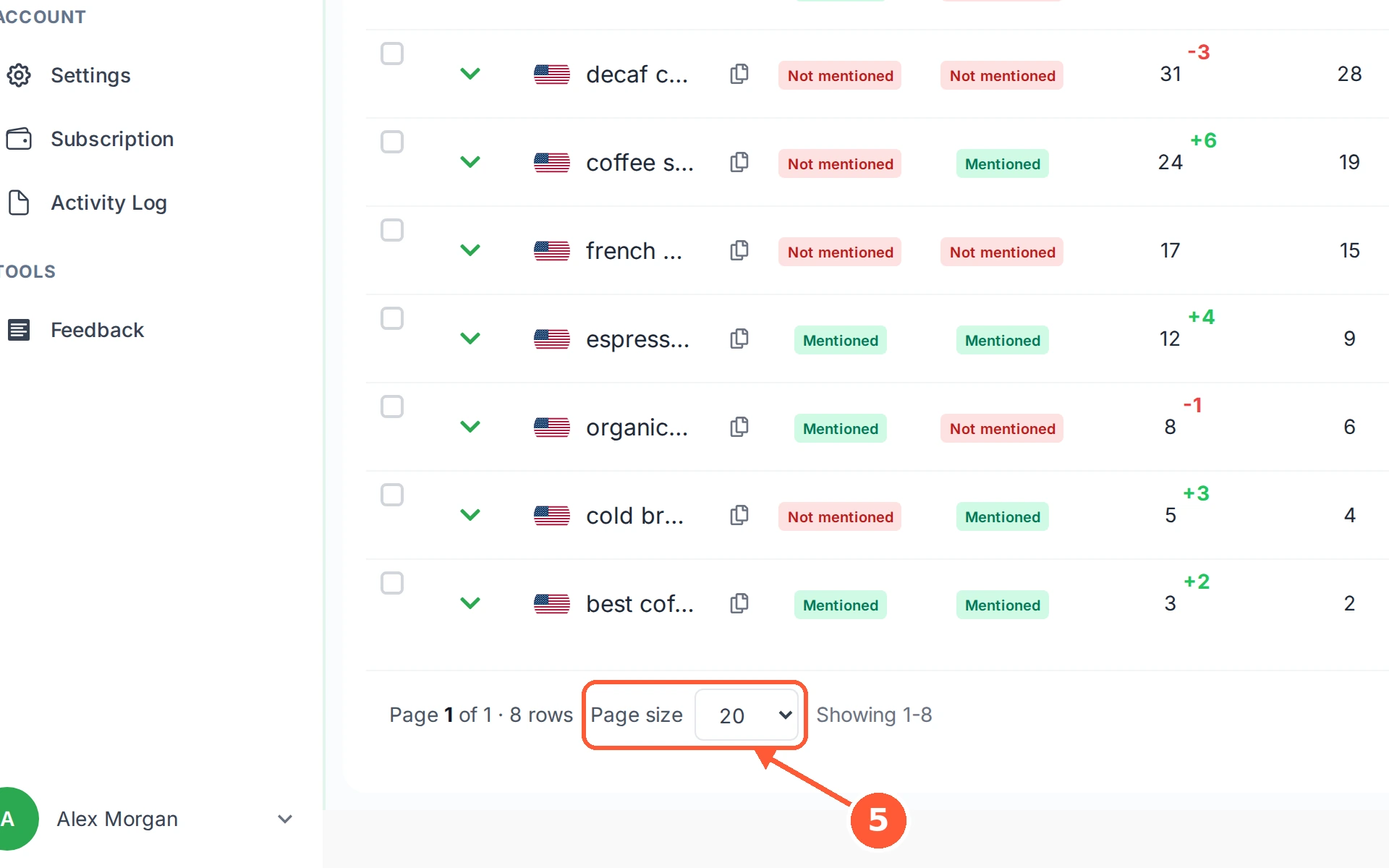
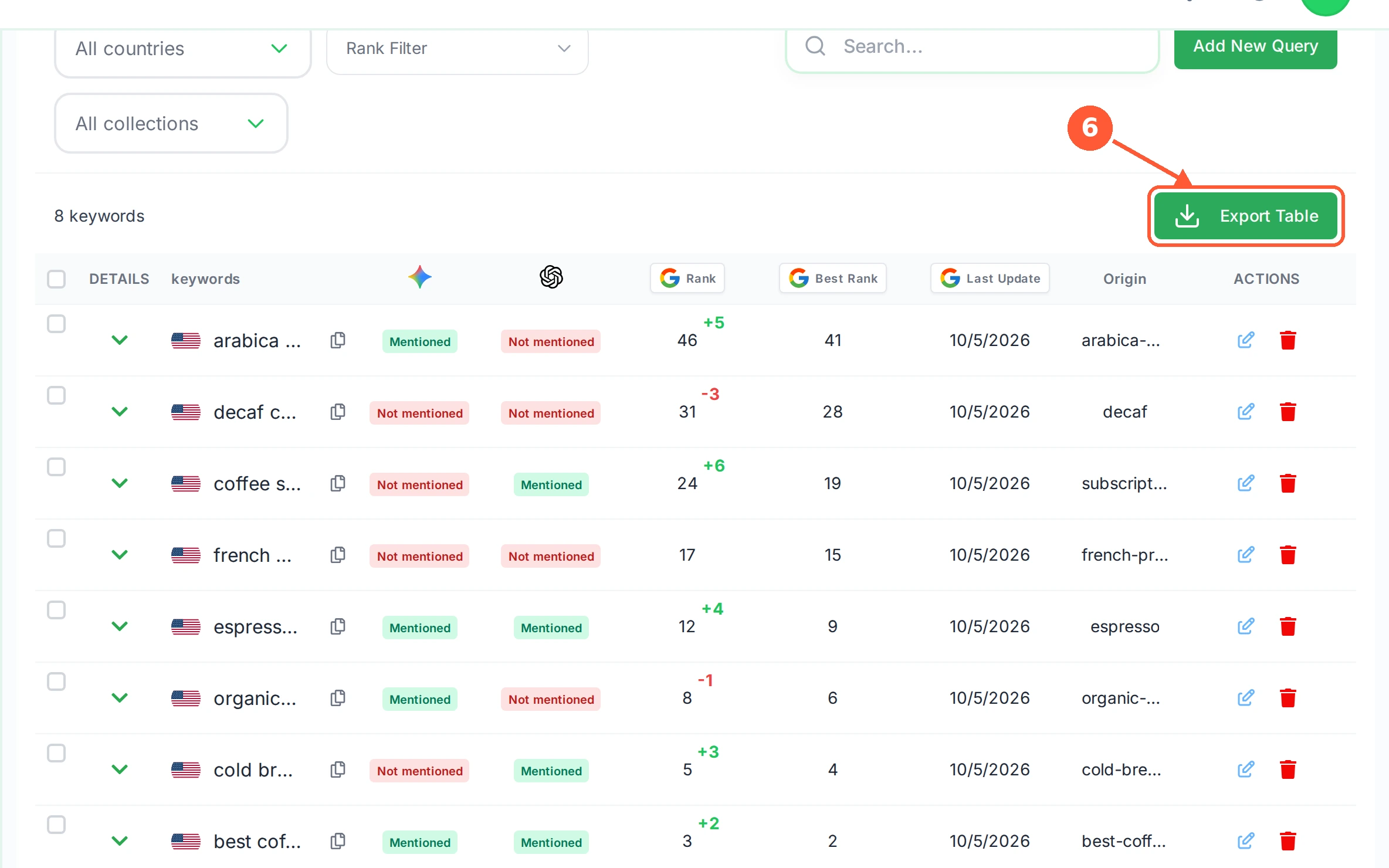
1All countries narrows the table to one country, which matters when you track the same keyword in several places.1 / 6
💡 Good to Know
- Filters stack. Country plus rank range plus a word in the search box all apply together.
- Export after filtering, not before, if you only want part of the list.
- Clearing the search box only undoes the search. If you also picked a country, a rank range or a collection, reset those as well before the whole table comes back.
Manage Many Keywords at Once
Tick a few rows and a toolbar appears. From there you can group them, move them to another site, export just those, or remove them.
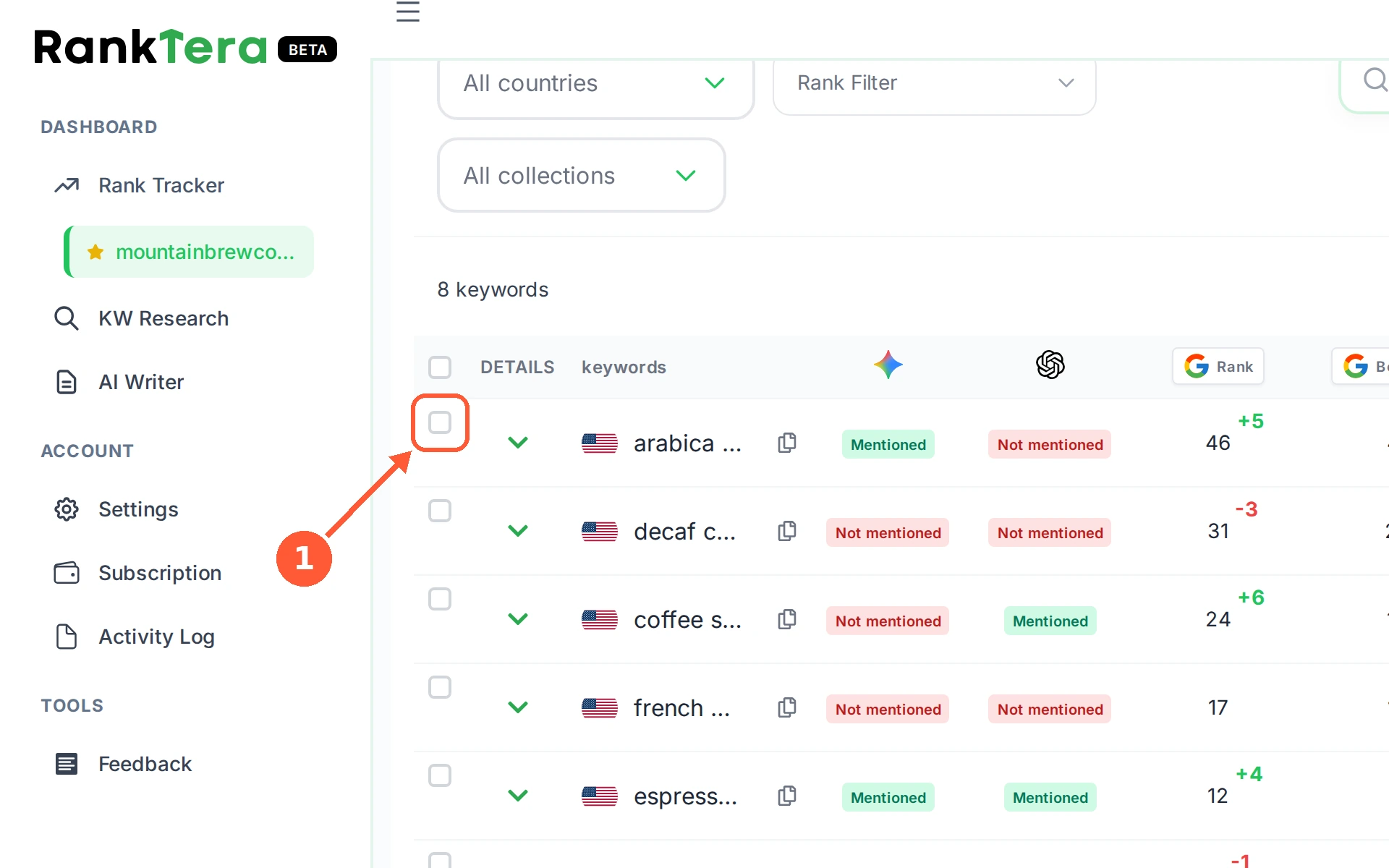
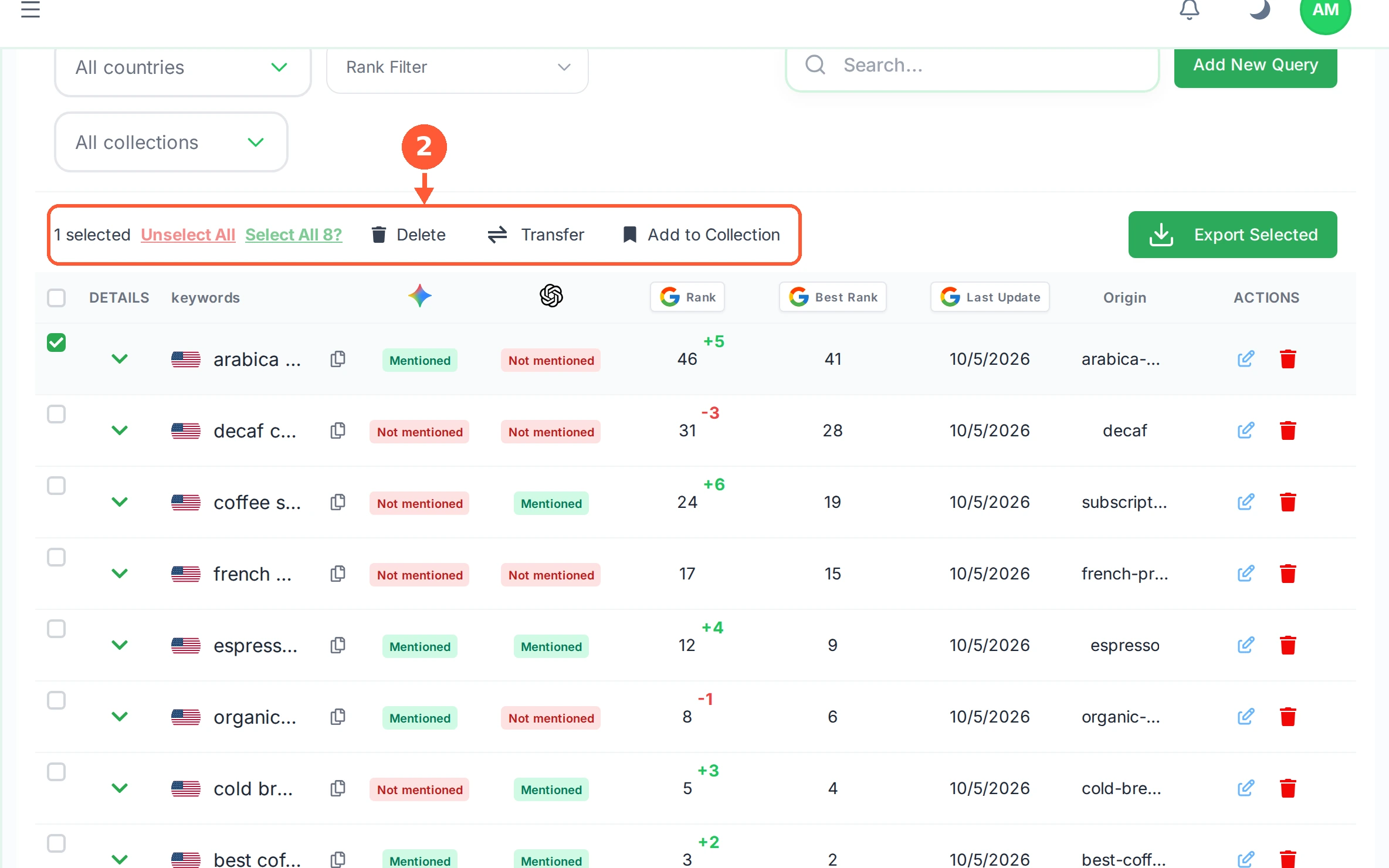
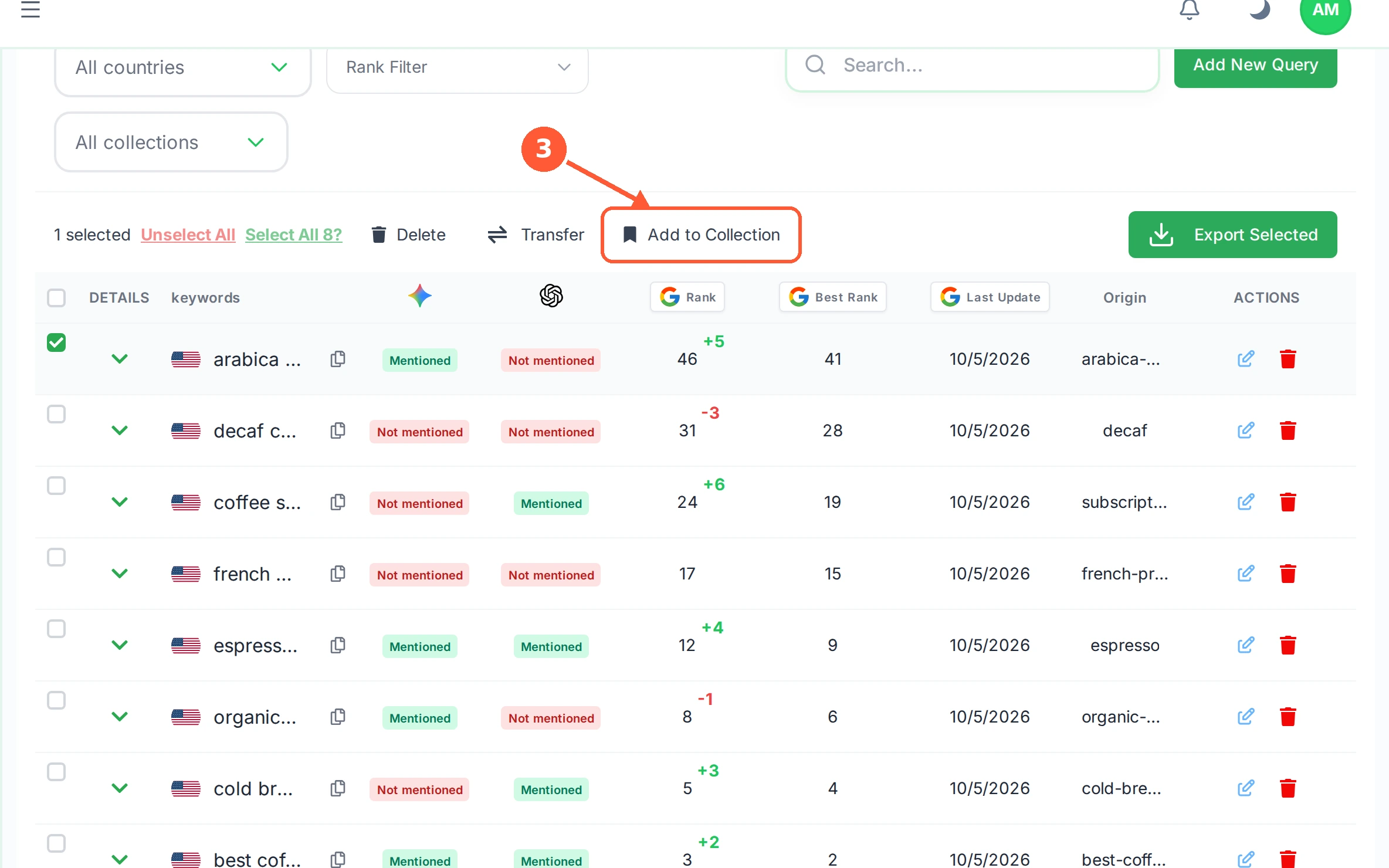
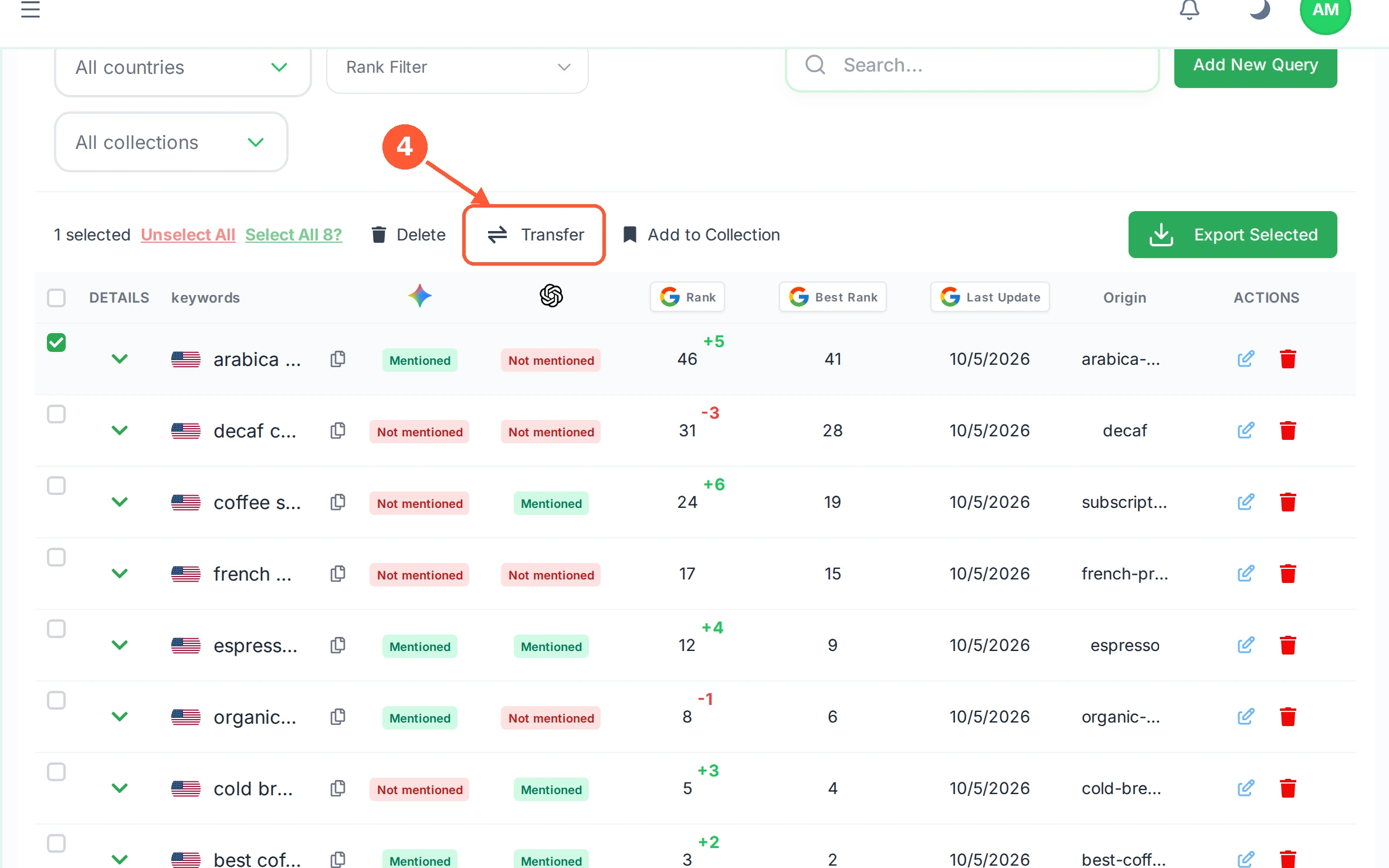
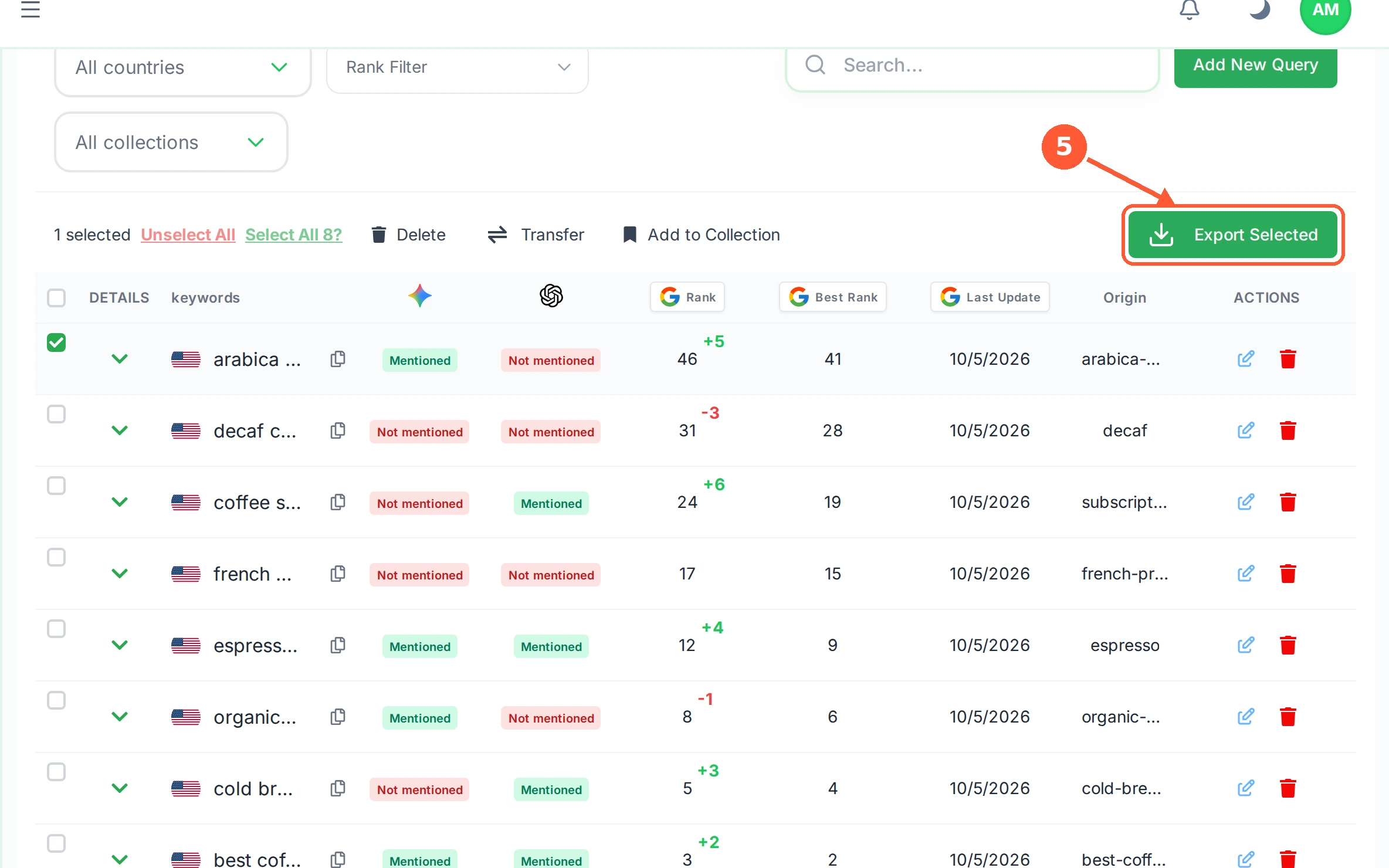
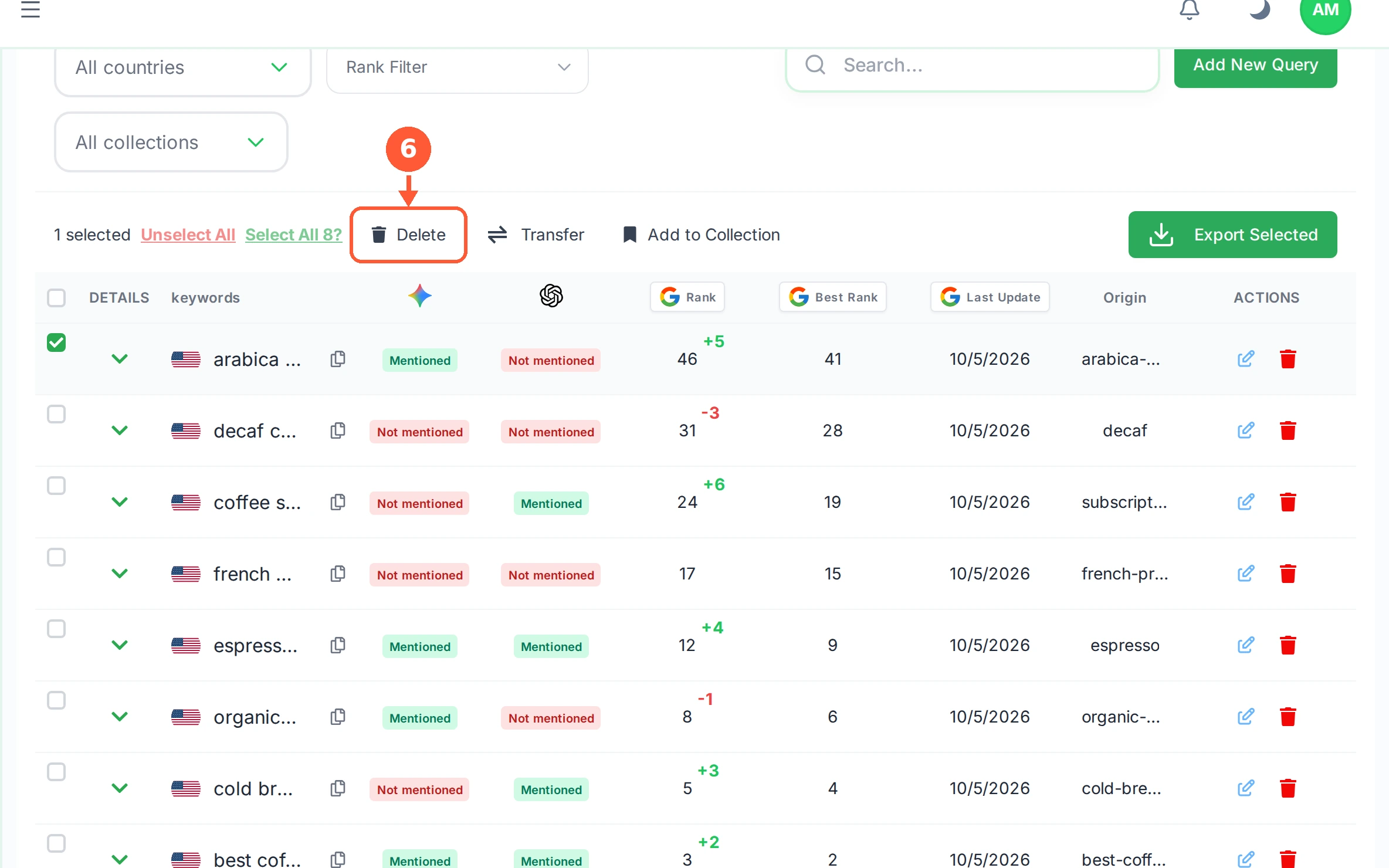
1Tick the box at the left of any row. A toolbar appears above the table showing how many rows you have chosen.1 / 6
💡 Good to Know
- Unselect All clears your choice without touching anything.
- A collection is just a label. A keyword can sit in one collection and be moved to another at any time.
- Deleting a keyword deletes its rank history too. Export first if you want to keep the record.
Change the Chart's Date Range
The chart on your site dashboard shows a window of time. Widen it to see a trend, narrow it to see what a recent change did.
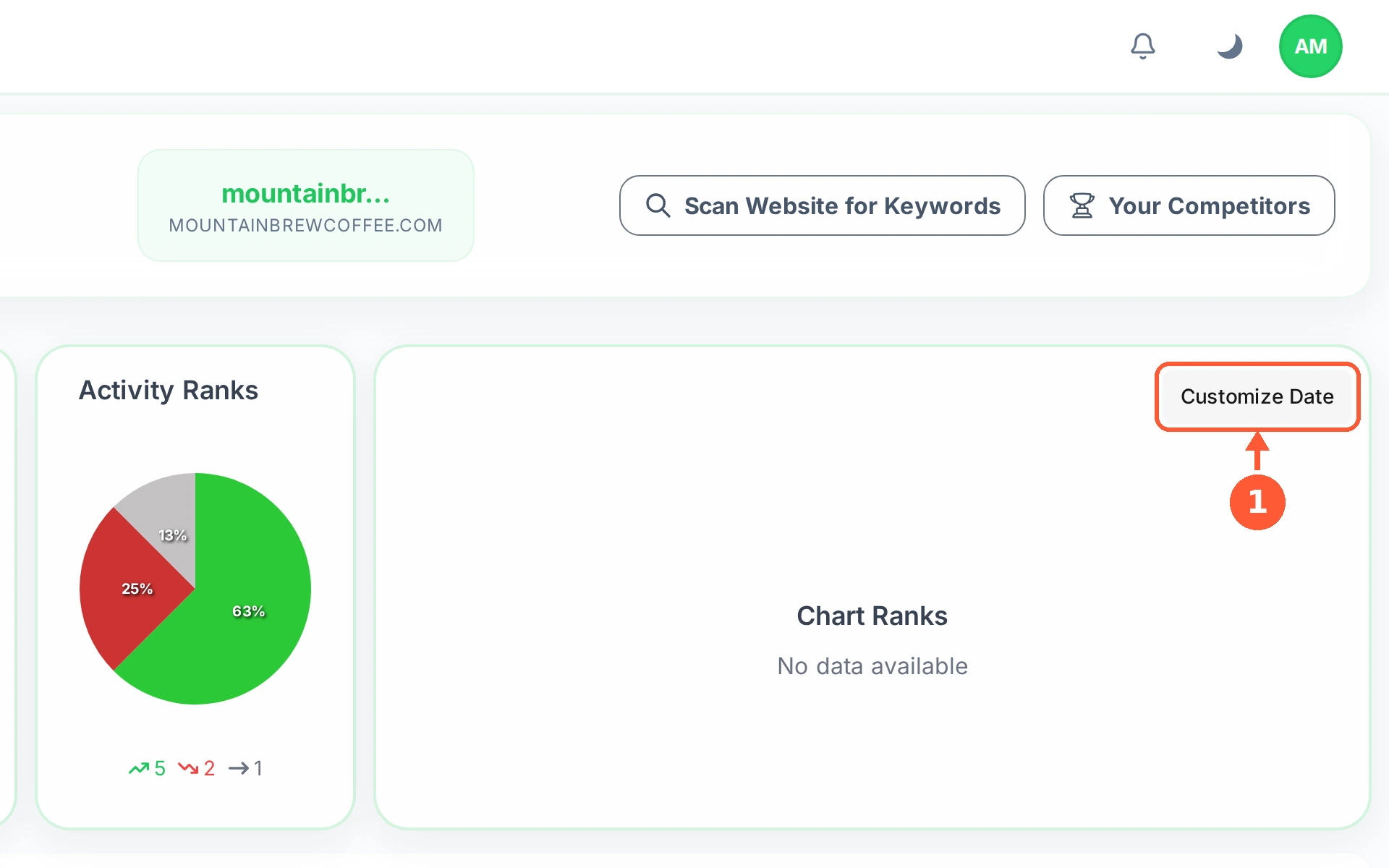
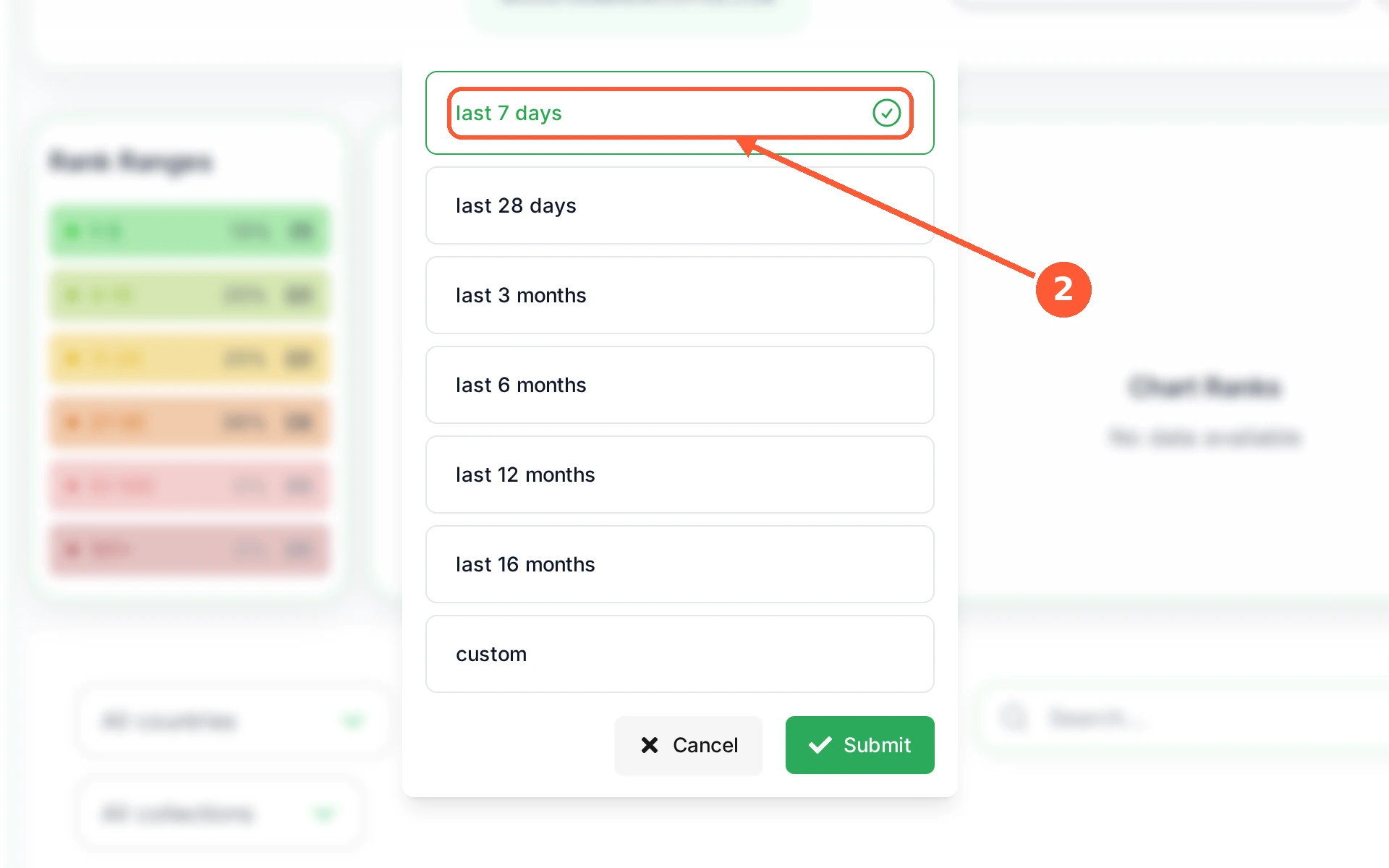
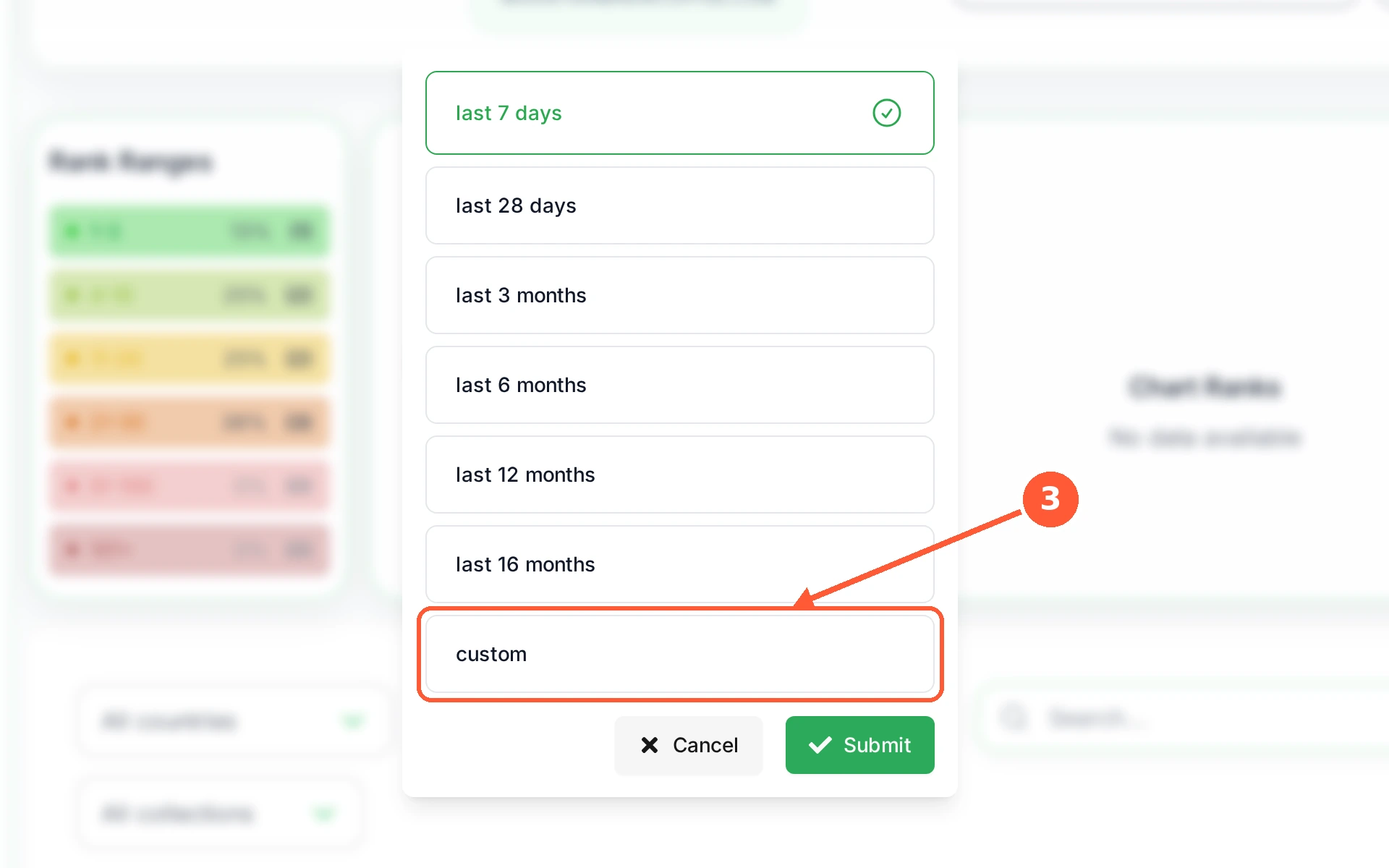
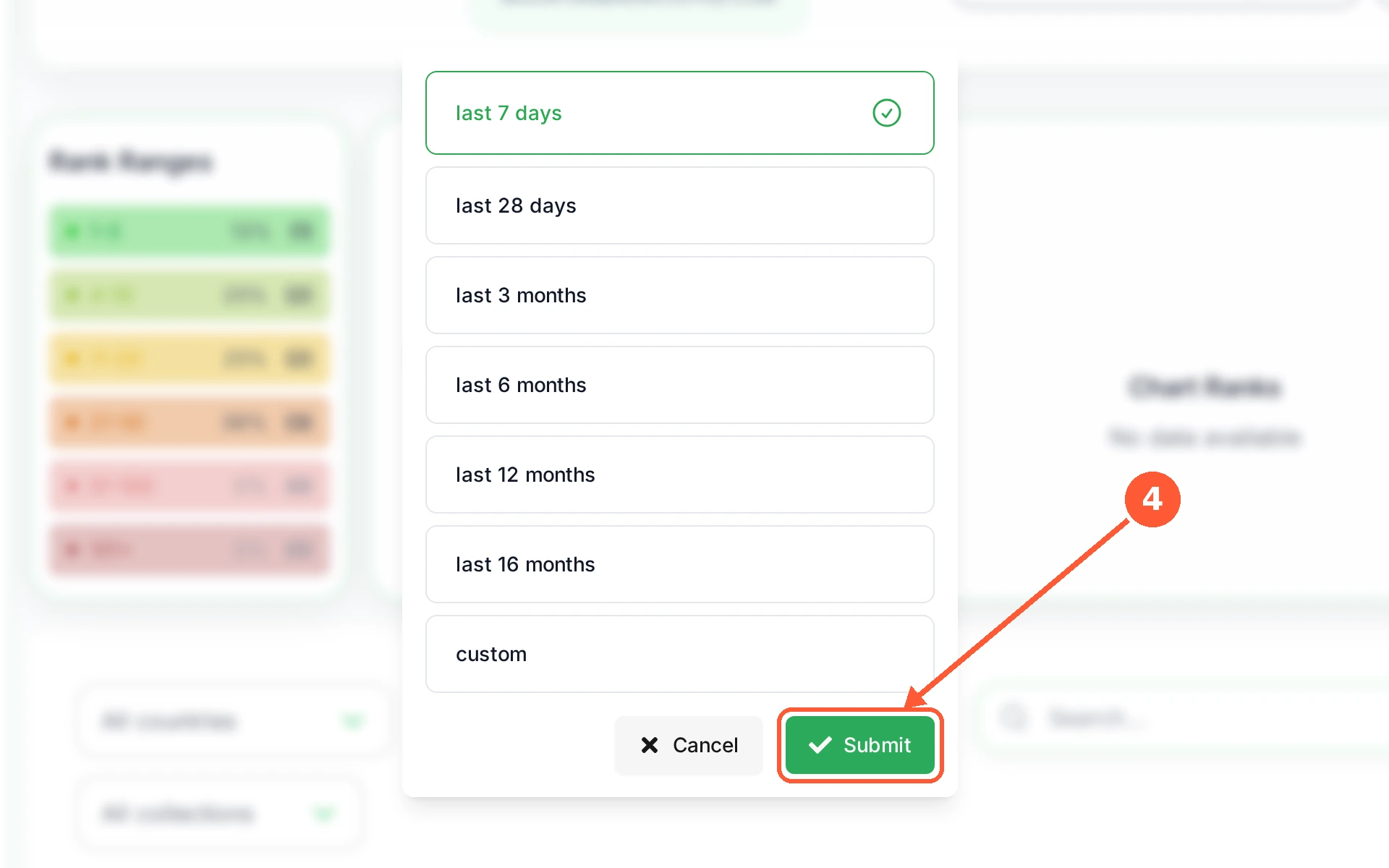
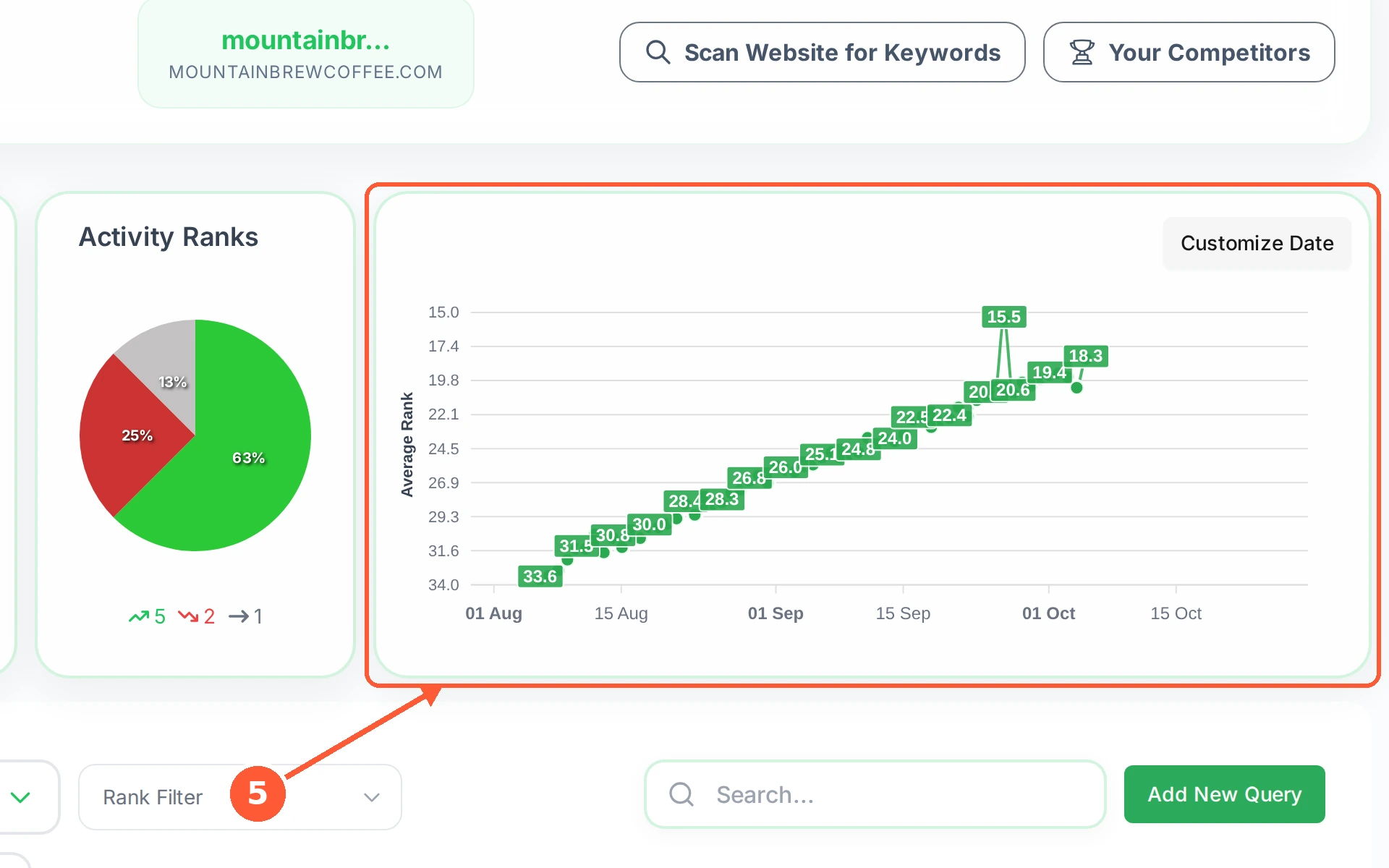
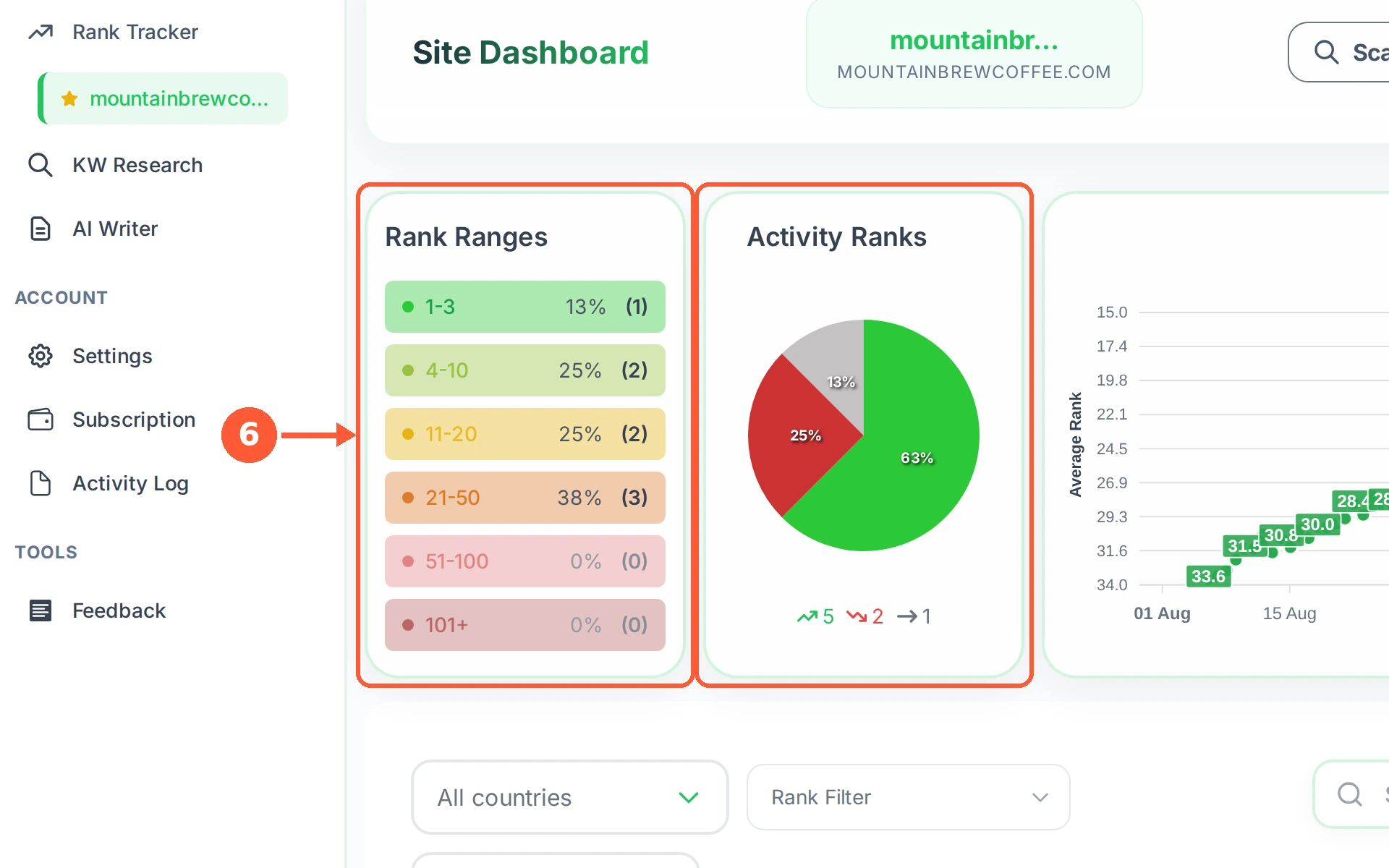
1Click Customize Date at the top right of the chart.1 / 6
💡 Good to Know
- A long range is best for spotting a trend; a short one for checking whether a change you made helped.
- The chart can only draw days it has data for, so a new site shows a short line whatever range you pick.
- Cancel closes the picker and leaves the chart as it was.
Compare Yourself With Competitors
Your own rank only means so much on its own. Put up to three rival sites beside yours and read the same keywords across all of them.
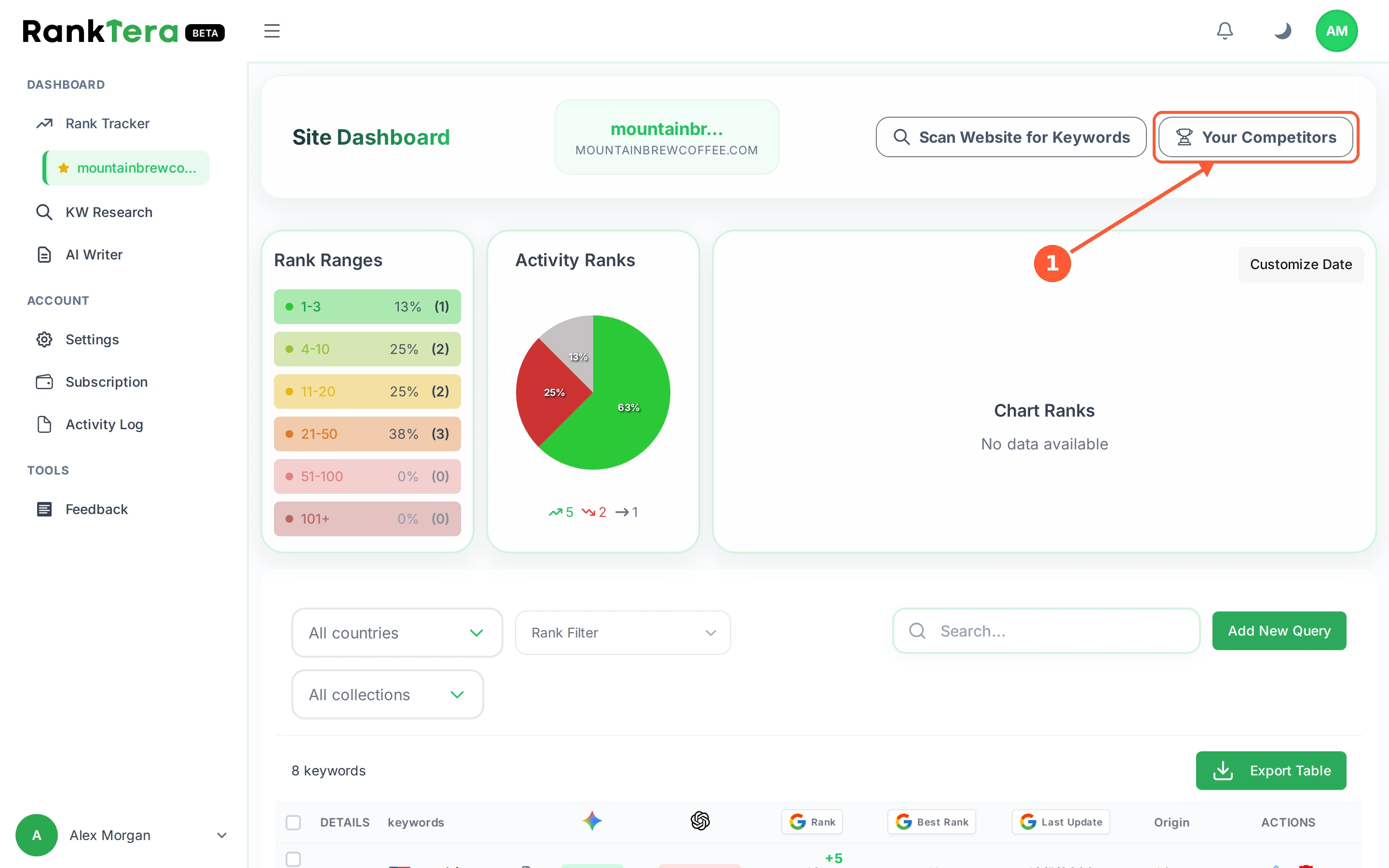
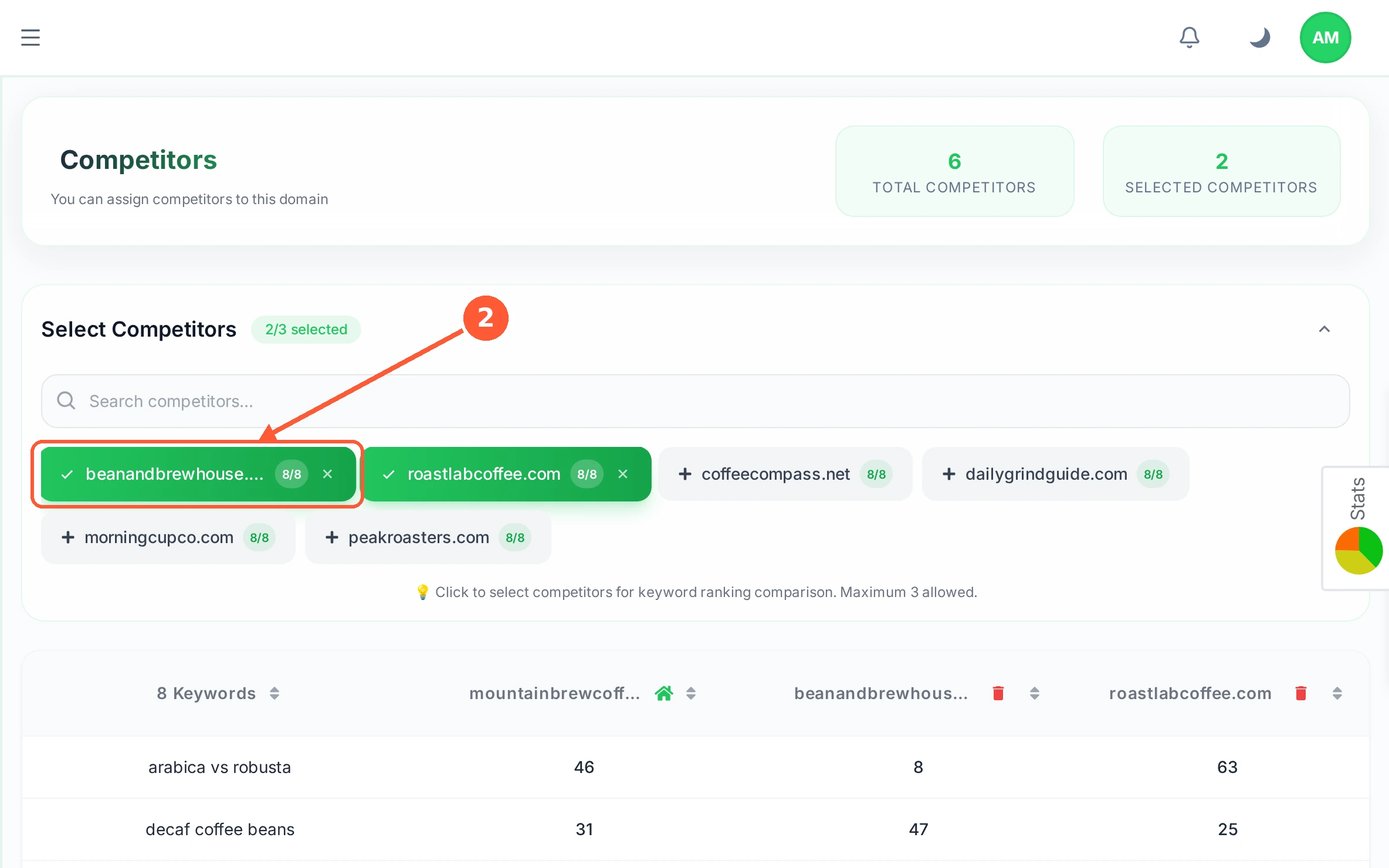
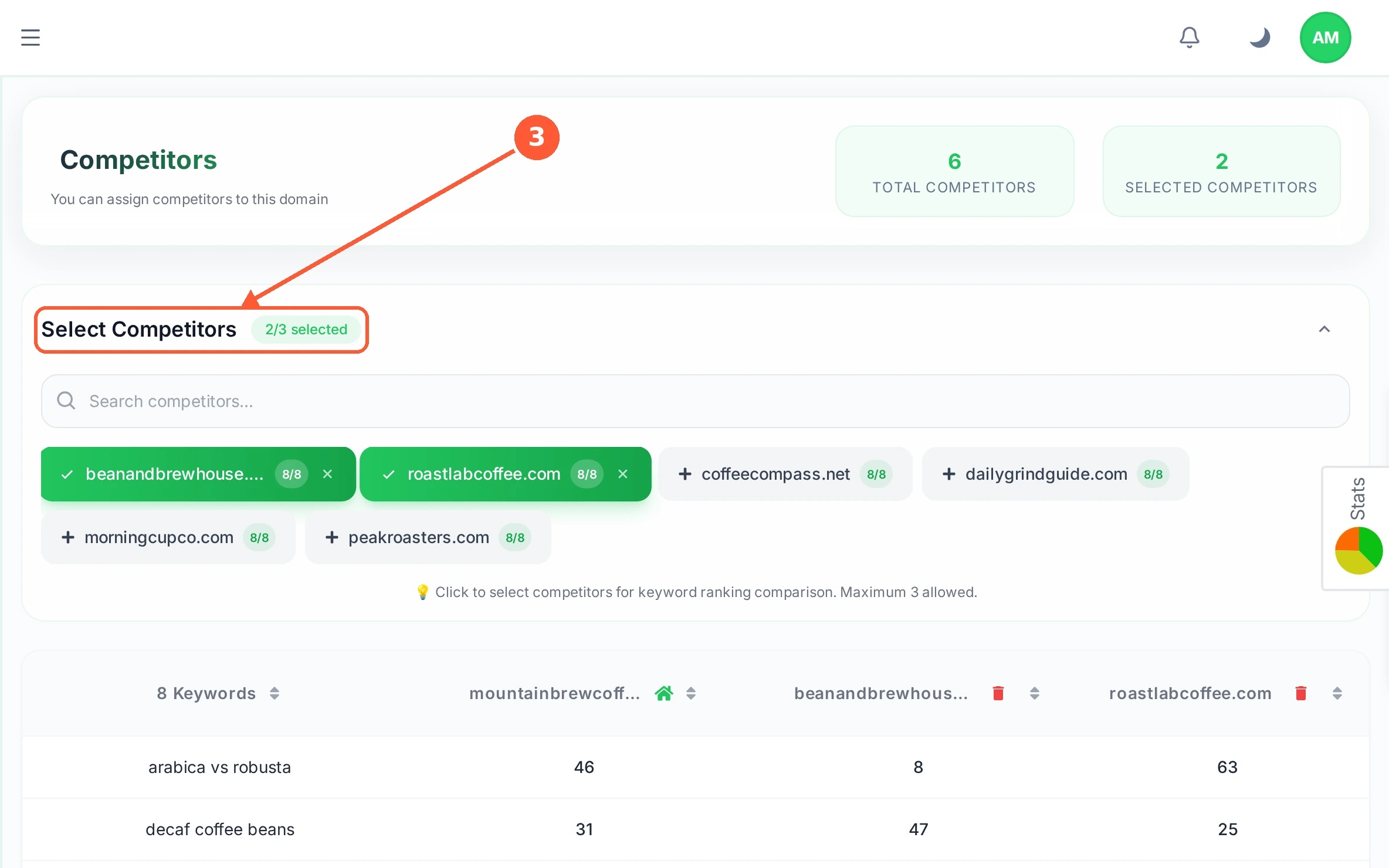
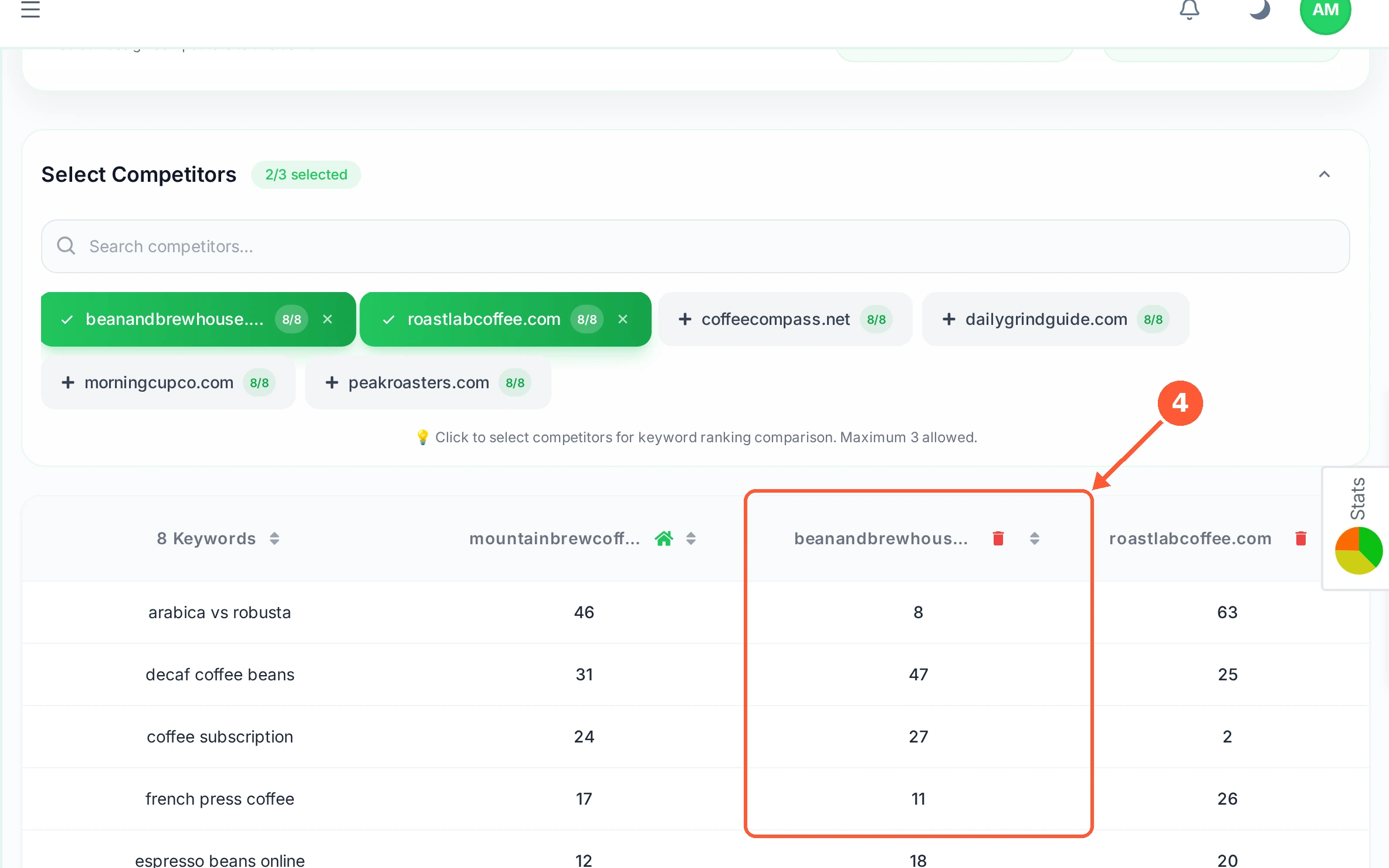
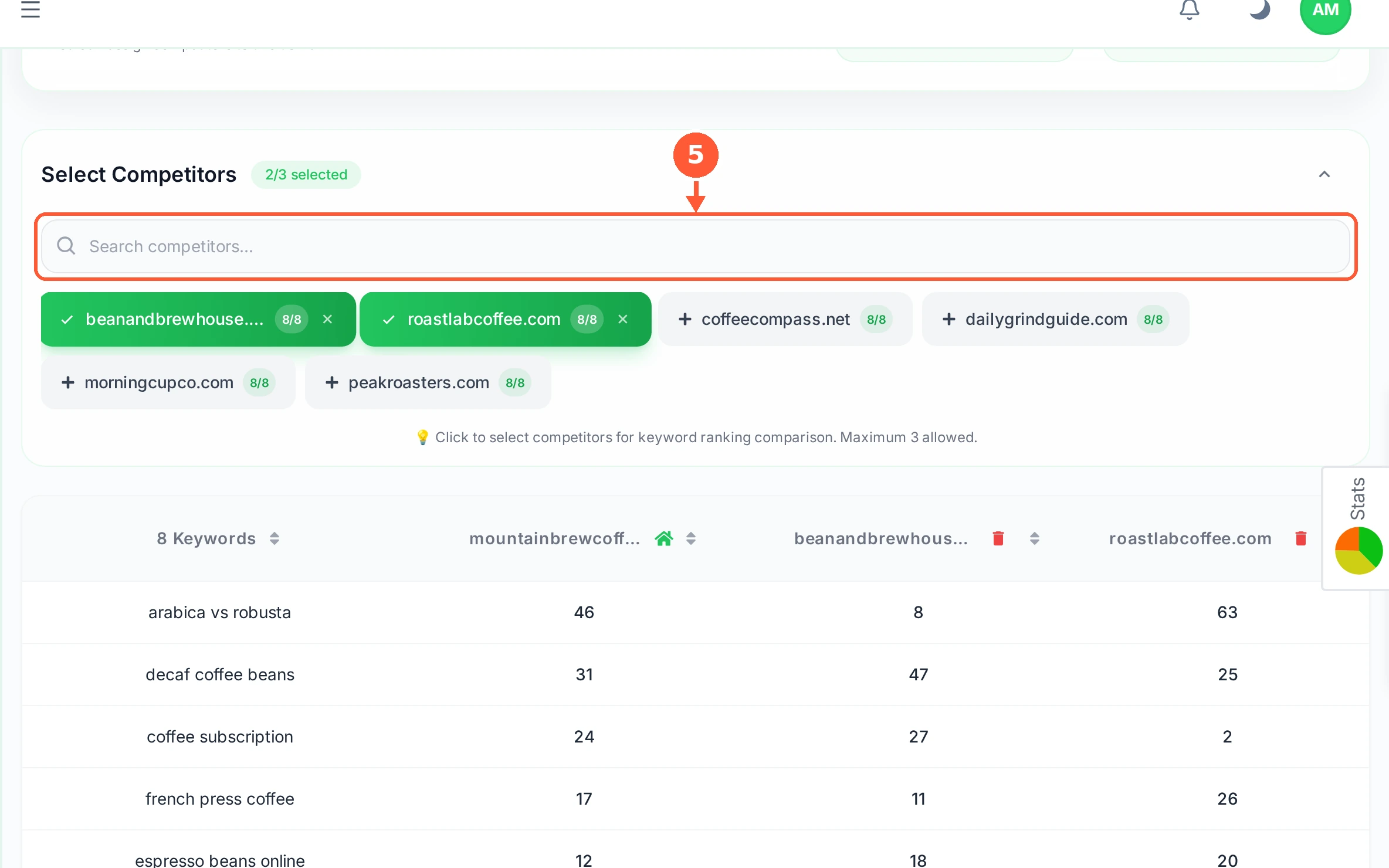
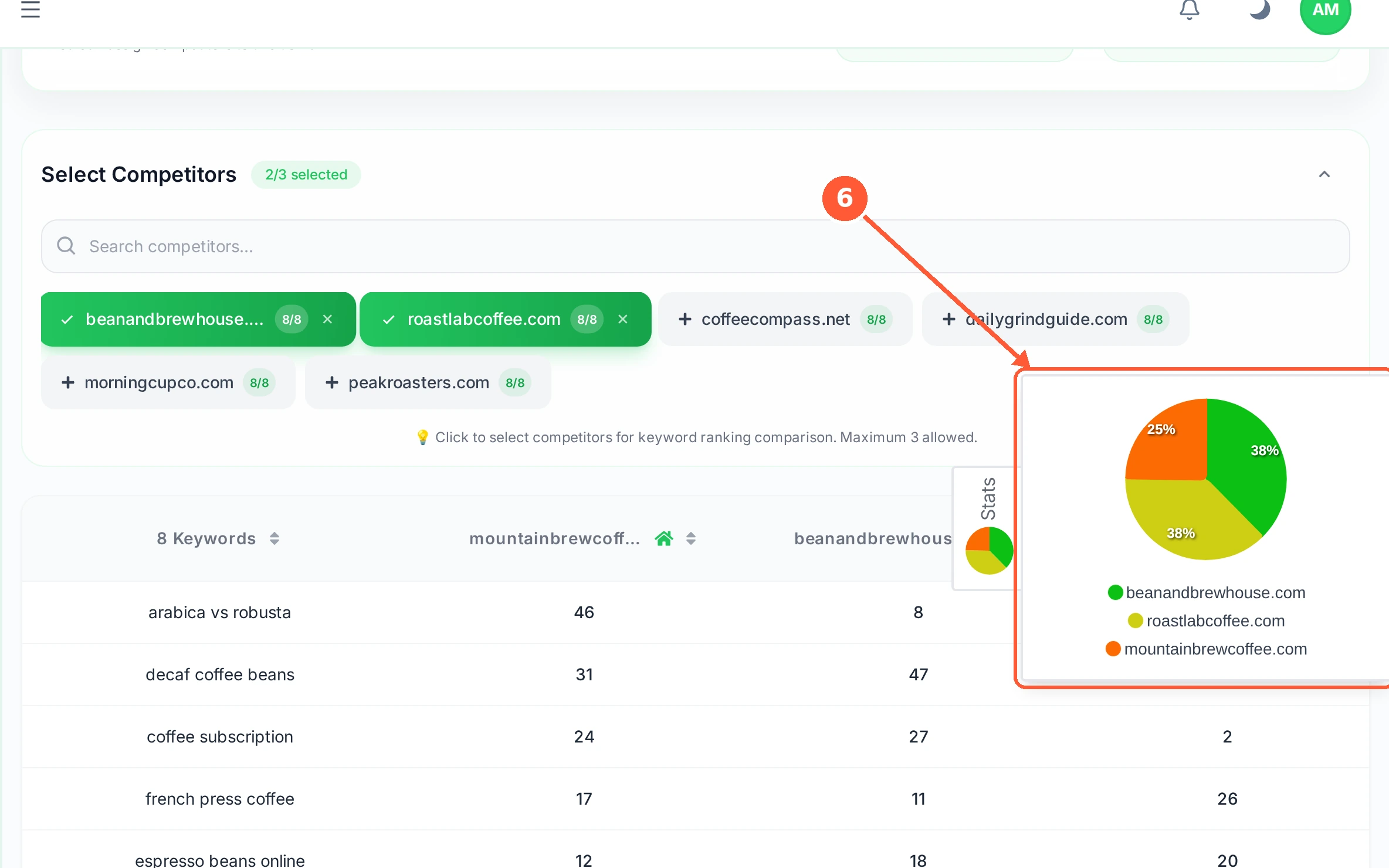
1On your site dashboard, click Your Competitors at the top right.1 / 6
💡 Good to Know
- Three is the maximum on purpose: more columns than that and the table stops being readable.
- Click a chosen competitor again to drop it and free up the slot.
- The keywords compared are your tracked keywords, so add the ones you care about first.
Reverse Engineer a Keyword
Keyword Research does not guess at search volumes. It reads the pages that already win for your keyword and tells you what they actually contain.
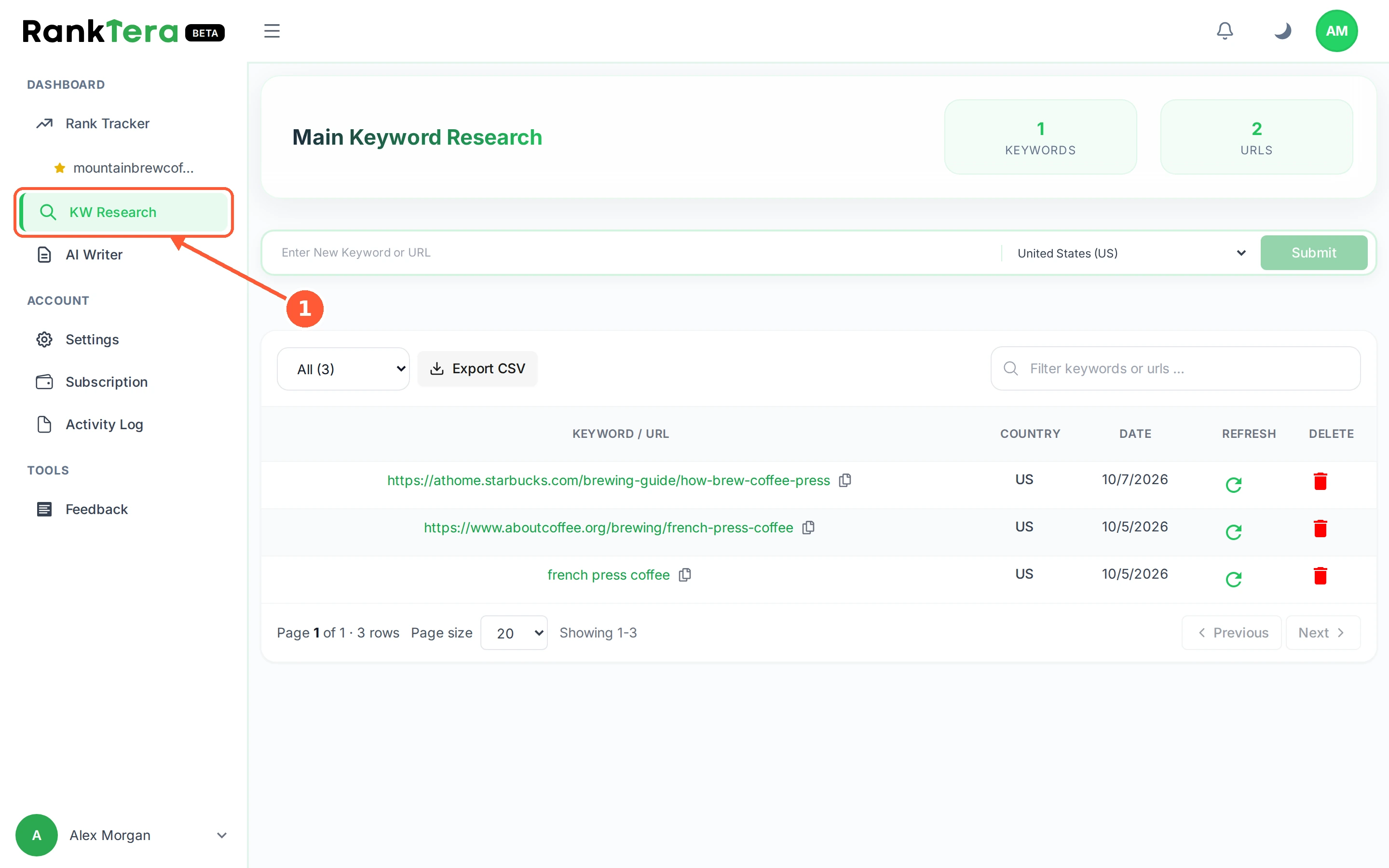
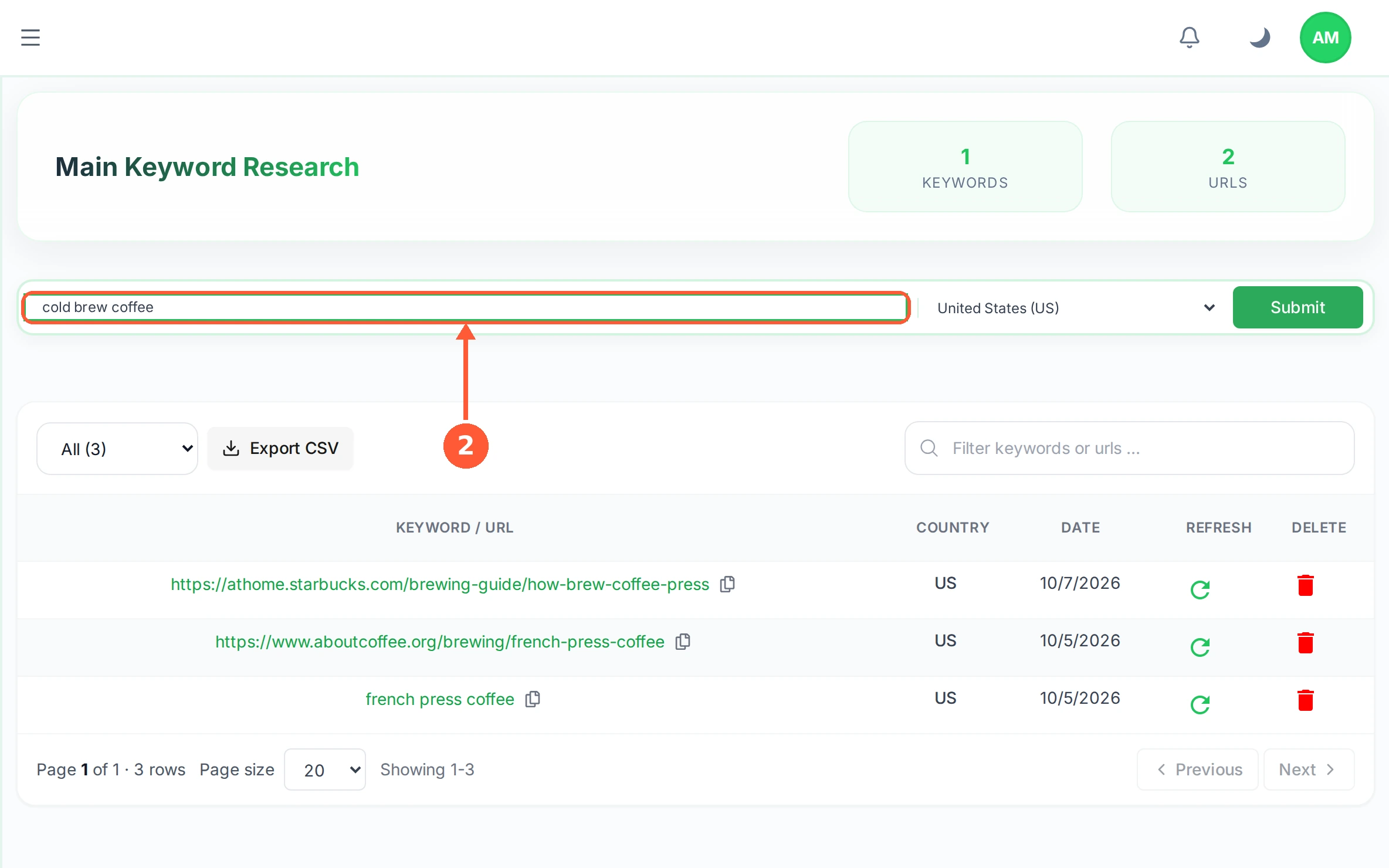
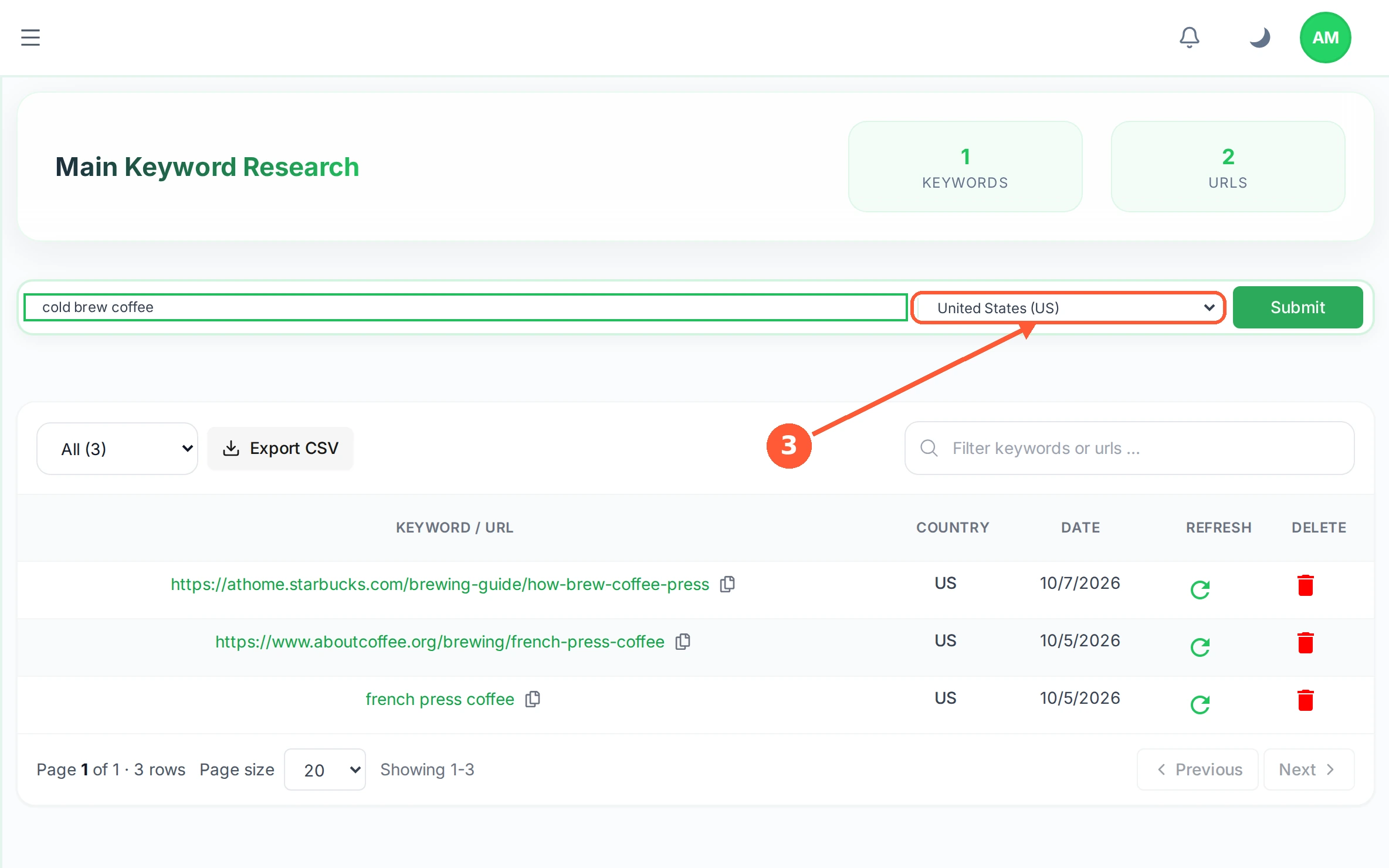
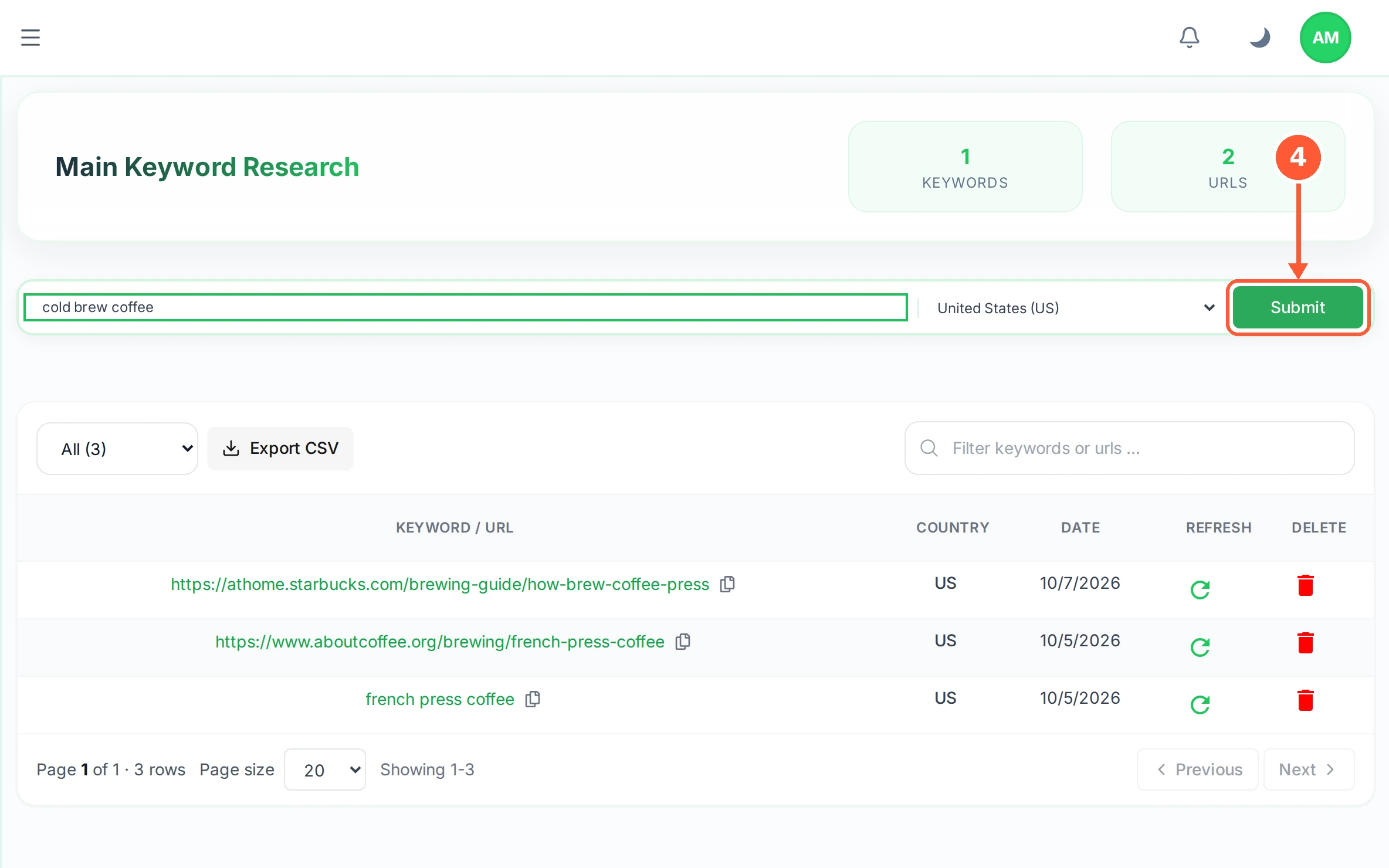
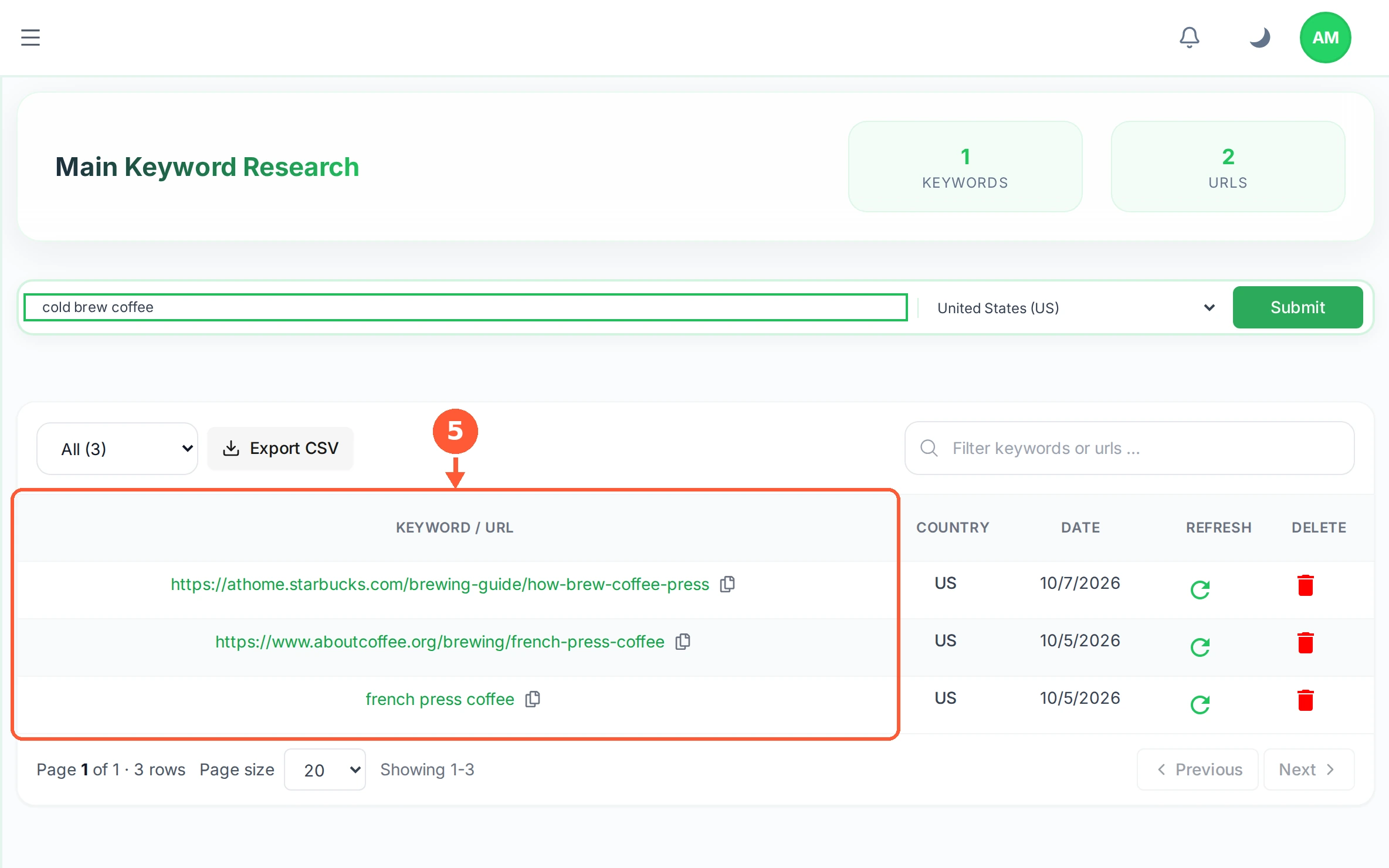
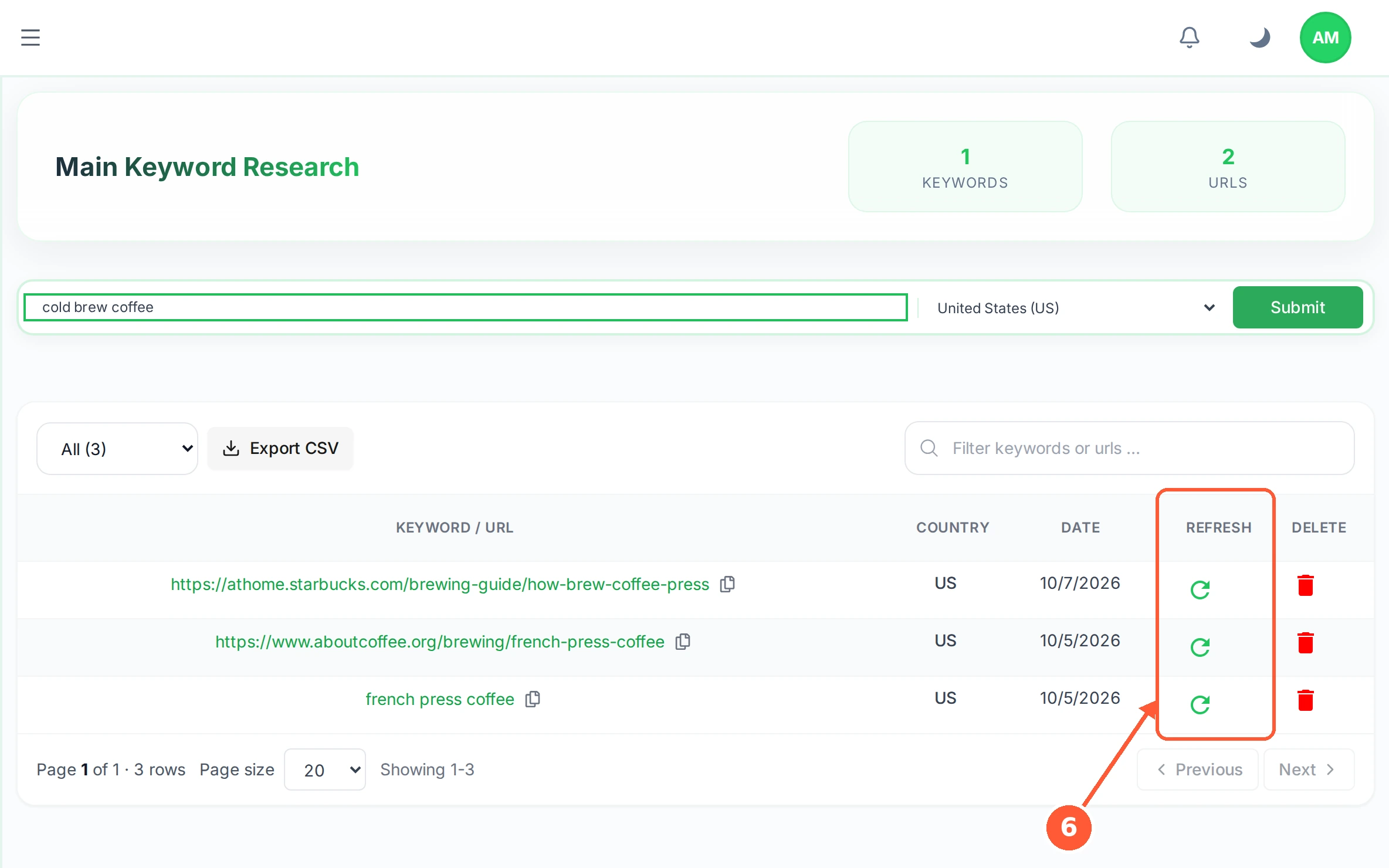
1In the left menu open KW Research.1 / 6
💡 Good to Know
- Research one keyword per topic, not per page. The result covers the whole subject.
- Each run uses one research credit from your plan.
- Researching a competitor's URL shows you what that single page is built from.
Read Your Research Results
The result is the anatomy of the pages that already rank: who they are, how long they are, and which words they all keep using.
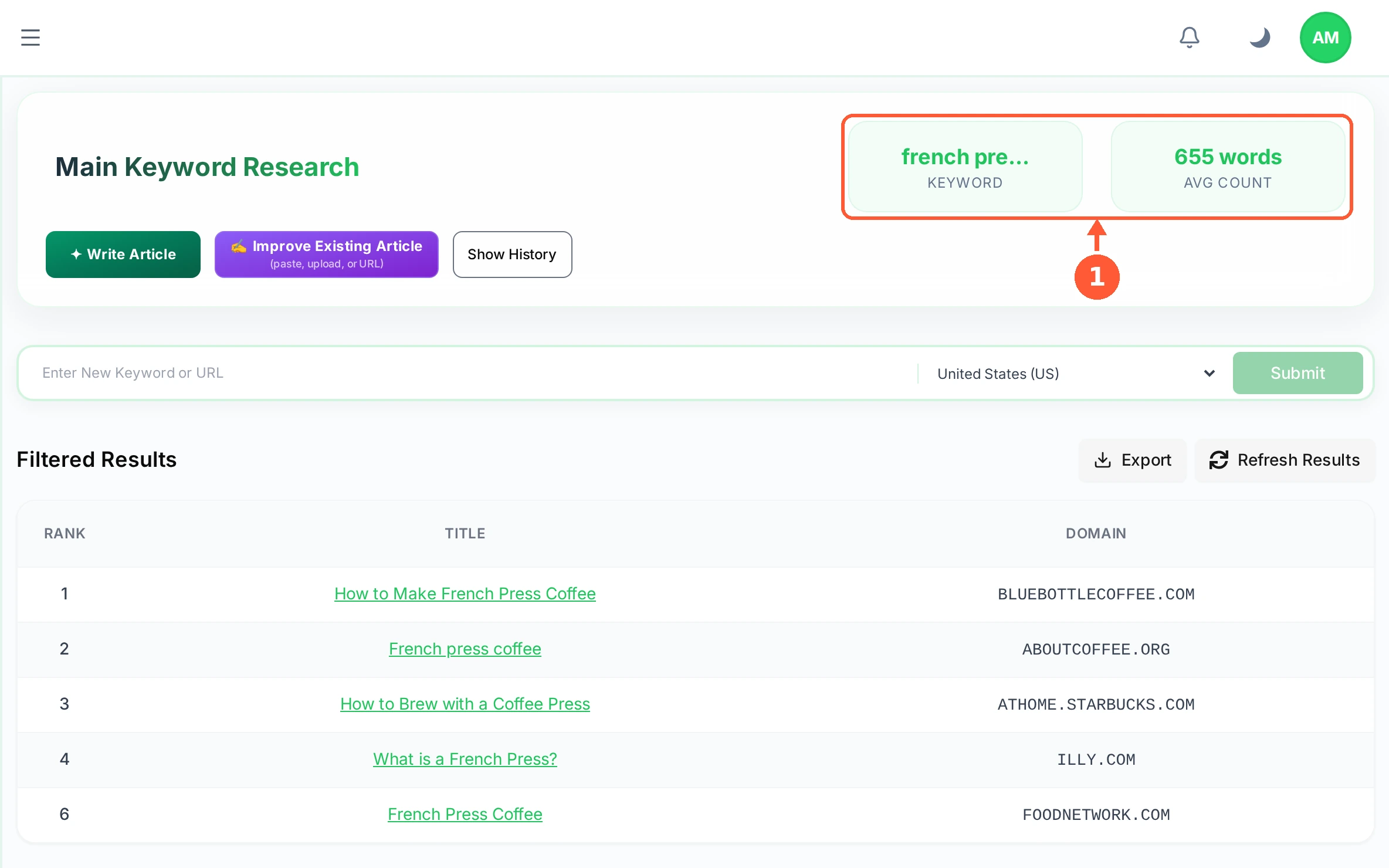
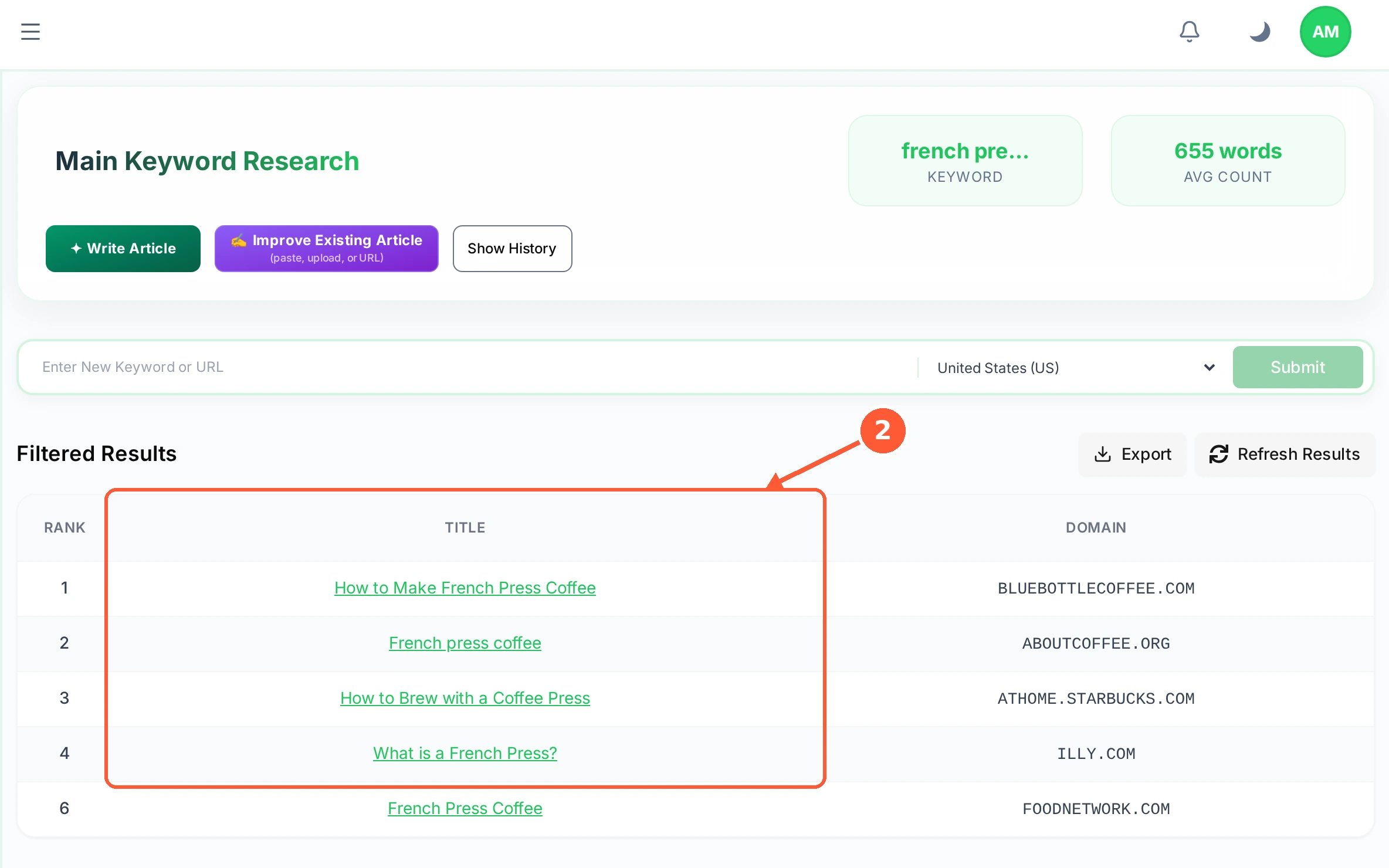
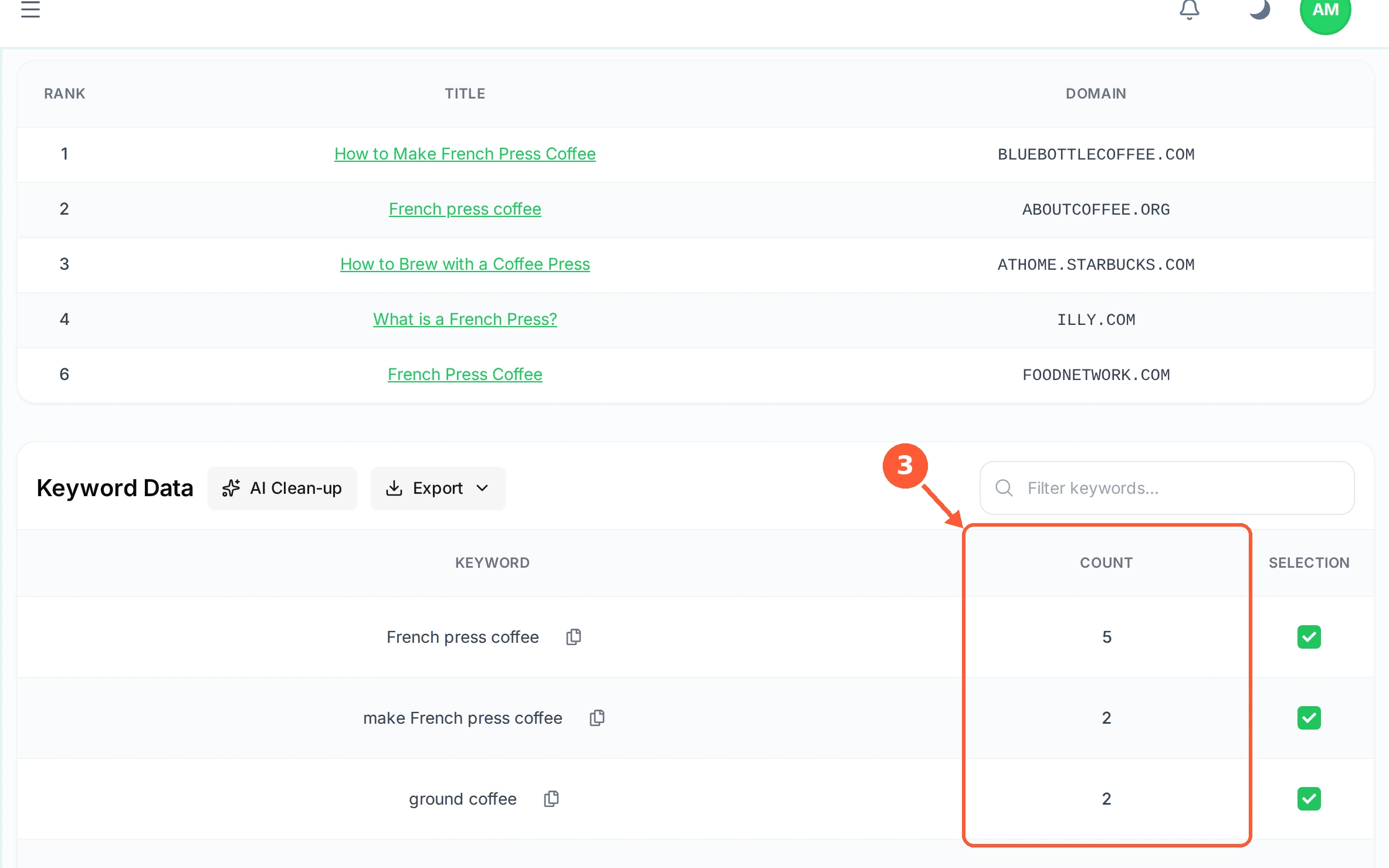
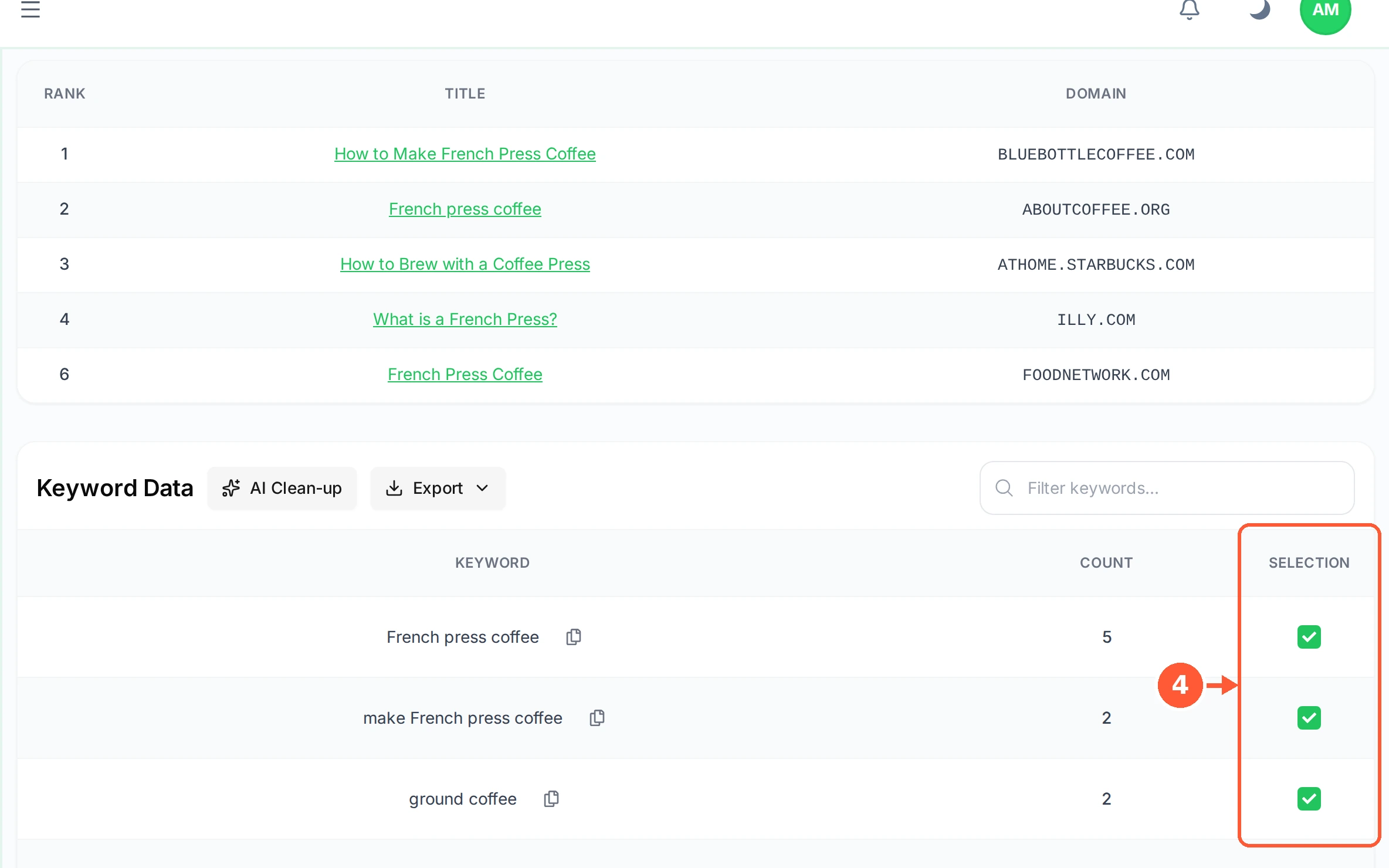
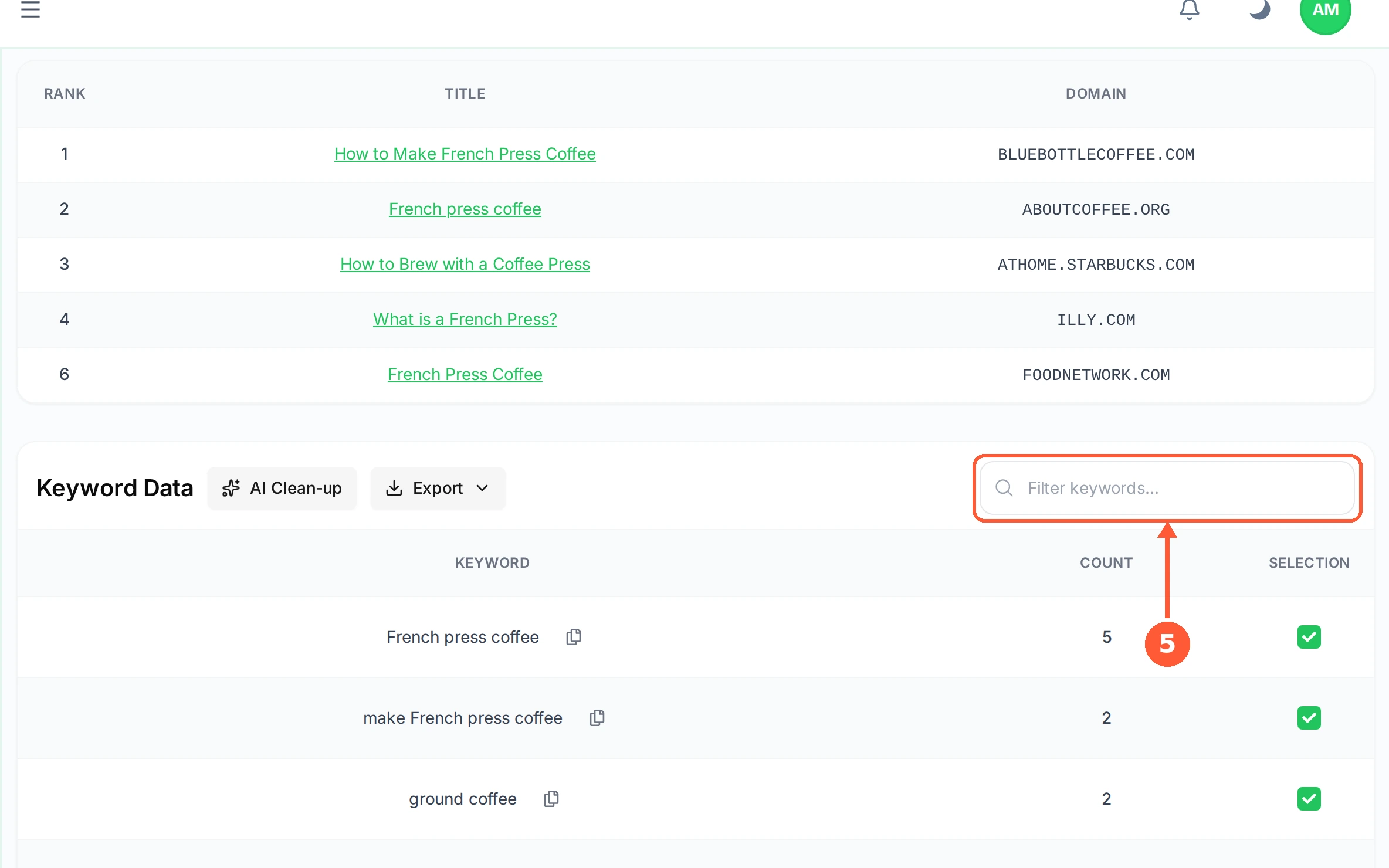
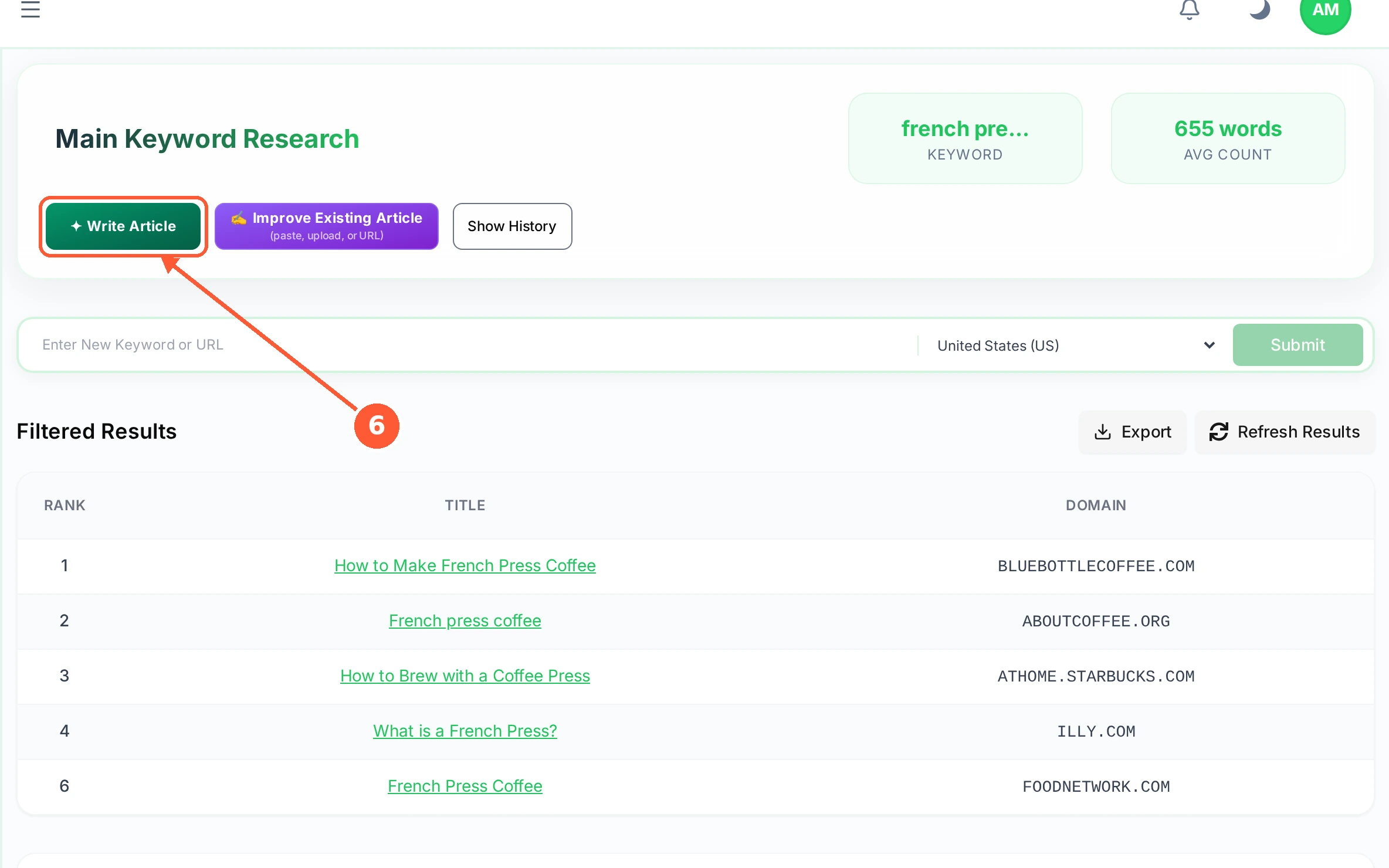
1At the top, KEYWORD repeats what you researched, with the typical length of a winning page in words and the average count of each term.1 / 6
💡 Good to Know
- A high count means the winning pages lean on that term heavily. It is a target, not a quota.
- Untick terms that belong to a different business. They would only pull your article off topic.
- The ranking pages are real competitors, so their titles are a quick read on how the subject is usually framed.
Refresh, Clean Up and Export Research
Search results move. These four buttons keep a piece of research current, tidy it up, save a copy, or bring back an older run.
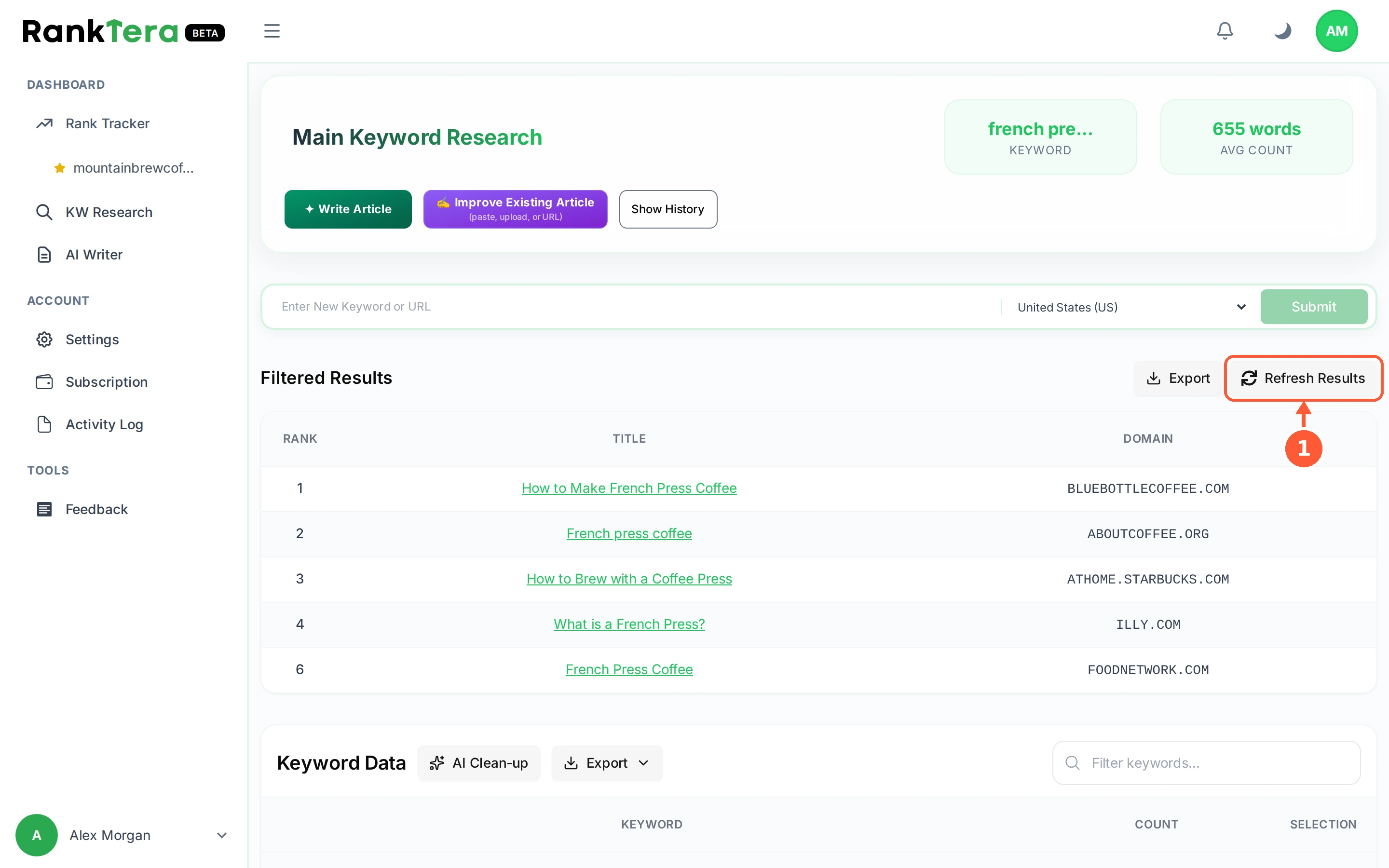
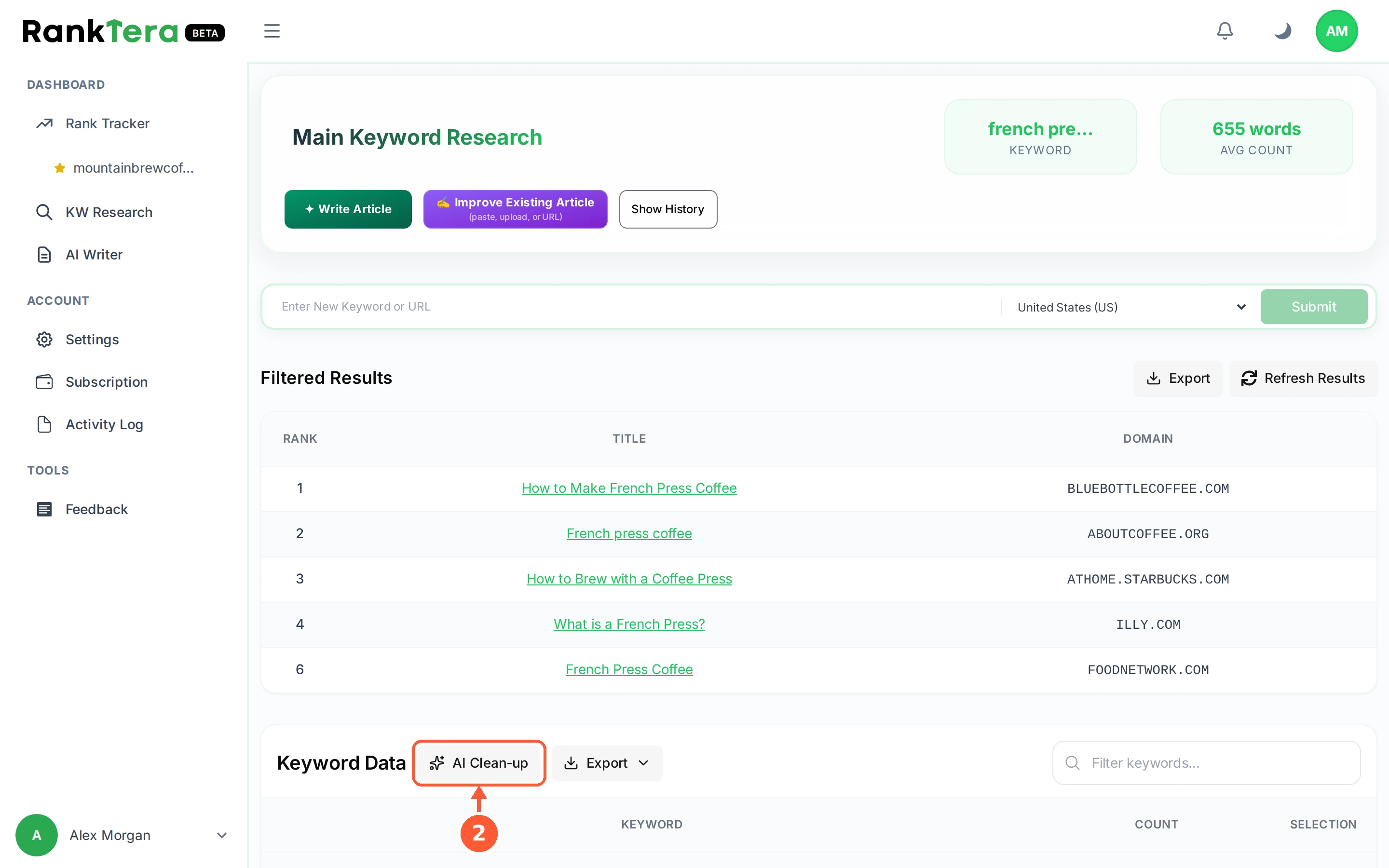
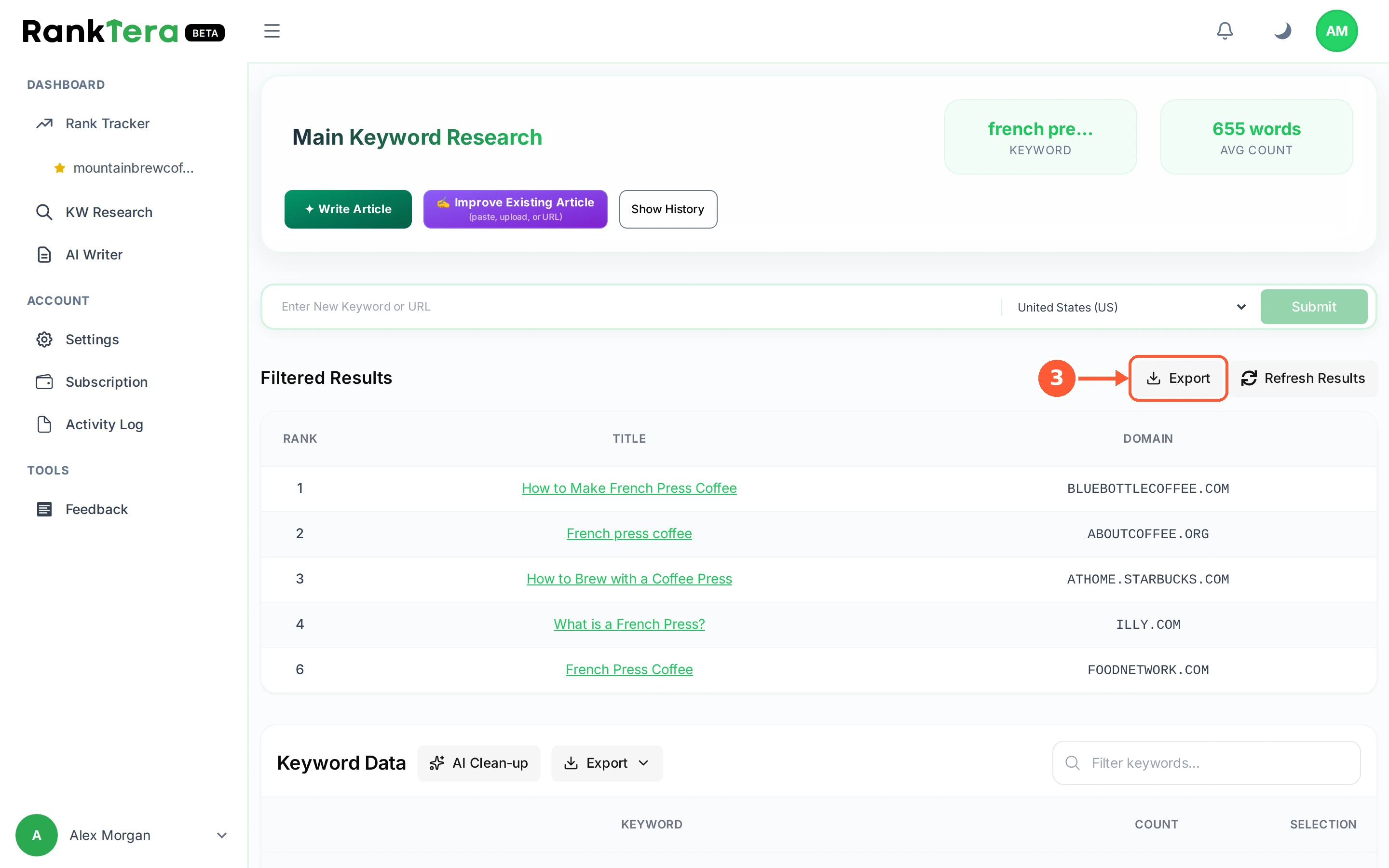
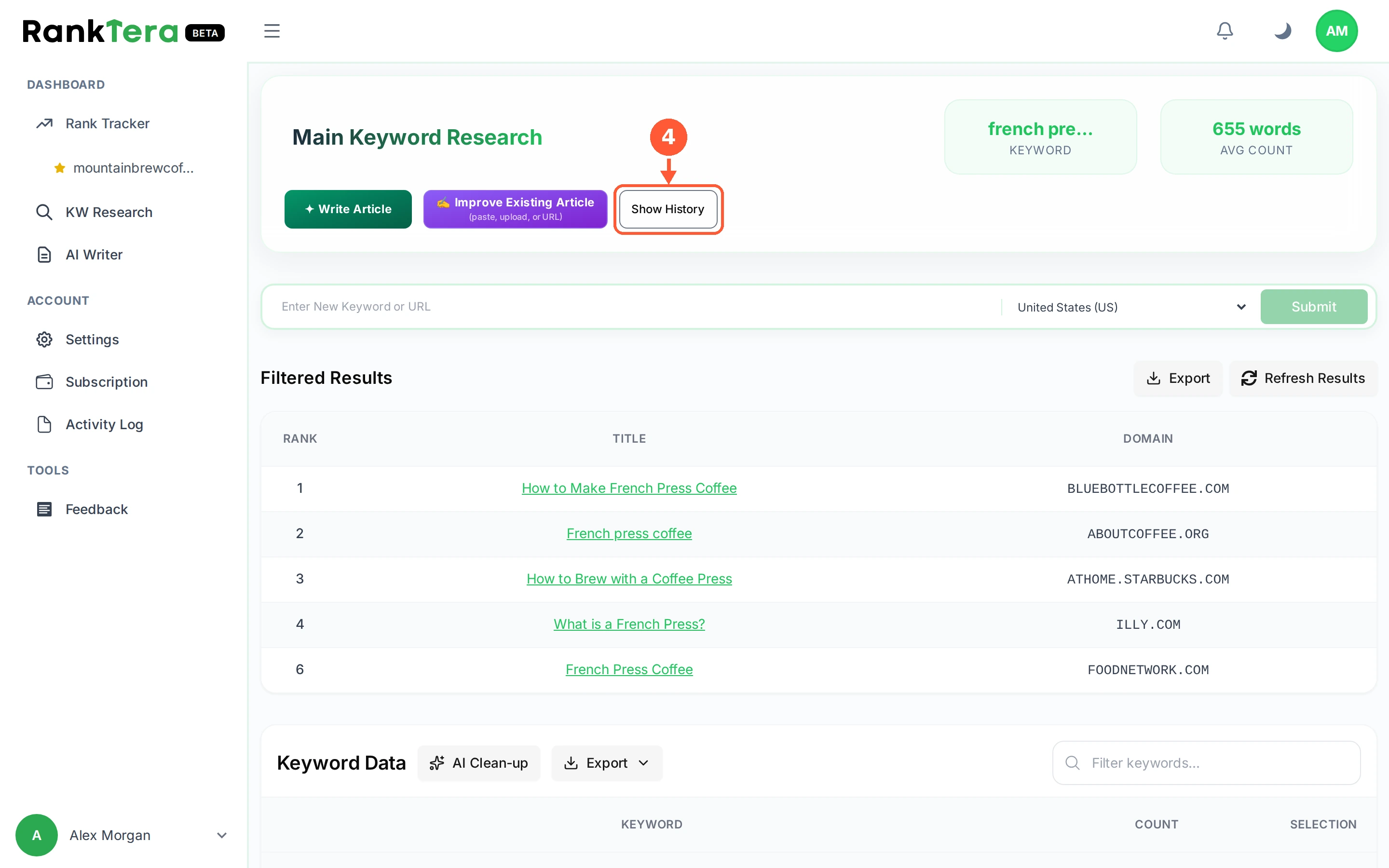
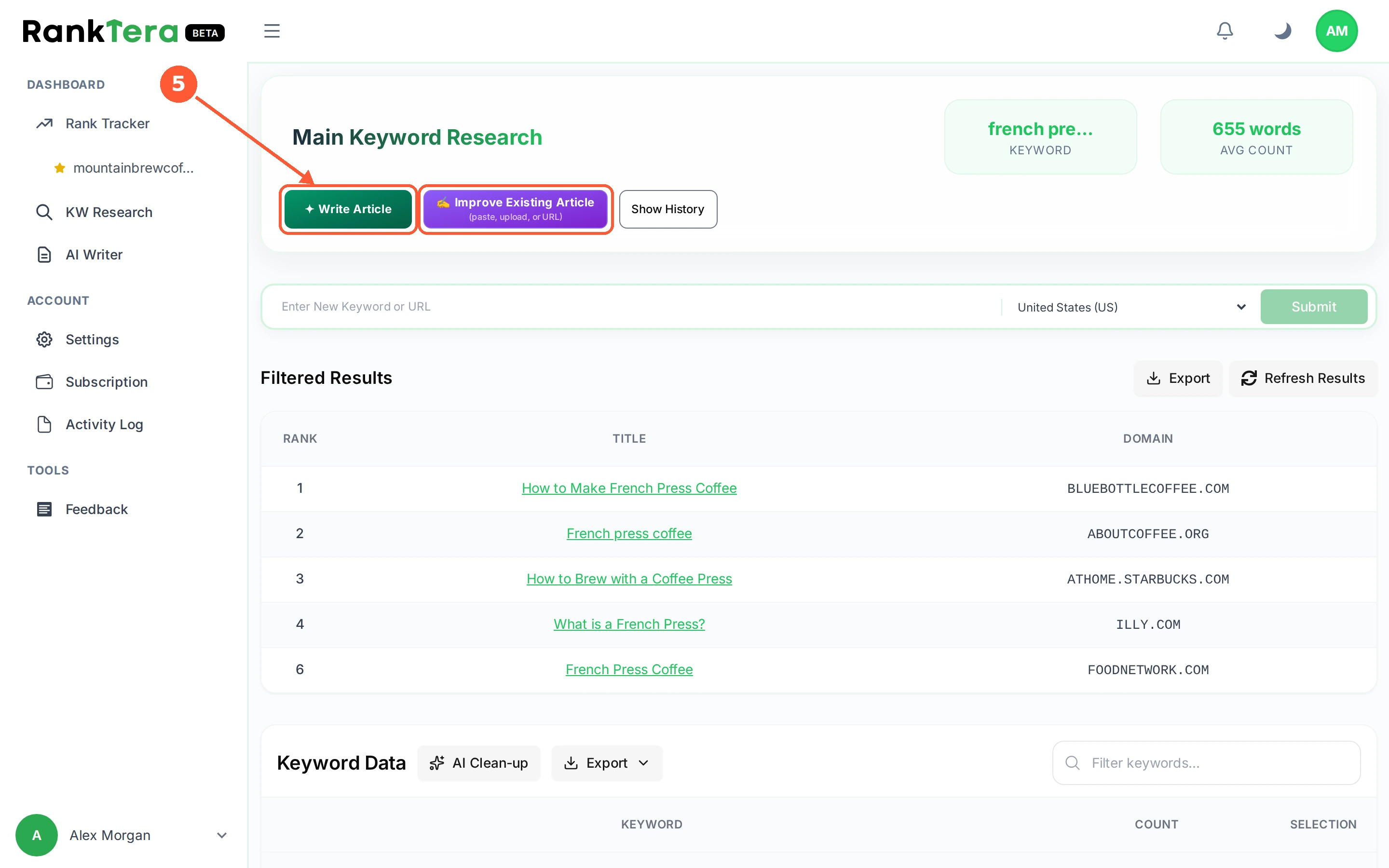
1Refresh Results runs the research again against today's search results, which matters when the page you are chasing has changed.1 / 5
💡 Good to Know
- A refresh uses another research credit, so refresh when something changed rather than out of habit.
- Clean-up is a suggestion. Look over what it removed before you write from the result.
- Old runs are kept, so comparing this month with last month costs nothing.
Write an Article From Your Research
The AI Writer does not write from nothing. It writes from the research you just did, aiming at the terms the winning pages actually use.
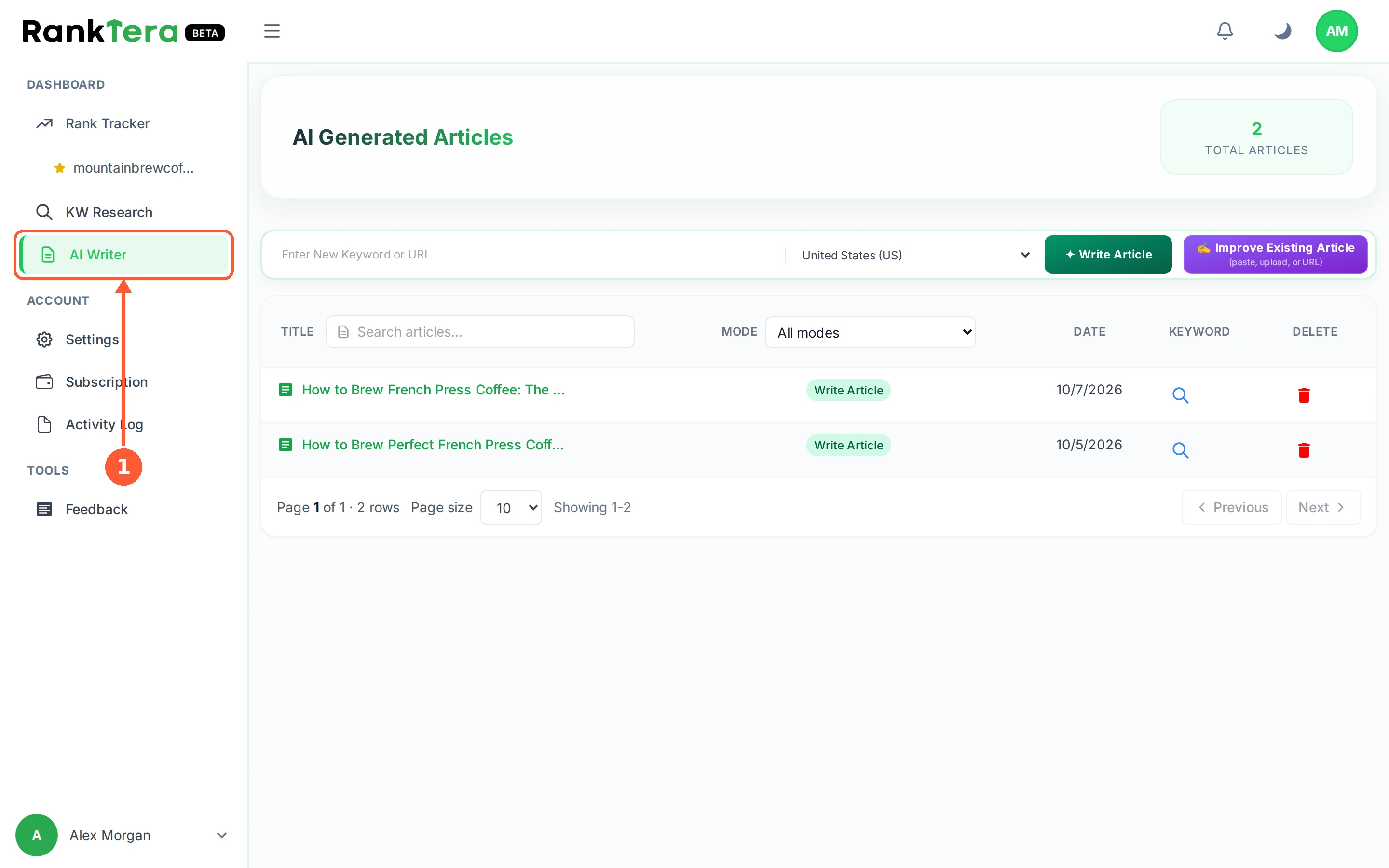
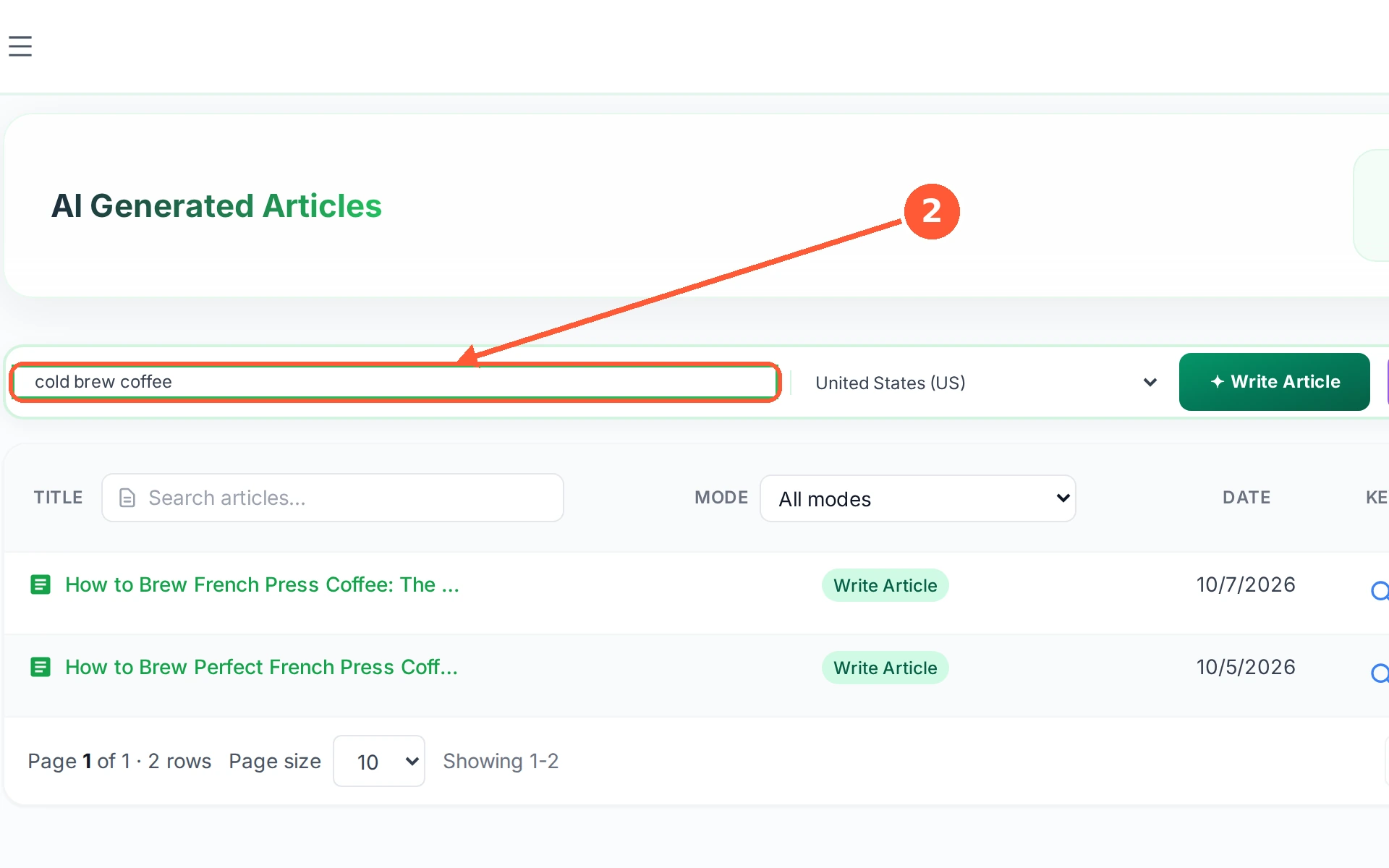
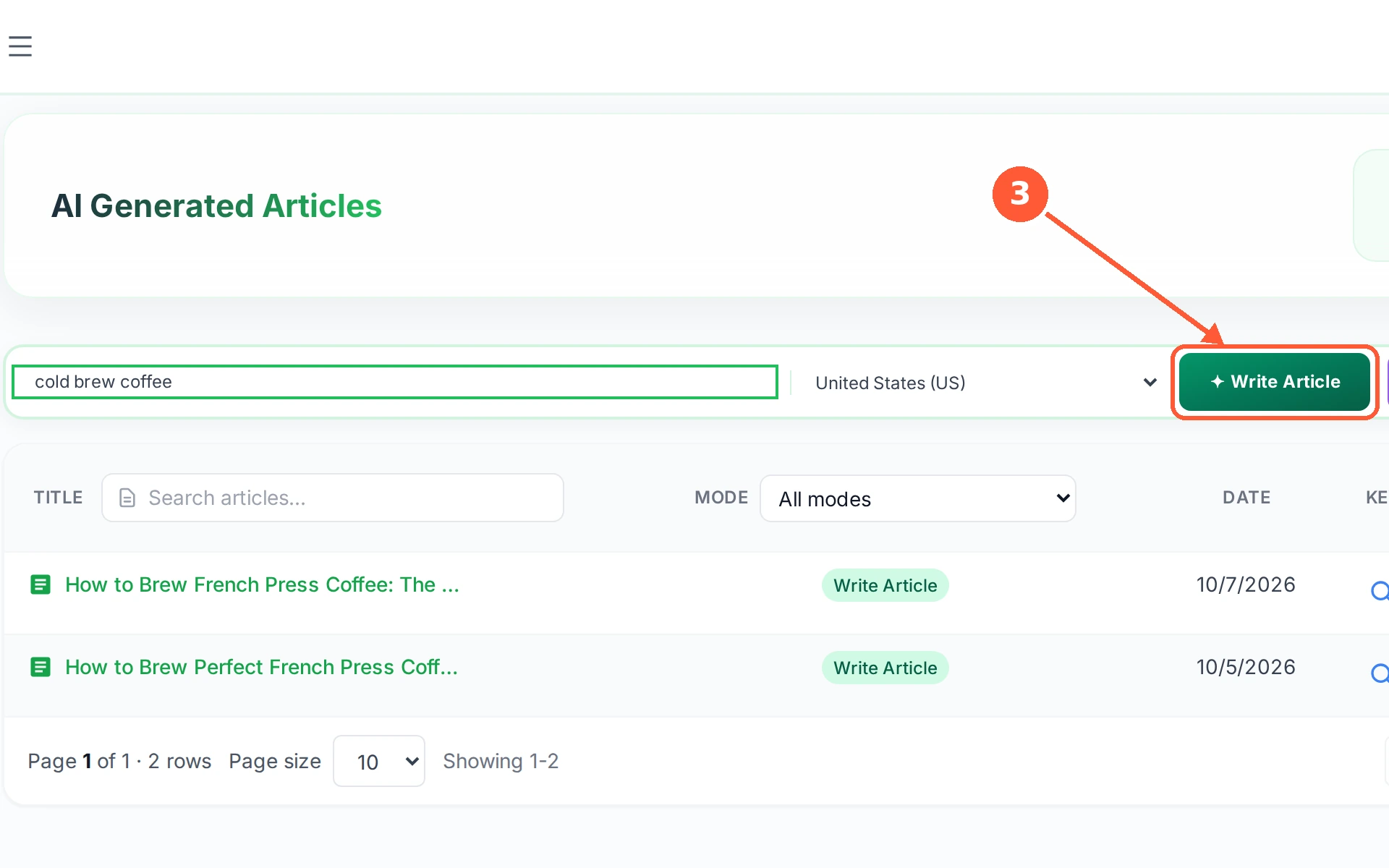
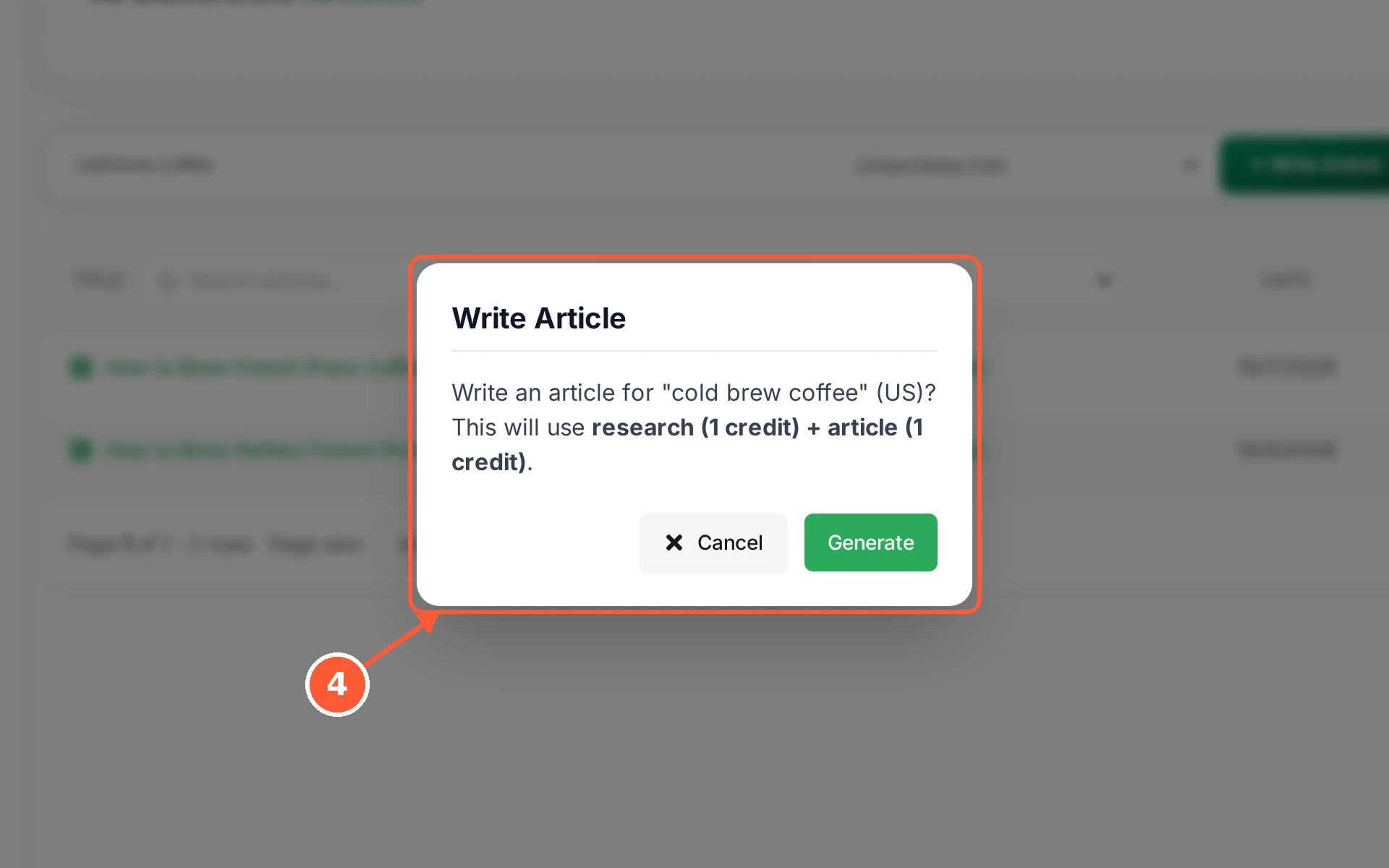
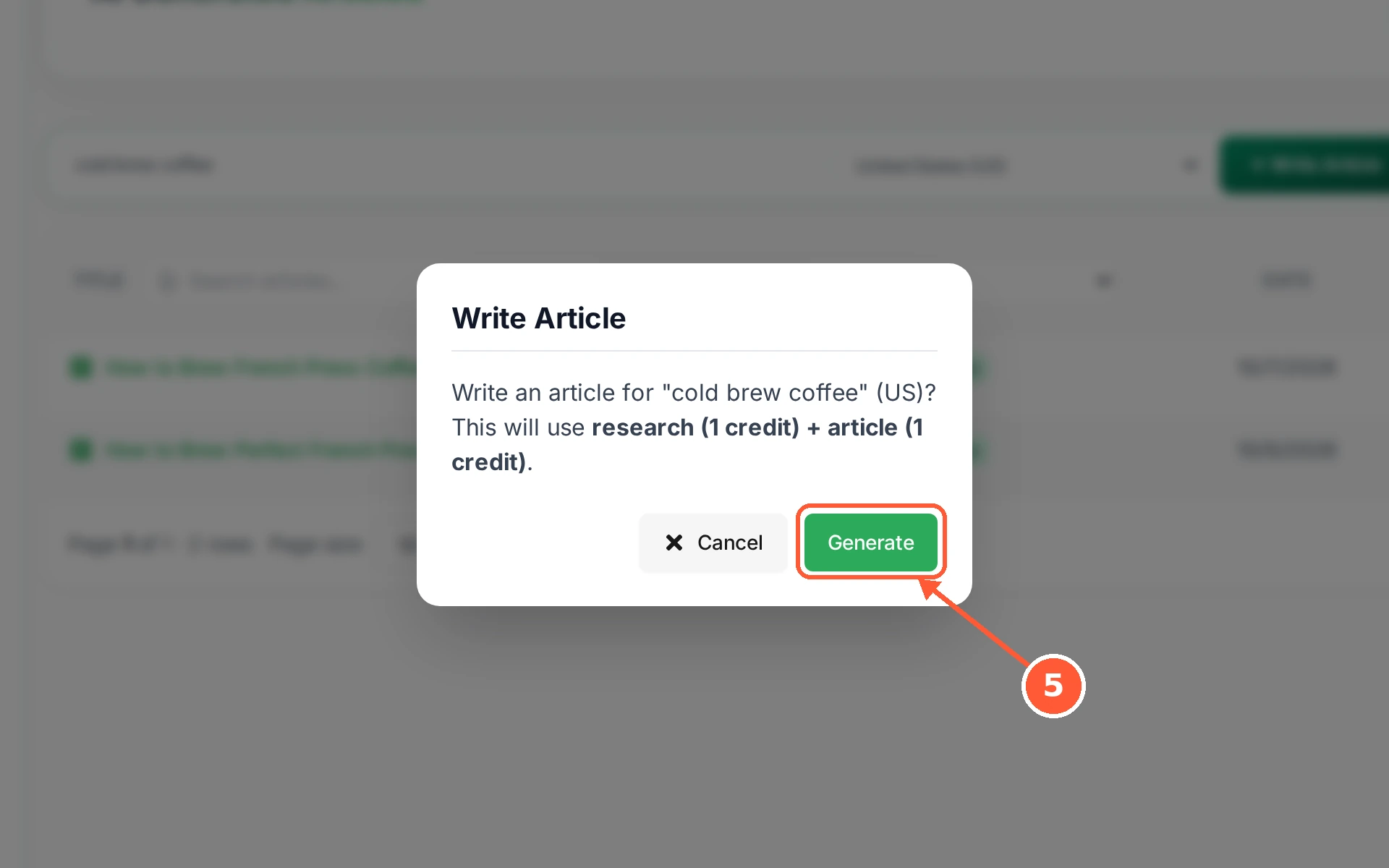
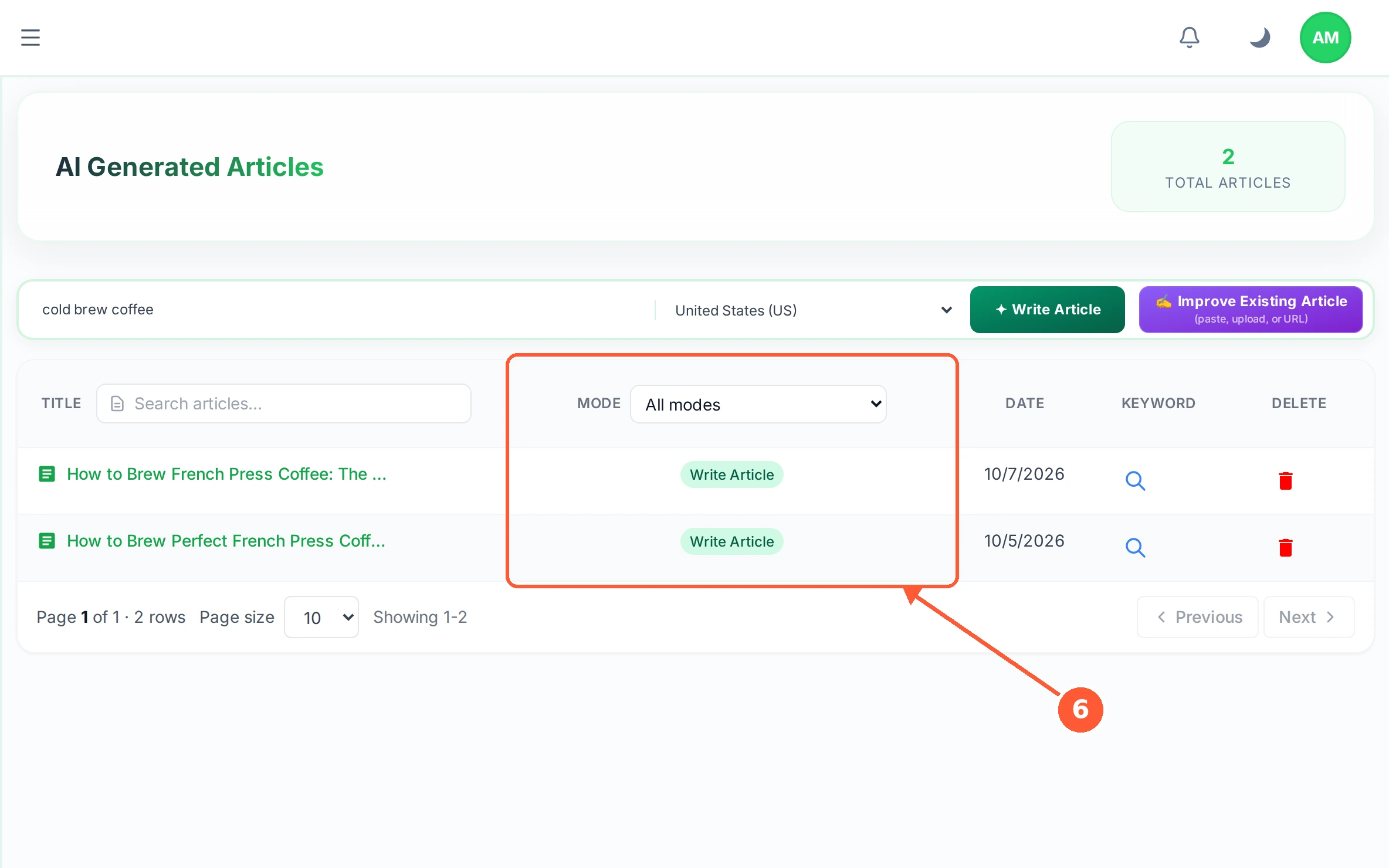
1In the left menu open AI Writer. Every article you have made is listed here.1 / 6
💡 Good to Know
- If you have already researched the keyword, start from the research screen instead and skip the research credit.
- The country matters. The pages it learns from are the ones that rank in that country.
- Nothing is published anywhere. The article stays in RankTera until you copy or download it.
Improve an Article You Already Have
Already have a page that under-performs? Hand it over and RankTera rewrites it against the pages beating it, instead of starting again.
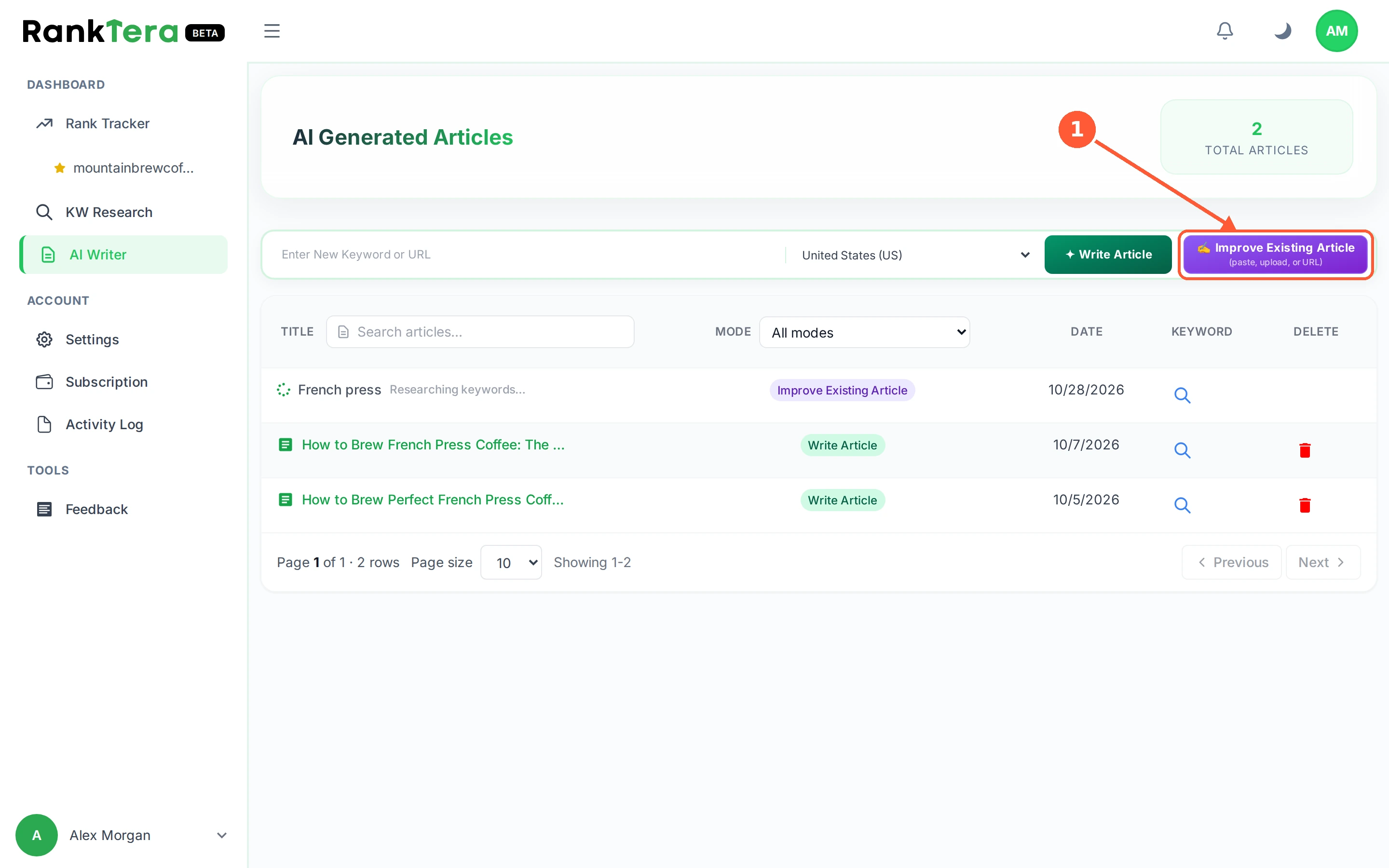
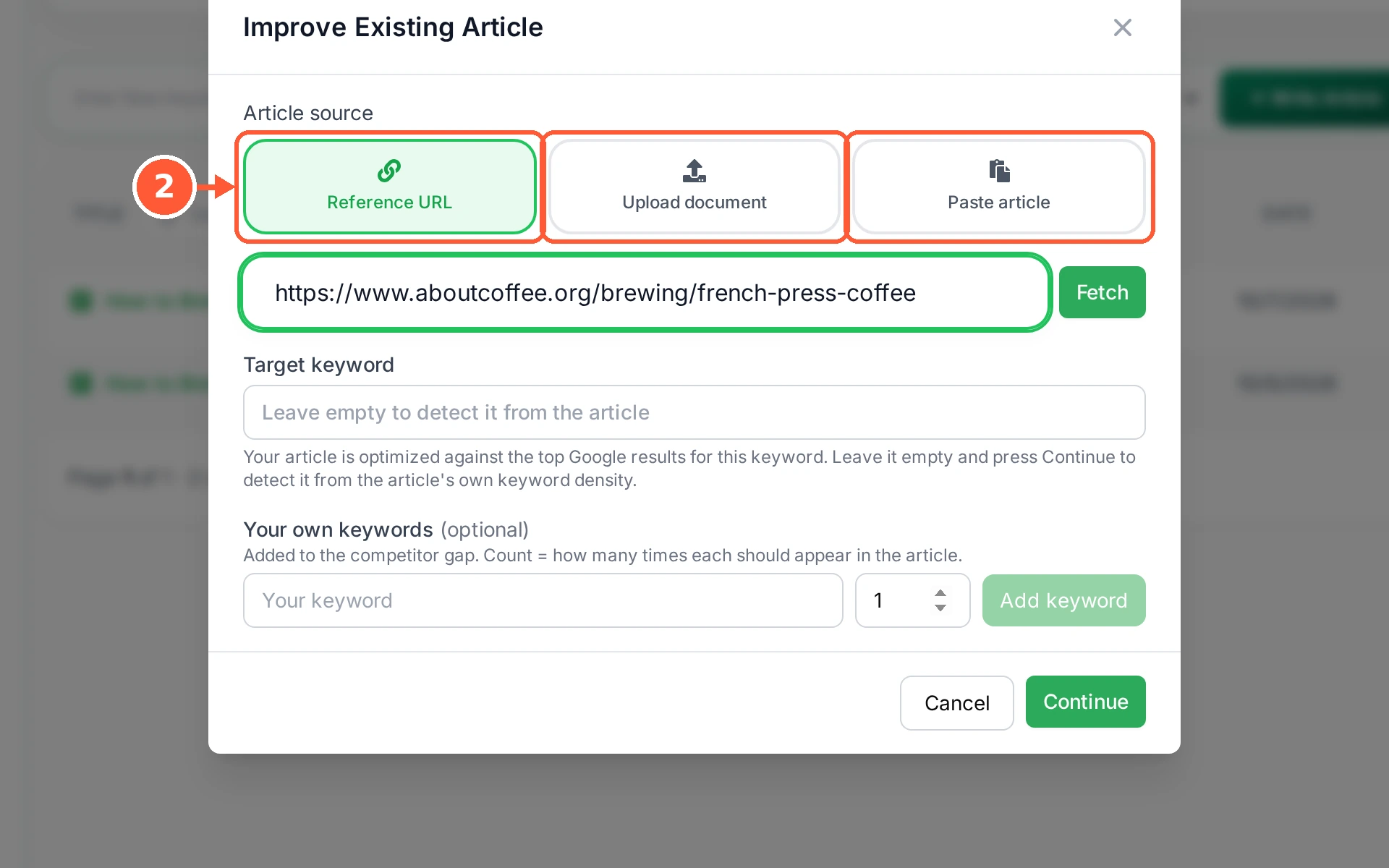
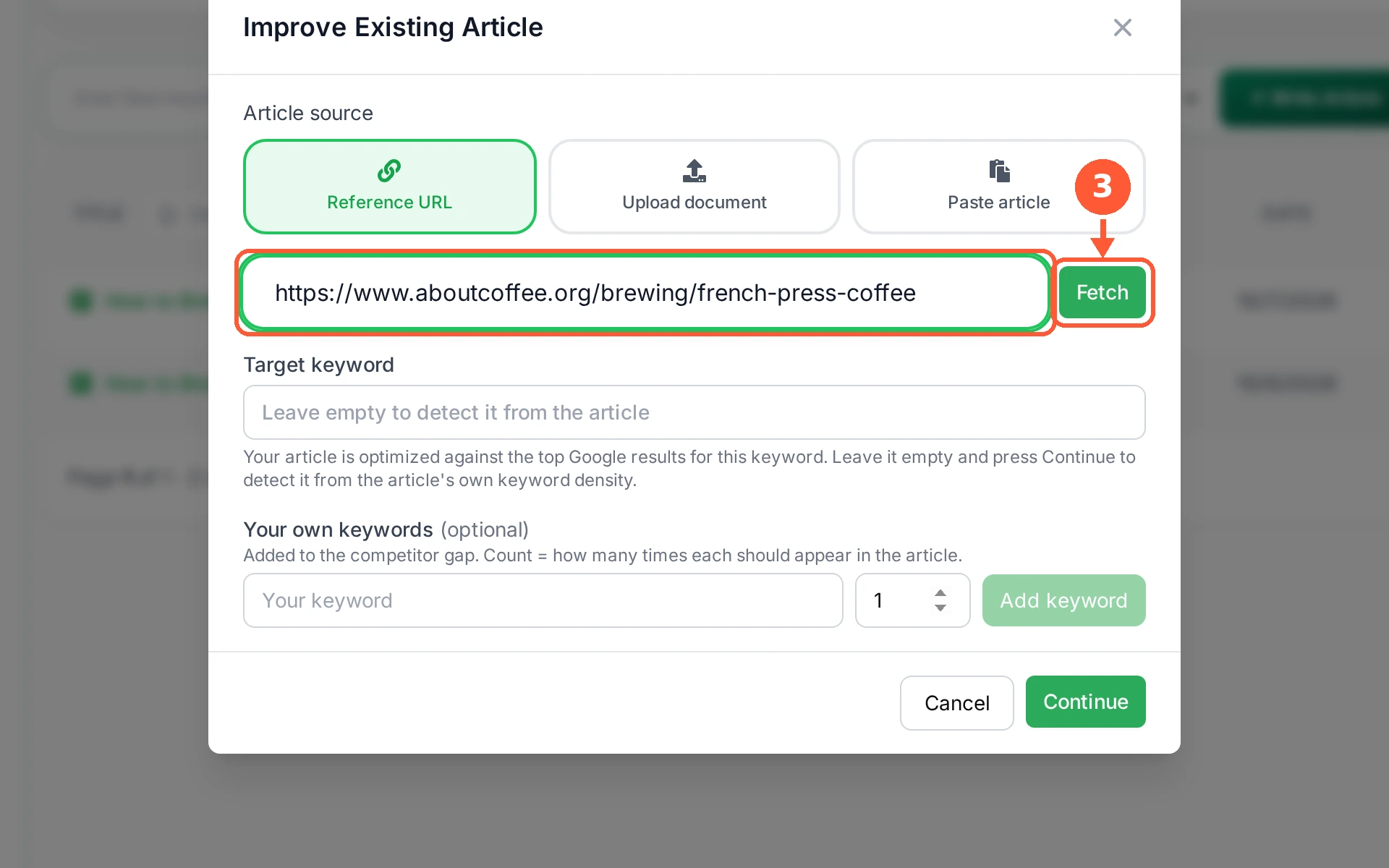
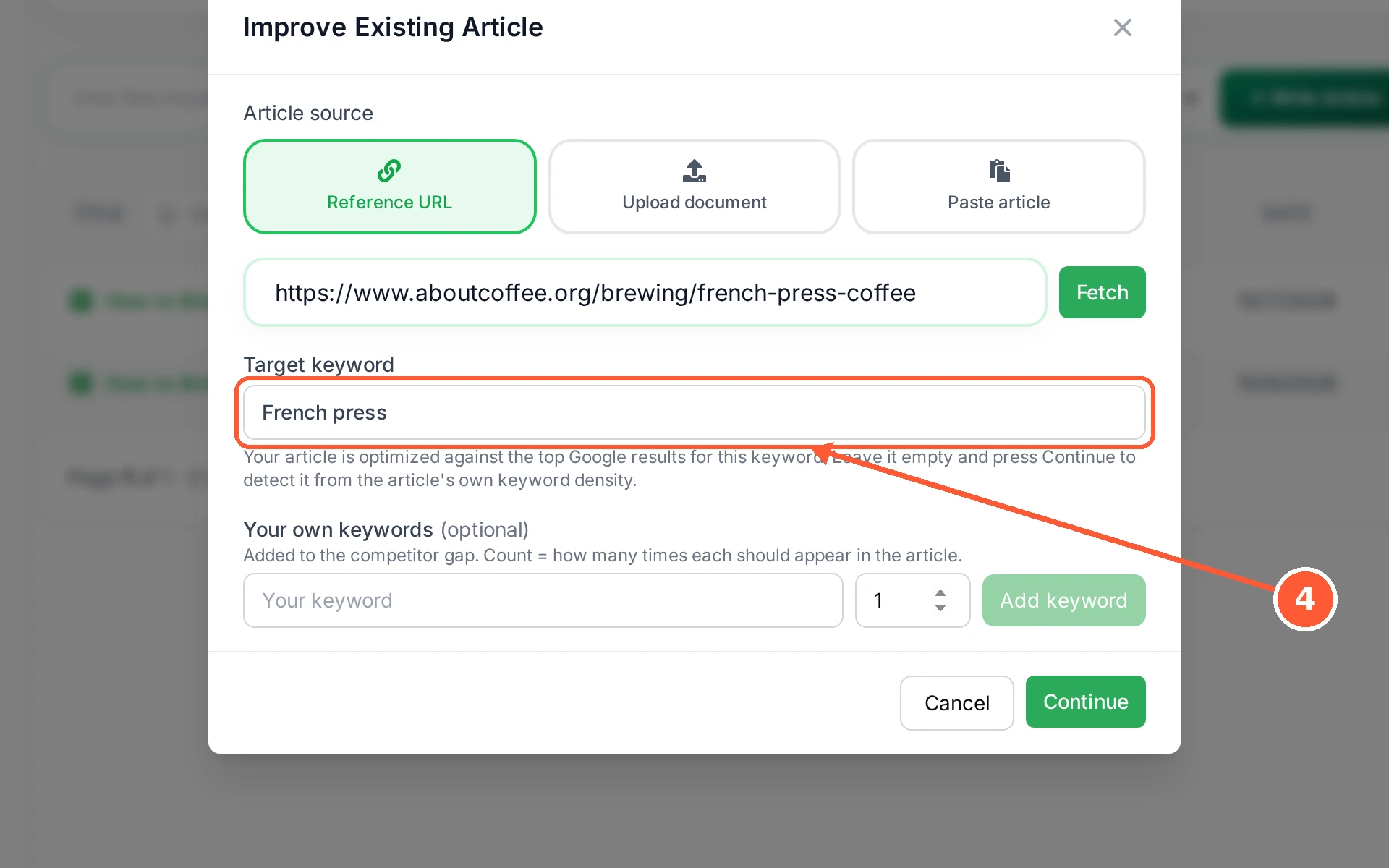
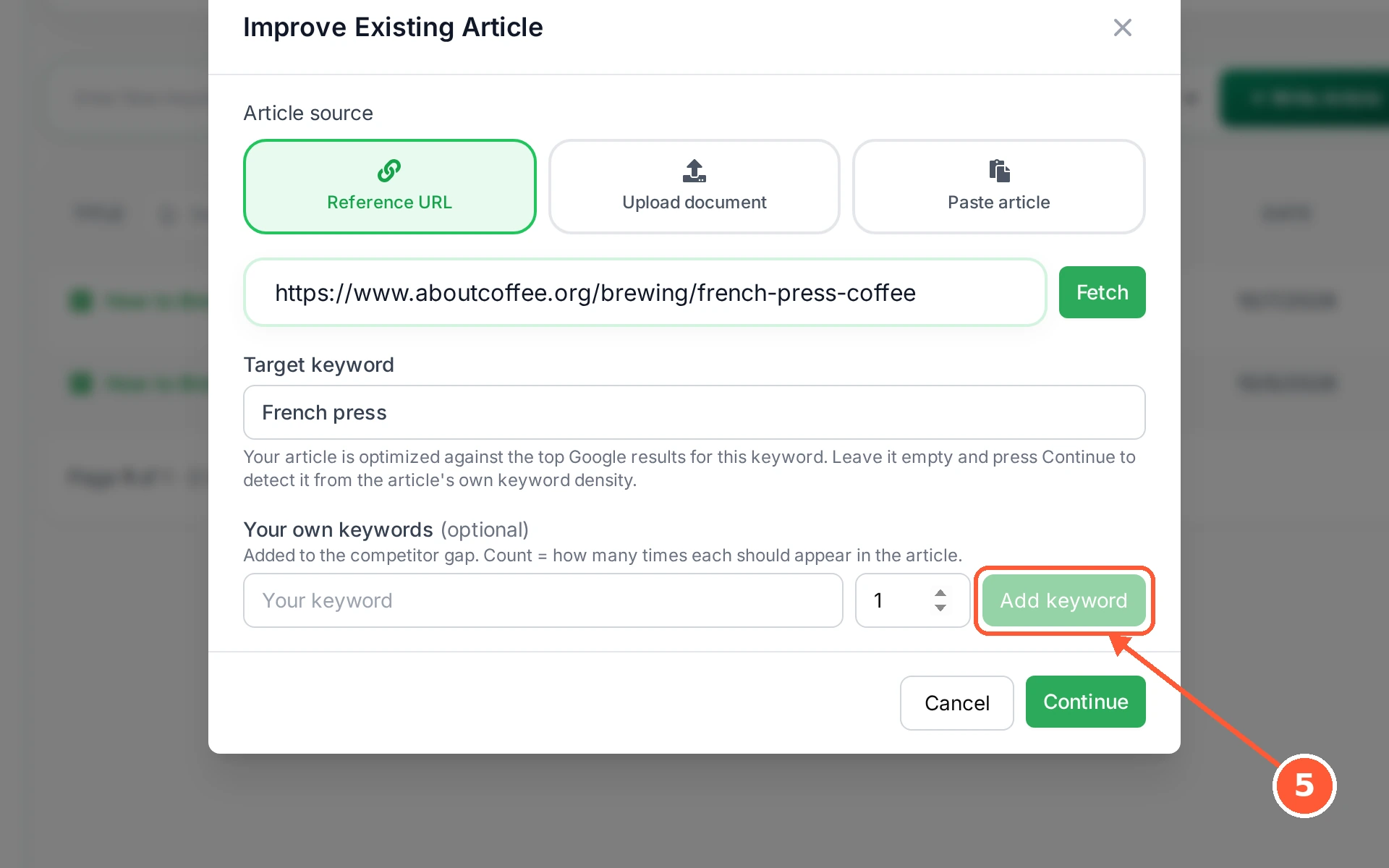
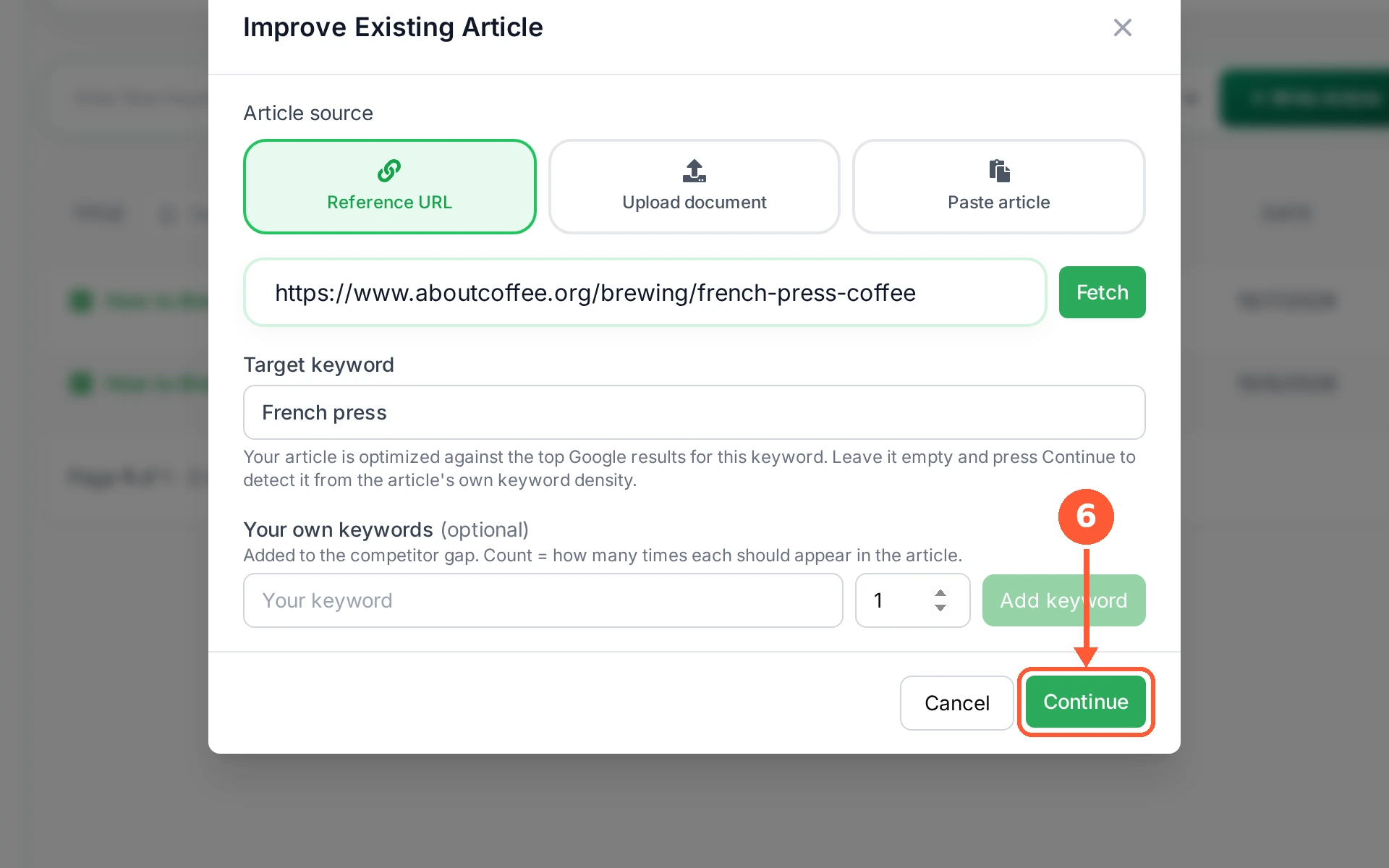
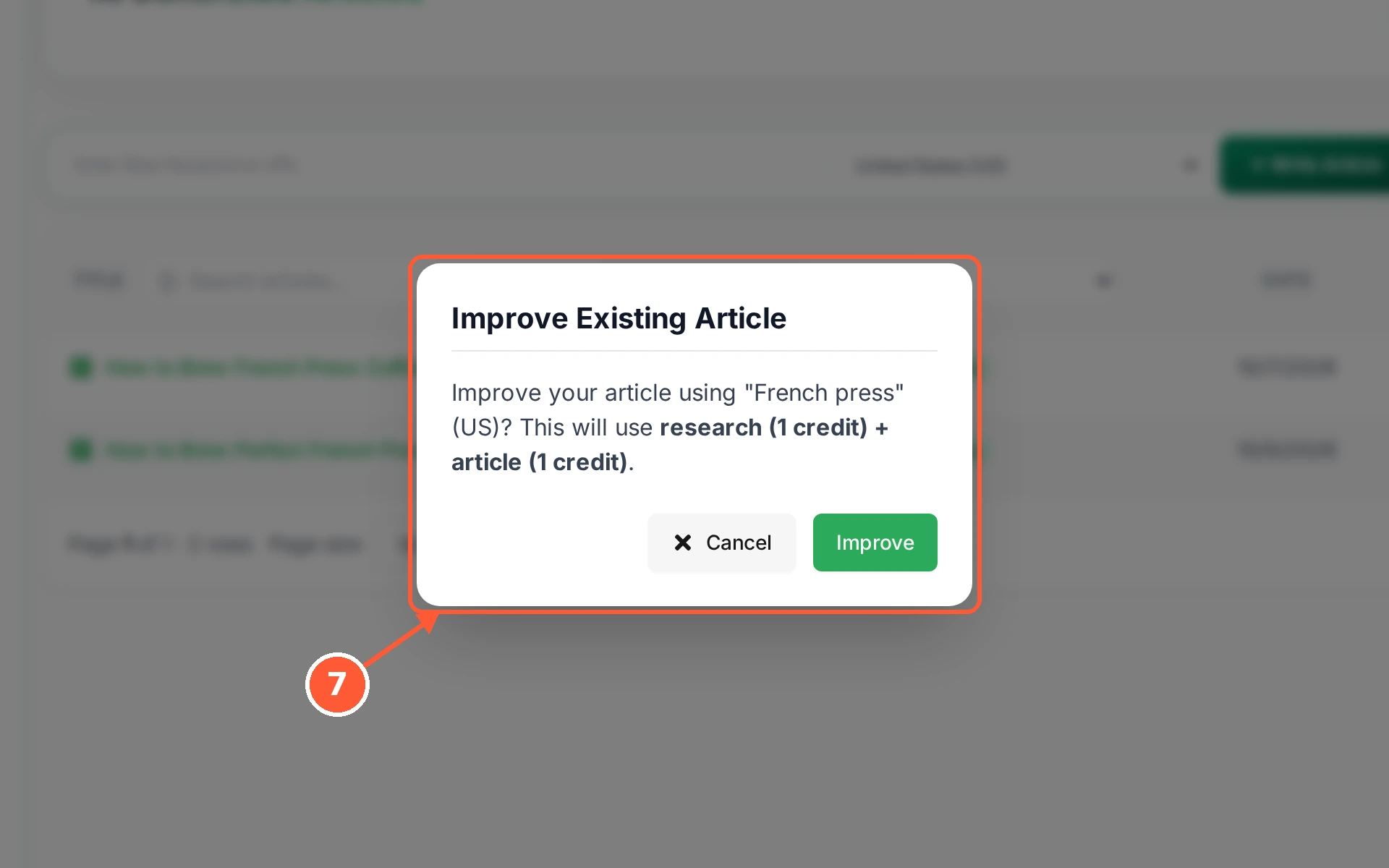
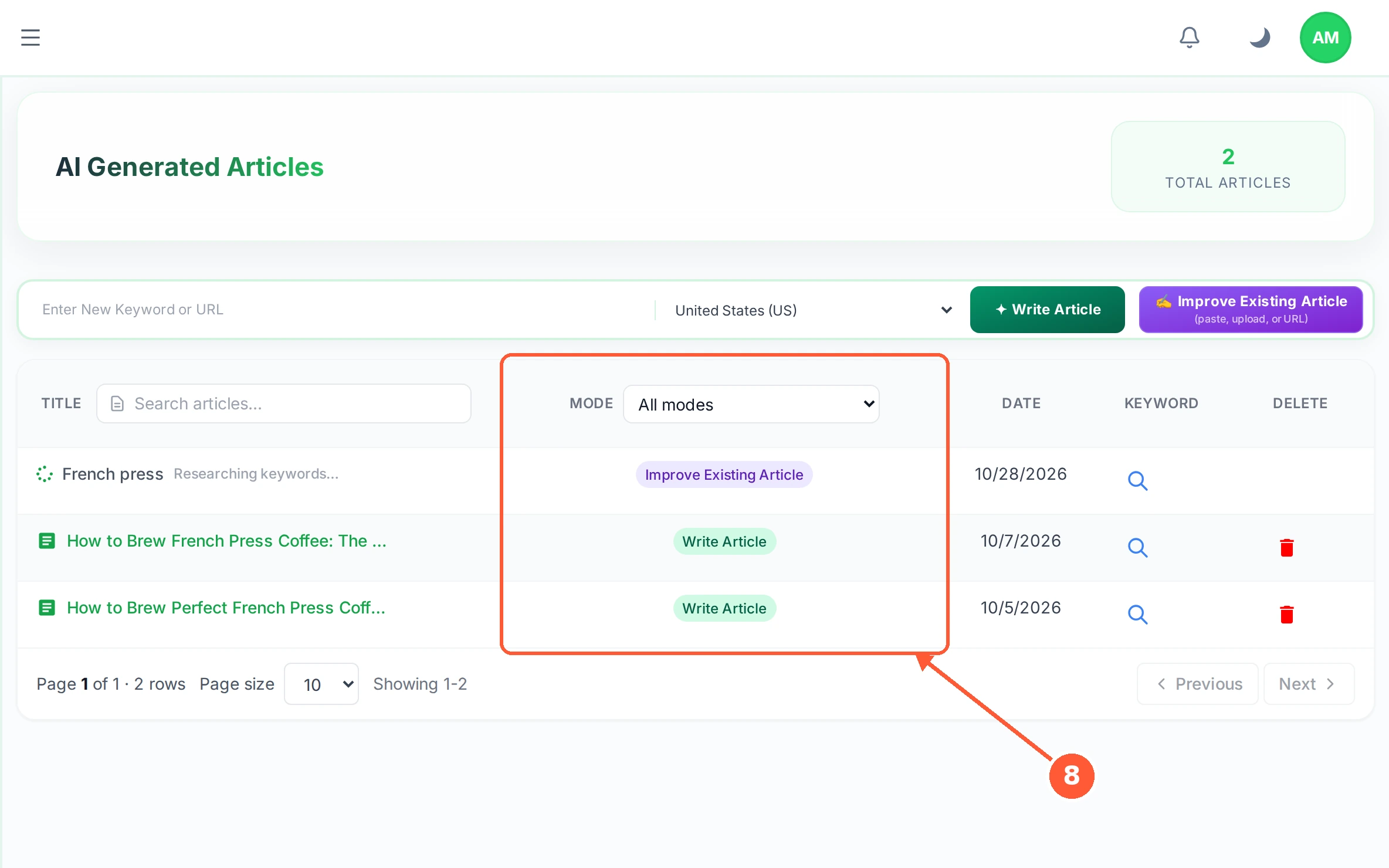
1In AI Writer, click Improve Existing Article.1 / 8
💡 Good to Know
- Fetching by URL is the quickest route, and it takes the page exactly as a reader sees it.
- You can leave the page while it works. The article keeps going and is waiting in your list when you come back.
- The original is untouched. Nothing is written back to your website.
Work in the Article Workspace
An article opens into an editor with a live scorecard beside it: every term it should contain, how often it has been used, and whether that is enough.
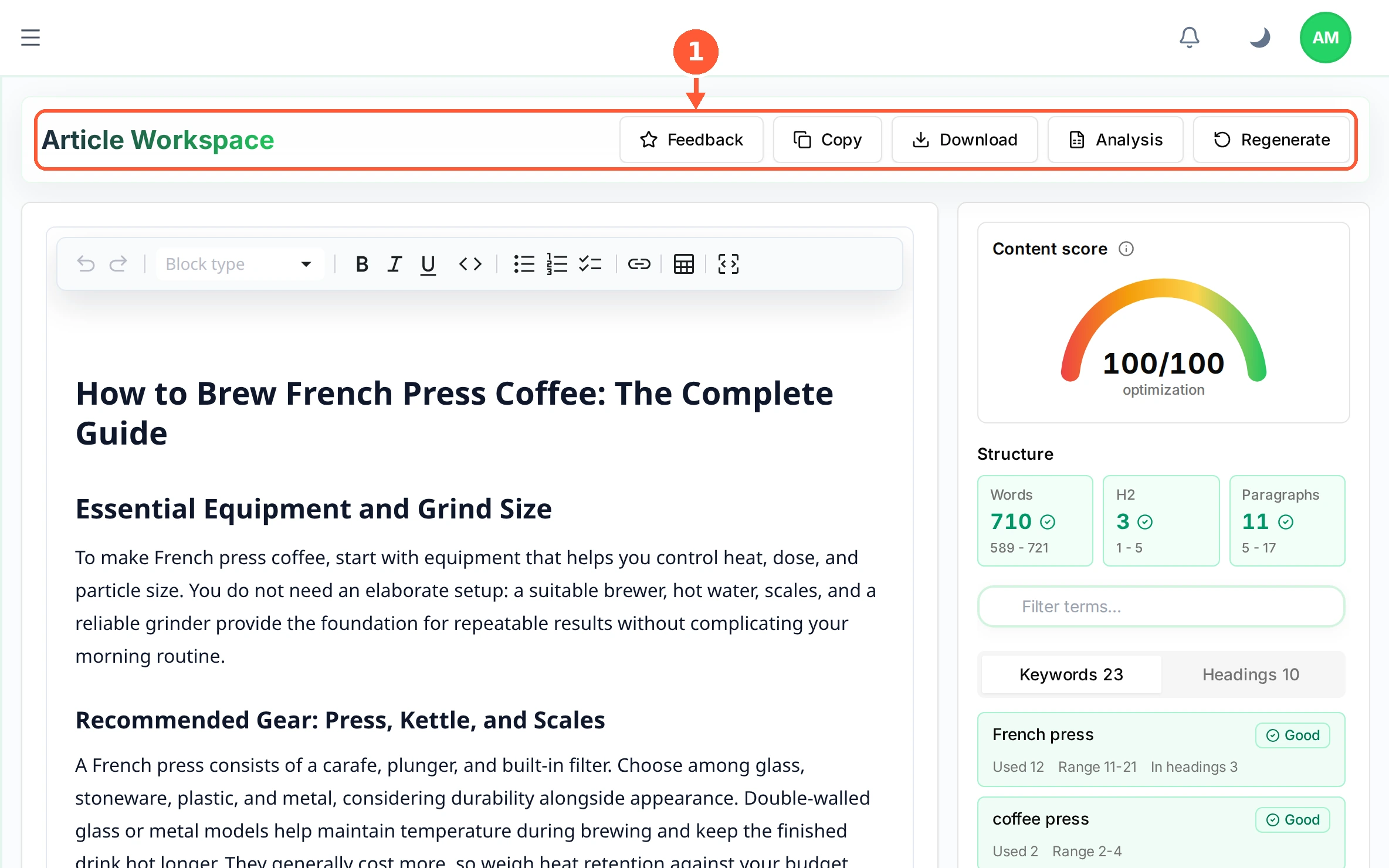
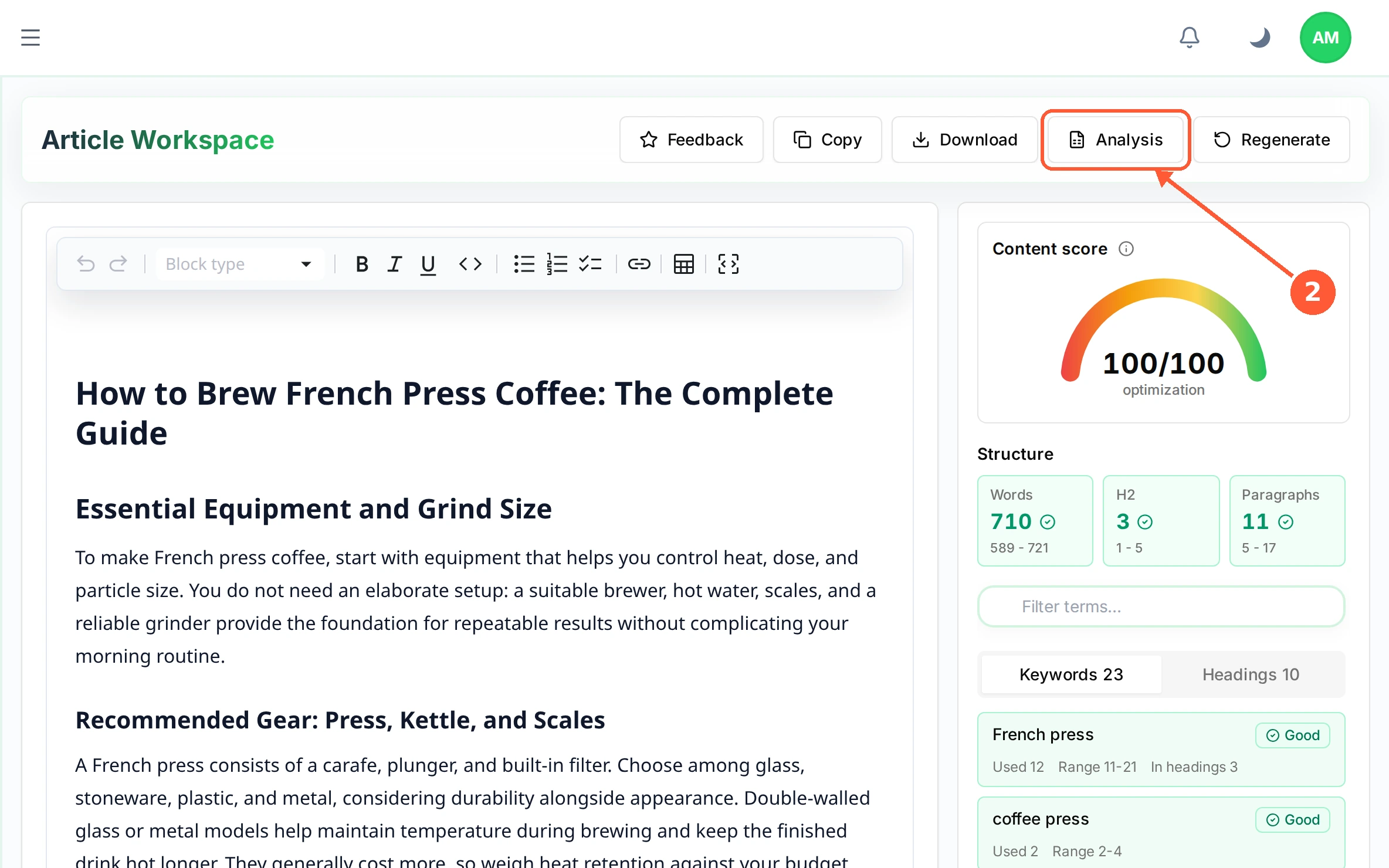
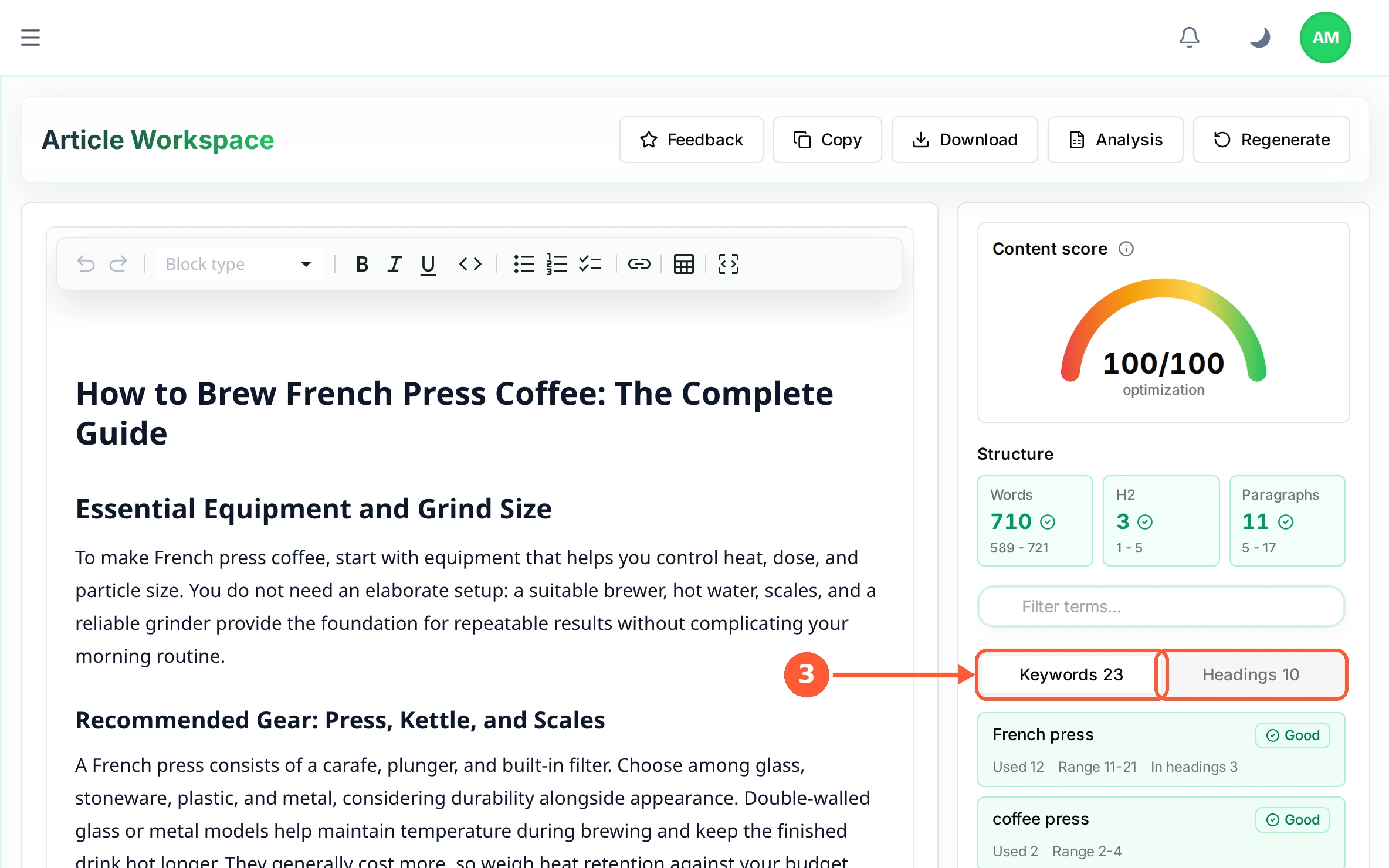
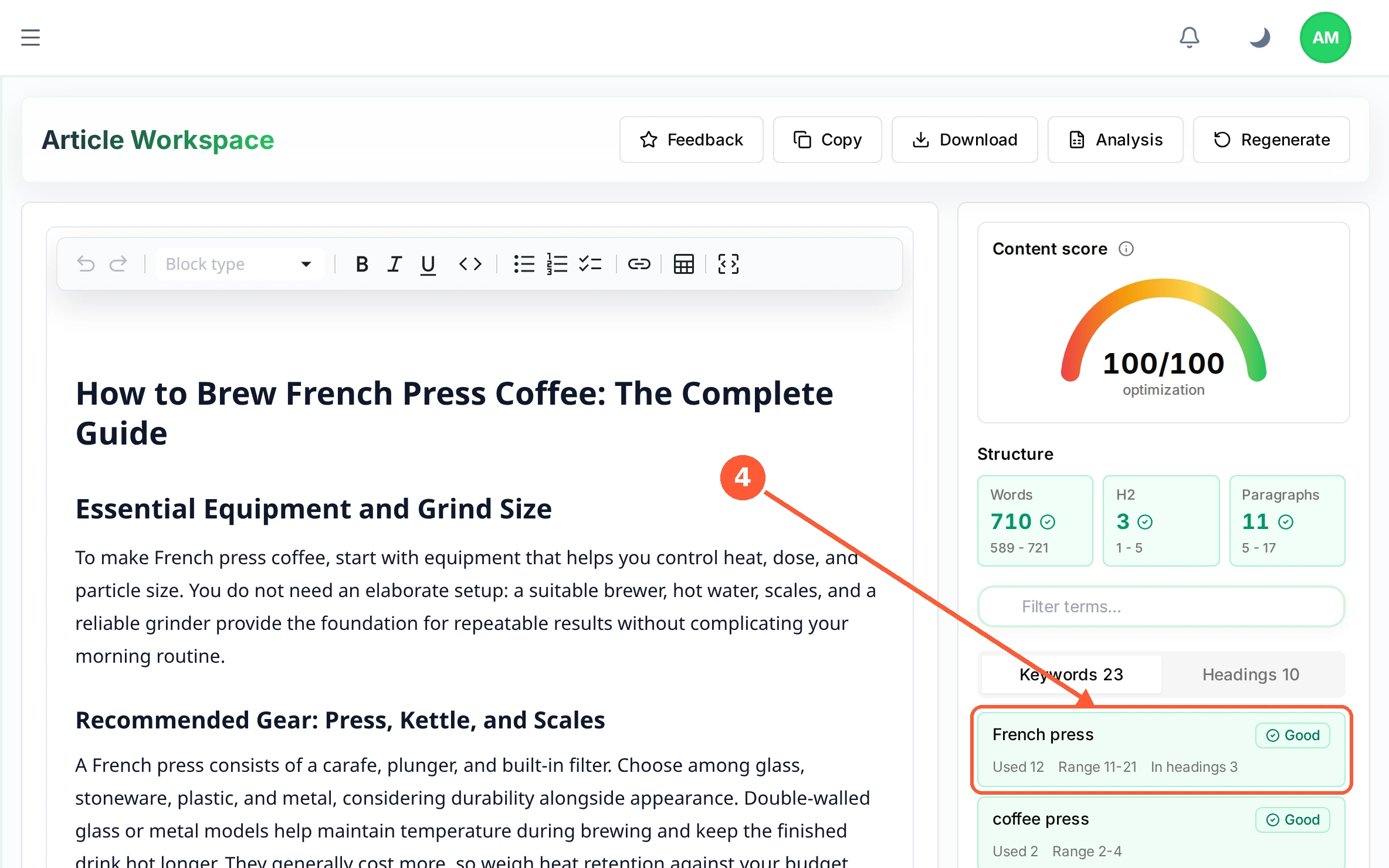
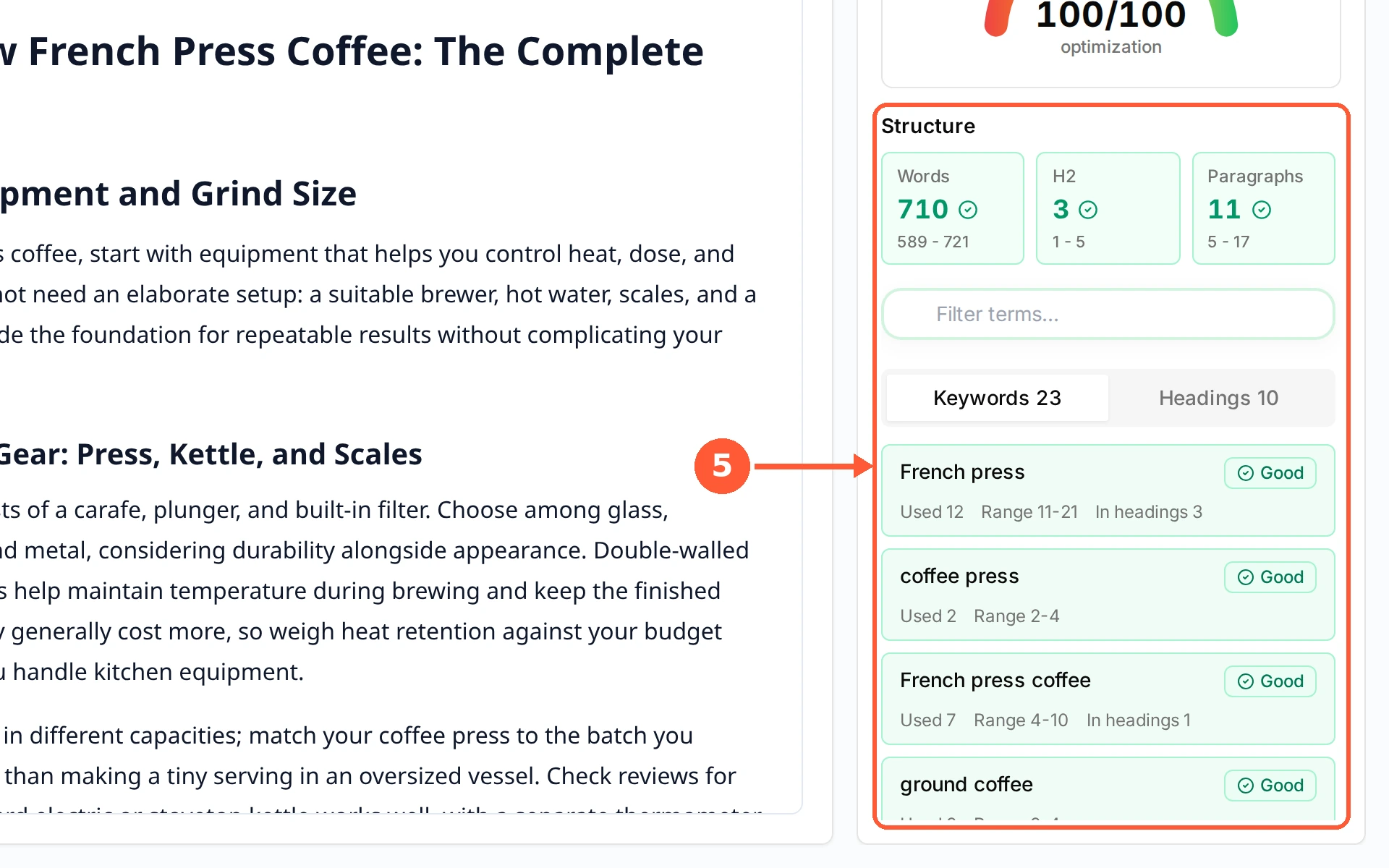
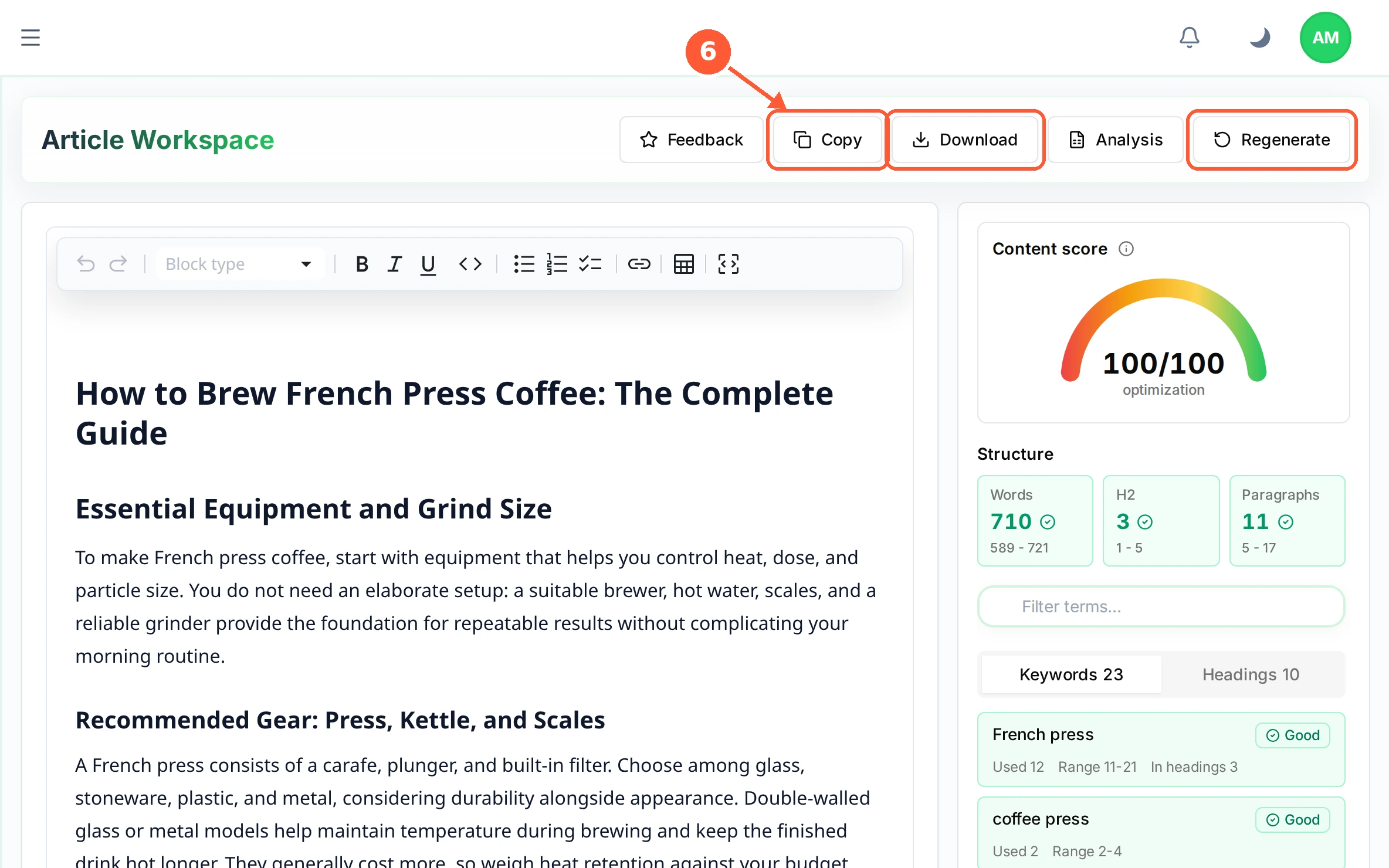
1Click any article in the list to open the Article Workspace. The text sits on the left and is fully editable.1 / 6
💡 Good to Know
- Edit the text on the left and the counts update as you type, so you can watch a term move into range.
- A term inside its range is enough. Going far past the range reads badly to people and does not help.
- Block type changes a paragraph into a heading, a list or a quote, the same as any normal editor.
Update Your Profile and Password
Your name, your email address and your password all live on one screen, along with a reminder of what a valid password looks like.
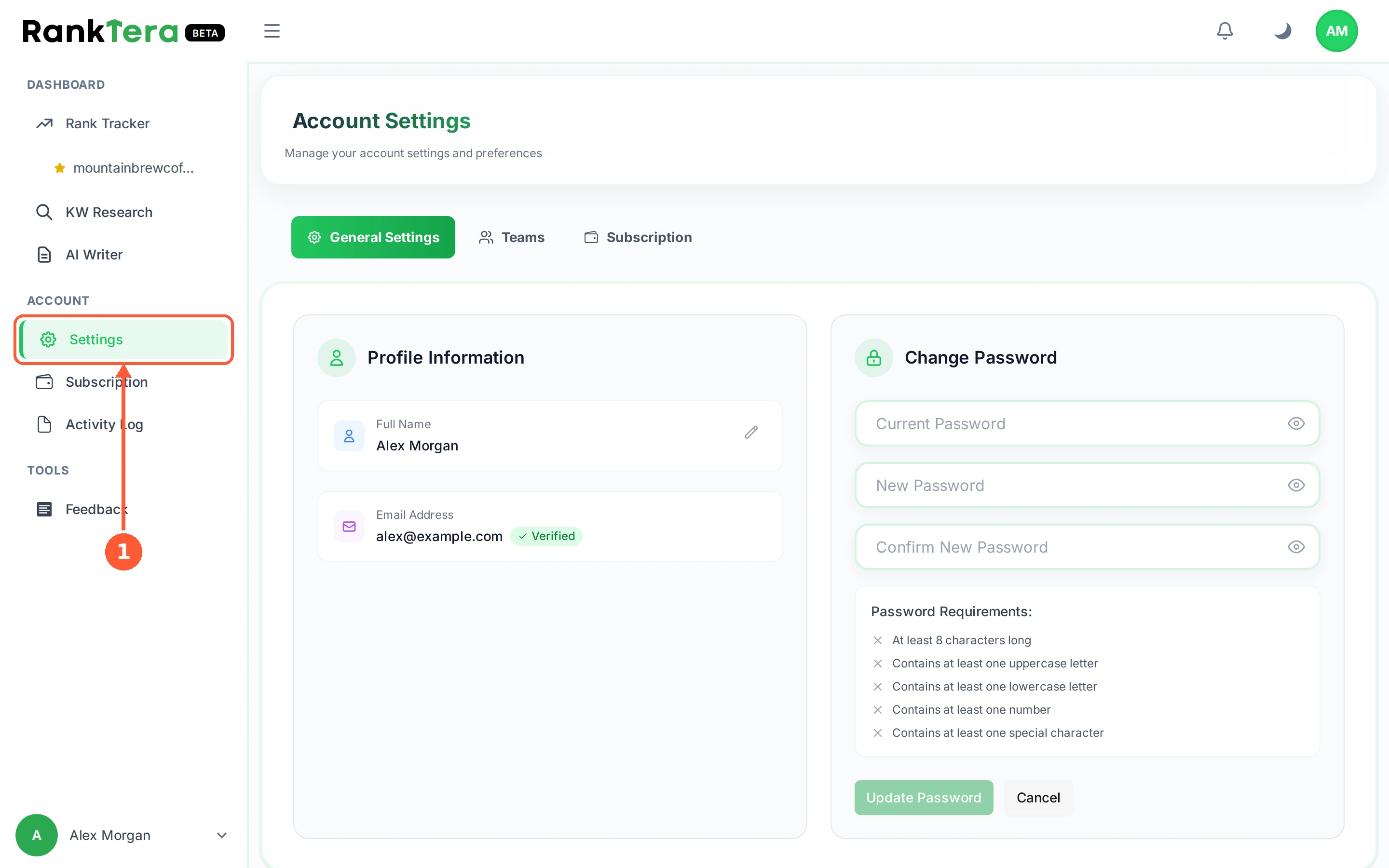
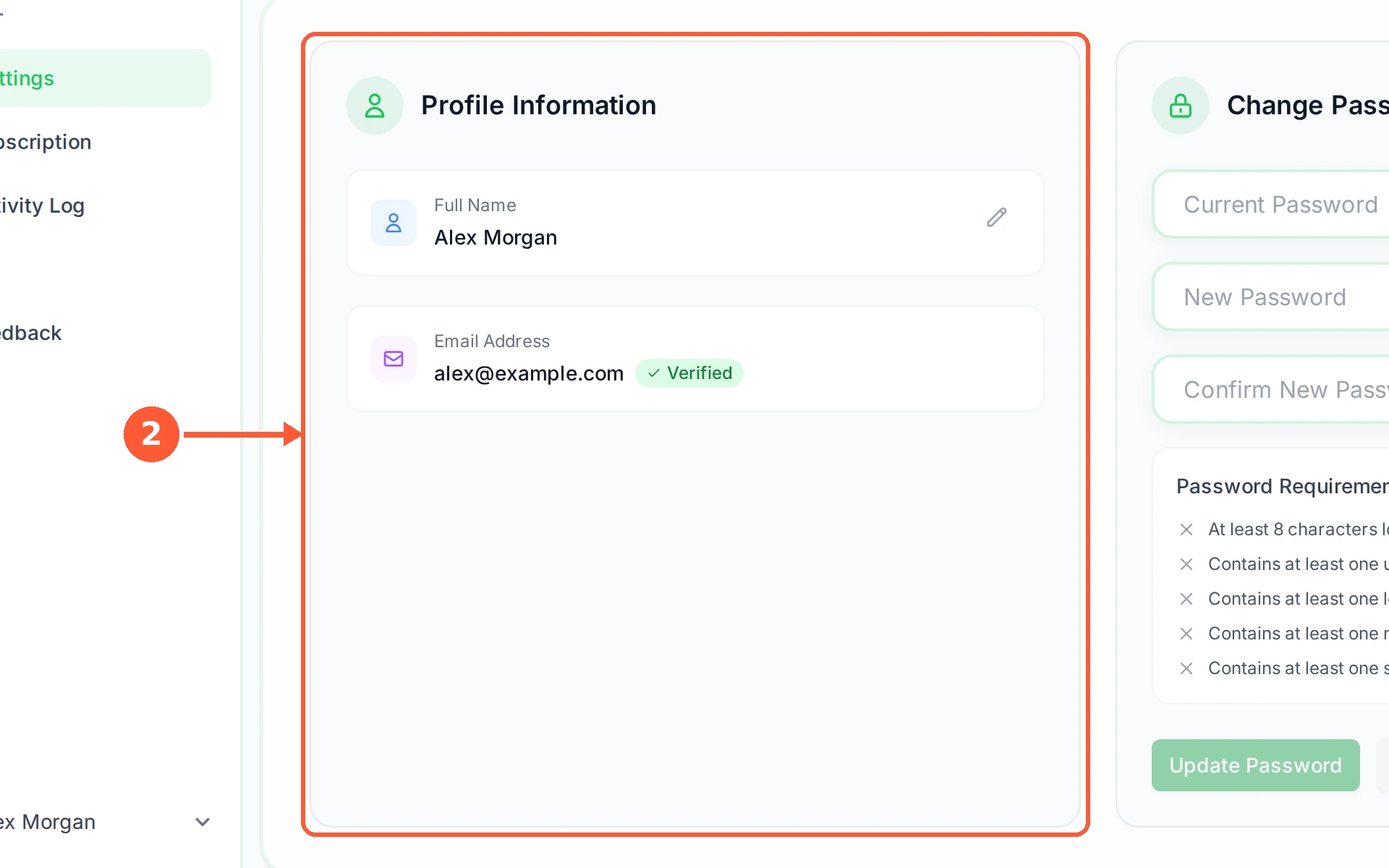
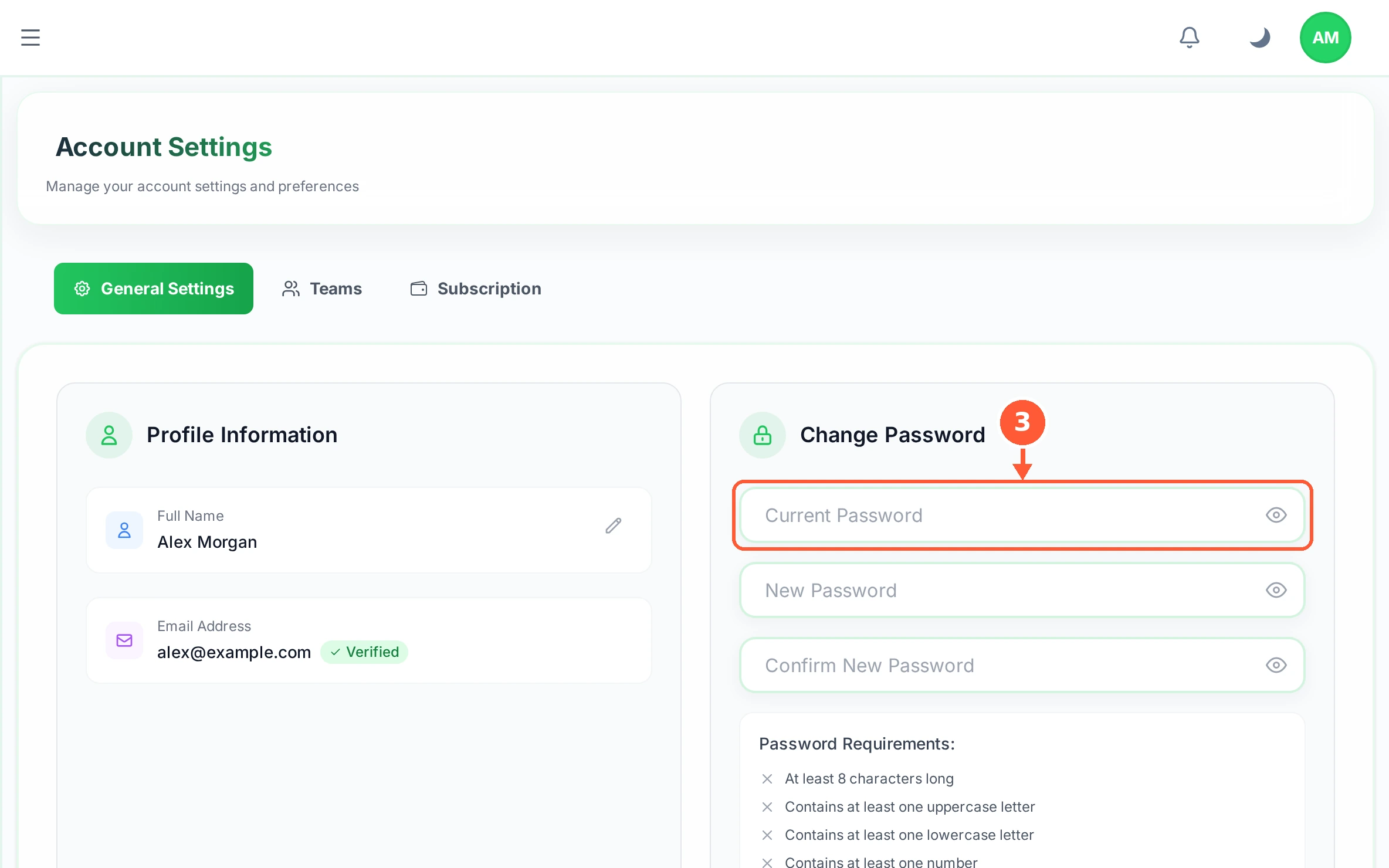
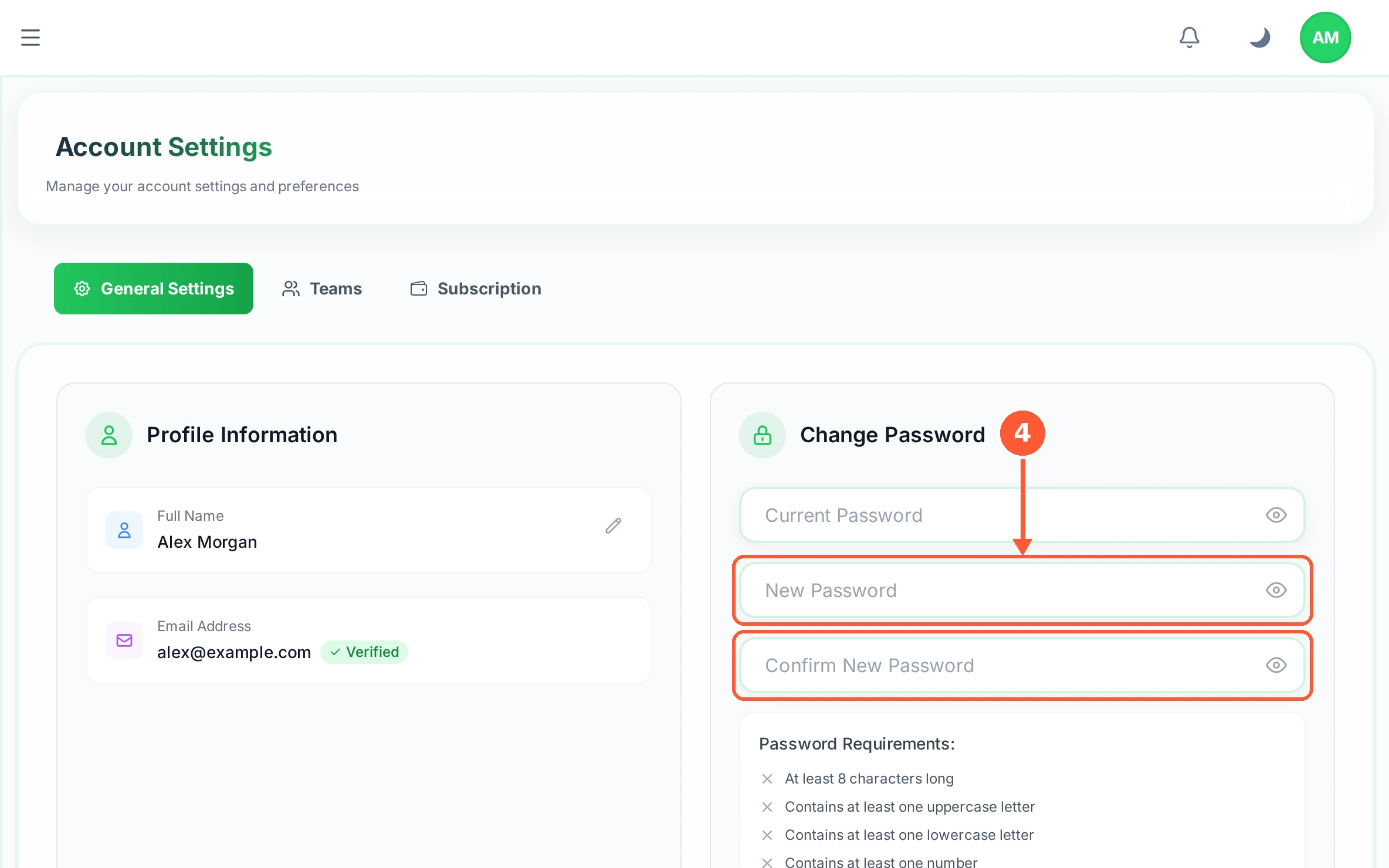
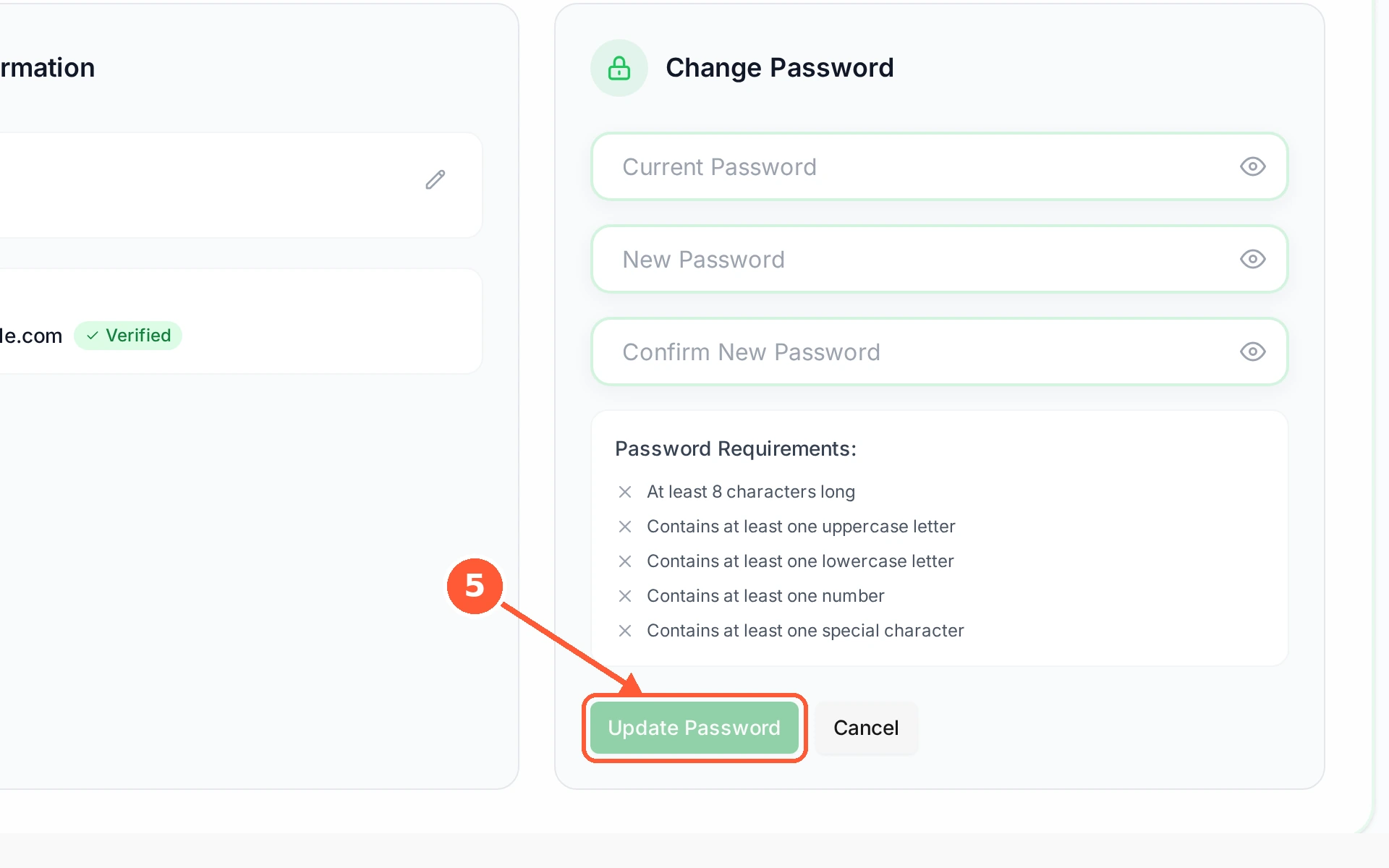
1In the left menu open Settings. It opens on General Settings.1 / 5
💡 Good to Know
- If you signed up with Google there is no RankTera password to change. Manage it in your Google account instead.
- A password needs an uppercase letter, a lowercase letter, a number and a special character, and at least 8 characters in total.
- Cancel clears the form without saving anything.
Invite Your Team
Bring other people in without sharing your password. Each one gets their own sign-in and only the permissions you chose for them.
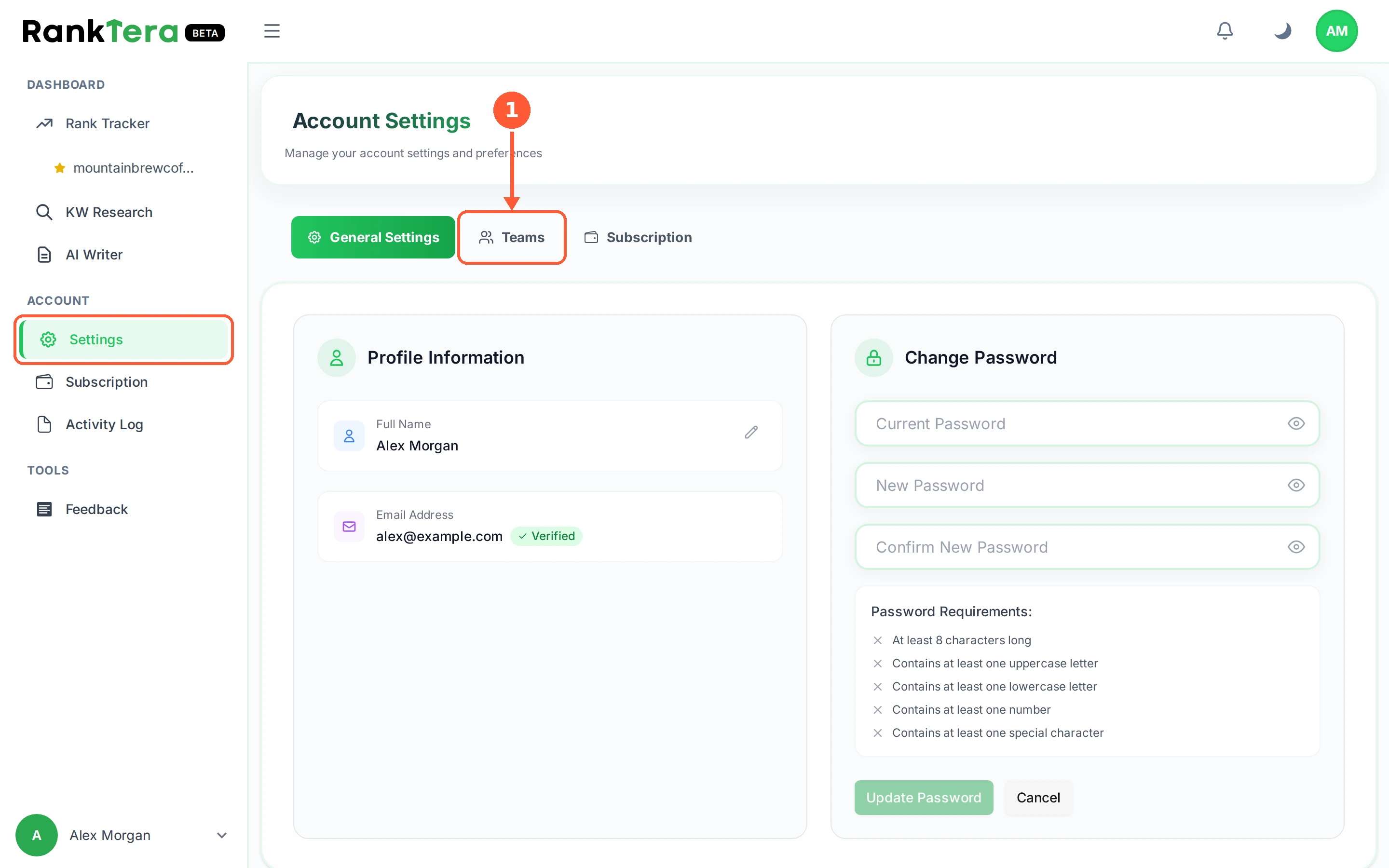
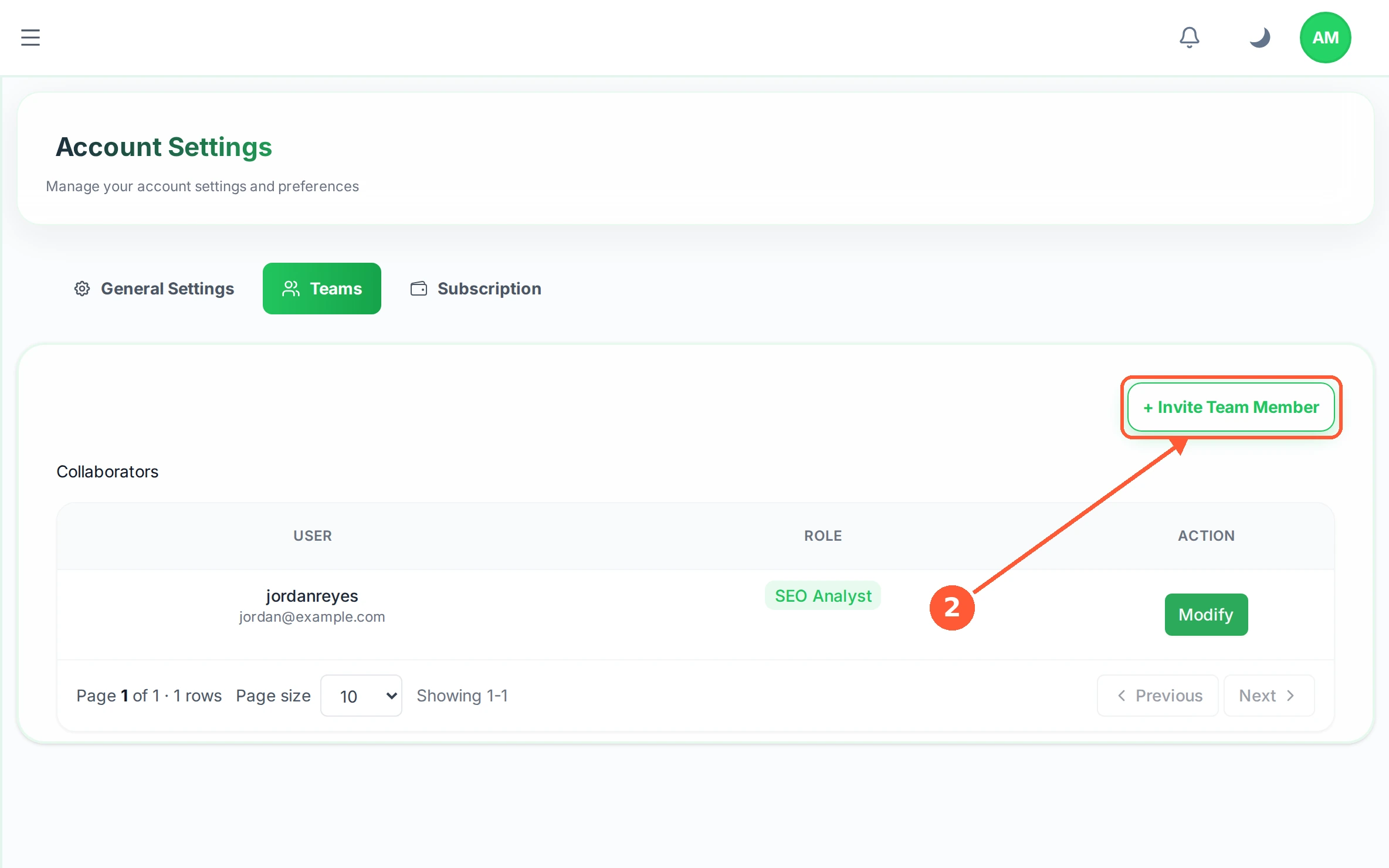
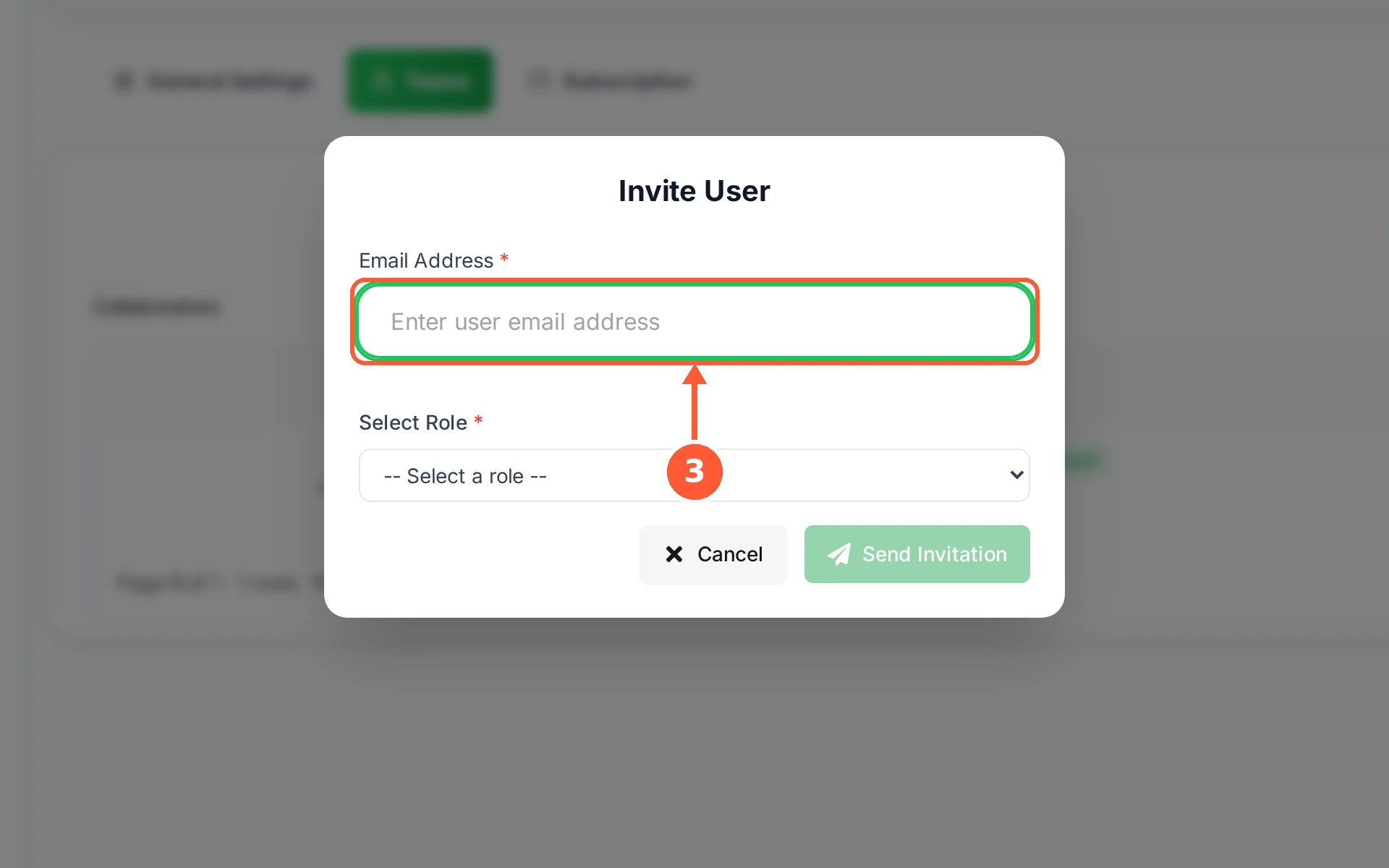
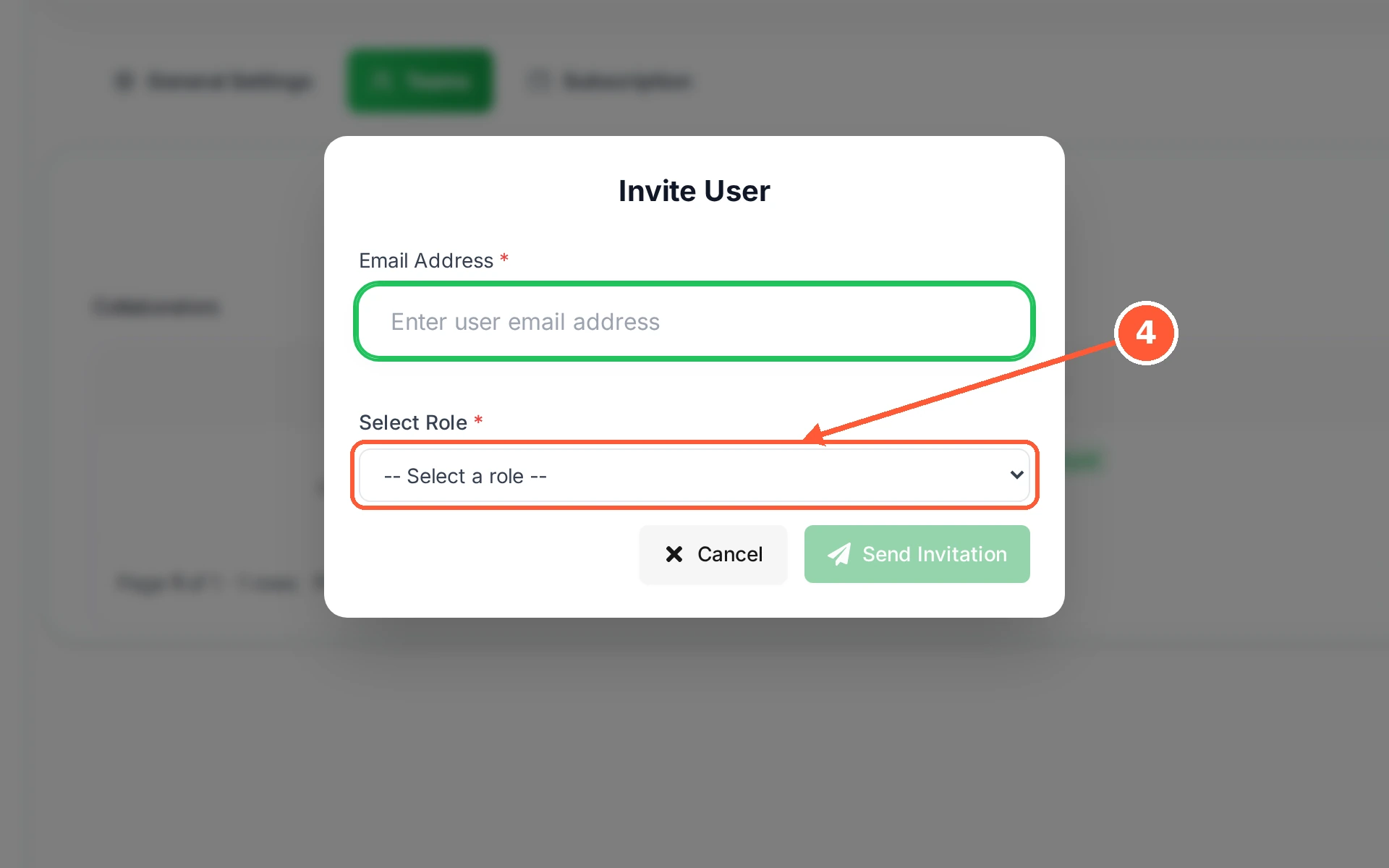
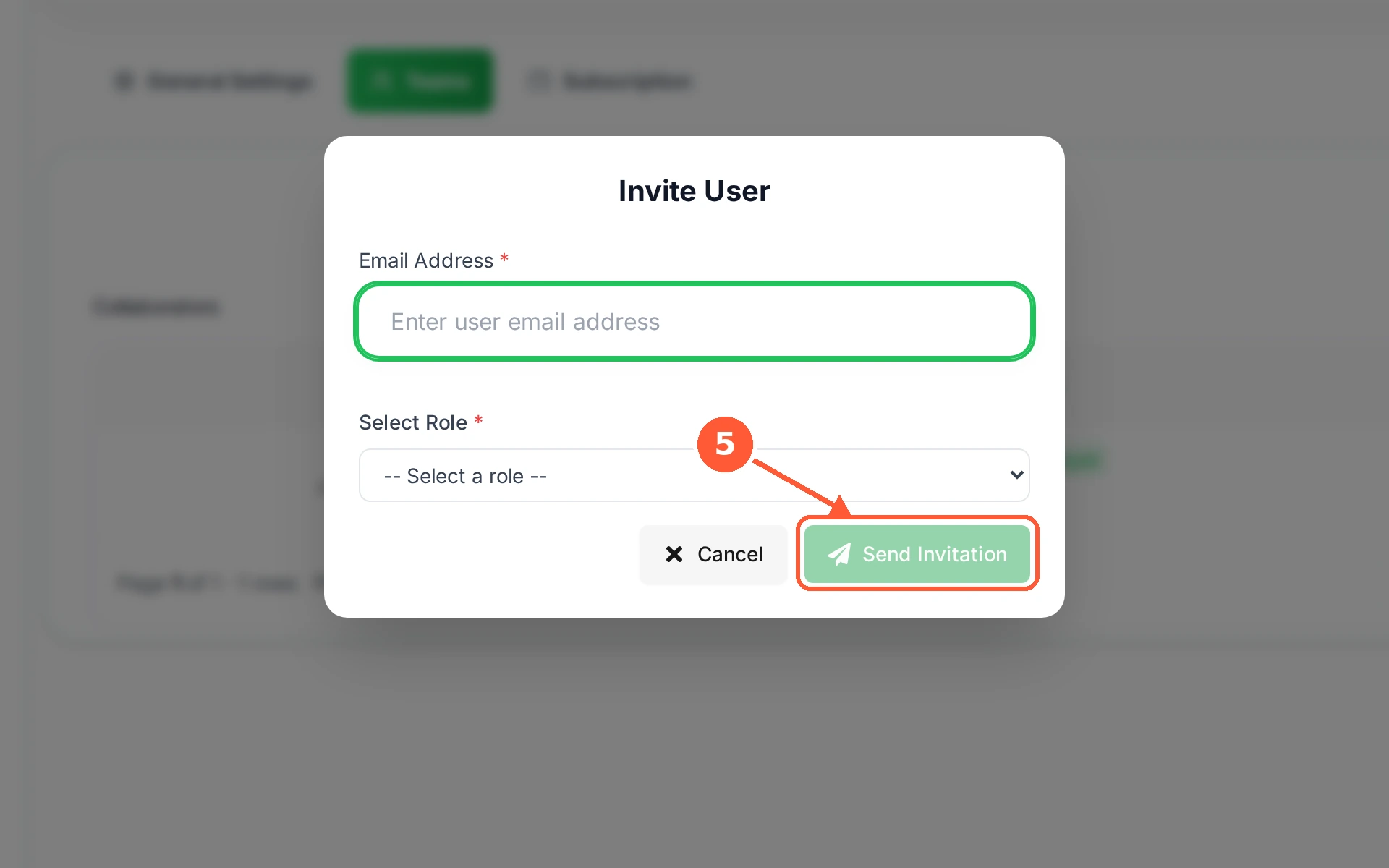
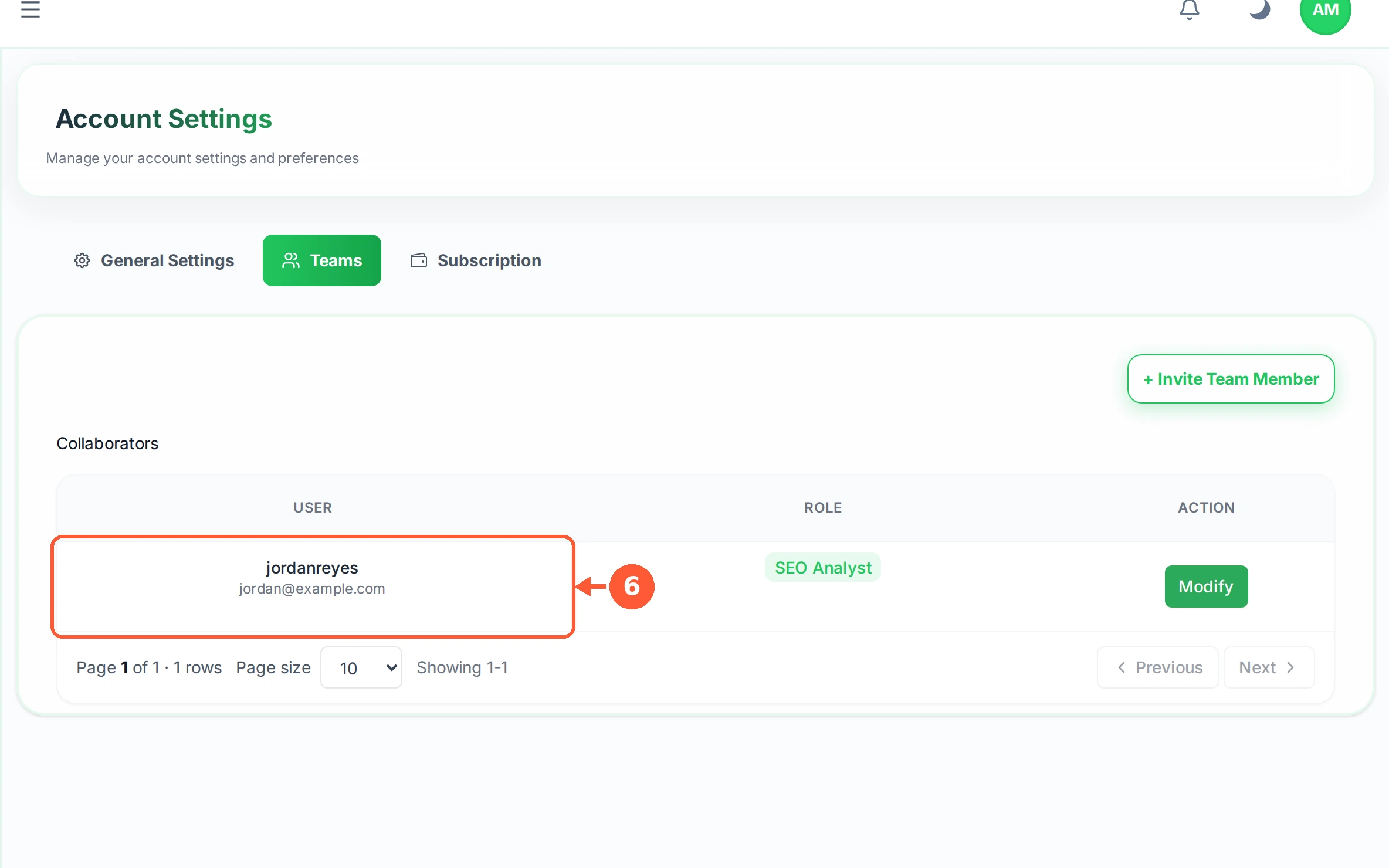
1In the left menu open Settings, then the Teams tab.1 / 6
💡 Good to Know
- Give the smallest role that lets someone do their job. You can always raise it later.
- Content Writer and Keyword Researcher are built for exactly those jobs, so you rarely need Full Access.
- Your plan sets how many team members you can have. The Subscription screen shows how many you have used.
See Who Did What
Every change on your account is written down: who made it, what they touched, and when. Useful when a keyword vanishes and nobody remembers why.
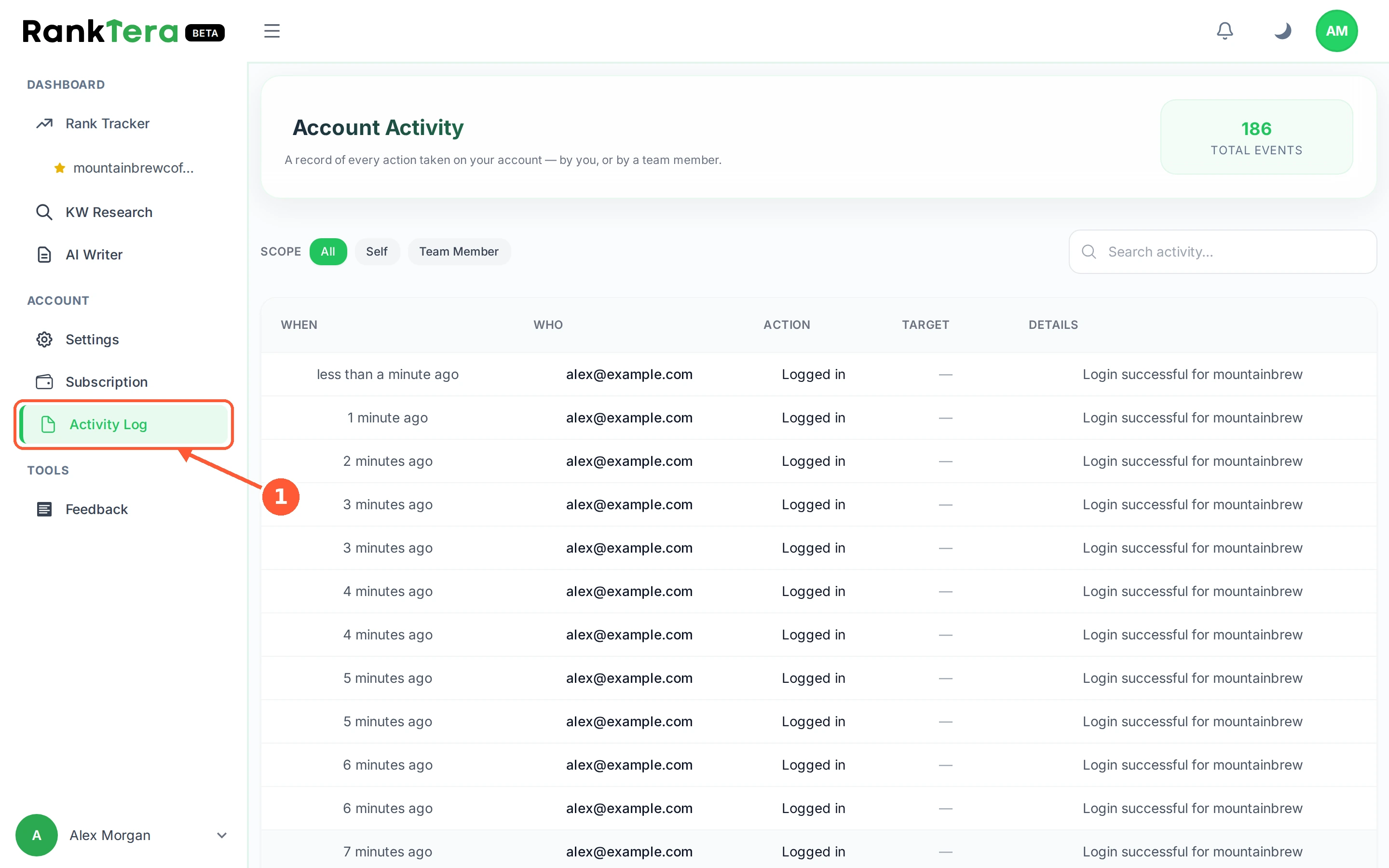
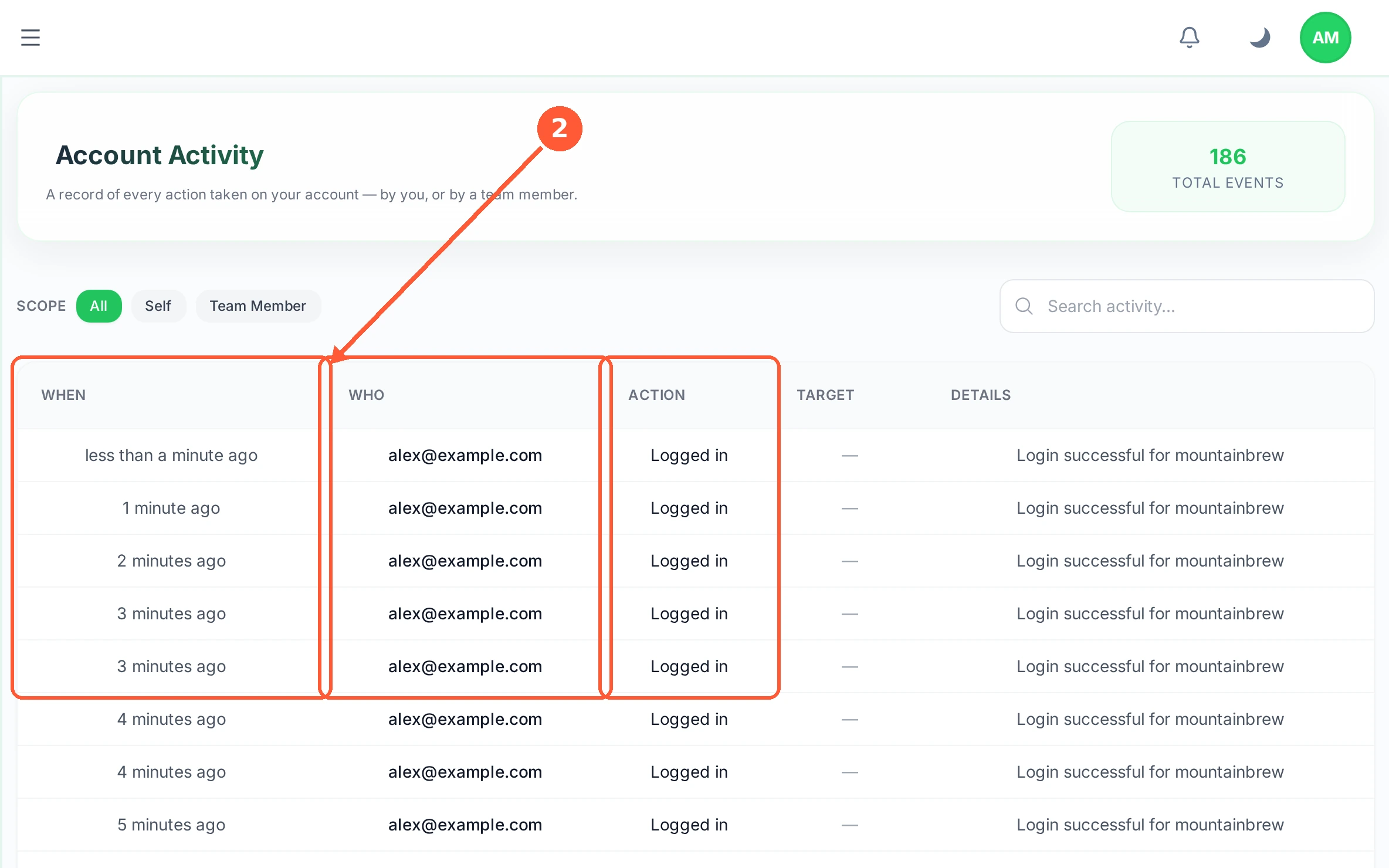
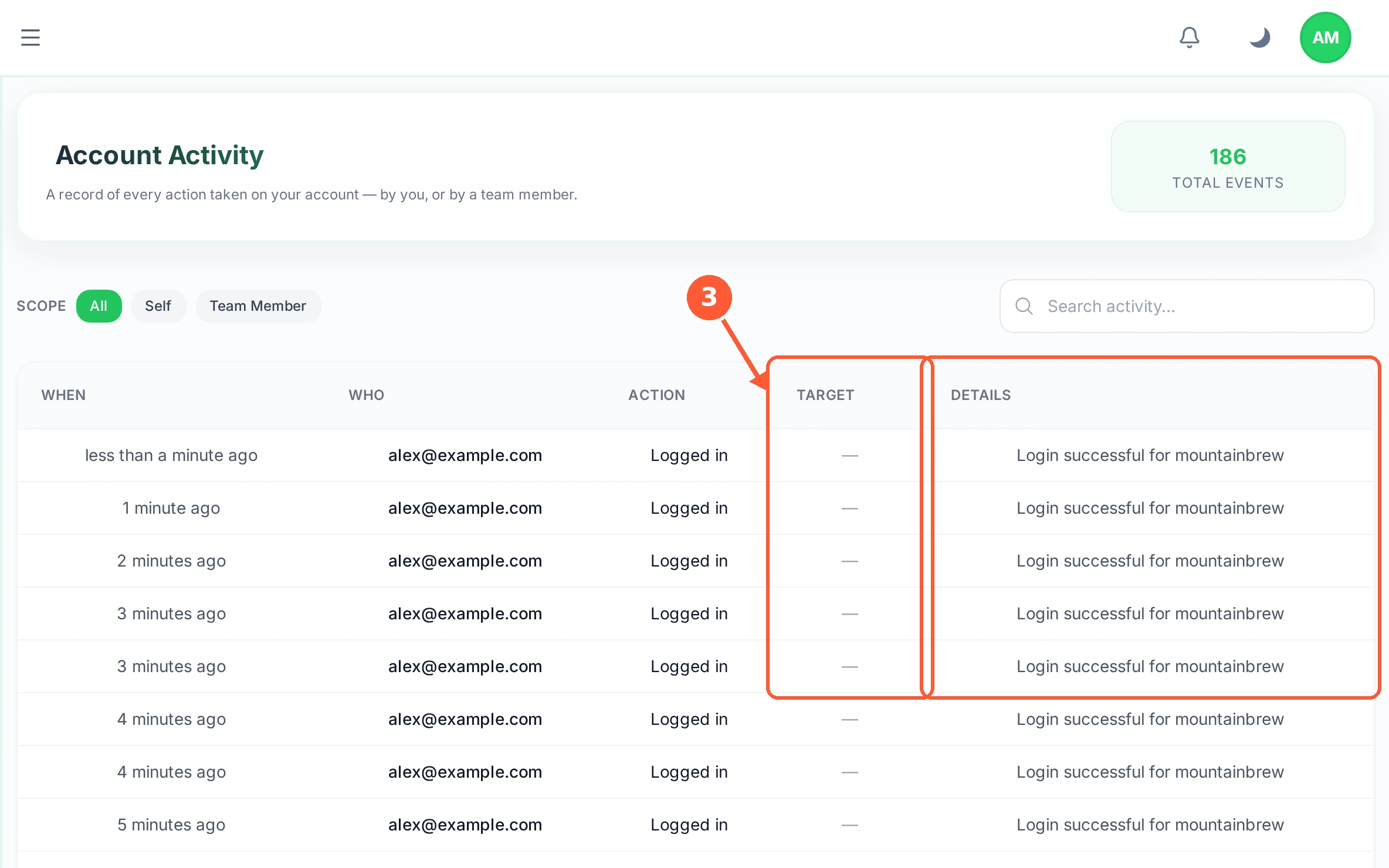
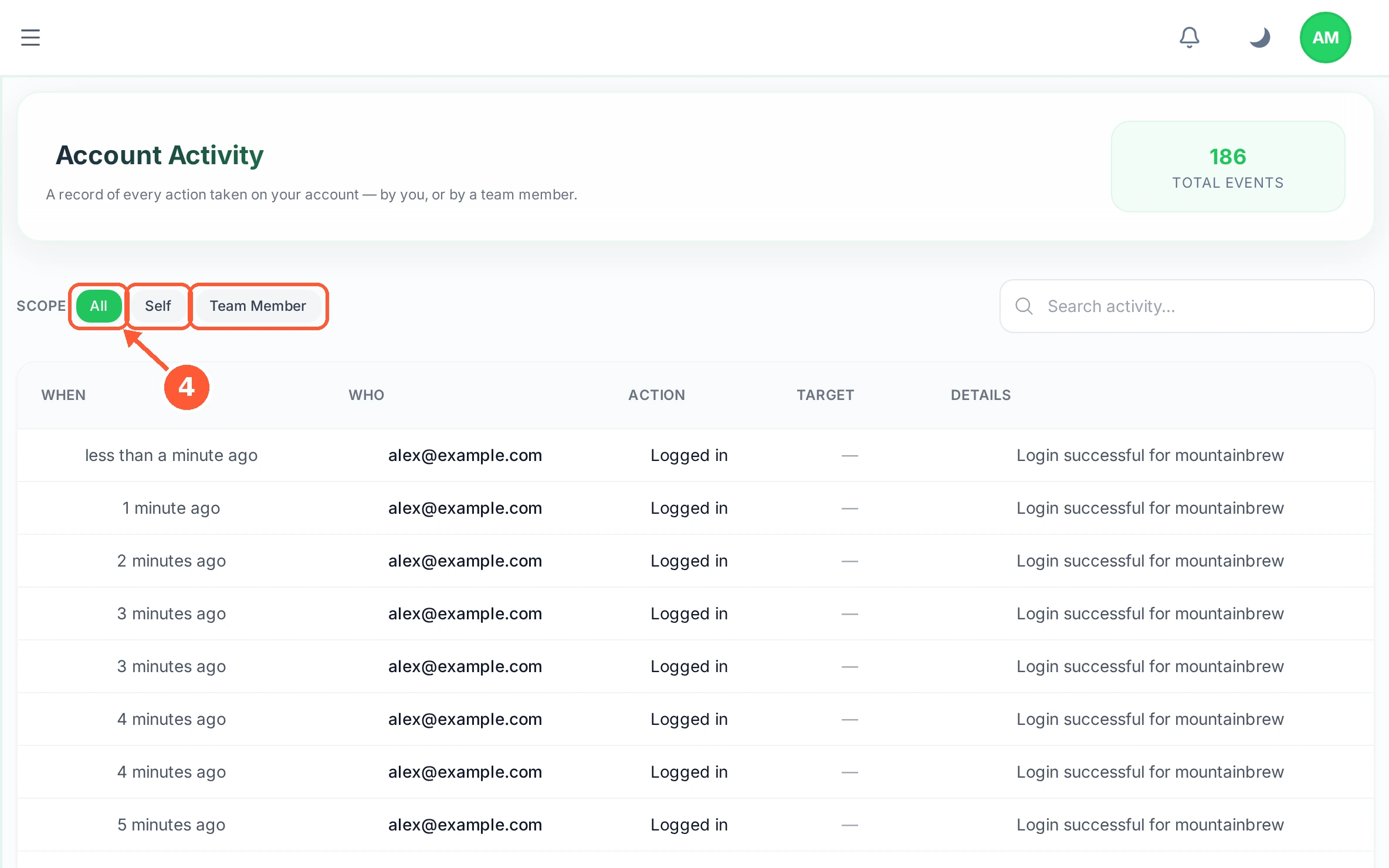
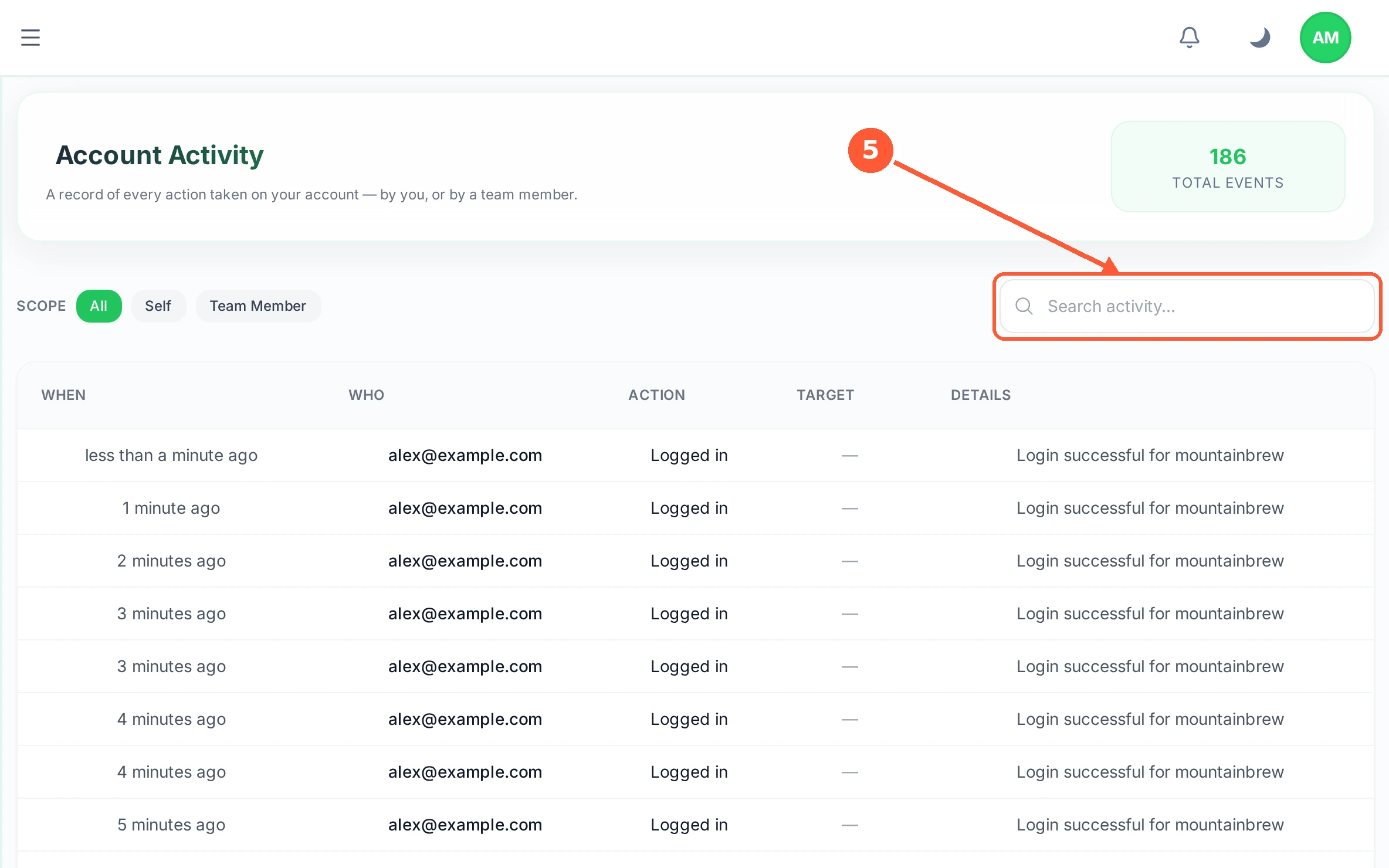
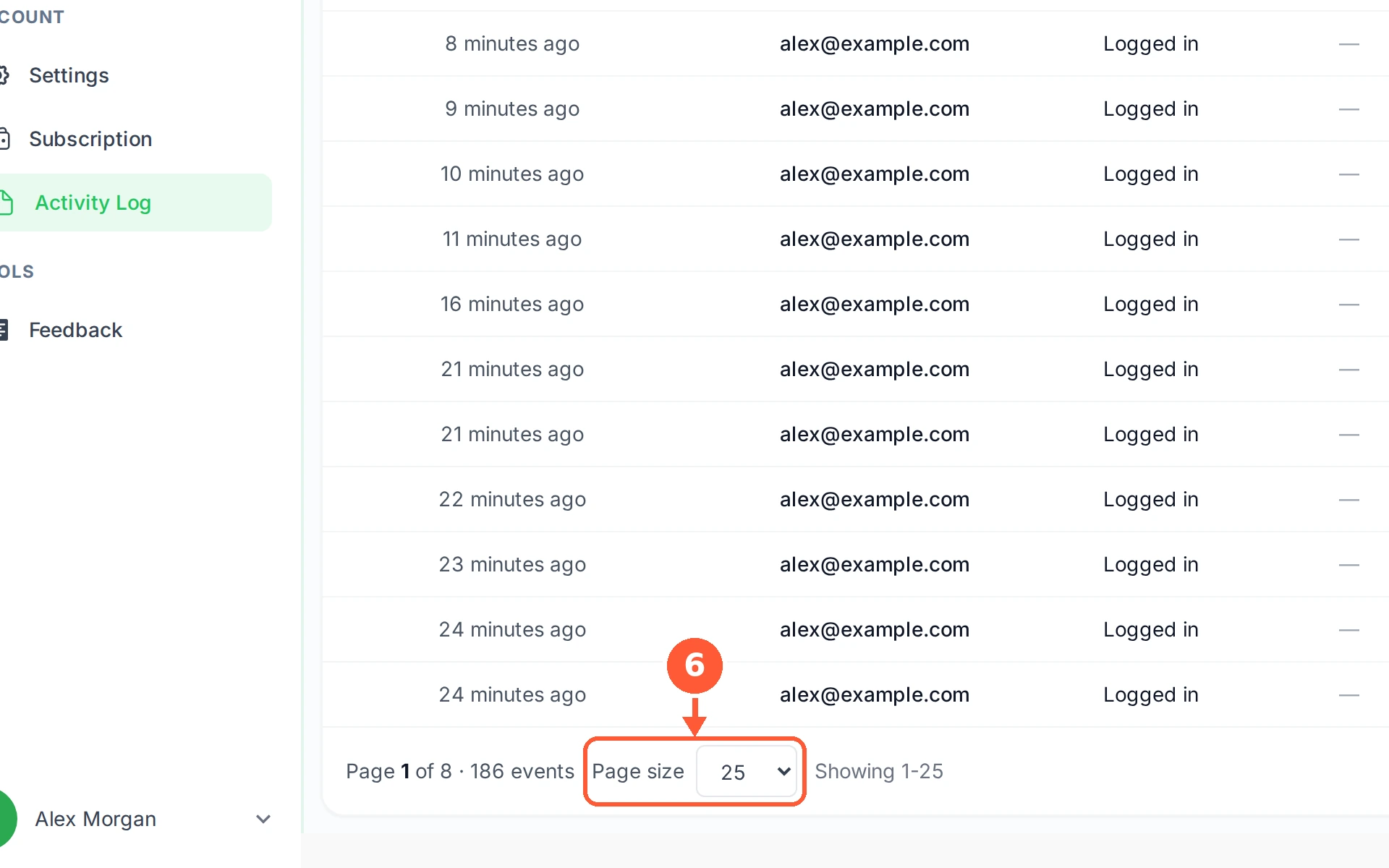
1In the left menu open Activity Log.1 / 6
💡 Good to Know
- The log cannot be edited or deleted by anyone, which is what makes it worth having.
- Searching for a site's address brings back everything anyone did to that site.
- If something disappeared, look for a delete action around the time you last saw it.
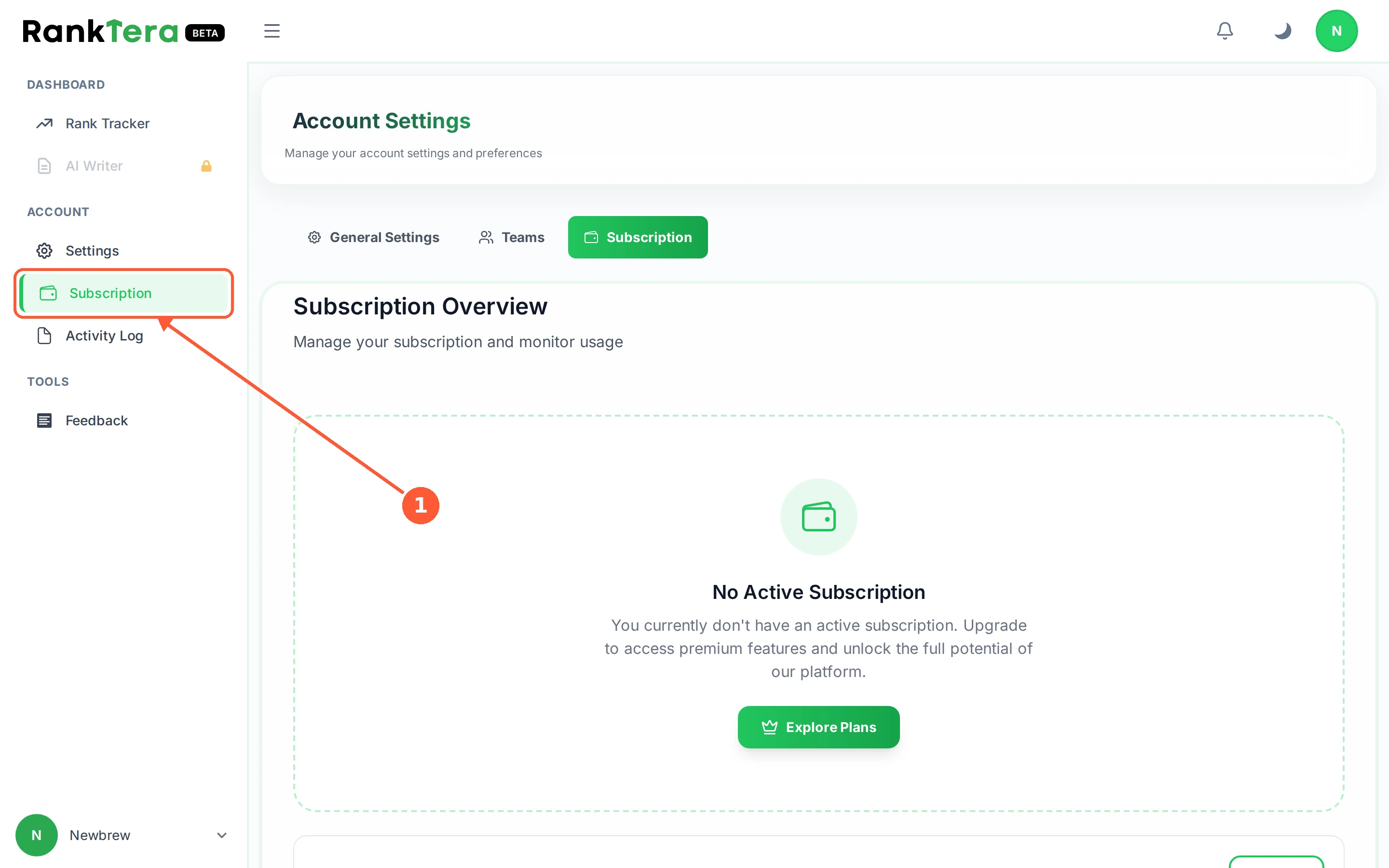
Manage Your Plan and Usage
One screen for what you pay, what you have used, and the card it comes off. It is also where you cancel, if it comes to that.
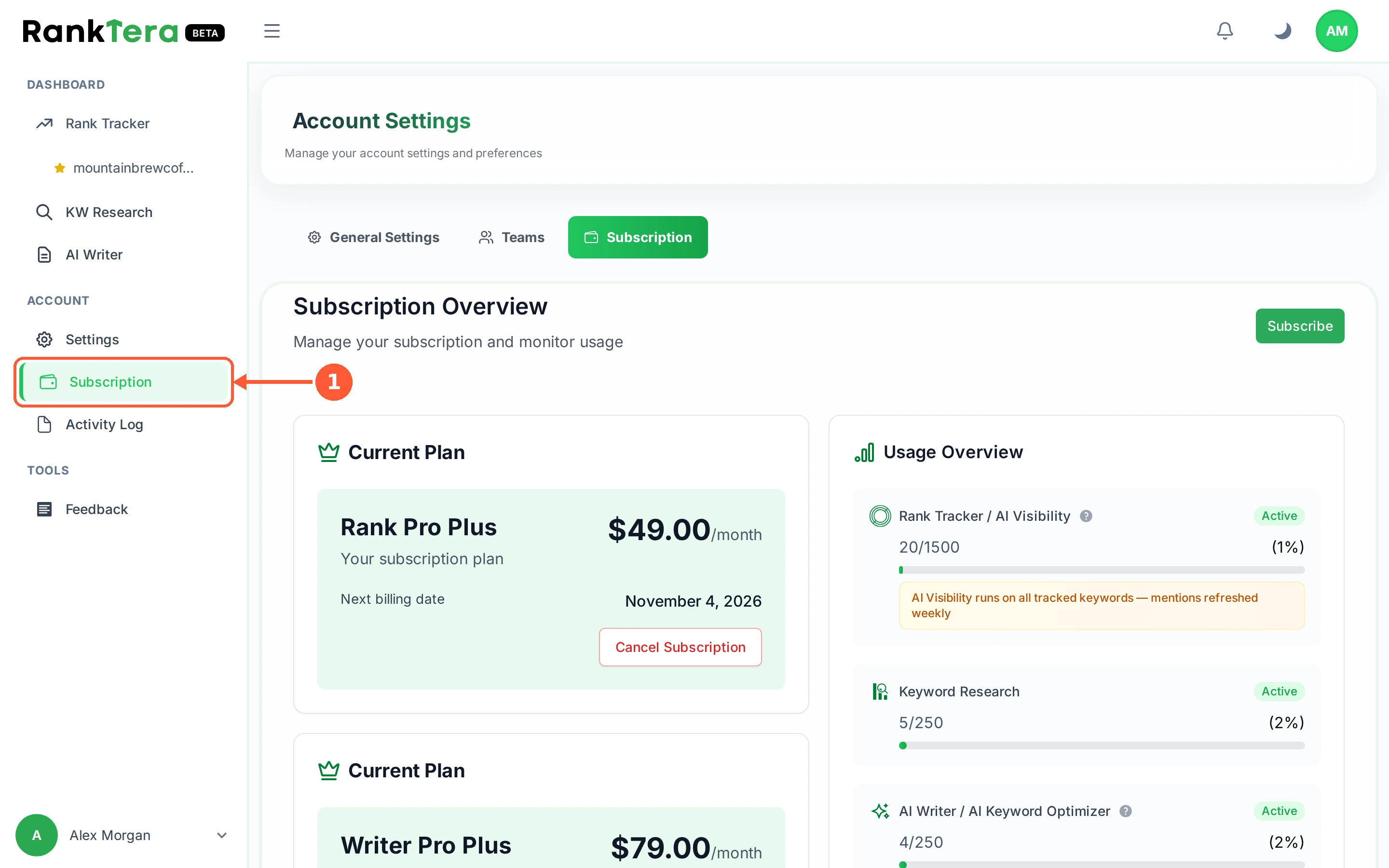
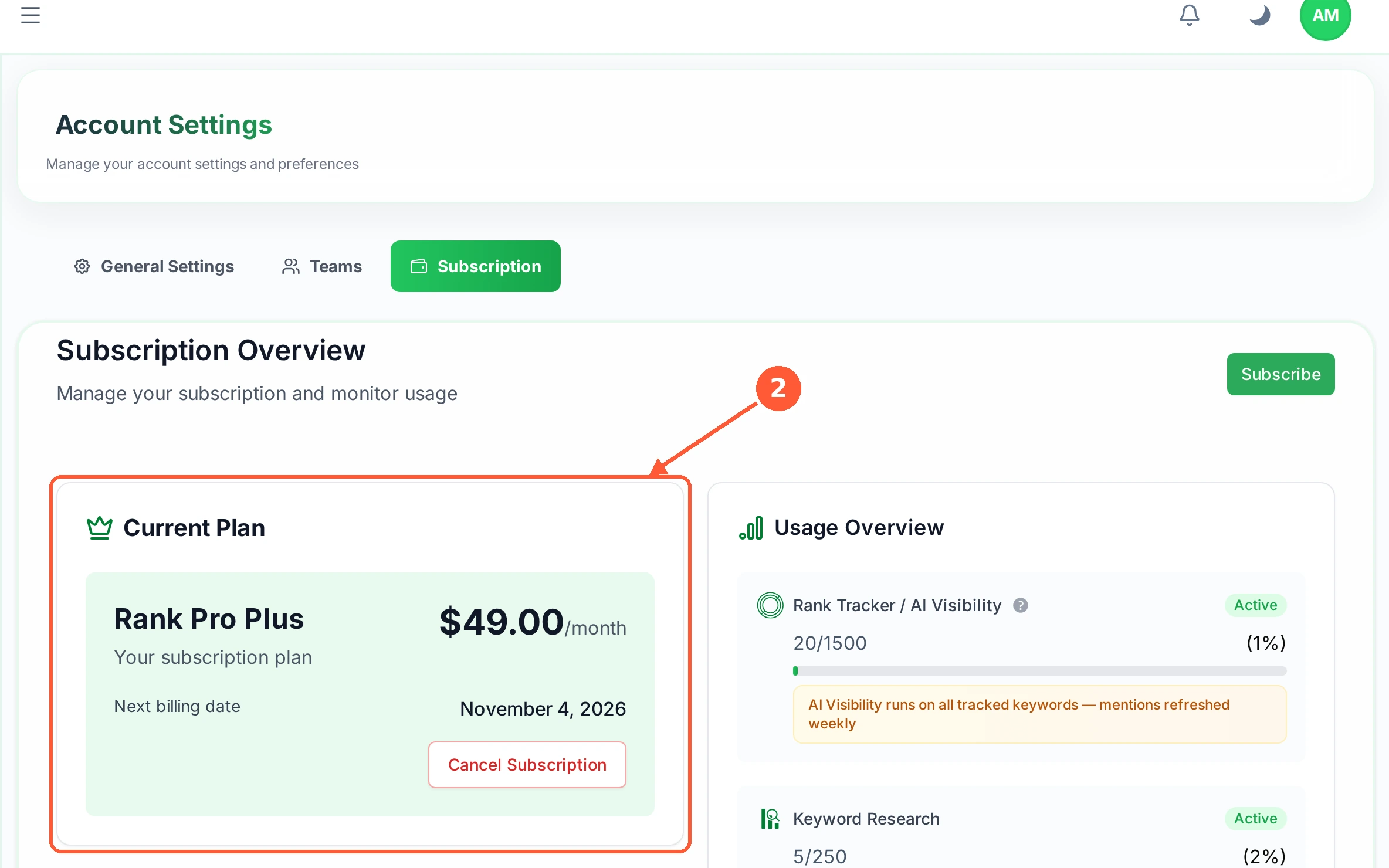
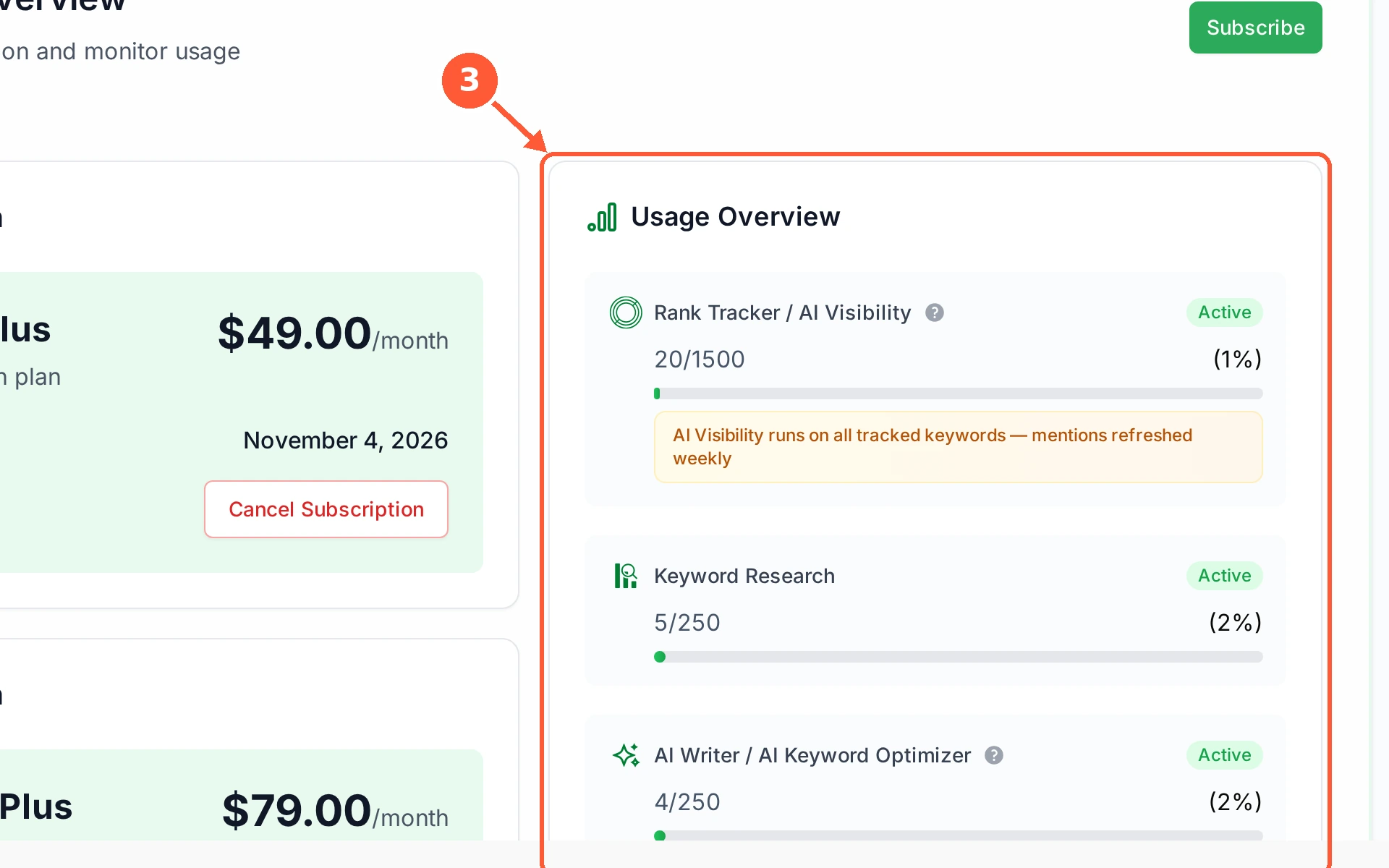
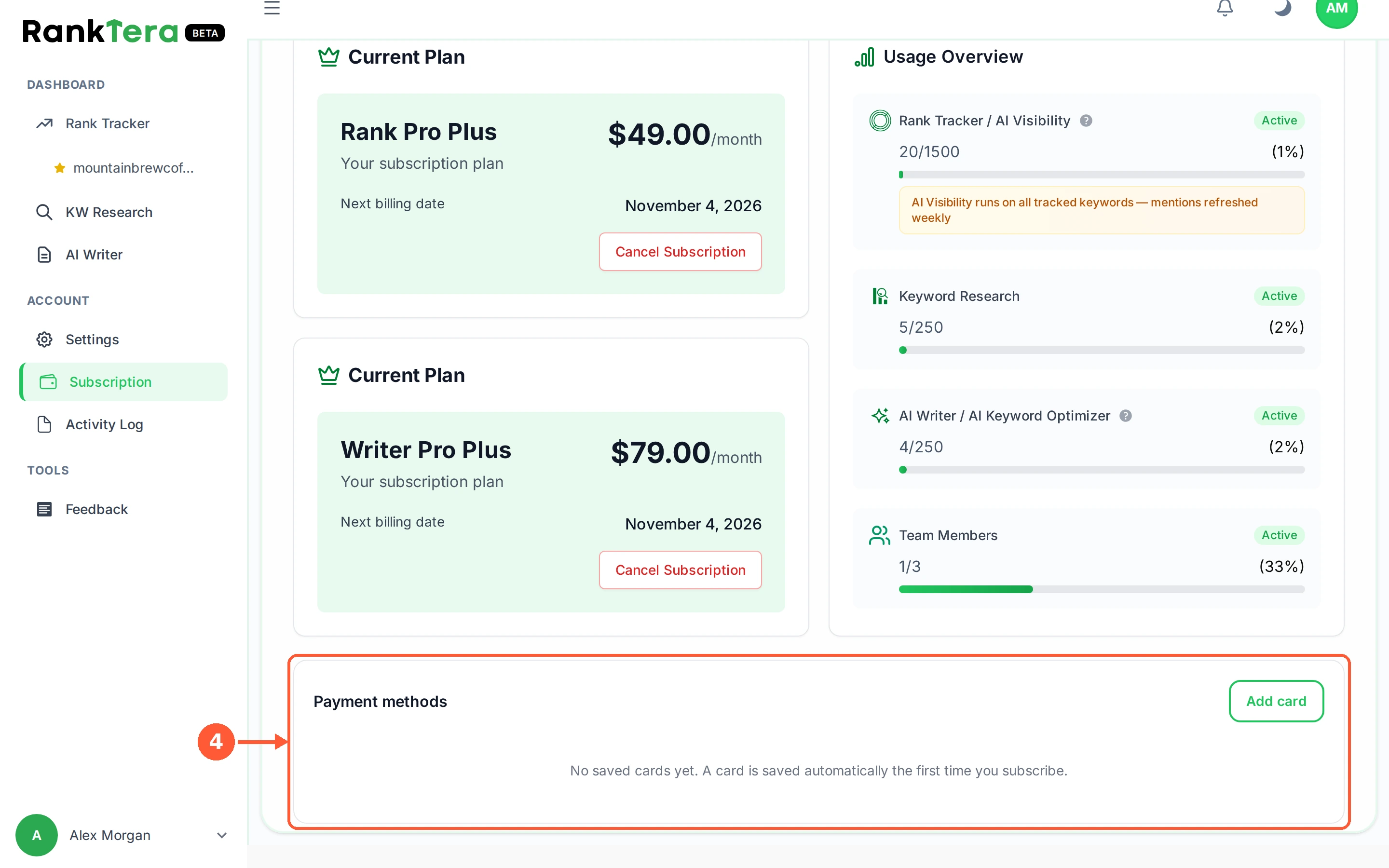
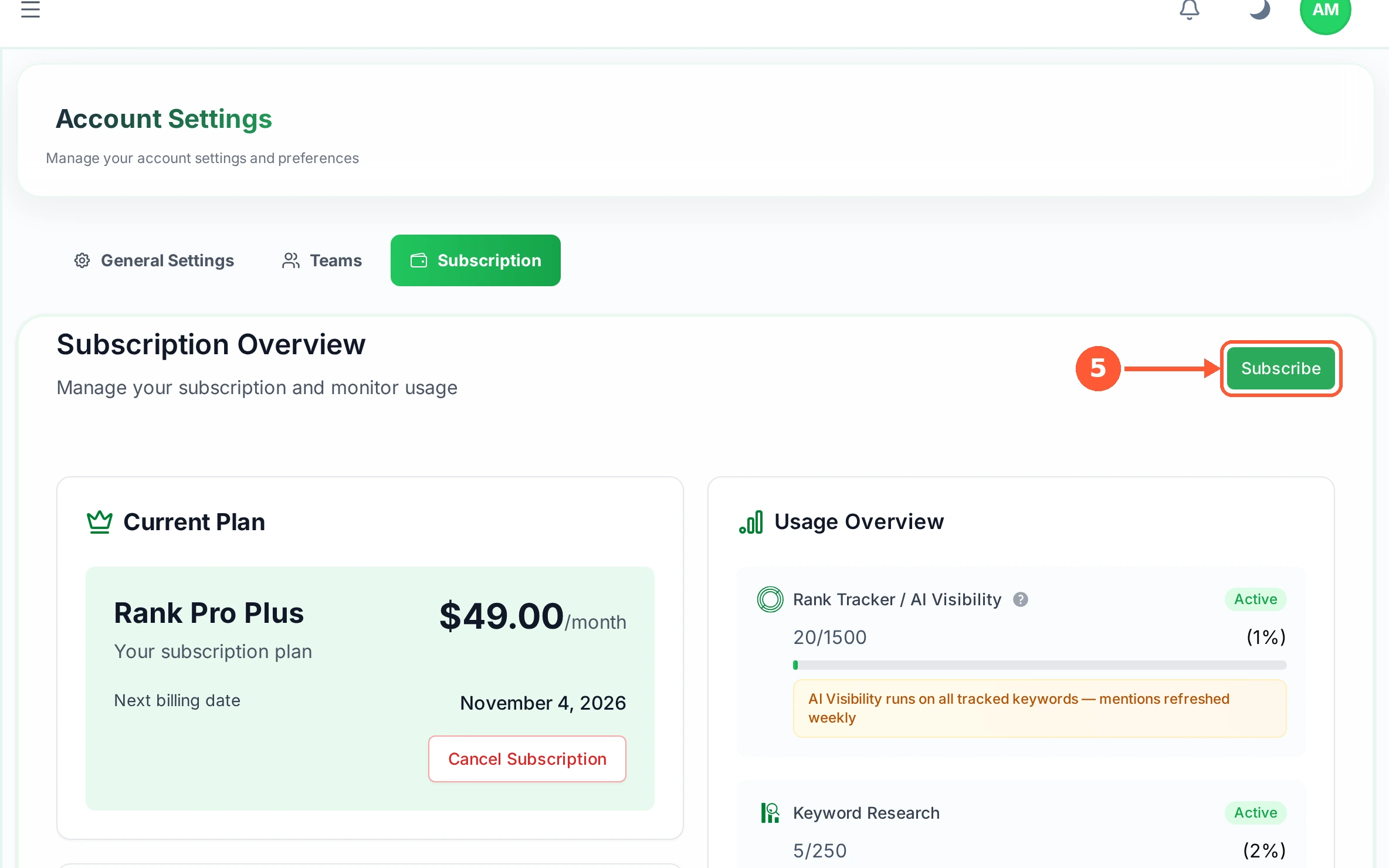
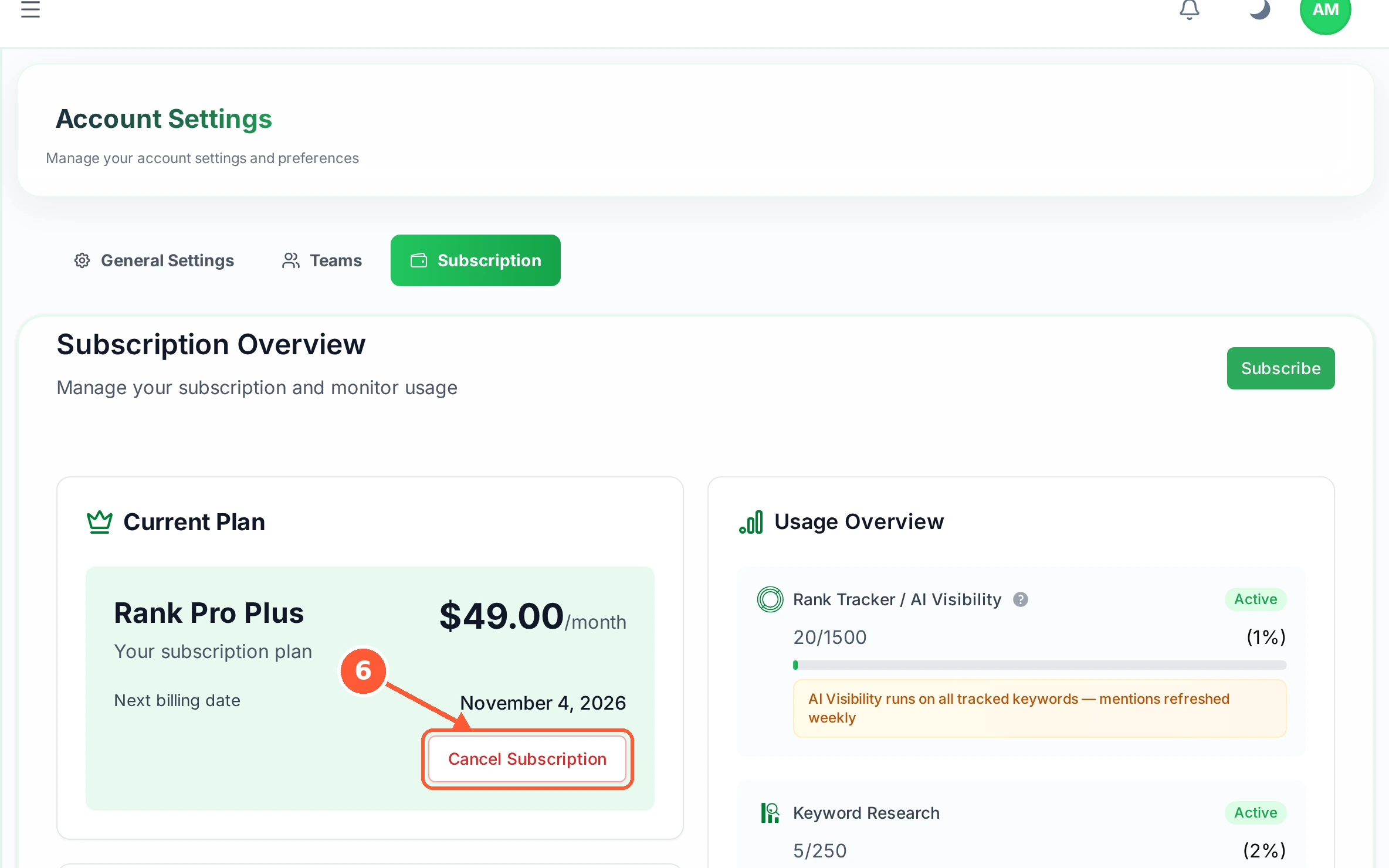
1In the left menu open Subscription, or the Subscription tab inside Settings.1 / 6
💡 Good to Know
- AI visibility is refreshed weekly on every plan, and it runs on all your tracked keywords.
- Rank tracking and the AI Writer are charged as separate plans, so you can hold one without the other.
- Payments appear on your statement under CODERTO, not RankTera.
Upgrade Your Plan
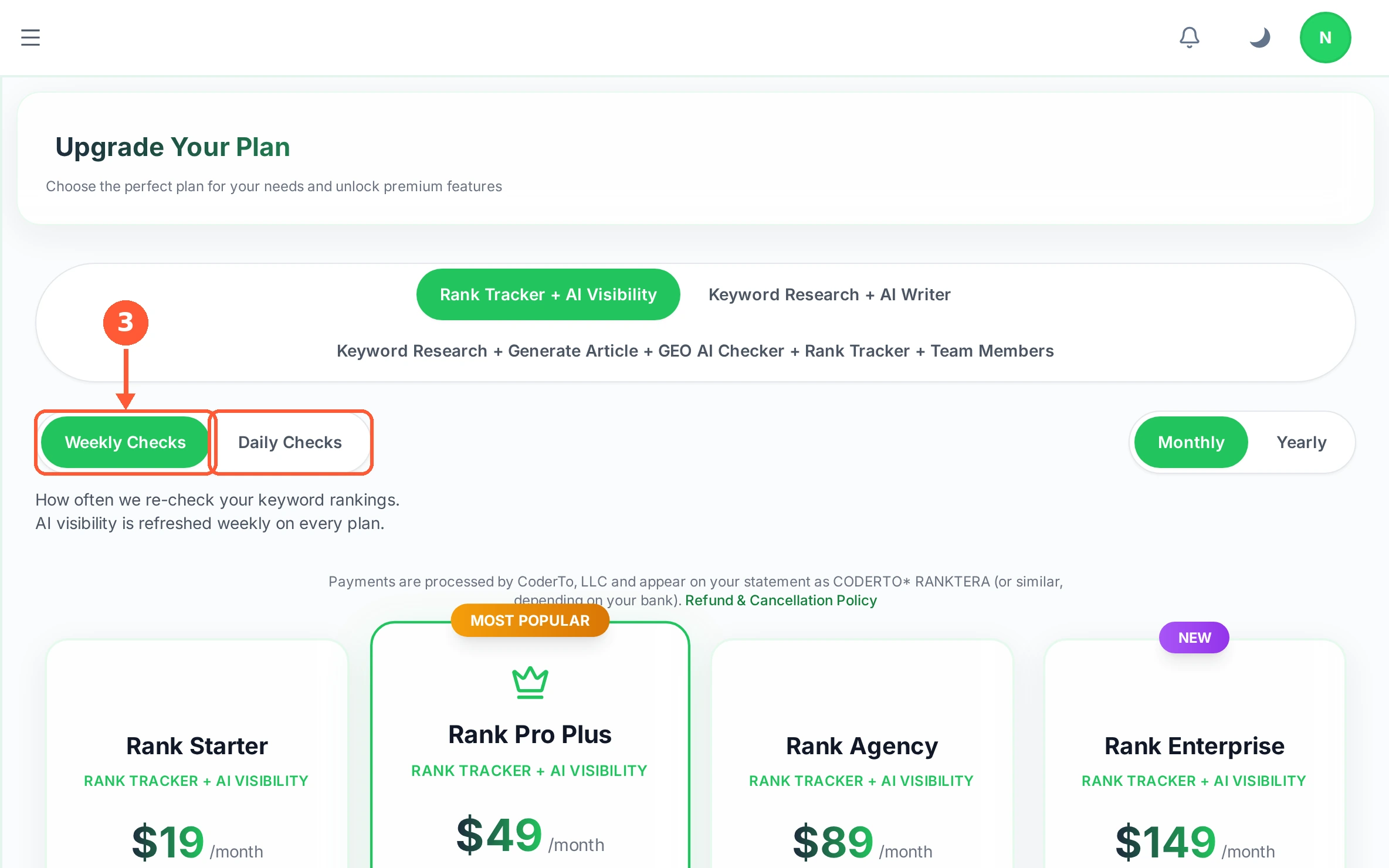
The plan chooser lays out every option side by side. Two switches change what you are looking at before you pick anything.
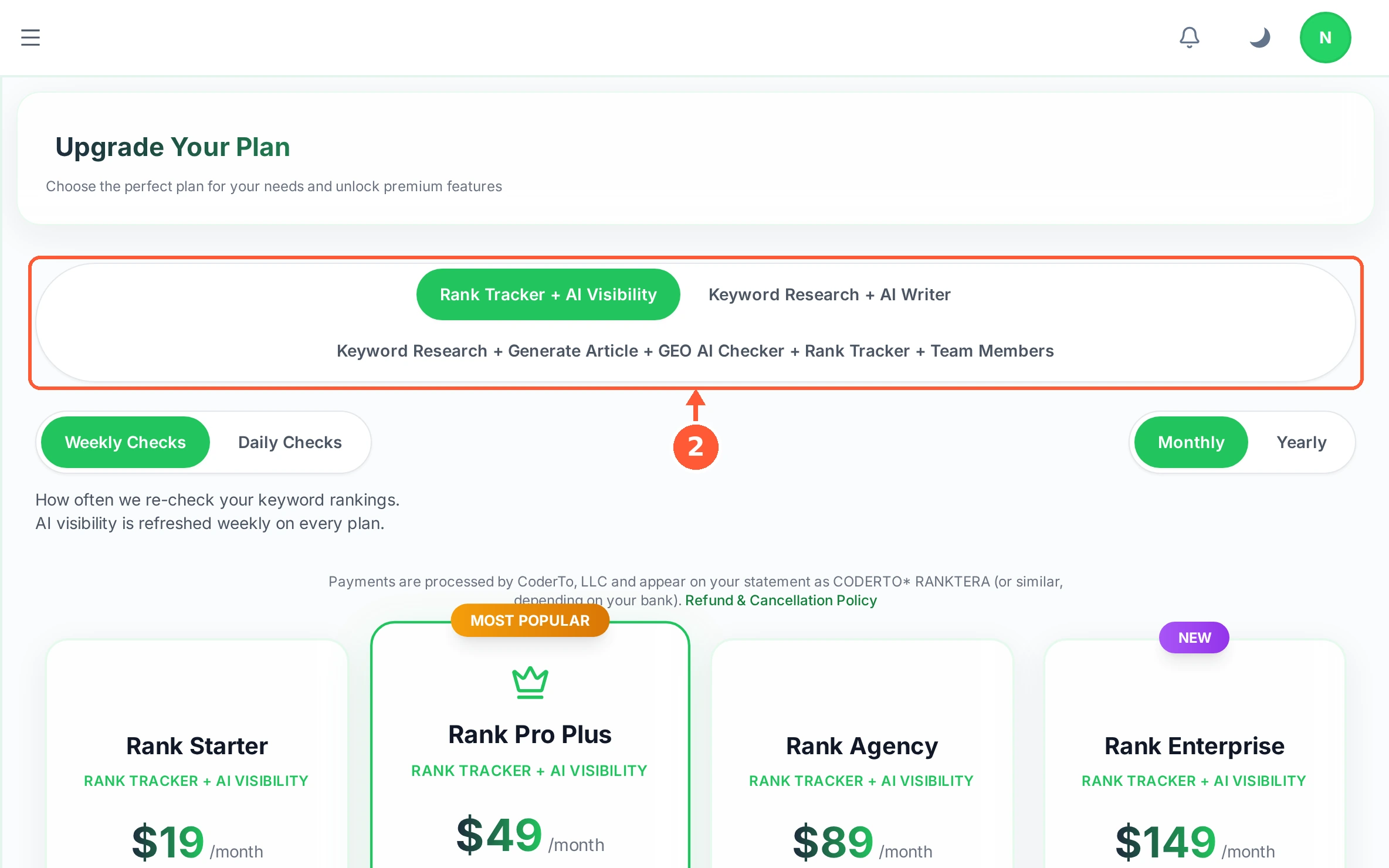
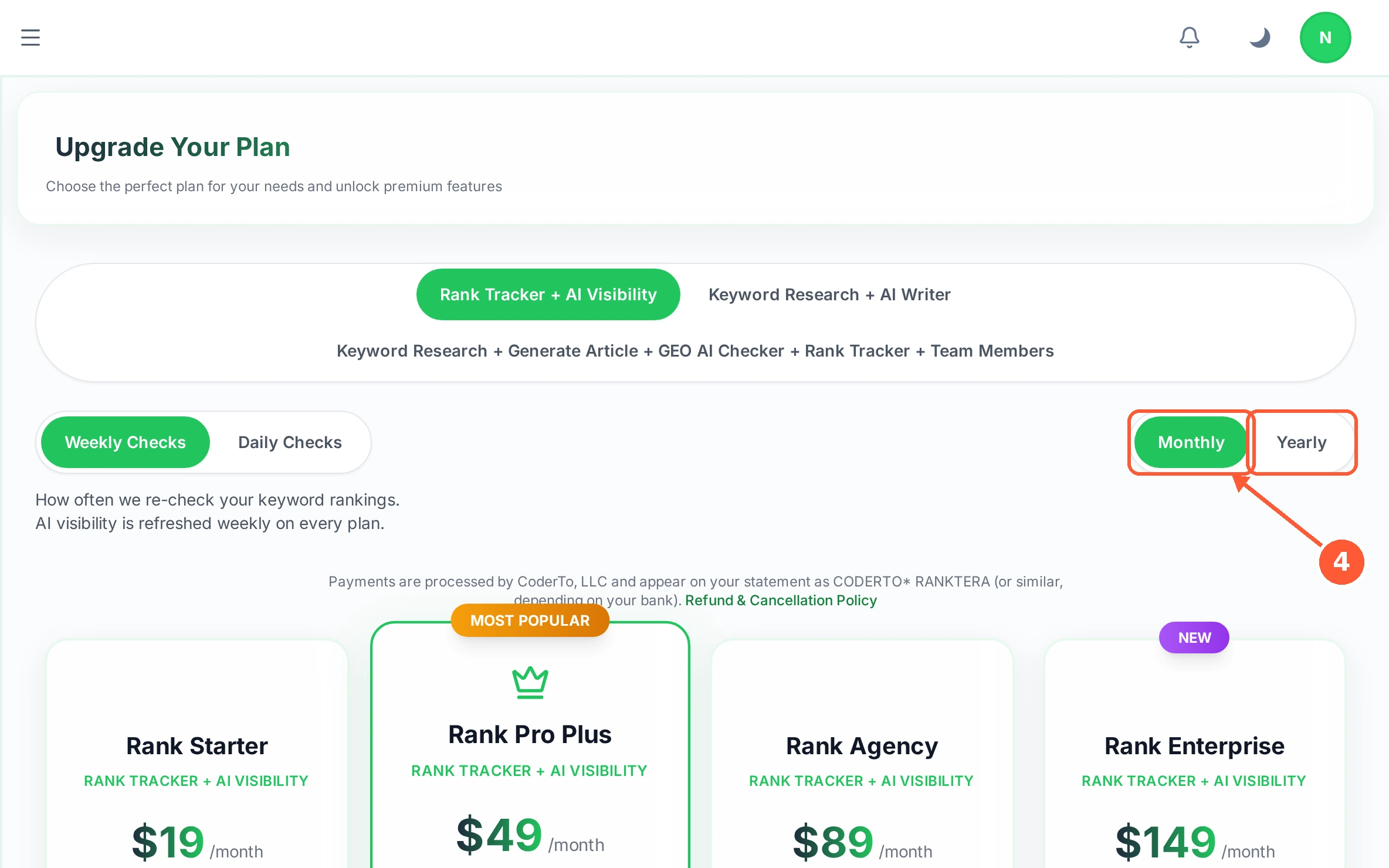
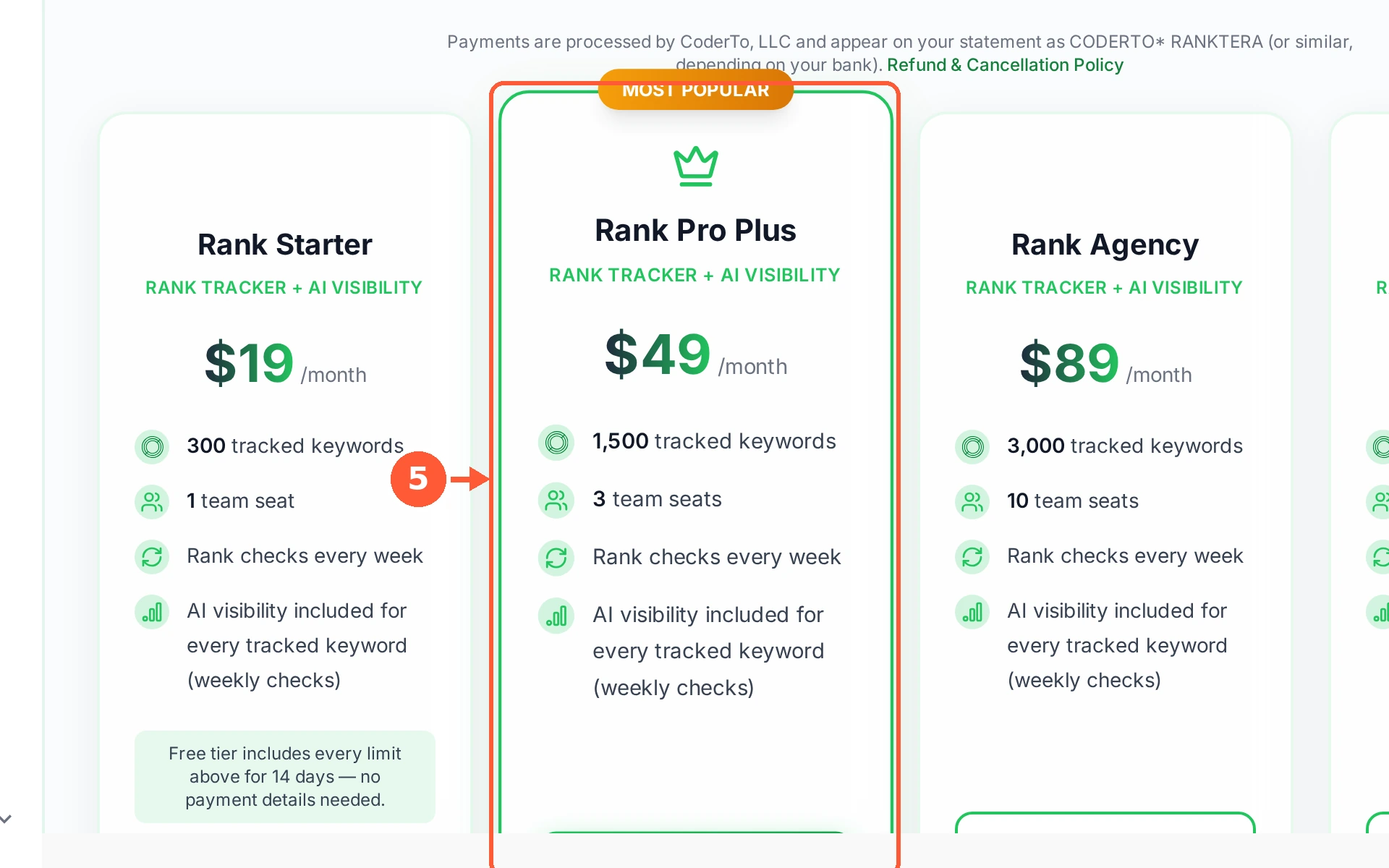
1In the left menu open Subscription, then click Subscribe to open the plan chooser.1 / 5
💡 Good to Know
- AI visibility is refreshed weekly whichever checking speed you pick.
- The cheapest plan in each group includes a 14-day free tier with no payment details needed.
- Daily checks are worth it while you are actively changing a page, and rarely otherwise.
Send Feedback
Found a problem, or want something RankTera does not do yet? The feedback form goes straight to the people who build it.
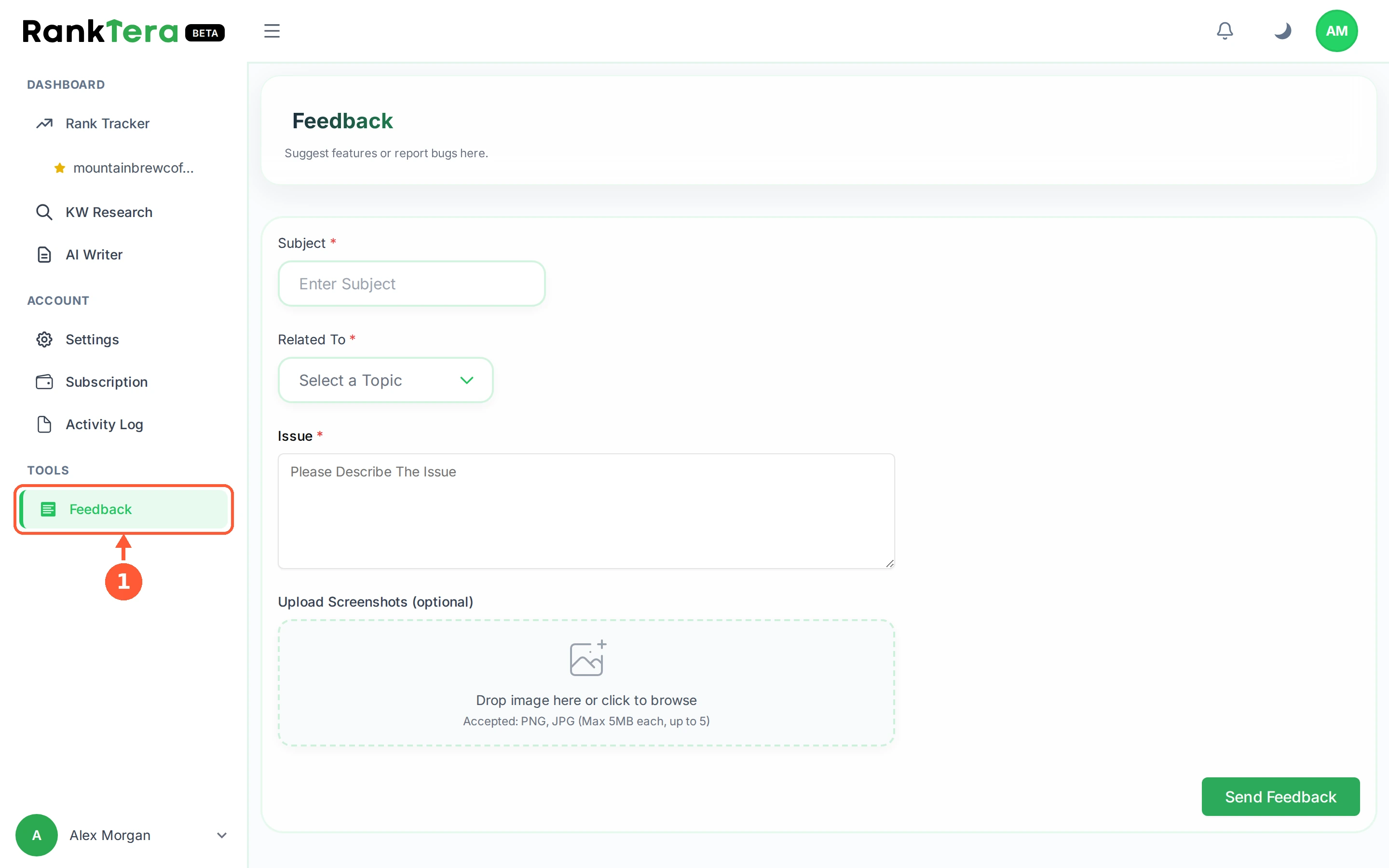
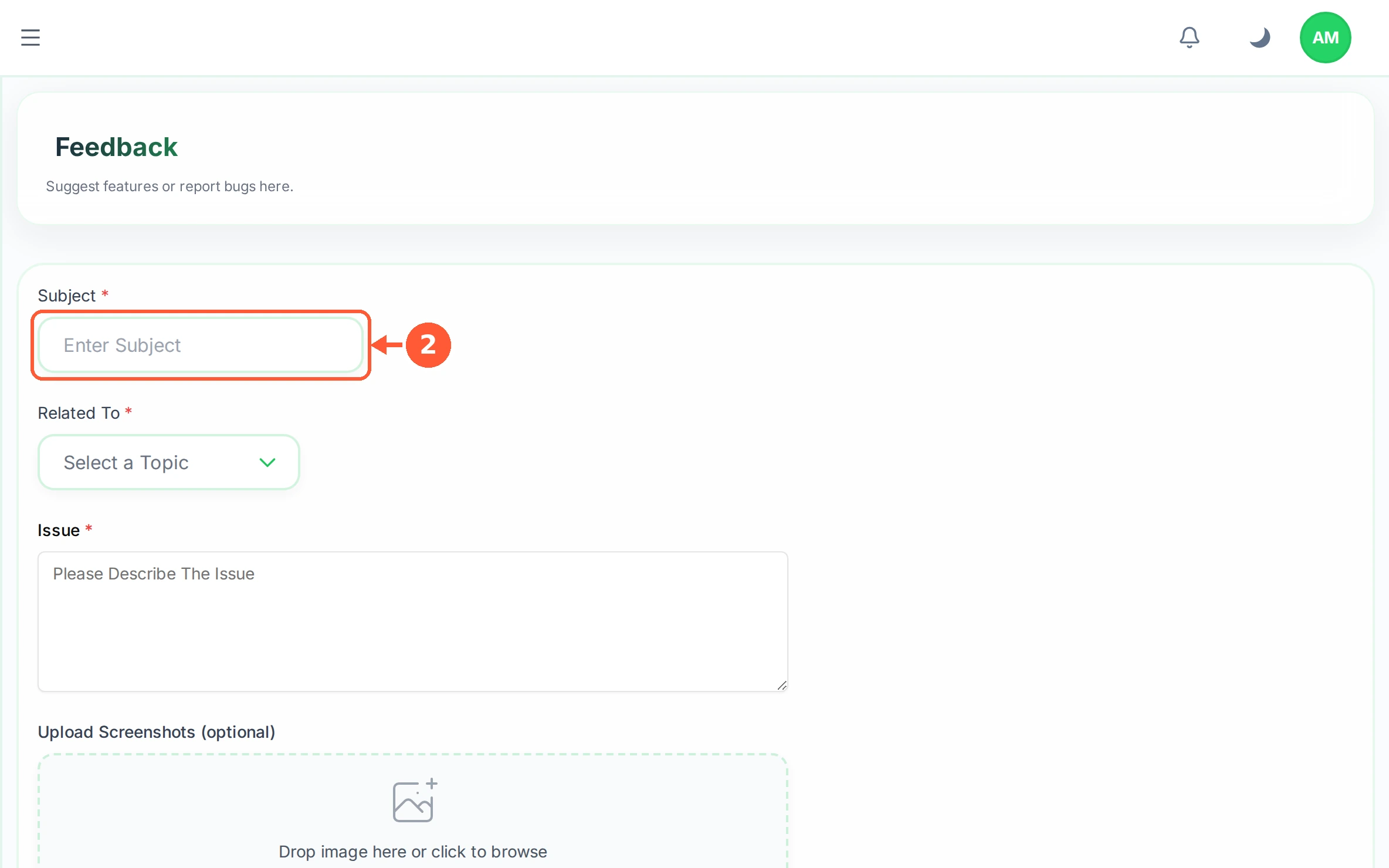
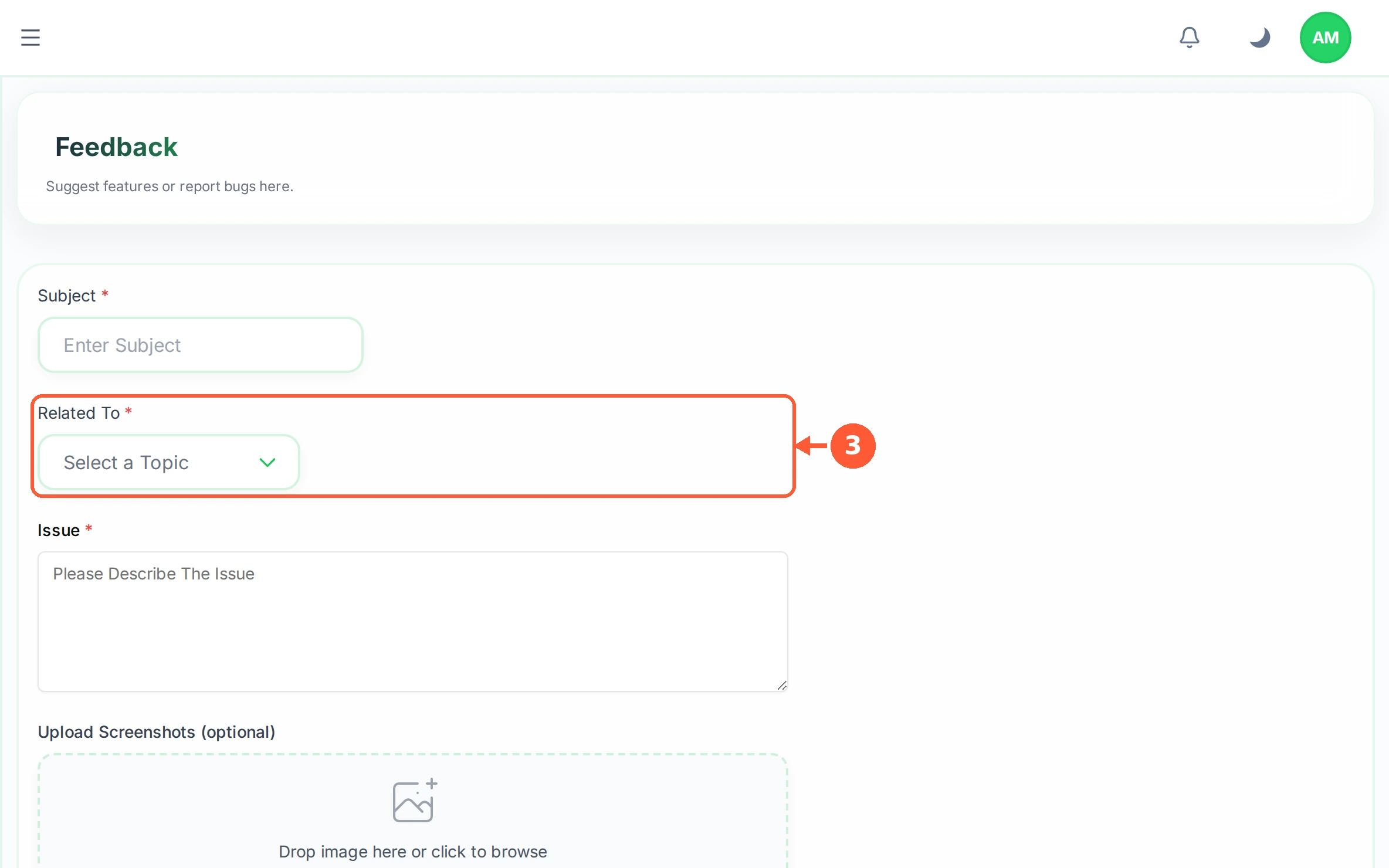
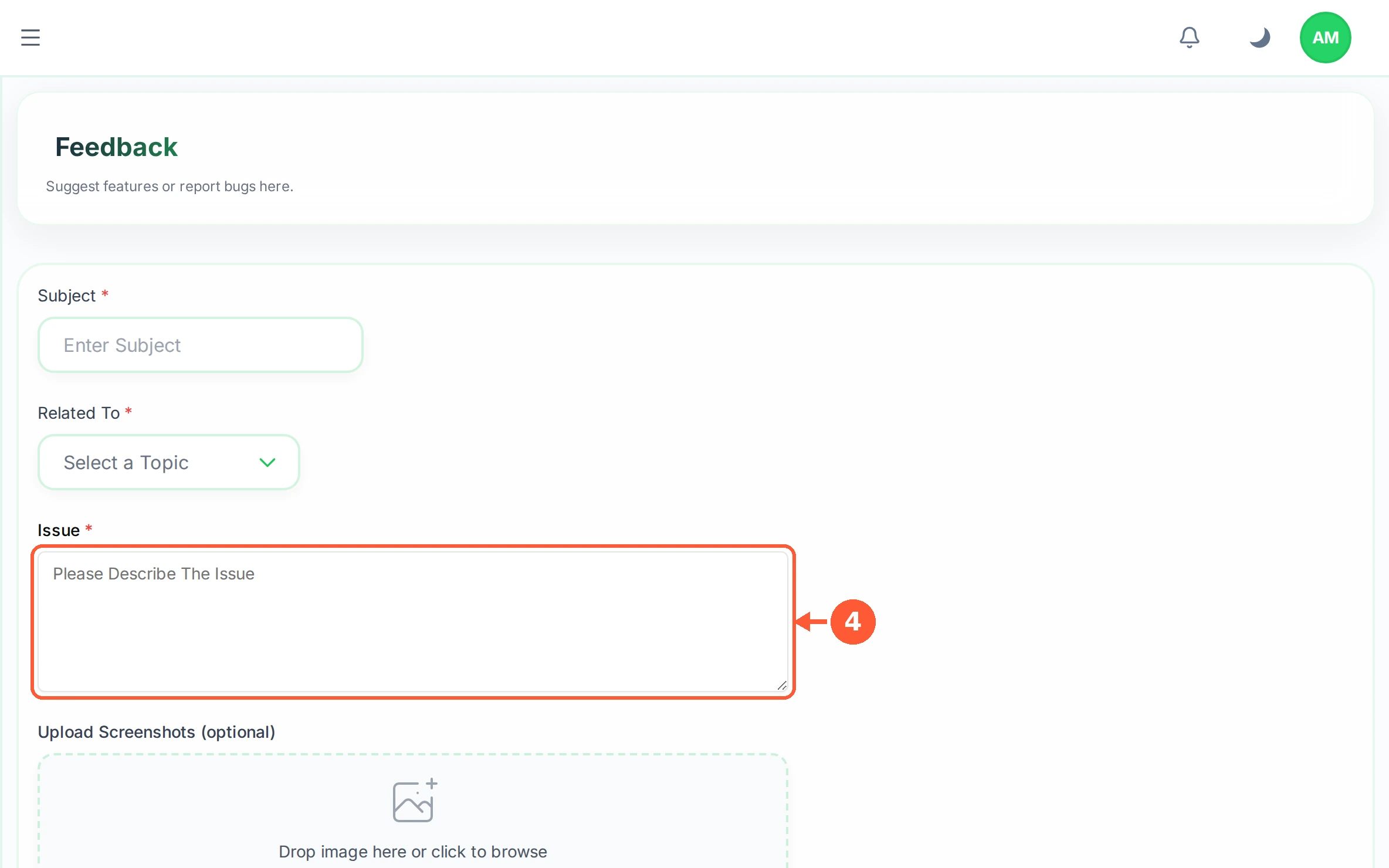
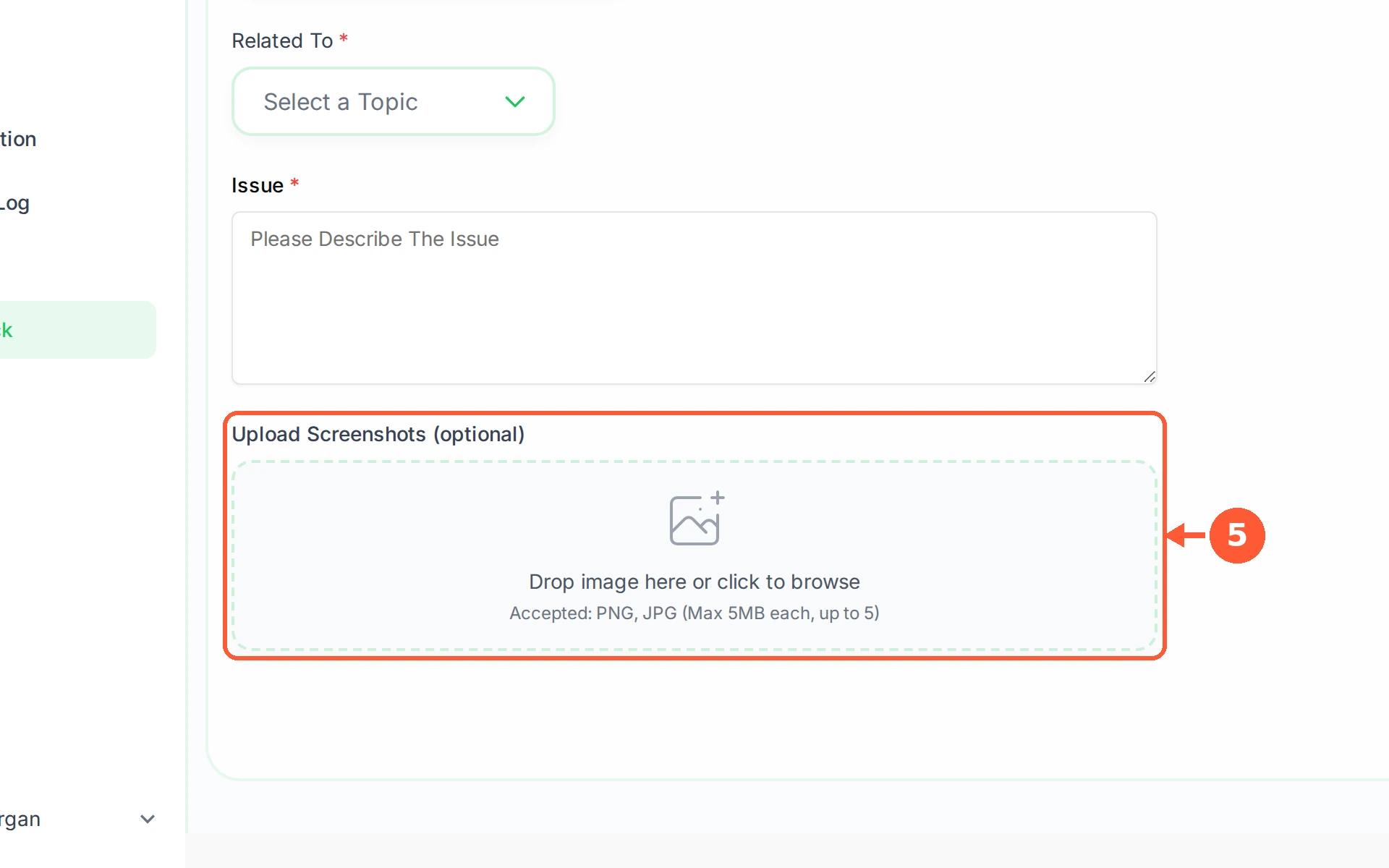
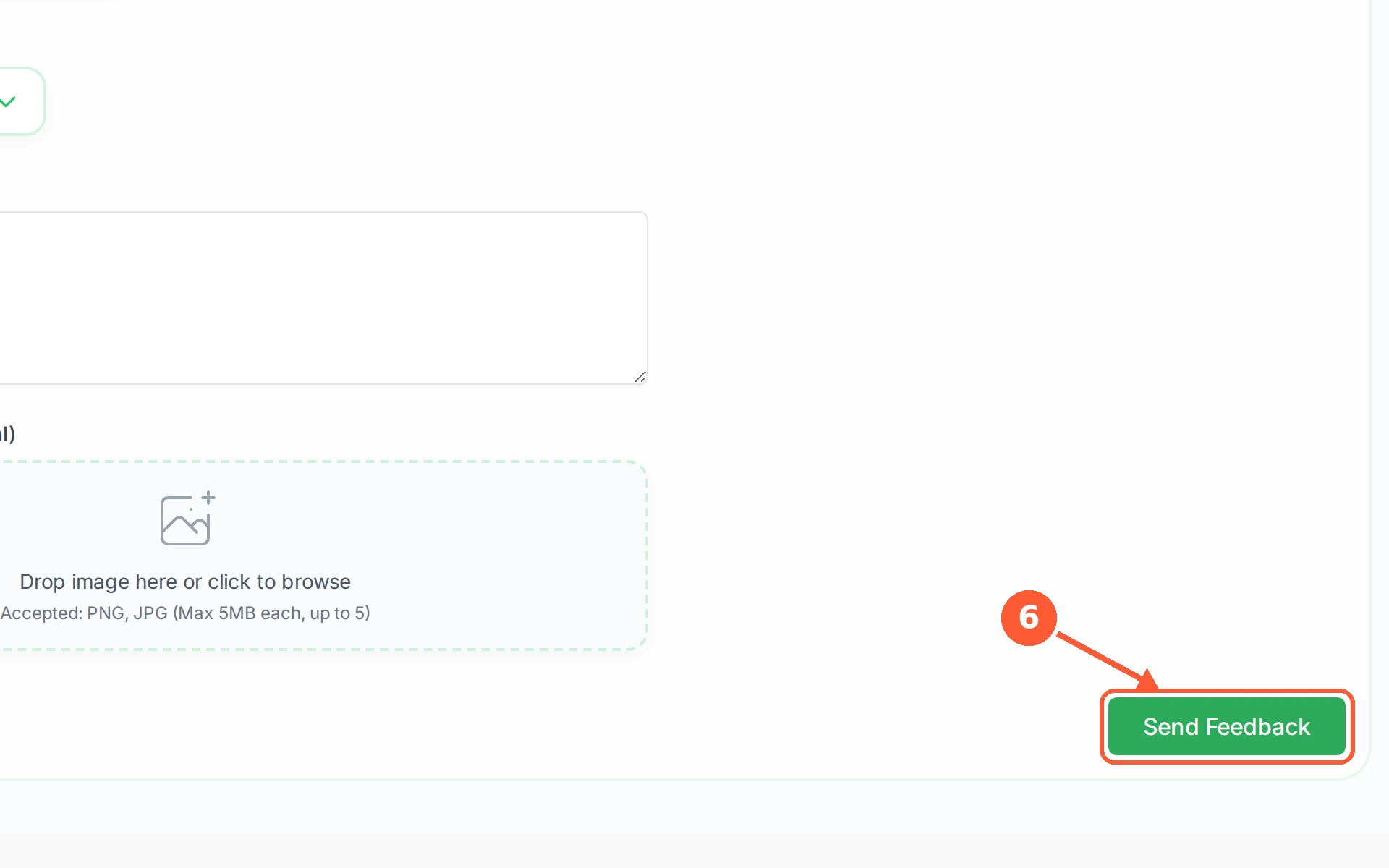
1In the left menu open Feedback.1 / 6
💡 Good to Know
- A screenshot of the screen as it looked saves a lot of back and forth.
- One report per problem travels better than several problems in one.
- Include the keyword or the site address involved, so it can be looked at directly.
Sign In and Reset Your Password
Getting back in, and what to do when the password has gone. Both routes take under a minute.
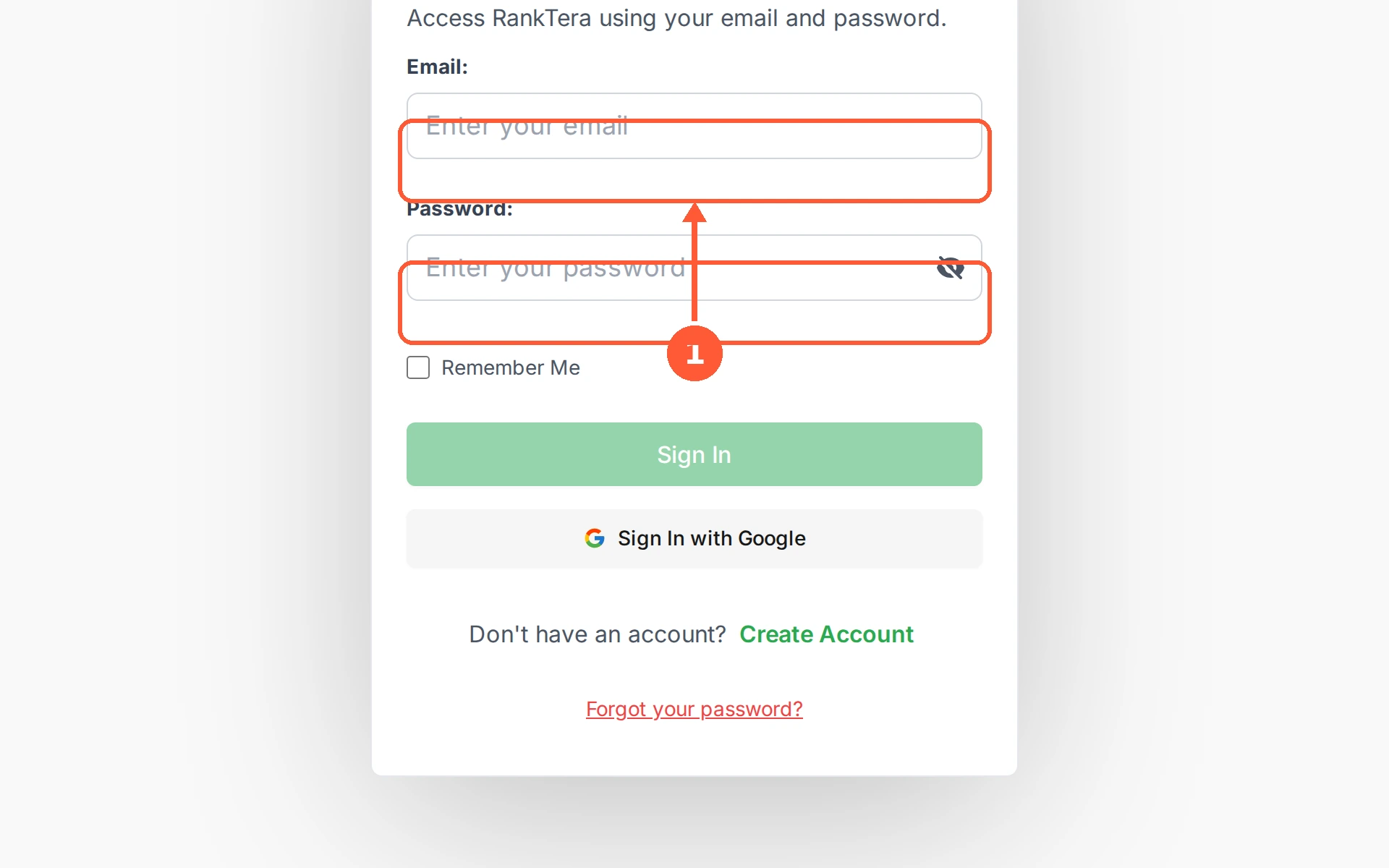
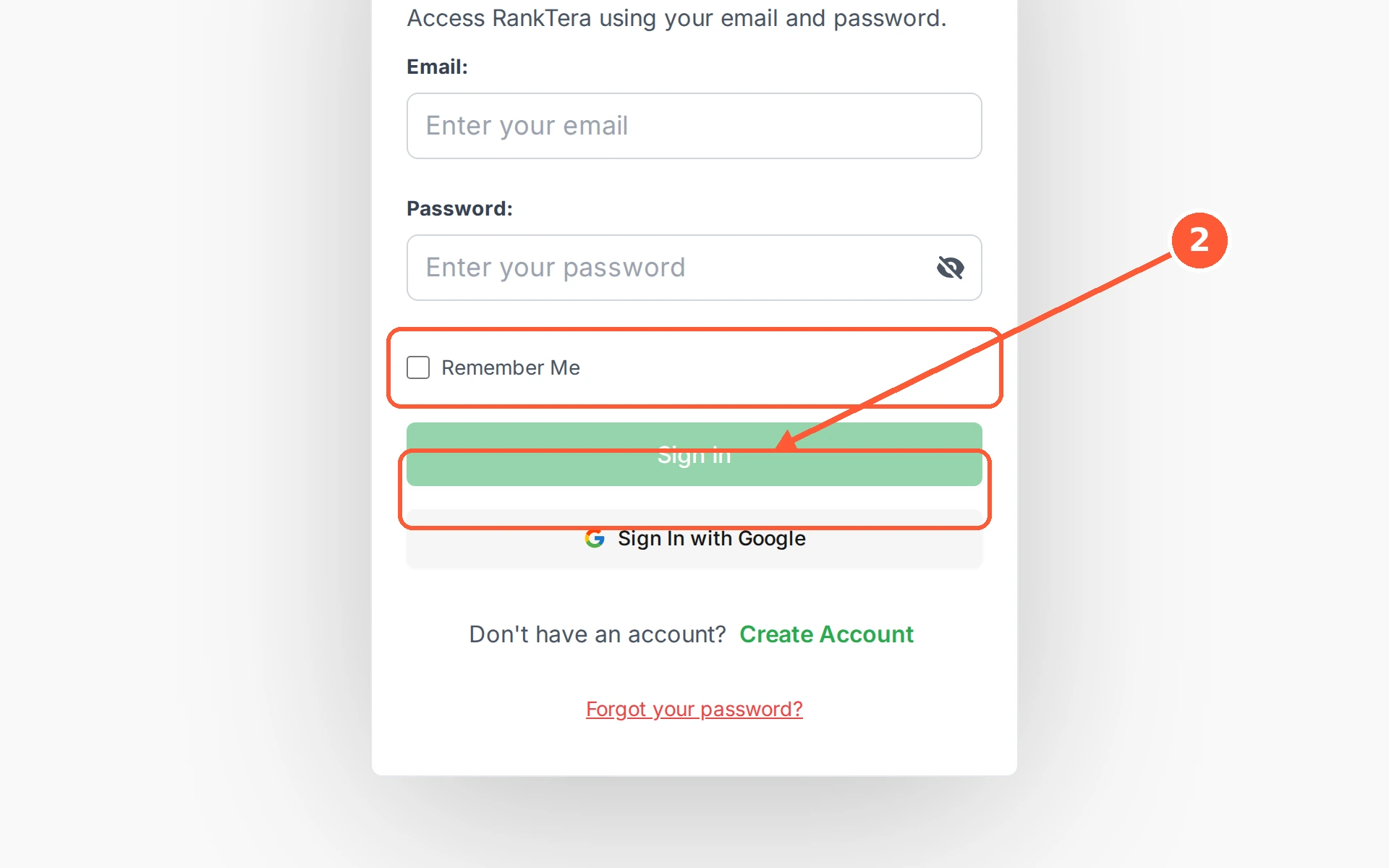
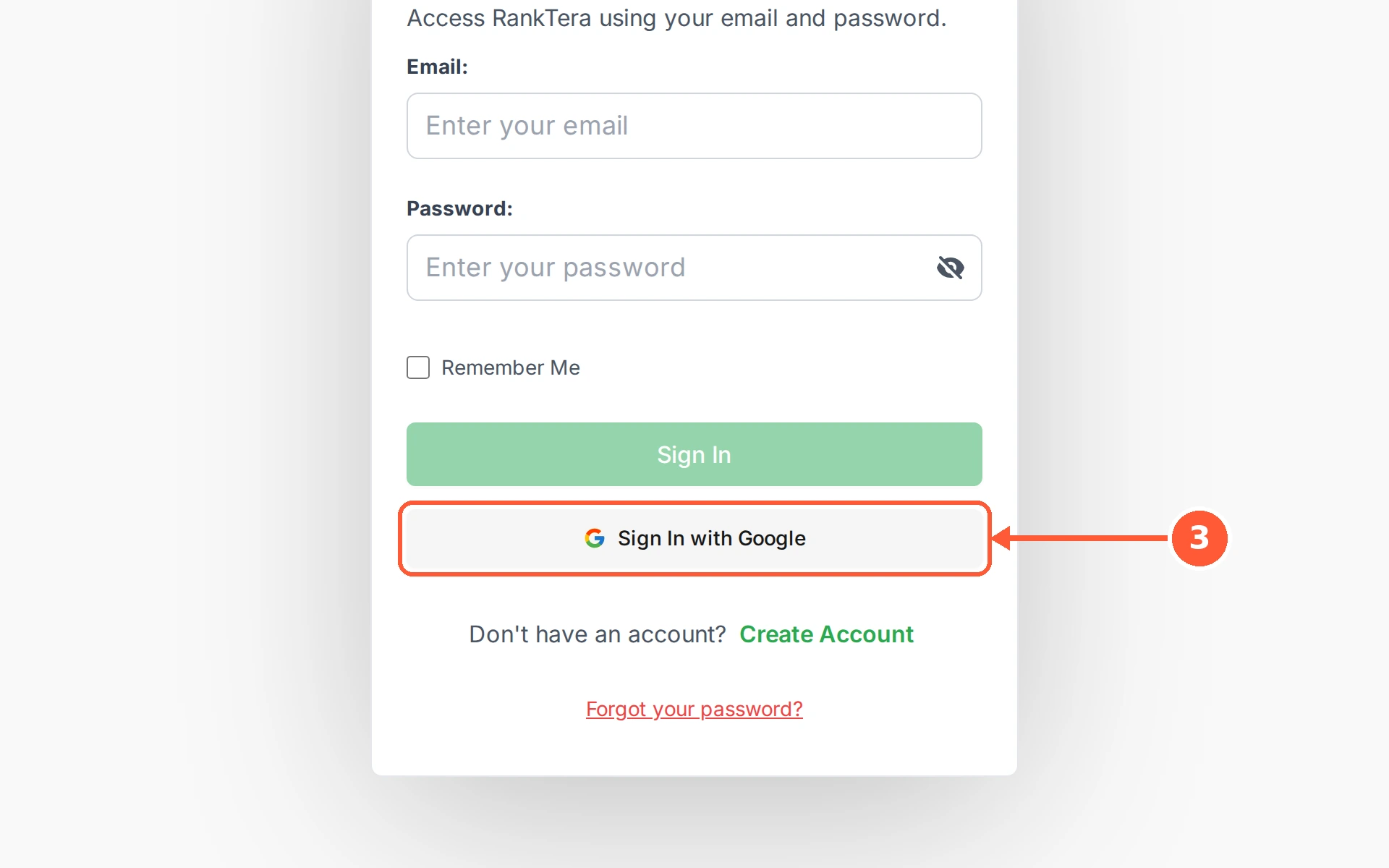
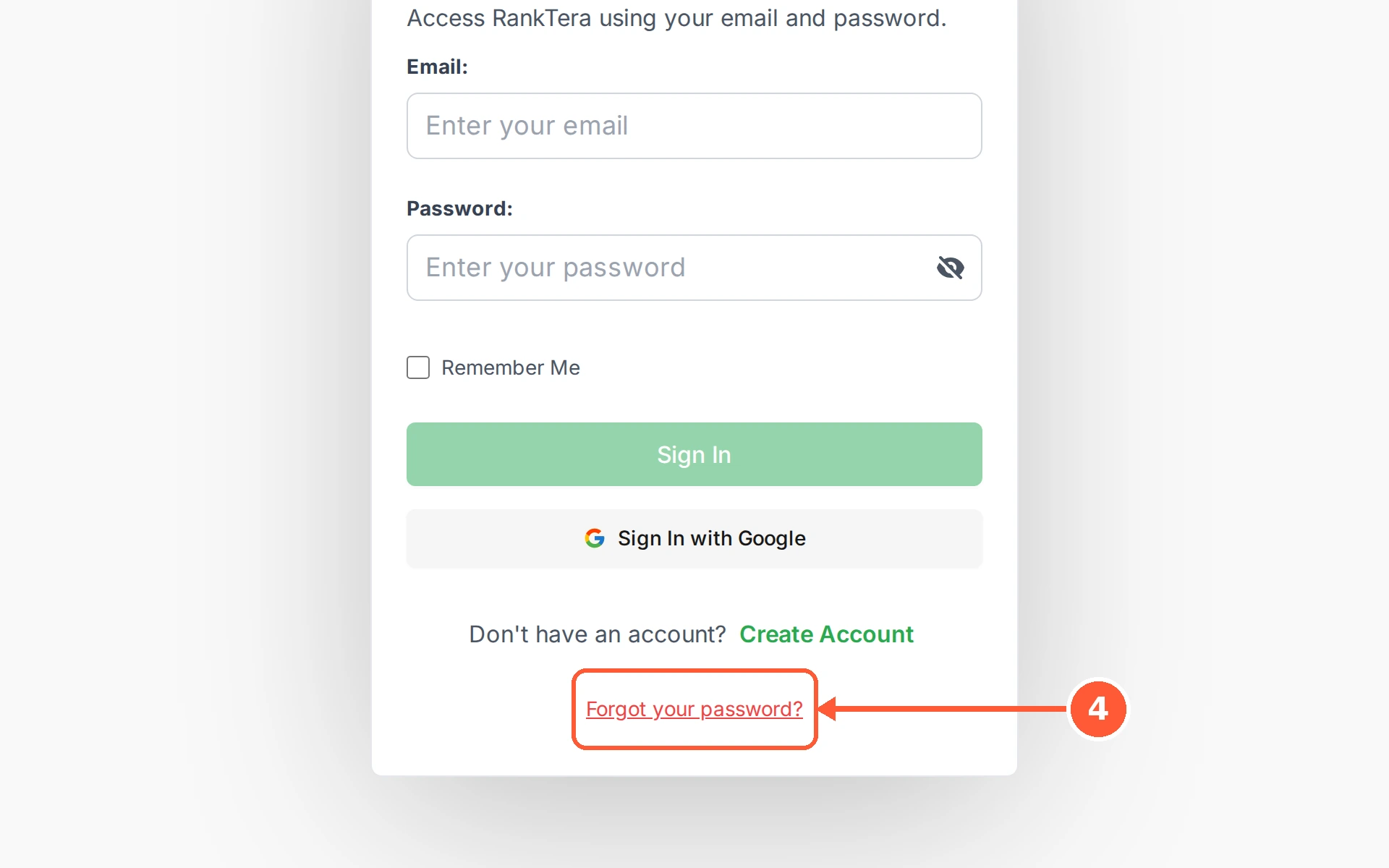
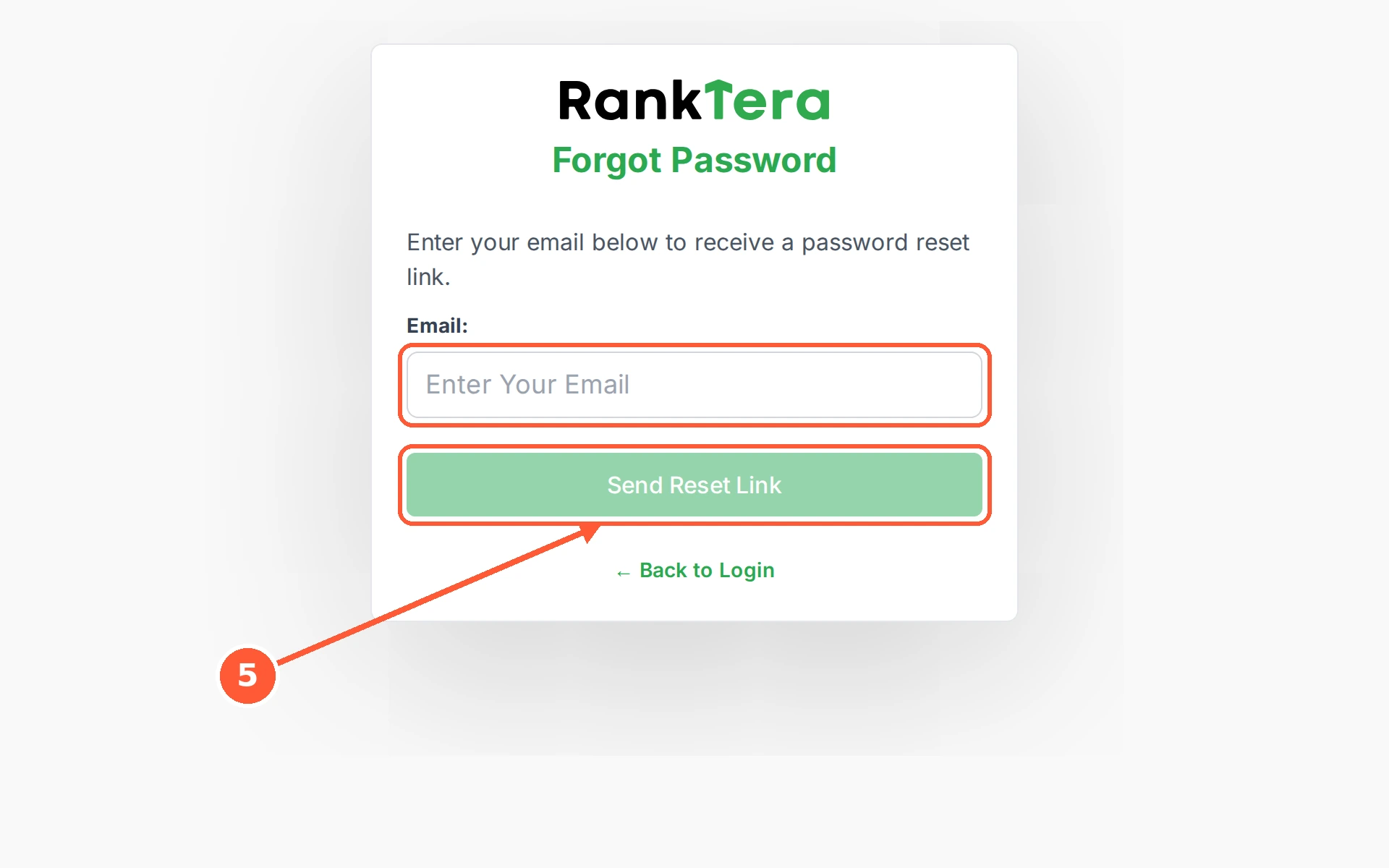
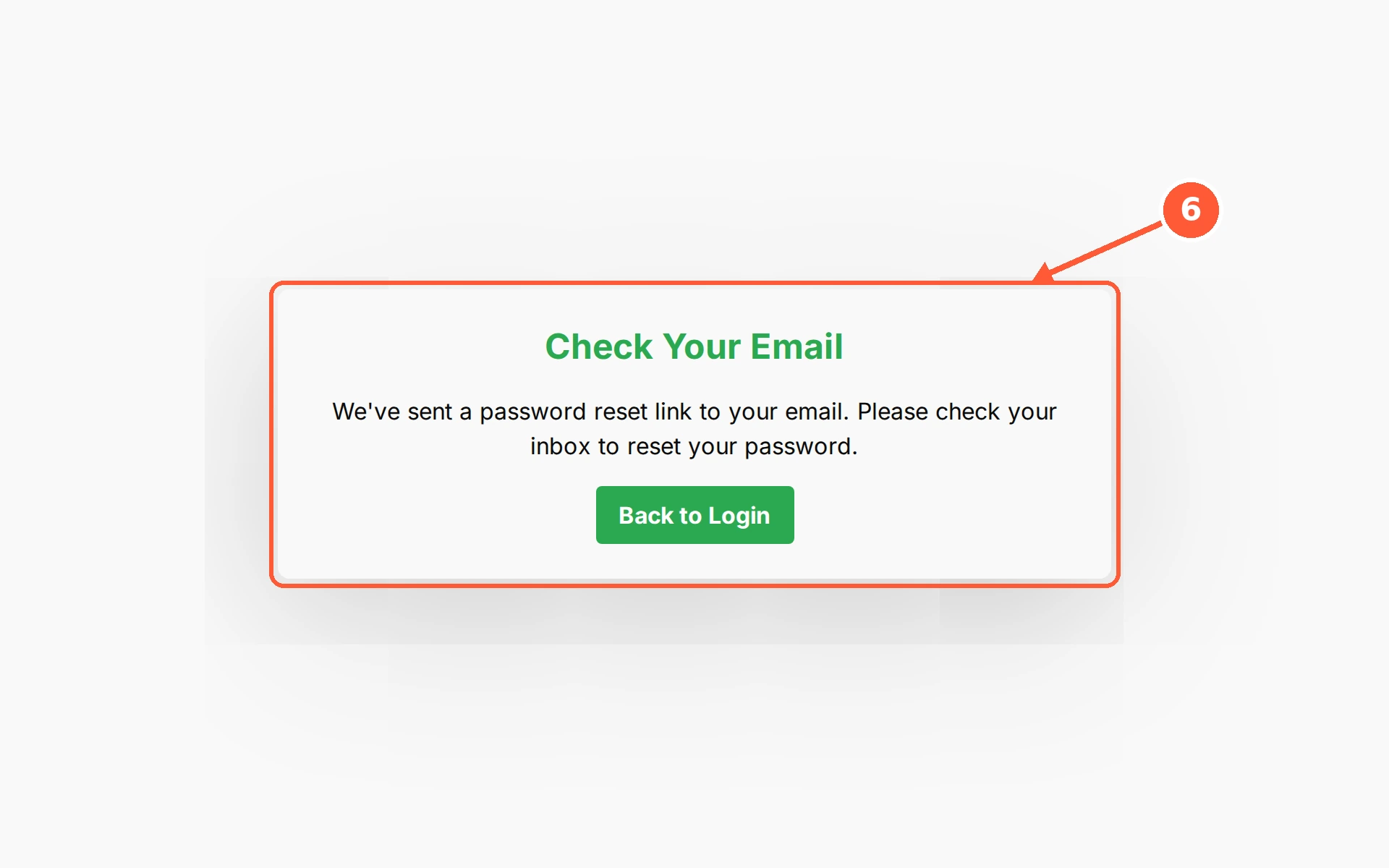
1Open the sign-in page and enter the Email and Password you signed up with.1 / 6
💡 Good to Know
- The reset email goes only to an address that already has an account, so nothing arrives if you mistype it.
- Remember Me is per device. Leave it off on a shared computer.
- Still locked out? Send a note through the feedback form on ranktera.com.